
Are you looking to give your WordPress site a fresh, modern look without starting from scratch? Adding a core theme to your existing site might just be the perfect solution for you.
Imagine being able to transform your website’s appearance while keeping all your hard work intact. Sounds appealing, right? This guide will walk you through the process, step-by-step, ensuring that you can effortlessly integrate a new core theme without losing any of your content or functionality.
By the end of this article, you’ll have all the knowledge you need to revamp your site with confidence and ease. So, let’s dive in and unlock the potential of your WordPress site together!
Credit: www.wpzoom.com
Benefits Of Core Themes
Core themes make your site faster. They are lightweight and optimized. This means quicker loading times. Visitors love fast websites. So do search engines. Less waiting means more happy users. A fast site keeps people coming back.
Core themes are safer. Developers often update them. This keeps your site protected. Hackers find it harder to break in. Security is important for trust. A secure site makes users feel safe. It protects both you and your visitors.
Updates are easy with core themes. They get regular updates. No more messy updates. Everything stays smooth. Your site remains current and stable. Updates help fix bugs. They also bring new features. A well-updated site is a happy site.
Preparing Your WordPress Site
Always create a complete backup before making changes. Use a reliable plugin or hosting service for this task. Backups protect your data from loss. They give peace of mind. Files and databases need saving. Regular backups prevent disasters. They help in quick recovery.
Plugins must work with your new theme. Review each plugin’s compatibility notes. Check their updates. Outdated plugins cause problems. Compatibility keeps your site smooth. Avoid plugin clashes. They can break your site. Update plugins if needed.
Look at your current theme settings. Note your favorite features. Customizations should be listed. Keep track of important elements. This helps in setting the new theme. Some settings might need adjustments. Be ready for changes. Save any unique settings you love.
Installing The Core Theme
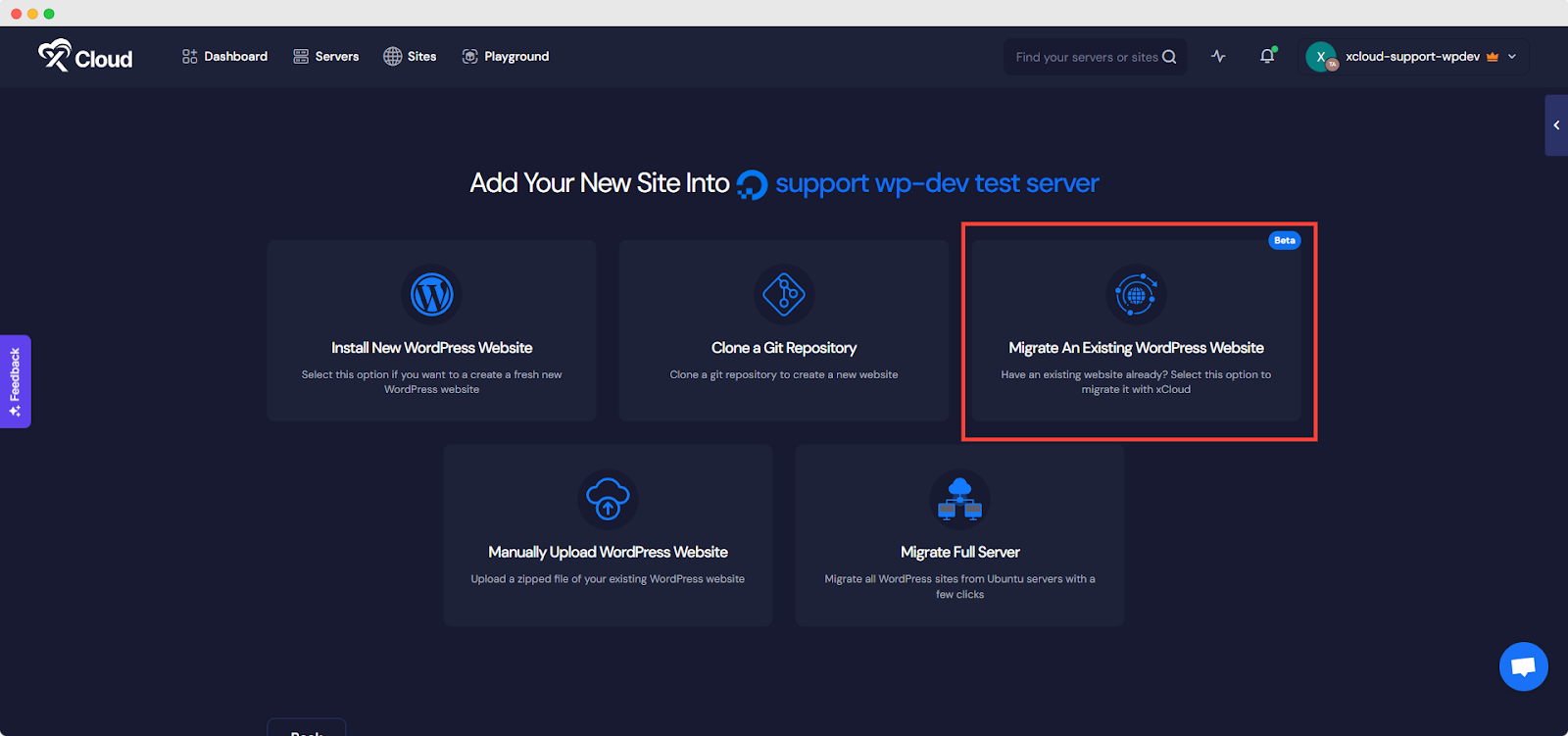
First, log into your WordPress dashboard. Next, find the Appearance section on the left sidebar. Click it. A menu will appear. Select Themes from the list. This opens the theme directory. Here, you can see all installed themes.
In the theme directory, locate the Add New button at the top. Click on it. A new page will open. Here, choose Upload Theme. You will see an option to select a file. Pick the core theme file from your computer. Click Install Now to proceed.
Once uploaded, the theme will show in your directory. Locate the theme and click Activate. This makes the core theme live on your site. Check your website to see the changes. Everything should look new and fresh.
Credit: xcloud.host
Customizing The Core Theme
Using the Customizer Tool helps in making changes easily. It is located in the WordPress dashboard. This tool is user-friendly and intuitive. Users can see changes live. It helps in adjusting many elements. For example, colors, fonts, and more. This tool saves time and effort.
Adjusting Layout and Design is simple. Users can choose from many options. These include different layouts and styles. They can change the header and footer. Widgets can be added or removed. This allows for a unique look. All changes are visible immediately.
Incorporating Brand Elements is important. Users should add their logo and brand colors. They can also use custom fonts. This makes the site look consistent. Adding social media links is helpful too. This connects the site with other platforms. The site will feel professional and branded.
Testing And Optimization
Easily integrate a core theme into your existing WordPress site by accessing the admin panel. Navigate to Appearance, then Themes, and click ‘Add New’. Choose a theme, install, and activate it for a refreshed look. This process enhances site appearance without altering content.
Cross-browser Testing
Every user uses different web browsers. It’s crucial to check how your site looks on each. Cross-browser testing ensures that your site runs smoothly for everyone. Test your site on Chrome, Firefox, and Safari. Make sure the layout stays the same. Fix any bugs that pop up. This keeps your site looking great everywhere.
Performance Optimization
Slow websites are frustrating. Speed up your site by optimizing images and code. Compress images to load faster. Use caching tools to save time. Minimize CSS and JavaScript files. These steps make your site faster and more efficient. Users will enjoy browsing without delays.
Seo Considerations
SEO helps people find your site. Use keywords wisely in your content. Make sure your titles and headings are clear. Add meta descriptions for each page. Link your pages internally for better navigation. These steps improve your site’s search ranking and visibility.
Maintaining Your Core Theme
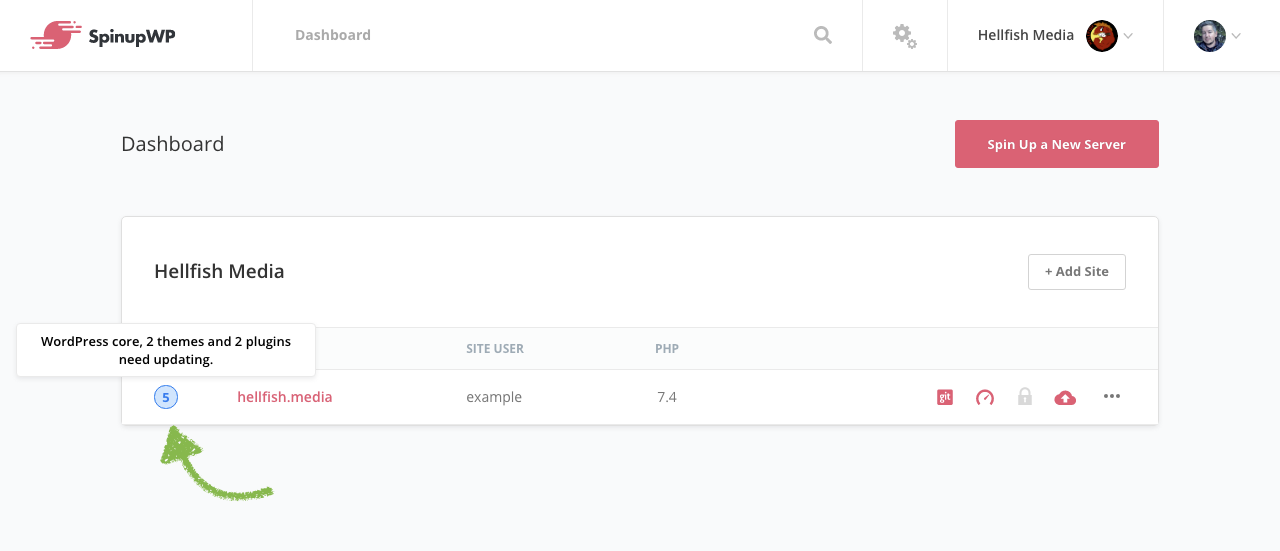
Updating your theme is key. It helps keep your site safe. Themes get new features with updates. Bugs get fixed too. Check for updates often. Update plugins regularly. This keeps your site running well.
Watch your site speed. Slow sites lose visitors. Use tools to check speed. Fast sites rank better on search engines. Look at bounce rates. High rates mean visitors leave quickly. Fix issues to keep them on your site.
Some plugins may clash with your theme. This can cause problems. Check for errors after updates. Disable plugins if needed. Use support forums for help. Backup your site before changes. This saves your work if things go wrong.
Credit: spinupwp.com
Frequently Asked Questions
How Do I Install A Theme In WordPress?
To install a theme, go to your WordPress dashboard. Navigate to Appearance > Themes > Add New. Search for the theme you want, click “Install,” and then activate it. You can also upload a theme file directly by clicking “Upload Theme.
“
Can I Customize My WordPress Theme?
Yes, you can customize your theme. Use the WordPress Customizer by navigating to Appearance > Customize. Modify settings like colors, fonts, and layouts. Some themes offer additional customization options through their settings panel or plugins.
What Is A Core Theme In WordPress?
A core theme is a default theme provided by WordPress. It serves as a basic starting point for website design. Core themes are well-maintained and updated regularly. They offer fundamental functionalities suitable for various sites.
Do I Need Coding Skills To Add A Theme?
No, you don’t need coding skills to add a theme. WordPress allows easy theme installation through its dashboard. The process involves simple clicks and selections. However, customizing a theme might require basic HTML and CSS knowledge.
Conclusion
Adding a core theme to your WordPress site enhances its functionality. It ensures a fresh design and a better user experience. Follow the steps carefully, and your site will run smoothly. Test each feature after installation to ensure everything works.
Regular updates keep your theme secure and optimized. Always back up your site before making changes. This prevents data loss and ensures safety. Explore customization options to suit your brand’s style. Keep your audience engaged with a visually appealing site.
Enjoy your improved WordPress site with its new core theme!


