
Are you looking to customize your WordPress theme slideshow with a touch of PHP magic? If you’ve ever felt limited by your theme’s default settings, you’re not alone.
Many WordPress users like you want to stand out by adding unique features that truly reflect their style and content. Imagine captivating your visitors right from the moment they land on your site, engaging them with a slideshow that doesn’t just display images but tells a story.
This can be your reality. By learning how to add PHP code to your WordPress theme slideshow, you can unleash the full potential of your website. In this guide, we’ll walk you through the process in a straightforward and easy-to-follow manner, ensuring you have the tools to create a slideshow that’s not only visually stunning but also functionally superior. Stay with us, and you’ll discover how a few lines of code can transform your website experience.
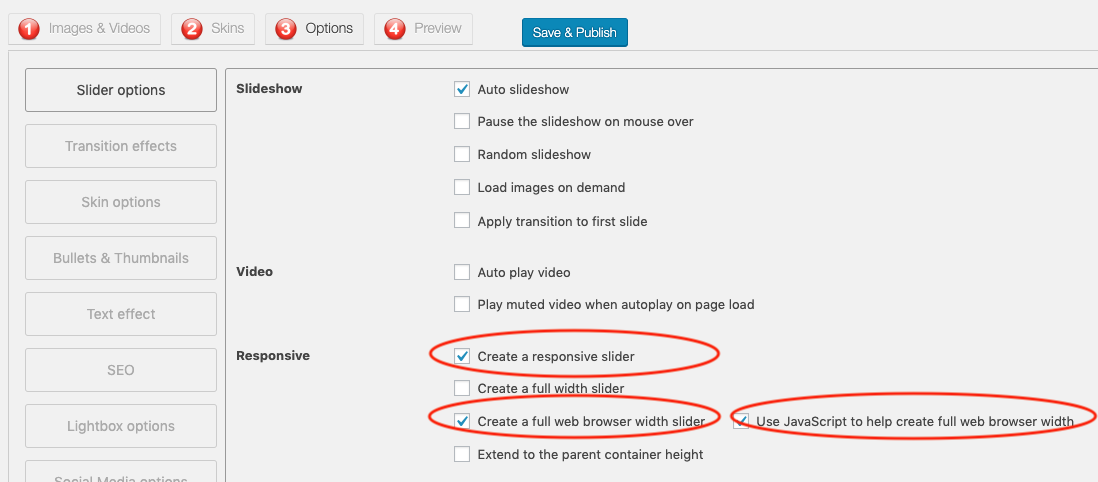
Credit: www.wonderplugin.com
Preparing Your WordPress Environment
Enhance your WordPress theme slideshow by adding PHP code seamlessly. Start by accessing your theme’s functions. php file. Insert custom PHP scripts to modify slideshow behavior and functionality, ensuring a dynamic and personalized user experience.
Backup Your Website
Backing up your website is very important. It keeps your data safe. Use a reliable backup plugin. Save your files and database. Store the backup in a secure location. This way, you can restore your website if something goes wrong.
Set Up A Child Theme
A child theme is a safe place to add custom code. Create a new folder for it. Name it your-theme-child. Add a style.css file and a functions.php file. Link the child theme with the parent theme. Activate your child theme in the WordPress dashboard. This protects your changes during theme updates.
Understanding WordPress Theme Structure
Every WordPress theme has its own folder. The folder contains many files. These files control the look of your website. To find the right files, open the wp-content/themes directory. Here, you will see folders for each theme. Pick the folder of your active theme. Inside, you will find files like header.php and footer.php. These files are important.
Slideshows are often in template files. Look for files named slideshow.php or similar. They control the slideshow feature. Sometimes, slideshows use JavaScript. Check for scripts in the js folder. You might see names like slider.js. Find the file that matches your slideshow. This is where you add PHP code.
Basics Of Php In WordPress
PHP is a programming language used in WordPress. It helps create dynamic content. Understanding its syntax is important. Variables store data. They start with a dollar sign, like $variable. Functions perform tasks. They use parentheses to hold information. Example: functionName().
Conditional statements make decisions. They use if, else, and elseif. Loops repeat actions. Common loops are for and while. Each syntax helps build powerful features. Learn these basics for effective coding.
WordPress-specific Functions
WordPress has special functions for themes. Template tags are common. They display data, like the_title() for titles. get_template_part() includes files. This keeps code clean. wp_enqueue_script() adds scripts. It ensures proper loading. Action hooks run code at certain times. Use them to customize themes.
Filter hooks change data before displaying it. They make themes flexible. add_action() and add_filter() are key functions. Explore these to enhance your theme. WordPress functions make coding easier and powerful.

Credit: wordpress.org
Adding Php Code To The Slideshow
Always back up your theme files first. Open your theme’s folder. Look for the PHP file that controls the slideshow. This file might be named header.php or footer.php. Use a simple text editor. Edit this file. Find the spot where you want to add PHP code. Type your code carefully. Save the changes. Refresh your website to see if it works.
Decide what you want the PHP code to do. Write the custom PHP code in a text editor. Double-check for errors. Add the code into the desired PHP file. Use comments to explain the code. This helps in the future. Save the file. Test the website again. Ensure everything runs smoothly.
Testing And Debugging
Adding PHP code to a WordPress theme slideshow involves accessing the theme files. Locate the slideshow code in your theme’s directory. Insert your PHP code within the designated section to customize functionality.
Check For Syntax Errors
Syntax errors can break your code. They stop it from working. Check each line carefully. Look for missing semicolons or brackets. Errors can hide in small details. Use a code editor for help. It highlights mistakes. Fix errors before testing. This keeps your site running smoothly.
Use Debugging Tools
Debugging tools help find problems. They show error messages. These messages guide you to the issue. WordPress has built-in tools. Activate WP_DEBUG mode. It displays errors on your site. Fix them step by step. Another tool is the browser console. It finds JavaScript errors. Tools make debugging easier. Use them to keep your slideshow working well.
Ensuring Compatibility And Security
Always check your PHP code for errors. Use tools to find mistakes. This keeps your site running well. Bad code can break things. It’s like a puzzle with missing pieces. Complete the puzzle for a smooth site.
Keep your code safe. Hackers look for weak spots. Use secure PHP practices. Update your code often. This helps block unwanted access. Think of it like locking your door. A locked door keeps out intruders.
Deploying Changes Safely
Always create a backup before making changes. This helps if things go wrong. Use a child theme to add PHP code. It keeps the main theme safe. Access the theme files through the WordPress dashboard. Navigate to the Appearance section and click on Theme Editor. Find the file where the slideshow code exists. Add your PHP code carefully. Save the changes once done.
After deploying, check the site for any errors. Look at the slideshow. Ensure it works smoothly. If you see problems, undo the changes quickly. Check the error logs for clues. Fix the problem if you can. Get help from forums or experts if needed. Keep testing the site for a day or two. Make sure everything is stable.
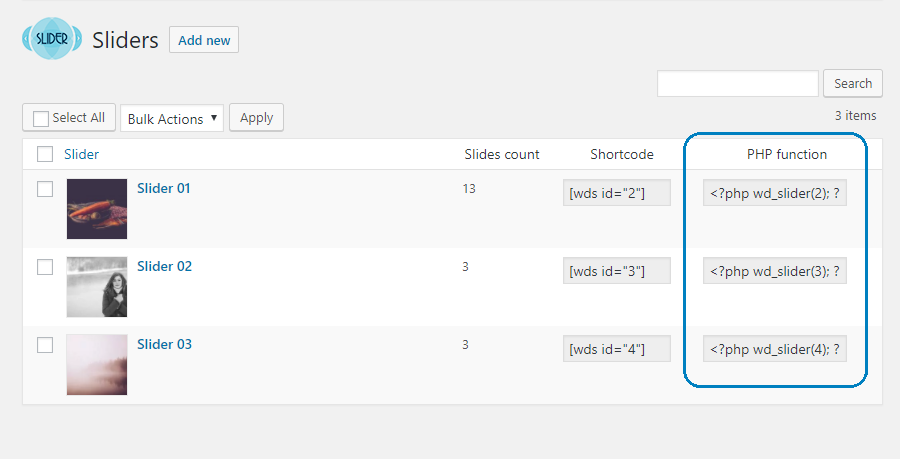
Credit: help.10web.io
Frequently Asked Questions
How To Integrate Php Into WordPress Slideshow?
To integrate PHP into a WordPress slideshow, access your theme’s files through the WordPress dashboard or FTP. Locate the PHP file that controls the slideshow. Add your custom PHP code within the existing functions. Ensure you test thoroughly to avoid errors and maintain functionality.
Can Php Code Enhance Slideshow Features?
Yes, PHP code can enhance slideshow features by allowing dynamic content, custom animations, or personalized user interactions. PHP can pull data from databases or APIs, providing a richer experience. Always backup your theme before making changes to avoid data loss.
Is It Safe To Modify WordPress Theme Php?
Modifying theme PHP is safe if done carefully. Always use a child theme to avoid losing changes during updates. Backup your site before making edits. Test changes in a staging environment to ensure they don’t break your site or create security vulnerabilities.
Where To Add Php In WordPress Theme?
Add PHP code directly in your theme’s functions. php file or create a custom plugin. This ensures your changes are preserved during theme updates. Using a child theme is recommended to safely manage modifications without affecting the main theme’s files.
Conclusion
Adding PHP code to your WordPress theme slideshow enhances functionality. It allows customization to suit your needs. You can make your slides dynamic and interactive. Always backup your site before making changes. Use child themes to preserve custom work. Explore plugins for easier integration.
Follow step-by-step guides to avoid errors. Test changes thoroughly to ensure everything works smoothly. This process empowers you to create unique presentations. Take your WordPress site to the next level with customized slideshows. Enjoy the creative freedom PHP offers in your theme.


