
Have you ever wished to give your WordPress website a unique touch that reflects your brand’s personality? Customizing theme options can seem like a daunting task, especially if you’re not a coding wizard.
But don’t worry! You don’t need to be a tech genius to make your site stand out. Imagine having the power to tweak your site’s appearance with just a few clicks, all tailored to your specific needs. In this guide, we’ll demystify the process and show you how to add custom theme options in WordPress.
Get ready to take control of your website’s look and feel, making it not only aesthetically pleasing but also highly functional. Stay with us, and discover how easy it can be to transform your digital space into something truly extraordinary.
Understanding WordPress Themes
WordPress themes change how your site looks. They control layout, colors, and fonts. Many themes are free. Some require payment. Users can switch themes easily. Themes are like clothes for your site. They make it look unique. Themes also add new features. These features improve user experience. Choose a theme that fits your needs. Many themes are customizable. You can change them to match your brand. Always check theme reviews before using. Good themes are updated regularly. Updates fix bugs and add new features. Themes are essential for a professional site.
Customization makes your site stand out. It shows your brand’s personality. Custom themes allow unique designs. They help in adding special features. Users enjoy personalized experiences. Customization improves user engagement. It increases time spent on the site. Custom sites have better navigation. They guide users easily. This enhances user satisfaction. Custom themes are adaptable. They fit various devices and screens. Use customization for a strong online presence. A well-customized site attracts more visitors. Custom themes are an investment. They grow your business.
Credit: blog.templatetoaster.com
Setting Up Your WordPress Environment
Discover the steps to add custom theme options in WordPress effortlessly. Customize themes using the WordPress Customizer API. Enhance your site’s look and feel with ease.
Choosing The Right Tools
Start with a reliable code editor. Some good choices are Visual Studio Code and Sublime Text. They are easy to use and help you write clean code. Next, get a local development environment. You can use tools like XAMPP or WAMP. These tools let you test your website before going live. Don’t forget to install WordPress on your local server. This step is crucial for testing changes safely.
Creating A Child Theme
A child theme lets you customize without losing updates. First, create a new folder in your themes directory. Name it something unique. Inside the folder, make a style.css file. Add a header comment to link it to the parent theme. Now, create a functions.php file. This file loads the parent theme styles. Remember to activate your child theme from the WordPress dashboard. This way, your changes appear on your site.
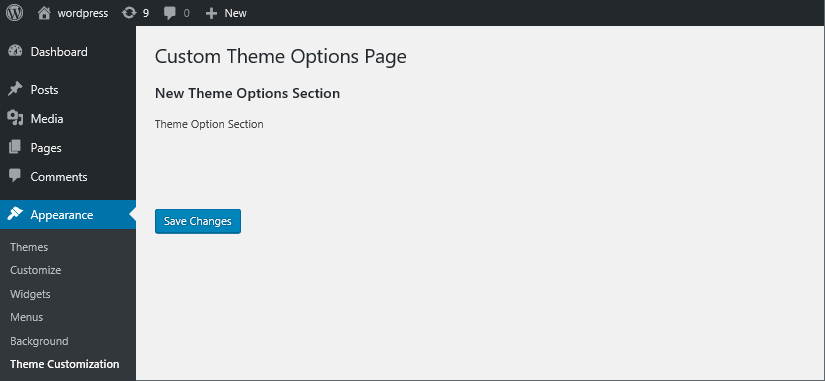
Creating A Custom Theme Options Page
First, log into your WordPress Dashboard. This is your control room. You can make changes here. Find the Appearance tab. Click on it. See the option called Theme Editor? Click that too. Now you are ready to start. You will see many files. Be careful, don’t delete any files. You can add new code here. This helps in creating custom options.
The Theme Customizer API is a powerful tool. It lets you add custom options easily. It is part of WordPress. You will need to write some code. Use simple PHP functions. These functions help in adding settings. You will also create controls. Controls help users change settings. The API makes your theme more flexible. It is user-friendly. You can find many guides online. These guides can help you learn more.
Adding Sections To Theme Options
Adding new sections in WordPress is simple. First, you need to use the function.php file. This file is in your theme folder. In this file, you can create a new section by using the WP_Customize_Manager class. This allows you to add sections easily.
Options must be easy for users to find. Use clear names for each option. Group similar options together. This helps users understand quickly. Proper organization makes it easy to navigate.
For better organization, use tabs or categories. Tabs can help users switch between different options. Categories can group similar items together. This way, users can find what they need fast.
Incorporating Custom Settings
Adding custom settings to your WordPress theme is exciting. Start by creating fields for these settings. Use the theme customizer to add fields. It helps users change theme features easily. Decide what settings you want, like colors or fonts.
Creating Custom Settings Fields
Use functions.php file to add fields. Use add_setting() to create each setting. Connect each field with your theme. Use add_control() to allow users to change settings. Each field has a unique ID. IDs help in linking settings with theme features.
Saving And Retrieving Settings
Saving settings is important. Use get_theme_mod() to save changes. It stores settings safely. Retrieve settings with this function too. It helps in displaying settings on your site. Changes appear immediately. Users see their adjustments live.

Credit: qodeinteractive.com
Enhancing Theme Options With Controls
Customizing your WordPress theme is simple with added controls. Include custom options for better design flexibility. Tailor your site by adjusting settings through intuitive theme controls.
Utilizing Built-in Controls
WordPress offers many built-in controls. These controls help customize themes. You can find them in the Customizer. They are easy to use. Choose from dropdowns, checkboxes, and color pickers. These controls save time. They are simple and efficient. Use them to change theme settings. They improve your site’s look. Built-in controls are great for beginners. They help you learn theme customization. Use them to add new features. Make your site unique and attractive.
Creating Custom Controls
Custom controls offer more flexibility. They allow you to add special features. You can create controls using PHP code. This requires some programming skills. Custom controls can be sliders or image uploaders. They are more advanced than built-in ones. Custom controls give you more options. They help you design your site better. These controls are great for developers. They enable deeper customization. Add custom controls to make your theme unique. Your site will stand out from others.
Testing And Debugging Your Theme Options
Ensuring Compatibility with different themes is very important. Test your theme on various browsers. This helps in finding any visual issues. Check if all theme options work as expected. Sometimes, certain settings might not display correctly. Use tools to test how your theme looks on phones and tablets. This ensures a good user experience. Make sure plugins don’t cause conflicts. Some plugins might break theme options.
Troubleshooting Common Issues can be tricky. Make a list of potential problems. Then, address each one by one. Look for missing styles or scripts. These can cause theme options to fail. Check your code for errors. A small mistake can create big problems. Use a debug tool to find errors. This will help in fixing them quickly. Ask for help from other developers if needed. They might have faced similar issues.
Best Practices For Theme Options
User-friendly theme options make websites easy to use. Clear labels help users understand what each option does. Organize settings into logical categories. This helps users find settings quickly. Use tooltips for extra guidance. Visual previews show changes before saving. This avoids mistakes. Make sure mobile users can access theme options easily. Responsive design helps with this. Test theme options on different devices. Ensure they work well everywhere.
Clean code keeps themes fast and reliable. Use comments to explain complex code parts. This helps others understand your code. Follow WordPress coding standards. This ensures compatibility with plugins. Avoid using deprecated functions. They may not work in future updates. Regularly update your code. Fix any bugs you find. Use version control systems like Git. They track changes and prevent errors. Write unit tests to check code quality. They ensure everything works as expected.
Credit: blog.templatetoaster.com
Frequently Asked Questions
How Do I Add Theme Options In WordPress?
To add theme options, use the WordPress Customizer API. Start by creating a customizer function in your theme’s functions. php file. Define settings and controls, and register them using `add_action(‘customize_register’, ‘your_function’)`. This approach allows users to customize themes through the WordPress dashboard easily.
What Are Custom Theme Options In WordPress?
Custom theme options let users personalize their site’s appearance without coding. They include features like color schemes, fonts, and layout settings. Developers create these options using the WordPress Customizer API, providing a user-friendly interface for making design changes directly from the WordPress admin panel.
How Can I Customize My WordPress Theme?
To customize your WordPress theme, access the Customizer under Appearance > Customize. Here, you can modify settings like colors, fonts, and layout. For advanced customization, consider adding custom theme options using the WordPress Customizer API in your theme’s functions. php file.
Why Use WordPress Customizer Api For Theme Options?
The WordPress Customizer API offers a structured way to create interactive theme options. It provides real-time previews and a user-friendly interface. This API helps developers offer customization features without complex coding, enhancing user experience while ensuring theme consistency and flexibility.
Conclusion
Custom theme options enhance your WordPress site’s uniqueness. Easy customization boosts user experience. The process empowers you to tailor design effortlessly. Start by accessing the theme editor. Experiment with colors, fonts, and layouts. Keep changes simple for best results. Regular updates ensure compatibility with new WordPress versions.
Test changes on different devices. Ensure responsive design. Always backup before major modifications. Engage your audience with personalized themes. Encourage feedback for continuous improvement. With practice, customizing becomes intuitive. Enjoy the creative journey. Your site reflects your brand perfectly. Happy designing!


