
Are you looking to give your WordPress site a fresh, professional look without any hassle? Adding an Envato theme to your site could be the perfect solution.
Whether you’re a seasoned web developer or someone just starting out, this guide will help you effortlessly enhance your site’s appearance and functionality. Imagine your website standing out with eye-catching designs and user-friendly features that captivate your audience. You deserve a site that reflects your brand’s uniqueness and engages your visitors from the moment they land on your page.
This step-by-step guide will show you how to seamlessly integrate an Envato theme into your WordPress site, ensuring that your online presence is as compelling as your vision. Get ready to transform your website into a masterpiece that keeps your audience coming back for more.
Choosing The Right Envato Theme
Picking the right theme is crucial. Think about your site’s purpose. Is it for a blog or a shop? Different themes fit different needs. Check the theme’s design and layout. Does it match your style? Ensure the theme is responsive. It should look good on phones and computers. Read user reviews. They tell a lot about the theme’s quality. Look for themes with good support. If you face issues, help should be available.
Compatibility is vital for smooth operation. First, verify if the theme supports the latest WordPress version. Old themes may cause issues. Second, check plugin compatibility. Themes should work with important plugins. Third, test the theme on a demo site. This helps spot problems early. Lastly, confirm that the theme has regular updates. This ensures it stays secure and functional.
Purchasing And Downloading The Theme
First, visit the Envato website. Look for the sign-up button. Fill in your details like name and email. Pick a strong password. Agree to the terms. Click to create your account. Now you have an Envato account.
Go to the Envato marketplace. Find the search bar at the top. Type in the theme name you want. Use filters to narrow down choices. Look at ratings and reviews. Click on the theme to see details. Make sure it fits your needs.
Once purchased, find the downloads section in your account. Locate your theme. Click the download button. Choose the Installable WordPress file option. Save the file on your computer. You are ready to add it to your WordPress site.
Preparing Your WordPress Site
First, check if your WordPress is up-to-date. Go to the dashboard. Look for any update alerts. Click on the update link if needed. Updating keeps your site secure. It also helps the new theme work well. Regular updates are a good habit. They fix bugs and improve speed. Never skip this step. An updated site runs smoothly.
Always back up your site before changes. Use a plugin like UpdraftPlus. It saves your data safely. Backups protect against data loss. You can restore your site if needed. Saving files on your computer is wise. Keep backups in multiple places. This ensures safety and peace of mind. Backing up is easy and quick. Don’t skip it.
Uploading The Envato Theme
Go to your WordPress dashboard. Find the “Appearance” menu. Click on “Themes” under it. Choose “Add New” at the top. Then, click “Upload Theme.” Next, select the Envato theme file from your computer. Make sure it’s a .zip file. After selecting, click “Install Now.” Wait for the upload to finish. Once done, click “Activate.” Your new theme is now ready.
First, open your FTP client. Connect to your server. Navigate to the wp-content directory. Then, open the “themes” folder. Upload the unzipped Envato theme folder here. After uploading, go to your WordPress dashboard. Visit the “Themes” section under “Appearance.” Find your uploaded theme there. Click on “Activate” to use it. The theme is now active on your site.
Activating The Theme
Navigate to the WordPress dashboard. Click on the Appearance menu. Select Themes from the list. You will see all installed themes. Find your Envato theme. Click on Activate to enable it. Your site will now use this theme.
Using The Appearance Menu
The Appearance menu lets you customize your theme. Choose the Customize option. Adjust settings like colors and fonts. Preview changes before saving. This menu makes design easy. Explore different settings for better looks.
Verifying Theme Activation
Go to your site’s homepage. Check if the new theme is visible. Look for changes in layout or design. If changes appear, activation is successful. If not, try activating again. Ensure theme files are correctly installed. This step confirms your theme is live.
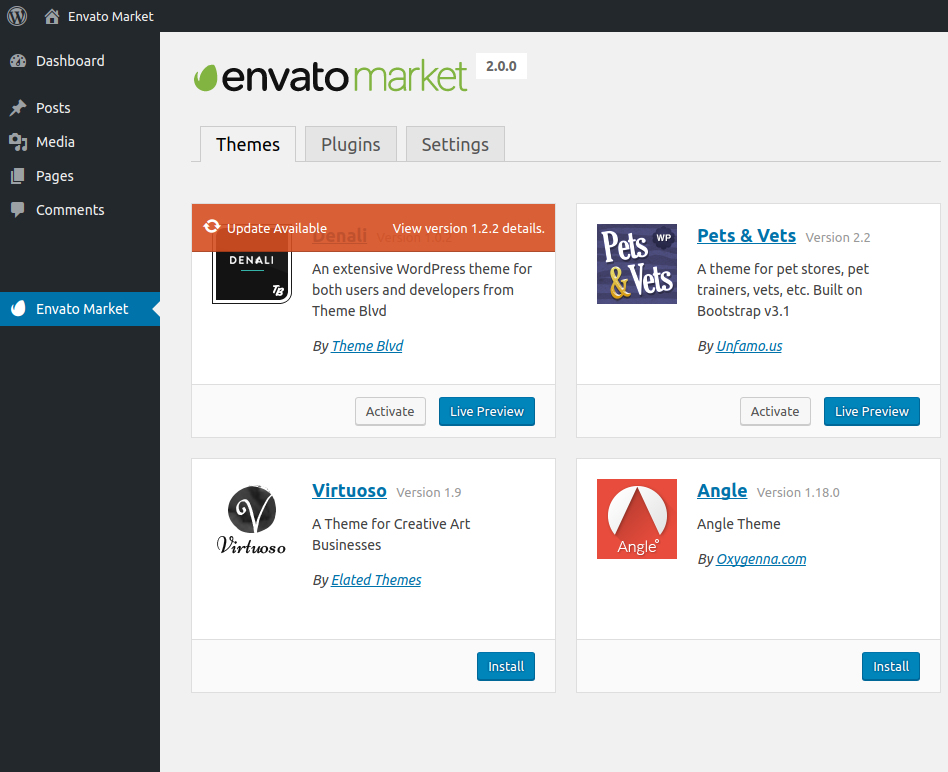
Credit: www.envato.com
Installing Required Plugins
Start by installing required plugins to ensure full functionality of your Envato theme on WordPress. These plugins enhance features and improve user experience, providing a seamless integration process.
Identifying Required Plugins
Themes often need extra tools to work well. These tools are called plugins. Each plugin adds special features. First, check the theme’s documentation. This will list all needed plugins. Some themes show a message asking for plugin installation. Use this message to know what to install.
Installing And Activating Plugins
Go to the WordPress dashboard. Find the Plugins menu. Click on Add New. Now, search for each plugin by name. Click Install to add them. Once added, click Activate. This turns the plugin on. Repeat this for every plugin.
Make sure each plugin is up-to-date. An outdated plugin may cause issues. Regular updates help keep your site safe.
Customizing The Theme Settings
Integrating an Envato theme into your WordPress site enhances its appearance and functionality. Start by downloading the theme file from Envato. Then, upload it via the WordPress dashboard under “Themes” to activate and customize it to fit your site’s needs.
Utilizing The Theme Customizer
The Theme Customizer helps you change your site easily. Find it in your WordPress dashboard. You can change colors, fonts, and images. Preview changes before saving. This tool lets you see updates live. Make sure your site looks nice. Use simple settings to start. You can change more later. This makes your site unique. Enjoy making it your own.
Adjusting Layout And Design
Layout and design are key to your site’s look. You can choose a layout that fits your style. Change header and footer sizes. Adjust sidebars to fit your needs. Move elements around for better flow. Pick a layout that feels right for your audience. Design your site to be easy to read. Use simple designs for clarity. Make sure everything is neat and tidy. Enjoy the creative process.
Importing Demo Content
Using One-Click Demo Import can be easy. You press a button. The theme does all the work. It sets up your site quickly. You get the theme’s full features. This method is fast and simple. It saves time for you. Most themes support this feature. Check your theme’s settings. Look for “Import Demo Content.” Follow the instructions there.
Manual Content Import Options are available too. This way needs more steps. First, download the demo content files. Next, upload them to your site. Use the WordPress Importer tool. You might need to adjust settings. This gives you more control. It might take longer. You can choose what you want to import. This option is great for custom setups.
Troubleshooting Common Issues
Many face problems during theme installation. Check your WordPress version. It should match the theme’s requirements. Another issue is uploading the wrong file. Ensure you upload the correct zip file. Sometimes, themes are large. Check your server’s upload size limit. Increase if needed. Errors can also occur due to incomplete downloads. Redownload the theme if this happens.
Some themes may not work well with certain plugins. Deactivate all plugins. Then, activate them one by one. This helps find the problem. Another issue can be outdated software. Ensure WordPress and themes are updated. Check your PHP version. It should match the theme’s requirements. Always read the theme documentation for guidance.
Credit: help.elements.envato.com
Maintaining Your Theme
Keeping themes up-to-date is crucial. Updates bring new features. Bug fixes improve site safety. Themes often evolve. Developers make enhancements. Always check for new versions. Update regularly for better performance. This ensures compatibility with plugins. Protect your site from security risks. Updating is simple. Look for update notifications. Follow the steps provided.
Track theme performance regularly. Slow themes affect visitor experience. Use tools to measure speed. Check loading times often. Optimize images for speed. Review plugin compatibility. Ensure plugins don’t slow down. Test site on different devices. Check responsiveness. Monitor user feedback. Listen to visitor suggestions. Adjust settings as needed. Keeping your theme fast is vital. Happy visitors stay longer.
Credit: help.elements.envato.com
Frequently Asked Questions
How Do I Upload An Envato Theme To WordPress?
To upload an Envato theme, log in to your WordPress dashboard. Navigate to “Appearance” and click “Themes. ” Select “Add New,” then “Upload Theme. ” Choose the theme’s. zip file from your computer and click “Install Now. ” Once installed, activate the theme to apply it to your site.
Can I Customize Envato Themes In WordPress?
Yes, you can customize Envato themes using the WordPress Customizer or built-in theme options. Navigate to “Appearance” and click “Customize. ” Here, you can change colors, fonts, layouts, and more. Some themes also offer advanced customization options, allowing you to tailor your site to your preferences.
Are Envato Themes Compatible With WordPress Plugins?
Most Envato themes are compatible with popular WordPress plugins. Check the theme documentation for specific plugin recommendations or compatibility details. Using plugins can enhance your site’s functionality, such as SEO optimization, caching, or eCommerce capabilities, while maintaining theme performance.
How Do I Update My Envato Theme On WordPress?
To update your Envato theme, first back up your site. Navigate to “Appearance” and click “Themes. ” Check for update notifications for your active theme. Click “Update Now” if available. Alternatively, manually update by downloading the latest version from Envato and uploading it via the WordPress dashboard.
Conclusion
Adding an Envato theme to your WordPress site is simple. Start by downloading your chosen theme. Upload it to your WordPress dashboard. Activate the theme with a click. Customize it to fit your style and needs. Use the customization options provided.
Remember, practice makes perfect. Experiment with different settings. Make sure your site looks great on all devices. Keep your design clean and user-friendly. Your website will stand out with a professional appearance. Enjoy your new WordPress theme. Happy blogging!


