
Are you looking to give your WordPress site a fresh, new look? Adding a theme to your website can transform its appearance and enhance user experience with just a few clicks.
Whether you’re aiming for a sleek, modern design or a more classic, professional feel, the latest WordPress version makes it easier than ever to customize your site’s aesthetics. In this guide, you’ll discover simple, step-by-step instructions on how to seamlessly add a theme to your WordPress site.
Get ready to captivate your visitors and make a lasting impression with a stunning new design. Keep reading to unlock the secrets of personalizing your website like a pro!
Preparing For Theme Installation
Always keep a backup of your website. It helps if things go wrong. Use plugins like UpdraftPlus or BackWPup. These tools make it easy. Download the backup to your computer. Save it in a safe place. You can also use cloud storage. Like Google Drive or Dropbox. A backup is like a safety net. It keeps your data safe.
Make sure you have the latest WordPress version. This is important for theme compatibility. Log in to your WordPress dashboard. Look for updates in the Updates section. If there is a new version, update it. Updating is easy. Just click the button. This keeps your site secure. Also, it helps run new themes smoothly. Always update plugins too. They work better with the latest WordPress.
Credit: www.namecheap.com
Choosing The Right Theme
Free themes are simple and easy to use. They offer basic designs and features. Premium themes cost money. They have more options and support. Some people like free themes for small blogs. Others need premium themes for big projects. Check what you need before picking a theme. Free themes save money. Premium themes give more choices.
Design is how the theme looks. It should be clear and nice. Functionality is what the theme can do. Make sure it works well. Choose a theme that is easy to use. It should fit your style. Some themes are fast. Others are slow. Pick one that loads quickly. Test the theme before you use it. Look at the demo. Check how it works on different devices.
Installing A Theme Via WordPress Dashboard
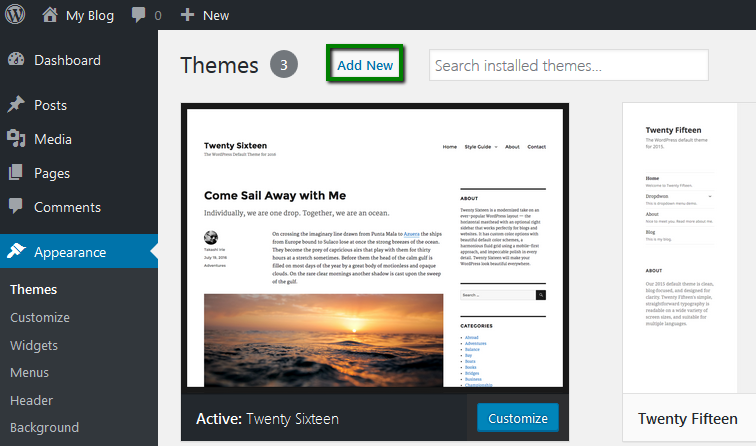
Navigating to Appearance Settings: Open your WordPress dashboard. Look for the “Appearance” option on the left menu. Click on it to see more options. Choose “Themes” from this list. This is where you can change the look of your site.
Using the Theme Search Feature: In the Themes section, find the “Add New” button at the top. Press it to open the theme search. Type in the name of the theme you like. Once you find it, click “Install”. Then, activate it to change your site’s look.
Uploading a Theme Zip File: Sometimes, you have a theme file in .zip format. Go to the “Themes” section again. Click on “Add New”. Look for the “Upload Theme” button. Click it and upload your zip file. Once uploaded, press “Install” and then “Activate” it.
Installing A Theme Via Ftp
First, you need an FTP client like FileZilla. Download and install it on your computer. You will also require FTP login details. These usually include a host address, username, and password. You can get this information from your web host provider. Open your FTP client and enter the details. Click on connect. This will allow access to your WordPress files.
Download your desired WordPress theme. It should be in a .zip format. Unzip the theme folder on your computer. Now, use the FTP client to navigate to the /wp-content/themes/ directory. Drag and drop the unzipped theme folder into this directory. Wait for the files to upload completely. After uploading, go to your WordPress dashboard. Activate the new theme from the Appearance section.
Activating Your New Theme
Find the theme you like in the WordPress dashboard. Click on the Live Preview button. This shows you how the theme will look on your site. You can check colors, fonts, and layout. Make sure everything fits well. If you like it, you can activate the theme. This makes the new design visible to everyone. Preview helps you avoid mistakes. It gives you a chance to see the theme in action first.
Switching themes is simple. Go to your appearance tab. Find the theme you want. Click activate. Your site will change immediately. It’s important to check your site content after switching. Make sure everything is in the right place. Sometimes widgets or menus might move. Adjust them if needed. The new theme should work smoothly. Enjoy your fresh look!

Credit: www.greengeeks.com
Customizing Your Theme
The WordPress Customizer is a powerful tool. It helps you make changes easily. First, open your WordPress dashboard. Next, find the Appearance tab. Click on Customize under this tab. The Customizer will open on your screen.
On the left, you see options for changes. You can change colors and fonts. You can also add widgets. The right side shows a preview. This way, you see changes before saving. Click Publish to save your changes.
Theme settings allow more control. You can edit the layout. You can also change the site title. Find these options in the Customizer. Each theme offers different settings. Explore them to see what you like.
Some themes offer extra features. These can be menus or sliders. Try each setting to see its effect. Remember to save after changes. Happy customizing!
Troubleshooting Common Issues
Themes sometimes don’t install. Check your internet connection first. Then, ensure the theme file is not corrupted. A corrupt file causes errors. Download the theme again if needed. Make sure you have enough storage space. Insufficient space stops installations. Verify your WordPress version. Some themes need specific versions. Update your WordPress if necessary. Always back up your site. This prevents data loss.
Compatibility issues occur with plugins or WordPress versions. Check if the theme supports the current WordPress version. Some themes need updates to work well. Look for any plugin conflicts. Deactivate plugins one by one. This helps find the conflicting plugin. After identifying, contact the theme or plugin support. They might provide solutions or updates. Use a child theme for customizations. This keeps the main theme safe during updates.
Maintaining Your Theme
Keep your WordPress theme up to date. This helps in fixing bugs and adding new features. Themes get updates from their developers. Check your WordPress dashboard often. Look for the update notification in the themes section. Click on the update button to install new changes. Remember to back up your site first. This keeps your data safe. An updated theme often runs faster. It uses less resources too. This helps your website perform better. Visitors will have a better experience. A quick site pleases users. They stay longer and explore more pages.
Themes can have security holes. These holes let bad people in. They might steal your data. Regularly check for security updates. Install them as soon as possible. Use security plugins to scan your theme. These plugins find and fix issues. They alert you of any threats. Good security keeps your site safe. It protects your visitors too. A secure site builds trust. People feel safe browsing your pages.

Credit: academy.bricksbuilder.io
Frequently Asked Questions
How Do I Find Themes In WordPress?
To find themes, navigate to your WordPress dashboard. Click on “Appearance” and select “Themes. ” Use the search bar to find themes or browse featured and popular themes. You can preview themes before installing them to ensure they fit your site’s style.
Can I Customize WordPress Themes Easily?
Yes, WordPress themes are easily customizable. Use the “Customizer” in the dashboard for simple changes like colors and fonts. For more advanced customization, you might need to edit theme files. Always back up your theme before making changes to avoid losing data.
What Are The Benefits Of Using Themes?
Themes offer a quick way to change your site’s appearance without coding. They provide pre-designed layouts and features, enhancing user experience and site functionality. Themes also ensure a consistent look across pages, improving brand identity and site navigation.
Is It Safe To Install Free Themes?
Free themes from the WordPress repository are generally safe. They undergo reviews for quality and security. However, downloading free themes from third-party sites can be risky. Always check reviews and ratings before installation to ensure safety and compatibility.
Conclusion
Adding a theme in WordPress is simple. Choose a theme that fits your style. Follow the steps outlined above. Install your theme with ease. Activate it and see your changes. Customize to suit your needs. Experiment with different themes. Make sure it enhances your site.
Keep your audience in mind. A well-chosen theme boosts engagement. It helps your site stand out. Regular updates keep your theme fresh. Don’t forget to check mobile compatibility. Your site should look good everywhere. Enjoy creating a vibrant website with WordPress themes.


