
Imagine having the power to customize your WordPress site exactly the way you envision, without needing to dive deep into complex coding. That’s the beauty of adding theme options to your WordPress site.
Whether you’re aiming to change the layout, tweak the color scheme, or add unique features that make your site stand out, theme options give you the flexibility and control you need. In this guide, you’ll discover simple yet effective steps to enhance your website’s appearance and functionality, tailored to your preferences.
By the end of this article, you’ll not only understand how to add these options but also feel empowered to make your website truly your own. Dive in, and let’s unlock the potential of your WordPress site together!
Credit: blog.templatetoaster.com
Choosing The Right Theme Framework
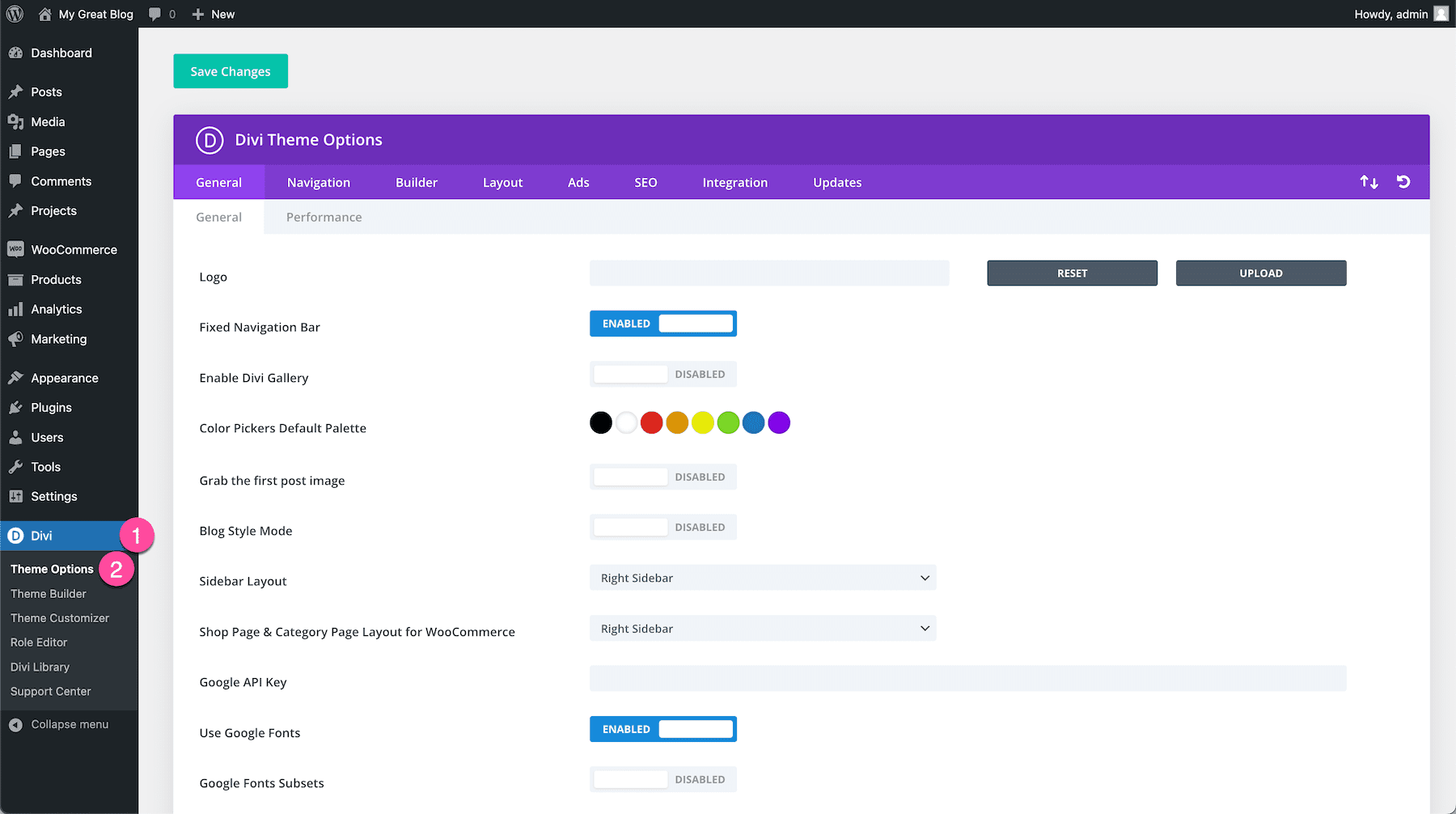
Many options are available for WordPress themes. Genesis, Thesis, and Divi are popular choices. Each has unique features and benefits. Genesis is known for its speed and SEO support. Thesis offers great design flexibility. Divi provides a user-friendly drag-and-drop interface.
| Framework | Pros | Cons |
|---|---|---|
| Genesis | Fast, SEO-friendly | Limited design options |
| Thesis | Flexible design | Can be complex to use |
| Divi | Easy to use | Can be slow at times |
Setting Up A Child Theme
A child theme helps keep changes safe. You won’t lose updates. It allows for customization. It protects the main theme. Easy to switch themes without losing work. Backup for your site design. Makes updates smooth.
First, create a new folder. Name it something like “child-theme”. Next, add a style.css file. Write basic code inside. Then, create a functions.php file. Link it to the parent theme. This makes the child theme work. Don’t forget to activate the child theme in WordPress. Check your site for errors. Fix them if needed. Now, your child theme is ready.
Integrating Theme Options
The WordPress Customizer is a great tool. It helps you change your site’s look. You can find it in your dashboard. Click on “Appearance” then “Customize.” Here, you can tweak colors, fonts, and more. Save changes to see them live. It’s easy and fun. You can try new looks without worry. The changes show right away.
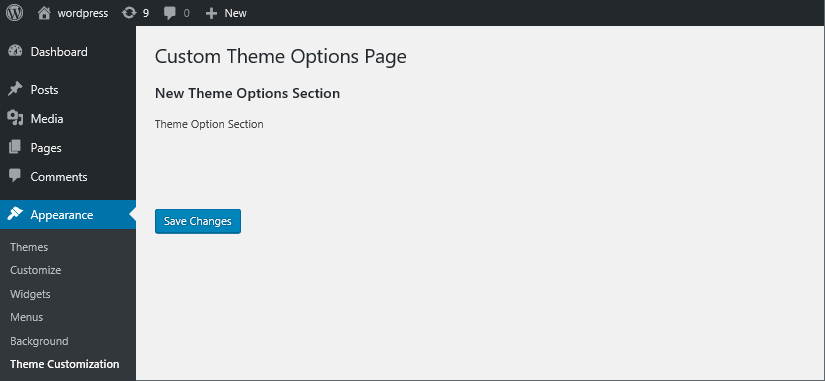
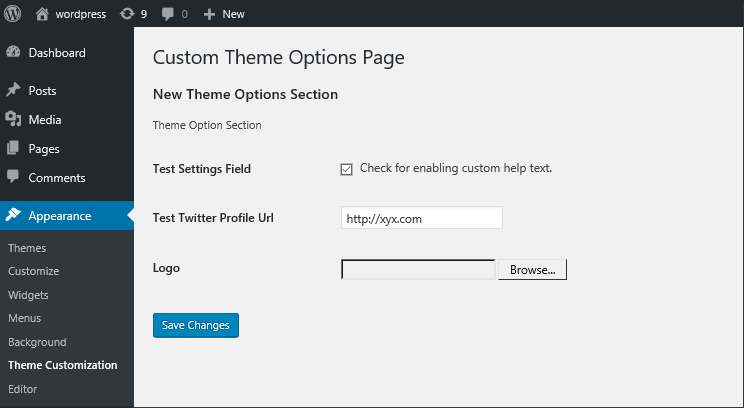
Some themes have special options panels. These panels offer more settings. They might be under “Appearance” in your dashboard. Look for a tab with your theme’s name. Here, you can adjust layouts and more. Each theme is different. Explore the options available. Always save changes when done. This way, you make sure your settings work.
Credit: blog.templatetoaster.com
Customizing With Plugins
Plugins can help change how your WordPress site looks. They add special options to your theme. This makes it easy to make your site look just right. You don’t need to know coding.
Some plugins are great for theme customization. Elementor lets you design pages with drag and drop. It is very popular. Customizer is another tool. It offers many design options. WPBakery is also useful. It helps make beautiful pages. These plugins make design simple and fun.
Installing plugins is simple. First, go to your WordPress dashboard. Next, click on “Plugins” and then “Add New”. Search for the plugin you want. Click “Install Now” and then “Activate”. To configure, go to plugin settings. Follow the steps to set it up. Adjust the settings as you like. Save changes. Now, your site is ready with new features.
Enhancing User Experience
Your site must look good on phones and tablets. Mobile users are everywhere. A responsive theme helps adjust layouts. It fits all screen sizes. Easy to scroll and read content. Users stay longer on your site. They don’t leave quickly. This improves your site ranking. Make sure buttons are easy to click. Links should be clear and visible. This boosts user satisfaction.
A fast site is important. Slow sites annoy visitors. Use lightweight themes. They load faster. Optimize images for speed. Small images load quickly. Check your site’s speed often. Use tools like GTmetrix. They show how fast your site is. Minimize plugin use. Too many plugins slow down sites. Keep your theme updated. Updates improve performance. A speedy site is a happy site.
Testing And Troubleshooting
Adding theme options to a WordPress site enhances customization and functionality. Explore the theme’s options panel for personalization. Adjust colors, fonts, and layouts to reflect your style.
Common Issues And Fixes
Many users face problems with theme options. One common issue is broken layouts. This happens if the theme is not compatible with the website. Updating the theme can often fix this problem. Another issue is slow website speed. Large images or complex themes can slow down your site. Try optimizing images or switching to a lighter theme. Sometimes, plugins cause conflicts with the theme. Deactivate all plugins and activate them one by one. This way, you can find the problematic plugin. If changes are not visible, clear your browser cache. This helps refresh the website display. Always check for theme updates. Updates fix bugs and improve compatibility.
Tools For Testing Theme Changes
There are tools to test theme changes. Use Theme Check to find errors. This tool checks for coding issues. Browser Developer Tools can inspect your site. It helps you see what changes are needed. Try PageSpeed Insights for speed tests. It shows how to make your site faster. Another good tool is Pingdom. It checks site performance. These tools help make your site better.
Maintaining And Updating Themes
Themes should be updated regularly. This keeps them secure. Update your theme before bugs appear. Avoid using outdated themes. They might not work with new WordPress updates. Check for new theme versions often. Use the latest version for safety.
Compatibility is important. Themes must match WordPress updates. Check theme details for update info. Update WordPress to the latest version. This avoids problems with themes. Sometimes, themes break after updates. Always test themes after updates. Use a backup before updating. This saves your site if something goes wrong.
Credit: www.elegantthemes.com
Frequently Asked Questions
How Do I Find Theme Options In WordPress?
To locate theme options, navigate to your WordPress dashboard. Select ‘Appearance’ and then ‘Customize’. Here, you’ll find various settings. Theme options vary by theme, offering adjustments like colors, fonts, and layouts. Exploring these can personalize your site effectively.
Can I Add Custom Theme Options In WordPress?
Yes, custom theme options can be added using the Theme Customizer API. Developers can create additional settings panels and controls. This requires coding knowledge. Alternatively, plugins like Advanced Custom Fields can simplify the process, allowing users to add fields without coding.
Are Plugins Necessary For Theme Options?
Plugins aren’t strictly necessary but can enhance theme options. They offer additional features and customization abilities. For complex modifications, plugins like Customizer or Advanced Custom Fields are helpful. They simplify processes, making it easier to modify themes without coding.
How Can Theme Options Improve My Website?
Theme options allow you to tailor your site’s appearance and functionality. Customizing layouts, colors, and fonts can enhance user experience. They ensure your site aligns with your brand identity. Effective use of theme options can improve engagement and retention.
Conclusion
Adding theme options to a WordPress site enhances customization. It’s a simple way to tailor design and functionality. Users gain more control over their site’s appearance. They can adjust colors, fonts, and layouts easily. No need for coding expertise. A few clicks can transform the look and feel.
Explore different themes to find what suits best. Many free and premium options are available. Enjoy a personalized site that stands out. Keep experimenting and refining. Your WordPress site reflects your unique style. Make changes whenever necessary. Stay creative. Your site evolves with your vision.


