
Have you ever found the perfect WordPress theme, but it just doesn’t have enough pages to fit your vision? You’re not alone.
Many users face the challenge of expanding their site without disrupting the design and functionality they love. The good news is, adding more pages to a WordPress theme is easier than you might think. In this guide, you’ll discover simple steps to seamlessly incorporate new pages into your site, ensuring a cohesive look and smooth user experience.
Imagine the possibilities of fully customized navigation and content, all tailored to engage your audience better. Dive in to transform your WordPress site into a dynamic platform that meets all your needs. Get ready to unlock the full potential of your theme, making it as unique and expansive as your ideas.
Credit: wordpress.org
Choosing The Right Theme
Check if the theme works with your site. Some themes may not fit well. This can cause problems later. Look for themes that are well-rated. Also, check the reviews. These show what others think.
Look for themes that update often. This means they are still supported. Old themes might not work well. They can make your site slow or unsafe. Choose themes that are easy to use. This will help you add more pages easily.
Choose a theme you can change easily. Some themes let you change colors or layout. This is important for your site’s look. Make sure the theme supports many plugins. Plugins add features to your site. They make it better.
Some themes have built-in page builders. This helps in creating pages fast. Find themes that offer good support. You may need help sometimes. Support can solve issues quickly. A customizable theme gives you more control.
Creating A Child Theme
Creating a child theme in WordPress allows you to add more pages without altering the original theme. This process ensures a seamless integration, making customization straightforward and secure.
Benefits Of Child Themes
Child themes protect your original theme. They allow customization without risk. If the parent theme updates, child themes remain safe. They offer flexibility. Changes are simple and reversible. Using child themes, you keep the main theme intact. This is ideal for beginners. It helps in learning WordPress. Errors are less damaging. Child themes are easy to manage. They provide future-proofing for your site.
Step-by-step Creation Process
Create a folder for the child theme. Name it wisely. Inside, make a style.css file. Add a header to style.css. Link it to the parent theme. Then create a functions.php file. Enqueue the parent theme’s styles. Activate the child theme in WordPress. Test your changes. Ensure everything works. This process is straightforward. Follow each step carefully.
Using WordPress Dashboard
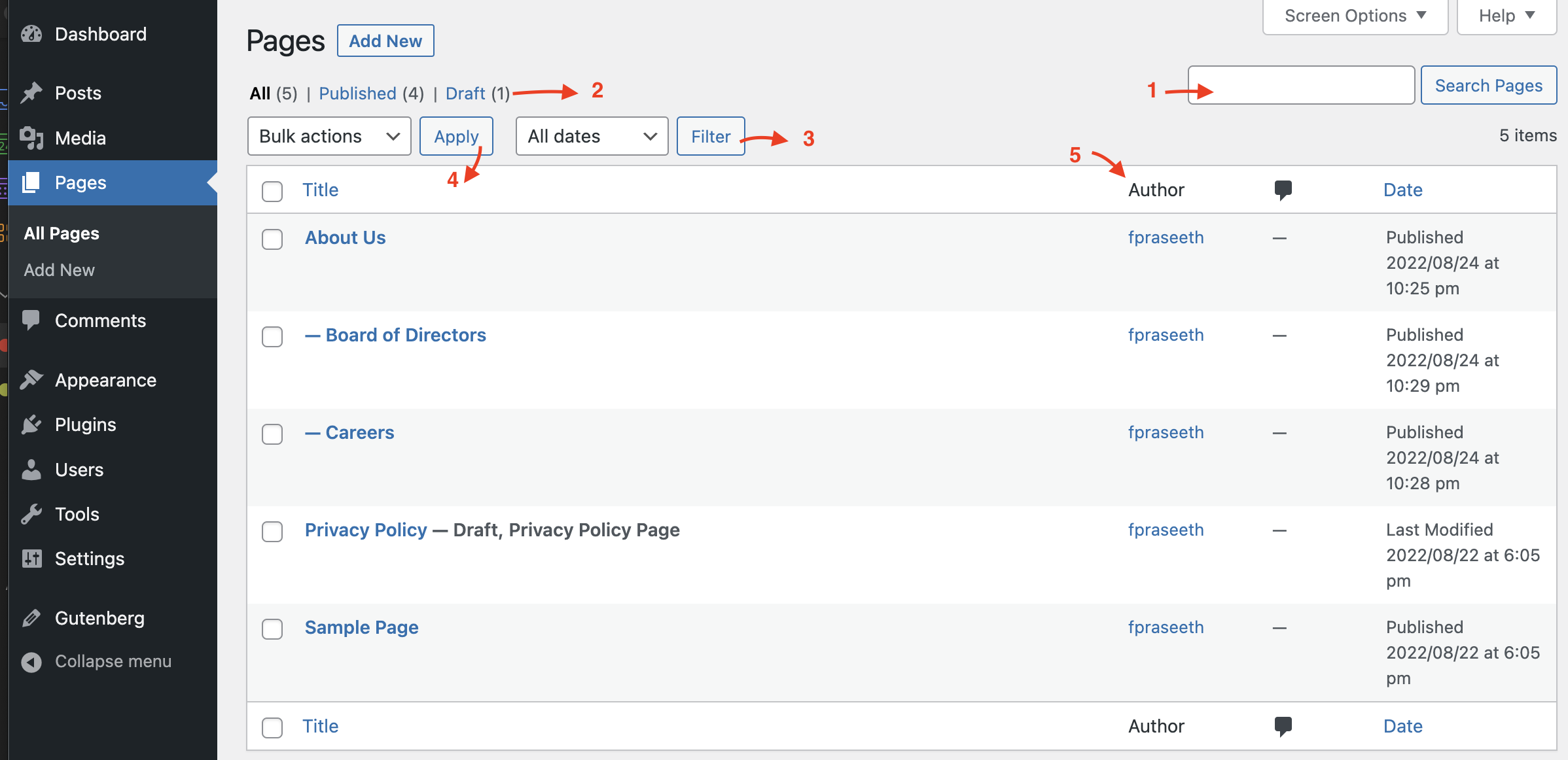
Find the dashboard’s left side menu. Look for the Pages option. Click on it. A new screen will open. This shows all your pages. It’s like a list. You can see old pages here. You can also edit them if needed. Always check this section for updates.
Adding a new page is simple. First, click on the Add New button. This is usually at the top. A fresh page opens up. You can type a title here. Write your content in the big box. Use tools to make text bold or italic. Finally, hit the Publish button. This will make your page live. Always review before publishing. Check for errors or typos.
Customizing Page Templates
Template files are like blueprints for your pages. To change these files, go to the WordPress Dashboard. Click on the Appearance tab, then select Theme Editor. You will see a list of files on the right. Find the file you want to edit. Make your changes carefully. Small changes can affect your website. Always save a backup before making any changes.
To use a template for a page, open the page editor. Look for the Page Attributes section on the right. Here, you can select a template from a drop-down menu. Choose the one you want. This template will now be used for that page. Templates help make pages look unique. They are useful for organizing your content.
Utilizing Page Builders
WordPress offers many page builder plugins. These plugins help create pages easily. Elementor is a popular choice. It is user-friendly and has many features. Another option is Beaver Builder. It is great for beginners. Both are easy to use and have drag-and-drop features.
Drag-and-drop builders make page creation simple. No coding skills needed. Just drag items and drop them where you want. You can add text, images, and more. This method saves time and makes creating pages fun. It allows you to see changes in real-time.
Incorporating Custom Code
The functions.php file is like a toolbox. You can add new tools. This file is in your theme folder. Open it with a code editor. Add your custom functions here. Make sure to save your changes. Check your site to see if it works.
WordPress has hooks and filters. Hooks let you add new actions. Filters change data before it shows. Use them to change how your site acts. You can find examples online. Learn how they work. Practice makes it easy.
Seo Considerations
Page titles are very important for SEO. They help search engines find your pages. Use keywords in your titles. Make sure each page has a unique title. Titles should be clear and simple. They tell readers what the page is about. This makes it easy for people to find your pages.
SEO plugins can help improve your site. They offer tools to make your pages better. Plugins can suggest keywords and help with meta tags. They make it simple to add SEO details. This helps your site rank higher in search results. Most plugins are easy to use. They guide you step-by-step.
Credit: crocoblock.com
Testing And Troubleshooting
Adding more pages to a WordPress theme requires careful testing and troubleshooting. Start by accessing the theme editor and creating new pages using the built-in tools. Check for errors and ensure smooth navigation to enhance user experience.
Checking For Errors
Adding new pages can sometimes cause errors. Check if the page loads properly. Look for missing images or broken links. Use the preview feature to see changes. Make sure the page looks right. Try different browsers to ensure everything works.
Check the console for error messages. Fix any issues you find. This helps keep your site running smoothly.
Ensuring Mobile Responsiveness
Many people use phones to browse websites. Your new page must be mobile-friendly. Use a responsive theme for this. Test the page on a smartphone. Make sure text and images display well. Check if buttons are easy to tap.
Adjust the page if needed. Good mobile design makes users happy. It also helps with search engine rankings.

Credit: www.namecheap.com
Frequently Asked Questions
How To Create A New Page In WordPress?
To create a new page, go to your WordPress dashboard, click “Pages,” then “Add New. ” Enter your page title and content, and hit “Publish. ” Customize the page using theme options or plugins for added functionality. This process is simple and allows for easy content expansion on your site.
Can I Add Pages To Any WordPress Theme?
Yes, you can add pages to any WordPress theme. Themes offer design frameworks, but pages can be added independently. Use the WordPress dashboard to create pages, ensuring they fit your theme’s style. Adjust layout and design settings to maintain consistency across your site.
How Do I Customize Page Layouts?
Customize page layouts using the WordPress Customizer or page builder plugins like Elementor. These tools offer drag-and-drop functionality for easy design adjustments. Change fonts, colors, and layout elements to match your theme. Ensure your pages are responsive and visually appealing across all devices.
Are Plugins Necessary For Adding Pages?
Plugins aren’t necessary for adding pages, but they enhance functionality. Use plugins like Elementor or WPBakery for advanced page designs. They offer additional customization options and features. Plugins can simplify complex tasks, making it easier to create professional-looking pages without coding.
Conclusion
Adding more pages to a WordPress theme is easy. Start by accessing the dashboard. Navigate through the menu options. Use the “Pages” section to create new pages. Customize each page for your needs. Add content, images, and links to enrich the experience.
Make sure each page is user-friendly. Double-check settings for visibility and order. Preview before publishing to ensure quality. With practice, managing multiple pages becomes simple. Explore plugins for advanced features. Keep your site organized and relevant. This enhances user engagement and improves your site’s effectiveness.


