
Are you looking to enhance your WordPress site with the Bridge theme by adding a sidebar to your posts? You’re in the right place!
A sidebar can significantly improve the functionality and aesthetics of your site, offering your visitors quick access to valuable content and navigation options. Imagine your readers easily finding related articles, recent posts, or important links, all while enjoying a seamless browsing experience.
In this guide, we’ll walk you through the simple steps to integrate a sidebar into your Bridge theme posts, ensuring that your website stands out and serves your audience effectively. Let’s unlock the potential of your site together!
Bridge Theme Overview
The Bridge Theme offers a sleek and modern design. It provides various customization options to fit your needs. Users can easily tailor their sites with the drag-and-drop builder. There are over 500 demos available. This allows for quick setups. It supports different post types like blogs and portfolios. The theme is also SEO-friendly, helping your site rank better. It includes premium plugins like Visual Composer. These enhance functionality. The theme is also responsive, ensuring your site looks good on all devices.
Bridge Theme allows color and font changes. You can add custom widgets to your sidebar. The theme supports various header styles for a unique look. You can also customize footer layouts to match your brand. The theme panel is user-friendly. It simplifies the process of making changes. This makes the theme highly adaptable.
Credit: qodeinteractive.com
Importance Of Sidebars
Sidebars make websites easy to use. They offer quick links. Users find what they need fast. This saves time. It makes browsing fun. A clean sidebar feels good to use. It looks neat and tidy. Users can explore more pages. This keeps them on your site longer.
Sidebars help users stay active. They can see recent posts. This makes them want to click. Sidebars show helpful tools. Users can share content easily. This means more people visit your site. Sidebars also have ads. This helps earn money.
Preparing For Sidebar Addition
Backing up your site is vital. This keeps your work safe. Use a plugin like UpdraftPlus. It helps save your site. You can also use other backup tools. They make copies of your site. Store these copies safely. You can keep them on your computer. Or use cloud storage for safety.
It’s important to identify your sidebar needs. Ask yourself what you need. Do you want a search bar? Or maybe recent posts? Decide what is best for your readers. Think about how it looks. A sidebar should not be too crowded. It must be easy to read. Make sure your choices fit your site’s style.
Accessing WordPress Dashboard
Start by opening your web browser. Type in your website’s URL. Add /wp-admin at the end. Press enter. A login page will appear. Enter your username and password. Click the login button. You will see the WordPress dashboard. This is your control center.
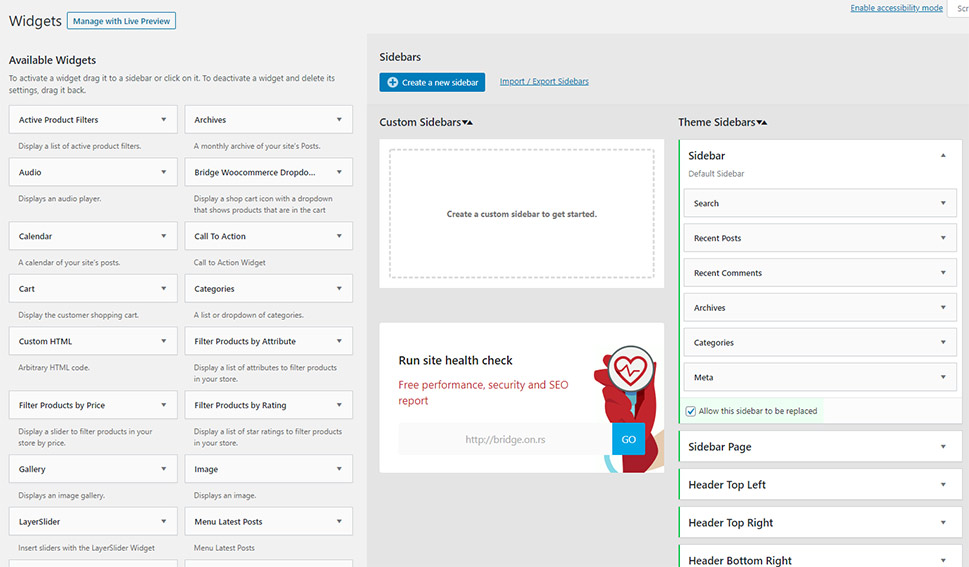
On the left side, find the menu. Look for the Appearance tab. Click on it. Now, select Widgets. Here you can add or remove items. Find the sidebar section. Drag widgets to it. Customize as needed. Save your changes. Go back to your site. Check if the sidebar appears.
Adding Sidebar In Bridge Theme
The Bridge Theme makes it easy to add a sidebar. First, visit the Theme Options in your dashboard. Here, locate the Sidebar settings. You can choose the sidebar position. Left or right, it’s your choice. Enable the sidebar by toggling the switch. Don’t forget to save your changes.
Widgets add functionality to your sidebar. Go to the Widgets section in the dashboard. Drag and drop widgets into the sidebar area. Popular widgets include Recent Posts and Categories. Arrange the widgets in the order you like. It’s that simple.
Customizing Sidebar Appearance
Changing the sidebar can make your site look special. Use widgets to add fun features. These can be things like a search bar or recent posts. Choose the widgets that fit your theme best. Make sure they match your site’s style.
Styling With Widgets
Widgets are easy to add. Go to the WordPress Dashboard. Click on Appearance, then Widgets. Drag the widget you like to the sidebar area. Arrange them in the order you want. Each widget can have its own settings. Explore these to customize your site even more. Try different widgets to see what looks best.
Adjusting Layout
Decide where the sidebar should be. It can be on the left or right. This depends on your theme settings. Go to Appearance and then Customize. Look for Layout options. Choose the layout that you like. Always preview changes before publishing. This way, you see how your site looks to visitors.
Assigning Sidebar To Posts
Default sidebars show on every post. Go to the WordPress dashboard. Click on “Appearance”. Then choose “Widgets”. Here, you can set the default sidebars. Drag and drop widgets into the sidebar area. This helps organize your posts. Save your changes. Now, every post has these widgets.
Some posts need special sidebars. Open the post editor. Look for the “Sidebar” option on the right. Choose a different sidebar from the dropdown. This changes the sidebar for that post only. Make sure to save your post. Now, your post shows the custom sidebar. This is useful for special content.
Credit: qodeinteractive.com
Testing Sidebar Functionality
Sidebars should work well on all devices. Test on phones, tablets, and computers. Content must not hide or overlap. Resize your browser to see changes. This checks if the sidebar stays in place.
Browsers show pages differently. Check your sidebar on Chrome, Firefox, and Safari. Ensure it looks the same everywhere. If it breaks, users might leave your site. Fix any issues quickly.
Common Issues And Solutions
Sometimes the sidebar does not show up correctly. This can be due to theme settings. Check if the sidebar is enabled. Go to the theme options. Ensure the display settings are correct. Also, review the page layout settings. It should not be set to full-width.
Another issue could be plugin conflicts. Deactivate all plugins. Then, activate them one by one. This helps find the problem plugin. After finding it, look for updates or alternatives.
Widgets sometimes do not work well together. This can cause errors. Start by checking each widget. Deactivate all and then add them back slowly. This helps spot the conflict.
Ensure all widgets are up-to-date. Older widgets may not be compatible. Check for updates in the WordPress dashboard. If a widget still causes trouble, look for a different one.

Credit: bridge.qodeinteractive.com
Frequently Asked Questions
How Do I Add A Sidebar In Bridge Theme?
To add a sidebar in Bridge Theme, navigate to Appearance > Widgets in your WordPress dashboard. Drag and drop desired widgets into the Sidebar area. Ensure the sidebar is enabled in the theme settings under Theme Options > Sidebar. Save changes to apply the sidebar to posts.
Can I Customize The Sidebar Content?
Yes, you can customize the sidebar content in Bridge Theme. Use Appearance > Widgets to add, remove, or rearrange widgets. You can also customize individual widget settings. This allows you to tailor the sidebar content to better match the style and functionality of your site.
Is It Possible To Hide The Sidebar On Posts?
Yes, you can hide the sidebar on specific posts in Bridge Theme. Edit the post and go to the Sidebar option in the post settings. Select ‘No Sidebar’ to remove it. This allows you to create a full-width layout for individual posts.
How To Change Sidebar Position In Bridge Theme?
To change the sidebar position in Bridge Theme, go to Theme Options > Sidebar. You can choose between left or right sidebar positions. Save changes to apply the new layout. This flexibility helps in adjusting the design to suit your content presentation needs.
Conclusion
Adding a sidebar to your Bridge theme enhances your blog’s layout. It provides easy navigation for readers. Sidebars offer quick access to popular posts and important links. They improve user experience. Your blog becomes more engaging and organized. It’s simple to implement.
Follow the steps carefully. Customize the sidebar to fit your style. Make sure it complements your content. A well-placed sidebar can boost interaction. Your readers will appreciate the ease of use. Experiment with different elements. Discover what works best for your audience.
Enjoy a more functional and appealing blog layout!


