
Are you looking to enhance your WordPress website with a sleek and organized navigation system? Adding a dropdown menu can be a game-changer for your site’s usability and aesthetics.
Imagine your visitors gliding effortlessly through your content, finding exactly what they’re looking for without the hassle. Sounds great, right? In this guide, we’ll walk you through the simple steps to integrate a dropdown menu into your WordPress theme. Whether you’re a seasoned developer or a WordPress newbie, you’ll find this process easier than you might think.
So, let’s dive in and transform your site into a user-friendly powerhouse!
Benefits Of Drop Down Menus
Drop down menus make websites look neat. They help organize pages. Users find what they need quickly. This saves time and effort. Websites with drop downs are easy to navigate. Visitors have a better experience. They stay longer on the site. This can lead to more engagement. Drop down menus also save space. They keep the homepage tidy and clean. This gives a professional look.
Users love simple menus. Drop downs provide this simplicity. They guide users to important sections. This improves the overall usability of a website. Without clutter, users focus on what matters. Drop down menus are essential for any modern website. They enhance both function and design.
Choosing The Right Theme
Themes decide how your site looks. They are like clothes for your website. Pick a theme that has menu options. Some themes have simple menu bars. Others have drop-down menus. Look at the theme details. Check if it supports custom menus. Most themes on WordPress have this feature. Always choose a theme that is user-friendly. It should be easy for visitors to use. Make sure it is responsive. People use phones and tablets to browse sites. A responsive theme looks good on all devices. Check reviews for the theme. See what others say about it. A theme with good reviews is usually reliable. Avoid themes with many negative reviews. They might have problems or bugs.
Using WordPress Customizer
Start by logging into your WordPress dashboard. Look for the Appearance menu on the left. Click on it. Then, choose Customizer from the list. This opens the WordPress Customizer. You can change your theme here. It’s easy to use and fun.
Inside the Customizer, find the Menus section. Click on it to see more options. You can create a new menu or edit an existing one. For a drop-down menu, add items under a main item. Drag and drop to arrange them. This creates a neat, organized look. Your menu is now ready for visitors.

Credit: stackoverflow.com
Creating A New Menu
To create a new menu, go to your WordPress dashboard. Click on Appearance, then Menus. Next, click the Create a New Menu button. Type a name for your menu in the box. Press the Create Menu button. Your menu is now ready.
Add items to your menu by selecting pages, posts, or categories. Check the box beside each item you want. Press the Add to Menu button. Your items will appear on the right side. Arrange them as needed.
To organize the menu, drag the items up or down. Place them in the order you like. Create a drop-down menu by moving items slightly to the right. This will make them sub-items. Save your changes by clicking the Save Menu button. Now your menu is neat and easy to use.
Adding Drop Down Functionality
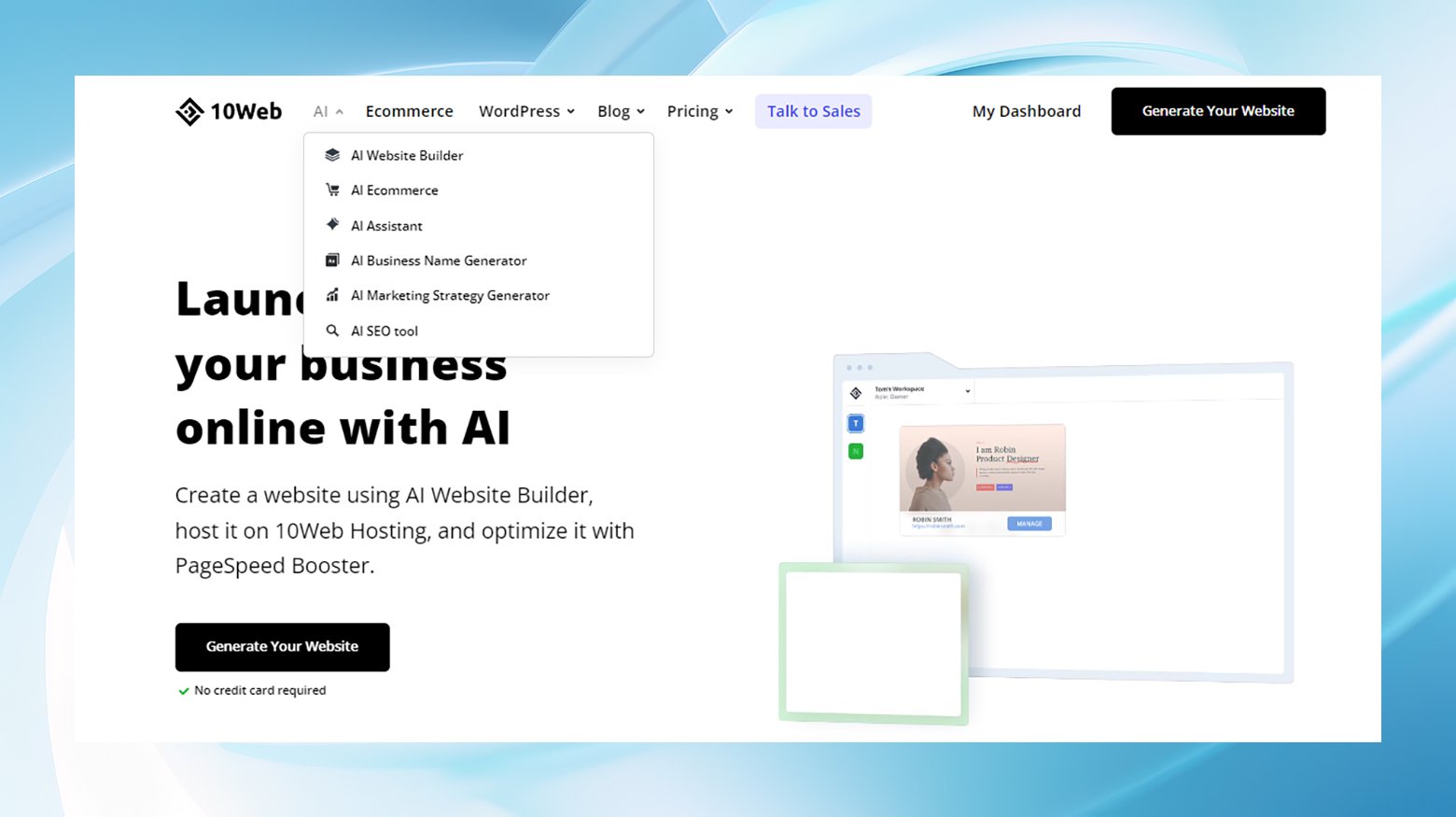
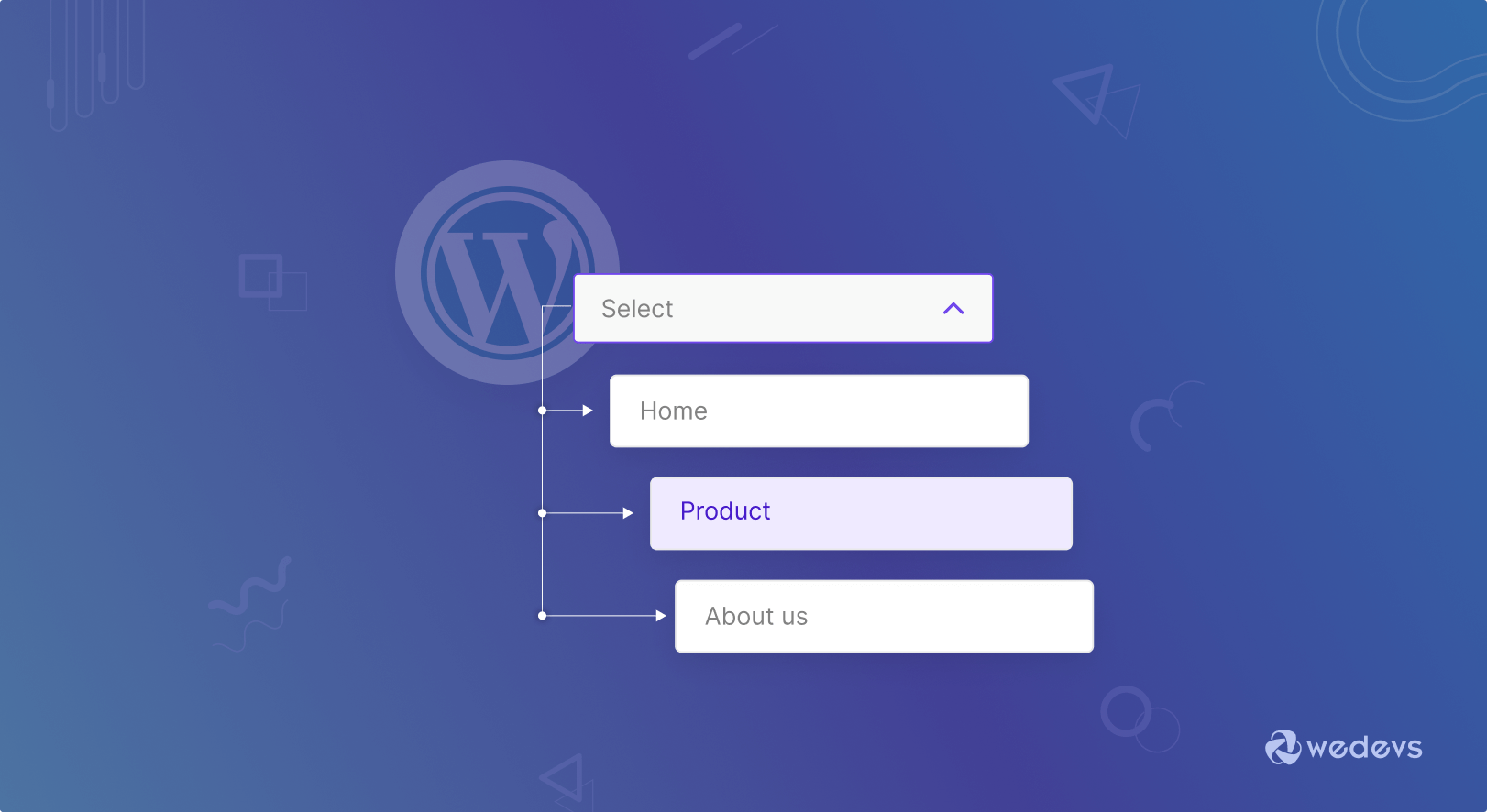
To create a drop down menu, set a parent item. This is the main link. Then, add child items under it. These are the links that show when you hover. Use the WordPress menu settings. Drag child items under the parent. Make sure the child items are indented. Indentation makes them appear in the drop down. Save changes to see the menu.
Select where the menu will appear. Go to the menu settings. Choose a location like header or footer. Check the box next to your menu name. This ensures the menu appears where you want. Some themes have special locations. Check your theme options for more locations. Save your changes to set the menu.
Credit: 10web.io
Using Plugins For Enhanced Menus
Integrating plugins simplifies the addition of dropdown menus in WordPress themes. Customize your site’s navigation with ease and flexibility. Enhance user experience by providing organized and easy-to-access options.
Top Recommended Plugins
Adding a drop-down menu can make your site look neat. There are plugins that can help. Max Mega Menu is a popular choice. It lets you create big menus easily. WP Mega Menu is another good option. It is simple and easy to use. UberMenu offers many features for advanced users. These plugins are reliable and widely used. Choose the one that fits your needs best.
Installing And Activating Plugins
Installing plugins on WordPress is easy. Go to your dashboard. Find the “Plugins” tab and click on it. Choose “Add New” and search for the plugin. Click “Install Now” to add it. Once installed, click “Activate” to start using it. Your site can now have better menus with just a few clicks.
Styling Your Drop Down Menu
Enhancing your WordPress site with a drop-down menu is simple and effective. Customize navigation by adding a drop-down menu. It helps organize content and improve user experience. Navigate to the WordPress dashboard, go to Appearance, and select Menus. Add new menu items and arrange them as sub-items.
Custom Css Options
Custom CSS gives you control over your menu style. You can change colors, fonts, and backgrounds. Adding hover effects can make your menu stand out. Use CSS to adjust the width and height of your menu items. Test different styles to see what looks best.
Responsive Design Considerations
Responsive design ensures your menu looks good on all devices. Use media queries to adjust styles for different screen sizes. Make sure the menu is easy to use on phones and tablets. Test the menu on different devices. Adjust font size and button spacing for better accessibility.
Credit: wedevs.com
Testing And Troubleshooting
Adding a drop-down menu to a WordPress theme enhances site navigation. Access the WordPress dashboard, then head to “Appearance” and select “Menus. ” Create a new menu, add items, and choose a location. Save changes to see the menu on your site.
Troubleshoot any issues by checking theme settings and plugins.
Checking Menu Functionality
Ensure the drop-down menu works properly on all devices. Test on mobile, tablet, and desktop. Click each menu item to see if it opens correctly. Check links. They should direct to the right pages. Verify the menu appearance on different browsers. Use Chrome, Firefox, and Safari. Look for any layout issues. Make sure the menu is not overlapping other elements. If issues arise, check the theme settings.
Common Issues And Fixes
Menus might not appear due to incorrect theme settings. Ensure the menu is assigned correctly. Missing items can occur if not added properly. Double-check the menu structure. Broken links often result from URL errors. Correct any wrong URLs. Sometimes, CSS conflicts cause design issues. Inspect the custom CSS in the theme settings. Adjust CSS if necessary. Use the WordPress Customizer for easier fixes. Regularly update themes and plugins. This prevents compatibility problems.
Maintaining Your Menu
Creating drop-down menus in WordPress is straightforward and enhances navigation. Navigate to Appearance, then Menus in your dashboard. Here, drag items under parent categories to form a submenu, streamlining access to content.
Updating Menu Items
Keep your menu fresh. Add new pages or posts often. Delete old links. This helps users find what they need quickly. Check your menu every month. Look for broken links. Fix them right away. A well-maintained menu keeps your site easy to use. Users will spend more time on your site. They will find information fast. Happy users return often. Your menu is a key part of your website. Make it simple and clear.
Regularly Reviewing User Experience
Get feedback from users. Ask them if the menu is easy to use. Find out what they like or dislike. Change the menu if needed. Make it better each time. Simple menus make users happy. They help users stay longer. User experience matters a lot. Happy users tell others about your site. This brings more visitors. Keep improving your menu. Make changes that help users. Your site will grow with happy users.
Frequently Asked Questions
How To Create A Dropdown Menu In WordPress?
To create a dropdown menu, navigate to your WordPress dashboard. Go to Appearance, then Menus. Add items to the menu and drag them under a parent item to create a hierarchy. Save changes, and your dropdown menu should appear on your site.
Can I Customize WordPress Dropdown Menus?
Yes, you can customize dropdown menus using CSS or a WordPress plugin. CSS lets you change appearance, like colors and fonts. Plugins offer more options, like animations and styles. Customize menus to enhance user experience and match your theme.
What Plugins Help With WordPress Menus?
Several plugins can enhance WordPress menus. Popular options include Max Mega Menu, WP Mega Menu, and UberMenu. These plugins offer advanced features, such as responsive design, animations, and custom styles. Choose one that fits your site’s needs and design preferences.
Are Dropdown Menus Mobile-friendly In WordPress?
Yes, dropdown menus can be mobile-friendly in WordPress. Most themes automatically optimize menus for mobile devices. You can further customize them using plugins or CSS to ensure they function well on smartphones and tablets, enhancing user experience.
Conclusion
Creating a dropdown menu in WordPress is simple. It enhances navigation. Visitors find information quickly. Use WordPress tools for easy setup. Choose themes supporting dropdowns. Customize for a personal touch. Test the menu on different devices. Ensure accessibility for all users.
Regular updates keep it functional. Dropdown menus improve user experience. They make your site look professional. Follow these steps for a seamless process. Enjoy a well-organized website. It attracts more visitors. Keeps them engaged longer. Your WordPress journey becomes smoother.
Happy creating!


