
Are you looking to enhance your WordPress theme with dynamic features and interactivity? Adding jQuery to your WordPress theme can unlock a world of possibilities.
Imagine having sleek animations, dynamic content updates, and interactive elements that captivate your visitors. In this guide, you’ll learn the simple steps to seamlessly integrate jQuery into your WordPress theme. Whether you’re a seasoned developer or just starting out, you’ll find these techniques straightforward and effective.
Ready to elevate your WordPress site and keep your audience engaged? Let’s dive in and transform your theme with the power of jQuery!
Understanding Jquery And WordPress
jQuery is a fast and small JavaScript library. It simplifies HTML document traversing. It also handles event management and animation. WordPress uses jQuery for many tasks. It’s already included in WordPress. You just need to activate it in your theme.
First, go to your WordPress theme folder. Open the functions.php file. Add a simple code to enqueue jQuery. This ensures jQuery loads properly. Without this, some features may not work. Keep your code clean and organized.
Always check for conflicts with other scripts. jQuery should not load twice. Use a good text editor for coding. Save changes and check your site. If everything works, jQuery is set up.
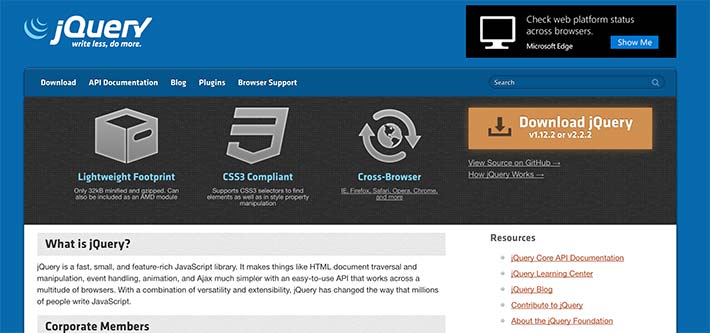
Credit: wpengine.com
Benefits Of Using Jquery In WordPress
jQuery makes web pages interactive. It helps create nice animations. Users can enjoy engaging effects. Forms become easy to handle. jQuery is lightweight and fast. It works well with many plugins. Developers use it to make things simple. No need for heavy code.
jQuery supports all browsers. It ensures compatibility. Sites look good everywhere. jQuery is open-source. Many people improve it. It stays up-to-date. Using jQuery means less time coding. Easy to learn and use. Perfect for beginners.
Users like smooth experiences. jQuery delivers this. It enhances user satisfaction. A great tool for WordPress themes. It makes themes powerful and flexible. Everyone benefits from its features.
Checking Jquery Version In WordPress
To find out the jQuery version in WordPress, you need a simple method. First, open your browser. Then, right-click on your WordPress site. Choose “Inspect” from the menu. A new window will appear on your screen.
Look for the Console tab in this window. Click on it. Now, type jQuery.fn.jquery and press Enter. This will show you the current jQuery version. It’s a quick way to know what you have.
Always ensure your WordPress theme uses the correct version. Using an outdated version can cause problems. Keep it updated for better performance and security.
Preparing Your Theme For Jquery
Creating a child theme is very important. It keeps your changes safe. Changes in the main theme might get lost.
A child theme keeps them secure. First, make a new folder in your theme directory. Name it like your main theme but
add “-child” at the end. Then, make a style.css file in this folder. Add a line to say it’s a child
theme. For example, Template: your-main-theme. This helps WordPress understand your setup.
Now, make a functions.php file. This file can add jQuery later. It’s simple but very useful.
Always backup your original theme. This is a smart step. Mistakes can happen. A backup saves you from trouble. Use an FTP client. Download the theme folder to your computer. This is your backup. You can also use a plugin. Plugins make backups easy. Choose a good one for safety. Now you are ready to work with jQuery. Your theme is safe and backed up.
Adding Jquery Via WordPress Functions
Add jQuery in WordPress with the wp_enqueue_script function. This is the right way. It keeps jQuery updated. Open the functions.php file. Add code to enqueue jQuery. Use wp_enqueue_script(‘jquery’). This tells WordPress to load jQuery. It avoids conflicts. Code is simple and safe. It makes sure jQuery works well with other scripts. Always use wp_enqueue_script for loading scripts. It is the best practice.
Register the jQuery library in WordPress. This is done in functions.php. Use wp_register_script function.
This prepares the jQuery for use. The code is:
wp_register_script('jquery', false, array(), null, true);
It loads jQuery in the footer. This helps with faster page loads. Registering helps manage scripts easily.
It ensures that jQuery is ready when needed.

Credit: wpengine.com
Incorporating Jquery In Theme Files
Adding jQuery is simple. First, open the functions.php file in your theme. Use the wp_enqueue_script function. This function loads scripts. You can load jQuery in the header or footer. To add it to the header, use wp_head. For the footer, use wp_footer. This keeps the page fast. Always check if jQuery is already loaded. WordPress may have it by default.
Using jQuery in template files is easy. First, ensure jQuery is loaded. Then, add your jQuery code inside script tags. Place these tags in the template file. Make sure your jQuery code is ready. Use jQuery(document).ready function. This waits for the page to load. Now your jQuery will run smoothly. Test your changes. Always make a backup before editing.
Loading Custom Jquery Scripts
Creating custom scripts is easy. First, create a new JavaScript file. Name it something like custom-script.js. Use a text editor like Notepad or Sublime Text. Write your jQuery code inside this file. Remember to save it in your theme’s js folder.
Next, we need to enqueue these custom scripts. Go to your theme’s functions.php file. Add a function to load your script. Use the WordPress function wp_enqueue_script(). This function will add your script to the theme. Be sure to specify the correct file path.
Don’t forget to use wp_enqueue_scripts action. This will ensure your script loads properly. Now, your custom jQuery script is ready to use. It will work on your WordPress site.
Debugging Common Jquery Issues
Integrating jQuery into a WordPress theme can solve many common issues. Simply enqueue jQuery in the functions. php file. This ensures compatibility with other scripts and smooth website performance.
Conflict Resolution
Sometimes jQuery can clash with other libraries. This can cause problems on your site. To fix this, use jQuery.noConflict(). It helps avoid conflicts. Load jQuery in no-conflict mode. Then, use the jQuery keyword instead of $. This way, your site can run smoothly. Always check for scripts loading twice. It can also cause conflicts. Keep your code neat and organized.
Console Error Handling
Errors may show up in the console. These errors give clues about what’s wrong. First, open your browser’s console. Look for red error messages. They often point to faulty lines of code. Fix the errors one by one. Read the error message carefully. It will guide you to the problem. Use try-catch blocks for error handling. This will help catch and manage errors gracefully. Always test your fixes. Ensure the problem is gone.
Best Practices For Jquery In WordPress
Using jQuery can slow down your site. It’s important to minimize its impact. Always load jQuery from a CDN. This helps pages load faster. Limit the use of heavy plugins that rely on jQuery. Avoid using multiple jQuery versions. This can create conflicts. Optimize scripts by combining and minifying them. This reduces their size. Use tools like Google PageSpeed Insights. They will help you understand performance issues. Make sure jQuery is loaded after the rest of the page. This way, it does not delay the loading of content.
Browsers can behave differently. It’s crucial to ensure cross-browser compatibility. Test your jQuery code in multiple browsers. This includes Chrome, Firefox, Safari, and Edge. Use feature detection instead of browser detection. This helps in identifying capabilities. Avoid using deprecated jQuery functions. These can break your site in newer browsers. Polyfills can help older browsers understand modern code. Always keep jQuery updated. New versions fix bugs and improve compatibility. Use the jQuery migrate plugin. It helps you spot compatibility issues easily.

Credit: blog.templatetoaster.com
Exploring Advanced Jquery Techniques
Adding jQuery to a WordPress theme enhances interactivity. Simply enqueue the script in your theme’s functions. php file. This approach ensures jQuery loads properly, improving your site’s functionality and user experience.
Ajax Integration
AJAX lets websites update without reloading the page. jQuery makes AJAX easy. First, include the jQuery library. Use the $.ajax() function for requests. This function sends and receives data. It can get JSON or XML. AJAX works with servers. It helps load data fast. You can show results without page refresh. Use success and error functions to handle responses. They tell you if the request worked or not.
Utilizing Jquery Plugins
jQuery plugins add features to your site. Many plugins are free. They are easy to use. Download the plugin file. Add it to your theme folder. Include it in your scripts. Call the plugin function in your code. Plugins can create slideshows or forms. They improve your site’s look. Keep plugins updated. Old plugins might break. Choose plugins wisely for your needs.
Frequently Asked Questions
How Do I Add Jquery To WordPress?
To add jQuery, enqueue it in your theme’s functions. php file. Use wp_enqueue_script function. This ensures compatibility and avoids conflicts. Always check if jQuery is already included to prevent errors. This method is reliable and keeps your site optimized.
Can Jquery Conflict With WordPress Scripts?
Yes, it can conflict if not properly enqueued. WordPress uses its own version of jQuery. Always use wp_enqueue_script to avoid conflicts. This method prevents duplicate loading and ensures seamless functionality across your site.
Is Jquery Necessary For All WordPress Themes?
Not all themes require jQuery. It’s needed for specific interactive features. If your theme uses jQuery-dependent plugins or scripts, include it. Otherwise, you can skip it to improve performance and speed.
What Version Of Jquery Does WordPress Use?
WordPress uses its own version of jQuery. It’s updated regularly for security and compatibility. Check the official WordPress documentation for the current version. Always rely on WordPress’s version to ensure optimal performance.
Conclusion
Adding jQuery to your WordPress theme is straightforward. Follow the steps outlined to ensure success. Start by enqueuing jQuery in your functions. php file. This method prevents conflicts and ensures updates. Always test changes in a safe environment. Remember, a backup is your best friend before modifications.
Consistent practice helps in mastering these tasks. With patience, your WordPress site will be more dynamic. Keep learning and exploring new ways to enhance your site. Enjoy the process of making your website unique and functional. Happy coding!


