
Are you looking to give your WordPress site a fresh, unique look? Altering WordPress themes can be a game-changer for your website’s appearance and functionality.
Whether you want to tweak colors, change fonts, or even overhaul the entire layout, customizing your theme can set your site apart from the rest. But where do you start, and how can you ensure your changes enhance rather than hinder your site’s performance?
You’ll discover easy-to-follow steps to alter your WordPress theme without losing your way. We’ll guide you through the process, demystifying technical jargon and empowering you to make changes with confidence. Imagine the satisfaction of seeing your creative vision come to life on your website. Dive in, and let’s unlock the potential of your WordPress theme together!
Choosing The Right Theme
Themes come in different types. Some are free, others are paid. Free themes are good for small sites. Paid themes have more features. Choose a theme that fits your needs. Understand what your site needs first.
Look at the features of each theme. Some have sliders, others have galleries. Make sure the theme has what you need. Check for customization options. A good theme lets you change colors and fonts. This helps make your site unique.
A responsive theme works on all devices. It should look good on phones and tablets. Test the theme on different devices. Make sure it loads fast. A slow site can lose visitors. Responsiveness is key to keeping users happy.

Credit: www.templatemonster.com
Setting Up A Child Theme
Child themes keep your main theme safe. They let you change styles without losing updates. You can modify your site without breaking it. Changes in child themes don’t affect the main theme. This makes updates easier and safer.
Start by making a new folder. Name it after your main theme with “-child” at the end. Inside the folder, create a style.css file. Add a template line pointing to the main theme. Next, make a functions.php file. Use it to enqueue the parent theme styles.
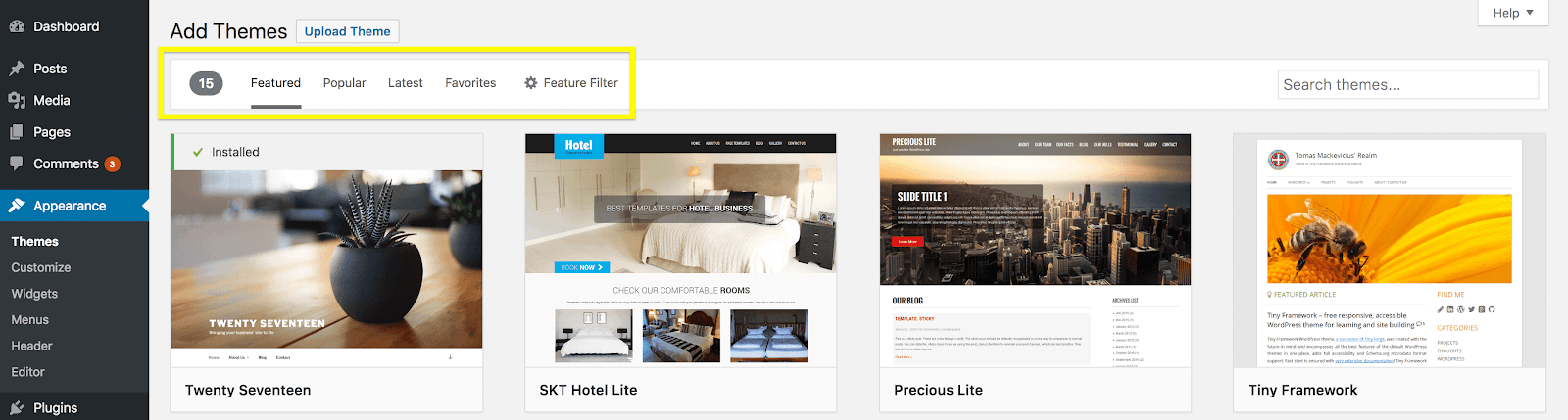
Go to your WordPress dashboard. Click on Appearance, then Themes. Find your child theme and click Activate. Your site now uses the child theme. Check your site to see if everything works. If not, revisit the files to fix errors.
Customizing Theme Styles
The WordPress Customizer is a great tool. It helps change theme styles. You can adjust colors and fonts easily. This tool is found in the dashboard. Look under the “Appearance” tab. It’s easy to use. Changes happen in real time. You can see your site change right away. This makes it simple to create a unique look.
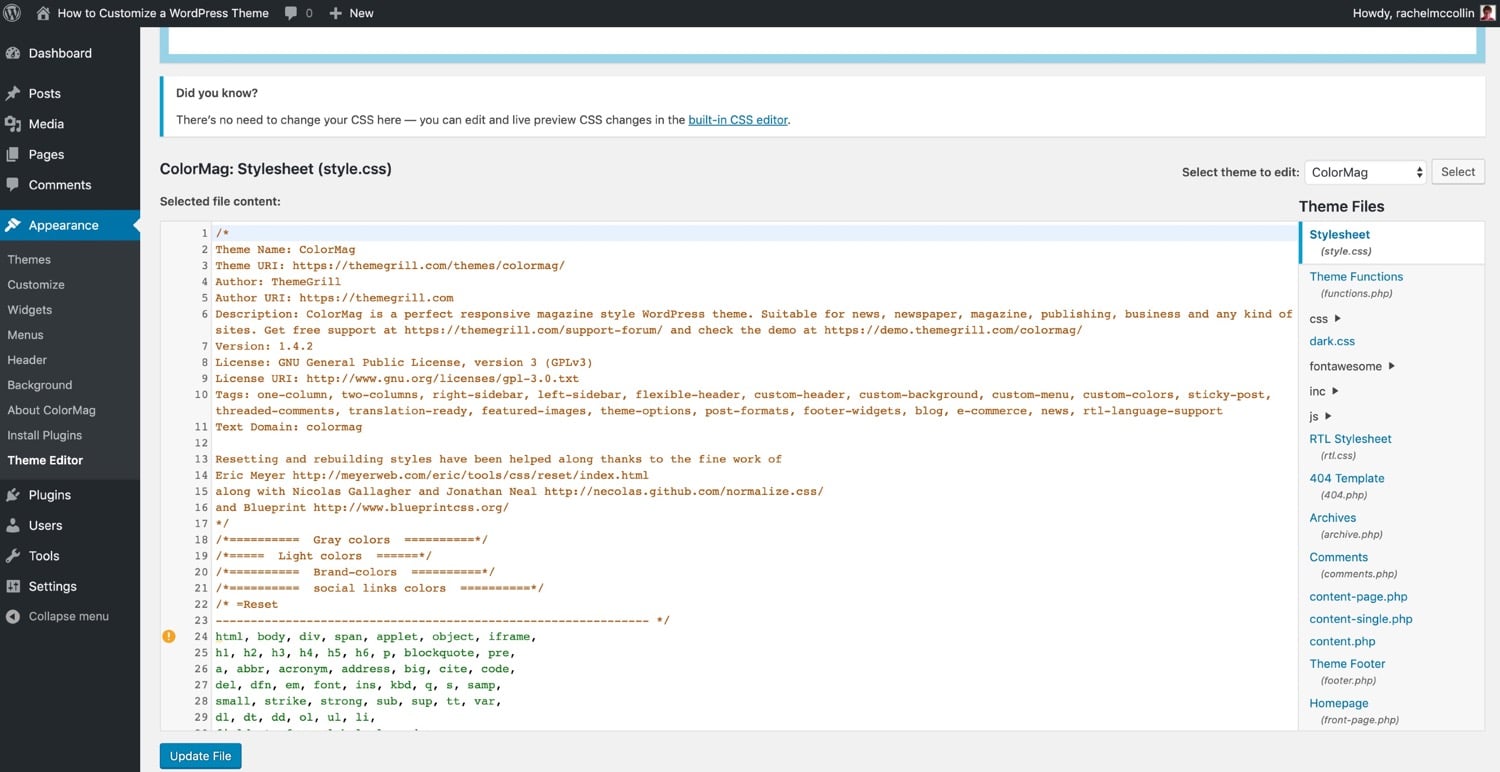
CSS lets you change styles more deeply. You can edit it in the theme editor. Add custom rules to change how things look. Be careful though. Wrong code can break your site. Always save a copy of your original CSS. This way, you can go back if needed.
Advanced changes need more skills. Child themes are useful here. They let you change things without hurting the main theme. You can add new styles and scripts. This keeps your site safe during updates. Keep learning and practicing. Your skills will grow over time.
Modifying Theme Templates
Template files help design your website. Each file controls a part of the site. The header, footer, or sidebar. Know what each file does. This helps in making changes. Always keep a backup. This is important before editing.
Open template files with a code editor. Make changes to HTML and CSS. Be careful with PHP code. Wrong changes can break the site. Use comments to remember changes. Save and check the site after editing.
Page builders are tools. They help design pages easily. No need to code. Drag and drop elements. Change the layout with a few clicks. Many themes support page builders. They make design easy and fun.
Integrating Plugins For Enhancement
Enhancing WordPress themes becomes simple with plugins. Plugins add features without altering the core theme code. This approach keeps your website adaptable and efficient.
Choosing Compatible Plugins
Choosing the right plugin makes your theme better. Not all plugins work well together. Check the plugin’s reviews. Ensure it matches your theme. Compatibility is key. Avoid plugins that may cause errors. Simple choices make a big difference.
Enhancing Functionality
Plugins can add features to your site. Some plugins help with forms. Others make photo galleries easy. Pick plugins that suit your needs. Functionality should be your focus. Always read user feedback. This helps in choosing wisely.
Optimizing Performance With Plugins
Plugins can slow down a site. Optimize them for better speed. Choose lightweight plugins. Disable unused plugins. Regular updates are important. Faster sites give better user experience. Keep an eye on site speed.
Credit: wpengine.com
Testing And Troubleshooting
Altering WordPress themes involves testing and troubleshooting to ensure seamless functionality. Explore theme options carefully. Adjust settings and styles as needed. Check for errors and fix them promptly. This process ensures your website looks great and works well for visitors.
Testing Theme Changes
Make a backup before changing your theme. This saves your original settings. After making changes, check your site. Ensure everything looks correct. Pay attention to the layout. Are images and text aligned? Test links and buttons. Do they work? Use different devices to view your site. Check on phones, tablets, and computers.
Resolving Common Issues
Sometimes, things might break. A common issue is broken links. Double-check their URLs. Another problem is missing images. Make sure image files are uploaded. Update your plugins. This often fixes errors. If your site is slow, check your hosting. Consider using a caching plugin. These steps can fix many problems.
Ensuring Cross-browser Compatibility
Websites look different in browsers. Test your site in Chrome, Firefox, and Safari. Each browser may show your site differently. Adjust your theme for each one. This ensures users see a good site. Use online tools to help. They show how your site looks in different browsers.
Keeping Themes Updated
Updates keep your theme safe and fresh. They fix bugs and add new features. Ignoring updates might cause problems. Your site could break or face security risks. Always check for updates in your WordPress dashboard.
Updating themes can be risky. First, test updates in a staging environment. This helps spot problems before they hit your live site. After testing, update your live site. Always ensure compatibility with plugins and custom codes.
Backups are your safety net. Use plugins like UpdraftPlus or BackupBuddy. They store your data securely. Save your backups in multiple places. Cloud storage or an external drive work well. This way, you can restore your site if something goes wrong.
Credit: kinsta.com
Frequently Asked Questions
How Can I Change A WordPress Theme?
To change a WordPress theme, navigate to the “Appearance” section in your dashboard. Click “Themes” to view available options. Install a new theme by selecting “Add New,” then activate it. Ensure compatibility with your site’s content for seamless integration.
What Is A Child Theme In WordPress?
A child theme in WordPress allows customization without affecting the parent theme’s files. It inherits the parent’s features but enables modifications. Use child themes to safely update the parent theme without losing changes, enhancing site design flexibility.
Can I Customize WordPress Themes Without Coding?
Yes, you can customize WordPress themes without coding using the built-in Customizer. Access it through “Appearance” > “Customize. ” Modify colors, fonts, and layouts visually. Many themes also offer page builders for drag-and-drop design customization.
How Do I Back Up My WordPress Theme?
To back up your WordPress theme, use a plugin like UpdraftPlus or BackWPup. These plugins automate backups, ensuring theme files are safe. Alternatively, download the theme files via FTP for manual backup. Regular backups prevent data loss during updates.
Conclusion
Altering WordPress themes can enhance your site’s look and feel. Start with theme basics to understand structure. Use the customization options for simple changes. Advanced users may edit the theme code directly. Backup your site before making major changes to avoid data loss.
Test your changes on different devices to ensure a responsive design. Keep your theme updated for security and performance. Explore online forums and tutorials for additional tips. Practice and patience lead to better results. Your efforts will pay off with a unique, engaging website.
Enjoy the creative process and make your site shine.


