
Are you struggling to adjust the font size in your WordPress free theme? You’re not alone.
Many WordPress users find themselves facing this challenge. The good news is that it’s easier than you might think. In this guide, you will discover simple, step-by-step methods to change the font size on your WordPress site without spending a dime.
Imagine having the power to enhance your site’s readability and appeal with just a few clicks. By the end of this article, you’ll have the knowledge to make your text stand out, keeping your audience engaged and coming back for more. Dive in to transform your website into a more user-friendly space today!
Credit: pixelgrade.com
Selecting A WordPress Theme
Some themes work better with font changes. Check if the theme allows easy font size changes. Read theme reviews for tips on font control. Look for themes with built-in font settings. This makes changing fonts easier. Popular themes often have these features. If unsure, ask in theme forums. Many users share their experiences there.
Free themes offer basic font settings. Go to the WordPress dashboard to find them. Click on Appearance, then Customize. Look for Typography settings. Here, you can change font size. Some themes let you adjust fonts for headers and text separately. If not, try another free theme. Experiment until you find the perfect look. Use easy-to-read fonts. They improve user experience on your site.
Accessing Theme Customizer
Finding the right place to change font size is easy. Start by logging into your WordPress dashboard. Look on the left side. Find the Appearance tab. Click it. A menu will drop down. From the list, select Customizer. Wait a bit, and a new page will open. This page helps you make changes to your site. Making your site look just right is simple here. It’s the first step to changing font size.
Once you are on the Customizer page, look at the options. These options help you change how your site looks. Find the section labeled Typography. It might be under another name like ‘Fonts’. Click on it. This area lets you adjust font settings. You can change the size, style, and more. It’s like a toolbox for your words.
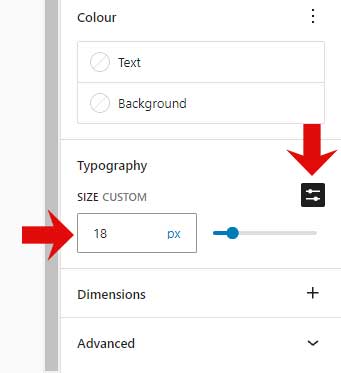
Inside the Typography section, find the font size option. Use it to make text bigger or smaller. Pick the size that fits your site best. Adjust it by clicking on the options or using sliders. Changes happen right away. You can see them on the screen. Make sure it looks good before saving. It’s a fun way to make your site unique!
Adjusting Font Size
Many free themes in WordPress offer built-in font options. These help to change the font size easily. Go to your theme’s settings. Look for the typography or font section. You can find a slider or input box to adjust sizes. It is simple to use.
Some themes may not have this feature. Check the theme description before installing. Always remember to save your changes. View your site after making adjustments. This ensures everything looks good.
Font size units include pixels (px) and em. Pixels are fixed sizes. They do not change. “Em” adjusts based on the parent font size. “Em” is more flexible. It is great for responsive designs.
You can switch between these units. Check what your theme supports. Choose the unit that fits your needs. This will make your site look neat and readable.
Utilizing Additional Plugins
Choosing Font Customization Plugins can be fun. Many plugins help change font size easily. Some popular ones are Easy Google Fonts and TinyMCE Advanced. Look for plugins with good reviews. Check if they are updated often. This keeps your site safe and working well. Always choose plugins that are compatible with your theme. This avoids problems later on.
Installing and Activating Plugins is simple. First, go to your WordPress dashboard. Click on “Plugins” and then “Add New.” Type the plugin name in the search box. Click “Install Now” when you find it. Once installed, click “Activate.” Your new plugin is ready to use. Now, you can change the font size as you like. Always test changes to see how they look.
Custom Css For Font Changes
Custom CSS lets you change font size easily in WordPress free themes. Access the theme customizer, add CSS code, and adjust font size to fit your style. This simple tweak enhances readability and personalizes your website’s appearance.
Accessing The Additional Css Panel
First, open your WordPress dashboard. Click on Appearance, then Customize. Find the Additional CSS section. It is usually at the bottom. This panel lets you add your own CSS code. No need to edit theme files. Easy and safe to use.
Writing Css For Font Adjustments
Type your CSS code in the panel. Use font-size to change sizes. Example: h1 { font-size: 24px; } This code changes the size of all h1 tags. Use em or rem for relative sizes. Example: p { font-size: 1.5em; } This makes the paragraph text larger. Preview changes live. Adjust as needed.
Credit: www.markhendriksen.com
Ensuring Responsiveness
Font size should look good on all screens. This means phones, tablets, and computers. Try using a tool to check your site. Many free tools can show how your site looks. Use them to see if the text is clear.
Text on a phone should not be too big or small. Adjust the font size in your theme settings. Most themes have options for this. You want the text to be easy to read. Check it on a tablet too. See if the words fit well on the screen.
Troubleshooting Common Issues
Changing font size in free WordPress themes can be tricky. Access the theme customizer and find the typography settings. Adjust font size options to enhance readability and design.
Identifying Conflicting Styles
Sometimes, themes use different styles. These styles can conflict with each other. It happens when a theme’s style overrides your settings. Look for any extra CSS in your theme. Check if it affects the font size. Remove or change these styles. This can fix the problem.
Resolving Cache Problems
Caching can cause display issues. Your changes might not show. Clear the cache to see updates. Use a plugin if you need help. Some browsers also cache pages. Clear your browser’s cache too. It helps see the latest changes. Always check after clearing. This ensures everything works fine.
Saving And Publishing Changes
Previewing changes is important. See how your site looks first. This helps avoid mistakes. Click on the preview button to see your changes. Check if the font size looks good. Make sure it fits well with the design. Preview before publishing is a smart step.
After previewing, it’s time to finalize settings. Double-check everything. Ensure the font size is perfect. Make sure everything is in place. When satisfied, hit the save button. This saves your changes. Then, click publish to make it live. Your website will now show the new font size to everyone. It’s easy and quick. Enjoy your updated design!

Credit: www.facebook.com
Frequently Asked Questions
How To Change Font Size In WordPress?
To change font size in WordPress, navigate to the Customizer. Find the Typography section. Adjust the font size slider to your preferred size. Save changes to apply them. This method works for most free themes.
Can I Adjust Font Size Without Coding?
Yes, you can adjust font size without coding. Use the WordPress Customizer tool. Many free themes offer typography options. Simply drag the slider to change font size. Save your changes to apply them.
Which Plugin Helps Change Font Size?
The “Easy Google Fonts” plugin helps change font size easily. Install and activate the plugin. Access the Typography section in Customizer. Adjust font size as needed. This plugin is compatible with most themes.
Do All Free Themes Support Font Size Changes?
Not all free themes support font size changes. Most modern themes do offer this feature. Check the theme documentation for typography options. Alternatively, use a plugin for more control.
Conclusion
Changing font size in WordPress themes can enhance your site’s look. It’s crucial for readability and user experience. Follow the steps to adjust fonts easily without extra cost. Experiment with different sizes to find what fits your site best. Make your content appealing and accessible for all visitors.
Simple font changes can make a big difference. Keep your audience engaged with clear and readable text. Regular updates maintain a fresh and dynamic appearance. Explore and customize your theme, improving your website’s overall appeal. Happy designing!


