
Imagine having the power to streamline your events, appointments, and reminders all within your WordPress website. Sounds convenient, right?
Adding a calendar to your WordPress theme isn’t just a smart move—it’s a game-changer for enhancing user experience and keeping your audience engaged. Whether you’re managing a business, running a blog, or hosting events, a well-integrated calendar can be your secret weapon to boosting efficiency.
In this guide, you’ll discover simple steps to seamlessly add a calendar to your WordPress theme. No coding expertise required! By the end of this post, you’ll be equipped with all the knowledge you need to make your website more interactive and valuable to your visitors. Dive in to learn how you can effortlessly elevate your WordPress site with this essential feature.
Choosing A Calendar Plugin
Adding a calendar to a WordPress theme is easy with plugins. Plugins help you organize events and appointments. They make your website look professional.
Popular Plugin Options
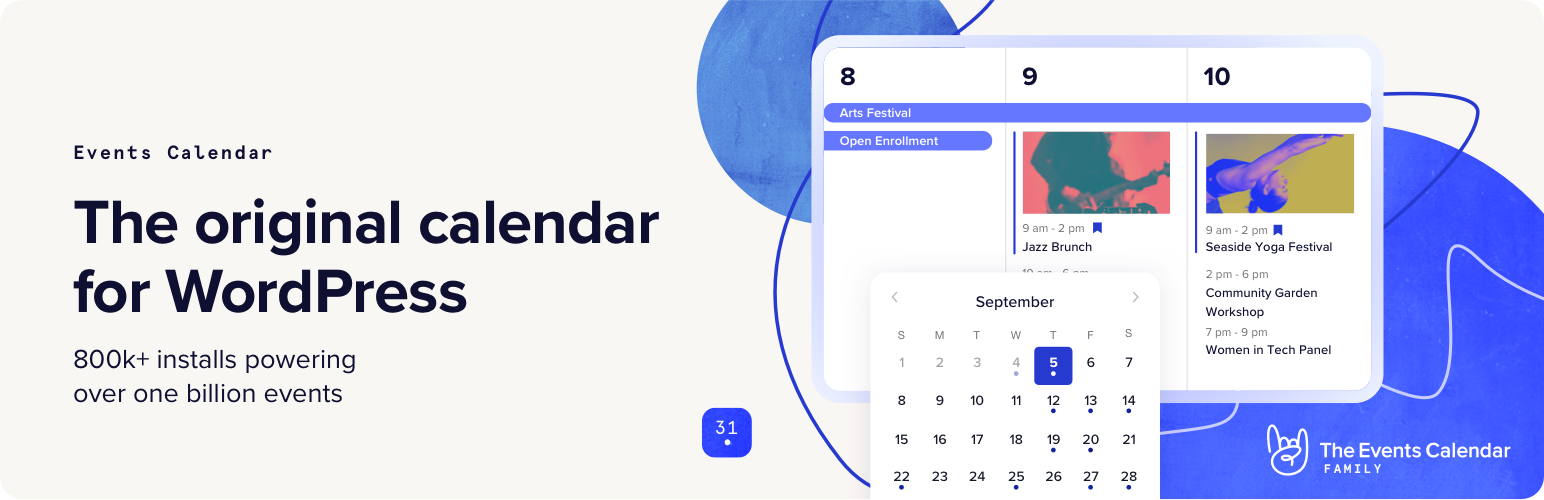
Many plugins are available for calendars. The Events Calendar is a favorite. It is user-friendly and offers many features. All-in-One Event Calendar is another good choice. It has a clean design and is easy to use. My Calendar is great for beginners. It is simple and effective.
Comparing Features And Pricing
| Plugin | Features | Pricing |
|---|---|---|
| The Events Calendar | Easy setup, recurring events, calendar views | Free, Premium starts at $89/year |
| All-in-One Event Calendar | Responsive design, import/export events | Free, Premium available |
| My Calendar | Customizable, multiple calendars | Free, Premium starts at $49/year |
Choosing the right plugin depends on your needs. Consider features and budget. Start with a free version to test. Upgrade if needed.
Installing A Calendar Plugin
Install a calendar plugin from the WordPress dashboard. Go to the Plugins section. Click on Add New. Type “calendar” in the search box. Choose a plugin you like. Click on Install Now. Wait a few seconds. The plugin will install automatically. You will see a message. The message will say the plugin is installed.
Once installed, activate the plugin. Go to the Installed Plugins section. Find your new calendar plugin. Click the Activate button. Your calendar plugin is now active. It will appear in your WordPress menu. You can now use it. Adjust settings to fit your needs. Add events and manage them easily.
Configuring Calendar Settings
Adjusting the general settings of your calendar is important. It helps in making sure everything works well. First, check the time zone. It should match your location. This ensures that events appear at the right time. Then, set the start of the week. Choose a day that fits your needs. Usually, people start with Monday or Sunday.
Next, decide on the date format. You can choose from options like “Day-Month-Year”. Make sure it’s easy to read. Lastly, save your changes. This will keep your settings in place.
Customizing your calendar can make it look nice. You can change the color scheme. Pick colors that match your website. It makes the calendar look pretty. You can also add event descriptions. This helps people know more about each event.
Another option is adding event categories. This helps in organizing events better. If you have many events, use filters. Filters help in finding events quickly. Make sure to save your custom settings. This keeps everything as you set it.
Embedding The Calendar
Easily add a calendar to your WordPress theme to keep your site organized. Use plugins like The Events Calendar or Simple Calendar. Enhance user experience by displaying events and schedules seamlessly. Perfect for businesses, bloggers, and event organizers.
Adding Calendar To Pages
Start by navigating to the WordPress dashboard. Find the Pages section and select the page you want. Click on Edit. Use the block editor to add a new block. Search for Calendar and select it. Once added, you will see the calendar on your page. Click Update to save changes. Check your page to ensure the calendar is visible.
Integrating With Widgets
Go to the Appearance section in your dashboard. Click on Widgets. Look for the Calendar widget. Drag it to your desired sidebar. Give your widget a title if you want. Click Save to keep your changes. Now, visit your site to see the calendar in the sidebar.
Managing Calendar Events
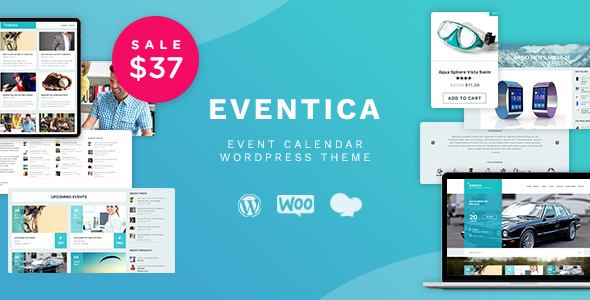
Adding events is simple. Click on the Add Event button. Fill in the event name, date, and time. Save it. Editing is easy too. Click on the event you want to change. Update the details. Save the changes.
Some events happen regularly. You can set them up to repeat. Choose the Recurring option when adding an event. Pick how often it repeats. Daily, weekly, or monthly. Save the settings. Your event will now appear often.
Credit: themeforest.net
Enhancing Calendar Functionality
Add-ons and extensions can make your calendar better. They offer extra features. Some add color coding. Others allow event reminders. They are easy to use. You can find them in the WordPress plugin store. Many are free. Some might cost a small fee. Choose the one that fits your needs. Always check user reviews. This helps pick the best one. Installing them is quick. Just click and activate.
Syncing with other platforms can be useful. It lets you share events. You can connect with Google Calendar. Or even Outlook. This way, you stay updated everywhere. It helps manage events better. No more missing important dates. To sync, use plugins. Many are available online. They guide you through the process. Always ensure your data is secure. This keeps your calendar safe.
Troubleshooting Common Issues
Adding a calendar to a WordPress theme can be tricky. Start by checking your plugin compatibility. Ensure your theme supports the calendar features. Troubleshoot by clearing cache or updating plugins if the calendar doesn’t display properly.
Resolving Display Problems
Calendars sometimes don’t show. This could be a theme issue. Check your theme settings first. Make sure you have enabled calendar display. Look at your shortcode too. Is it placed correctly? If not, the calendar won’t appear. Try different placements. Also, clear your cache. Sometimes, old cache can hide new updates. Always update your plugins. Older plugins might not support your theme.
Fixing Plugin Conflicts
Plugins can conflict. This can break your calendar. First, disable all plugins. Enable them one by one. This helps find the problem plugin. Look for updates. Outdated plugins can cause conflicts. Contact plugin support if issues persist. They can offer solutions. Always back up your site. This prevents data loss during troubleshooting. Regular maintenance helps avoid future conflicts.
Credit: wordpress.org
Best Practices For Calendar Usage
Users like easy-to-read calendars. Simple designs work best. Make sure the calendar is visible on your site. Use clear labels for dates and events. This helps people find things quickly. Interactive features like event pop-ups can be helpful. They give extra information without leaving the page.
Keeping events up-to-date is very important. Old events can confuse users. Always check for any changes or cancellations. Update your calendar as soon as possible. Use plugins that offer automatic updates. This makes your job easier. People appreciate knowing about the latest events. A reliable calendar builds trust with your audience.
Credit: www.isitwp.com
Frequently Asked Questions
How Do I Add A Calendar To WordPress?
To add a calendar to WordPress, use a plugin like “The Events Calendar. ” Install and activate the plugin through your WordPress dashboard. Once activated, configure the settings to match your theme’s design. You can then add events and display the calendar on your site using a shortcode or widget.
Which Plugin Is Best For WordPress Calendar?
“The Events Calendar” is a popular choice for WordPress users. It offers a user-friendly interface and customizable features. Other options include “All-in-One Event Calendar” and “My Calendar. ” Choose a plugin based on your specific needs, such as recurring events or integration with other services.
Can I Customize My WordPress Calendar?
Yes, you can customize your WordPress calendar using plugin settings and theme options. Most calendar plugins allow you to change colors, fonts, and layouts. Some plugins offer advanced customization through CSS. Ensure your calendar matches your site’s design for a cohesive user experience.
Is There A Free WordPress Calendar Plugin?
Yes, many free calendar plugins are available for WordPress. “The Events Calendar” offers a free version with essential features. Other options include “Simple Calendar” and “Event Calendar WD. ” Free plugins are great for basic calendar needs, while premium versions offer additional features.
Conclusion
Adding a calendar to your WordPress theme is simple. Follow the steps above. Customize the calendar to fit your needs. Improve user experience with easy navigation. Keep your audience engaged. An organized calendar boosts site functionality. Visitors find events quickly.
Enhance website interaction. Make your site more efficient. Stay updated with scheduled events. Offer seamless planning options. Enjoy the benefits of a well-integrated calendar. Your website gains clarity. Users appreciate easy access to dates. A streamlined calendar can make a difference.
Your WordPress site feels complete. Ensure a smooth experience for all.


