
Are you ready to transform your WordPress site from bland to brilliant without spending a dime? Adding a theme to your free WordPress site can feel like giving your online presence a brand-new wardrobe.
It’s exciting, but it can also be daunting if you’re not sure where to start. Imagine the ease of customizing your site’s appearance to perfectly match your vision and branding, all while keeping everything simple and cost-effective. Intrigued? You’re in the right place.
In this guide, you’ll discover how to effortlessly add a theme to your free WordPress site, ensuring your content shines and keeps your audience engaged. Let’s dive in and unlock the potential of your website with just a few clicks!
Choosing The Right Theme
Your website needs a theme. A theme that fits its purpose. A blog needs a simple theme. A store needs a professional theme. Think about what visitors expect. Choose a theme that makes sense. This helps users feel comfortable.
Themes must work with your WordPress version. Always check compatibility. Some themes may not work well. This can cause problems on your site. Read reviews from others. This helps avoid issues.
People use phones and tablets a lot. A responsive theme works on all devices. This is important for a good user experience. A responsive design adjusts to different screens. This makes your site easy to read. It also helps with search engine ranking.
Credit: kinsta.com
Accessing The WordPress Dashboard
First, open your web browser. Type your website address. Add “/wp-admin” at the end. Press enter. A login page will appear. Enter your username and password. Click the login button. This takes you to the dashboard.
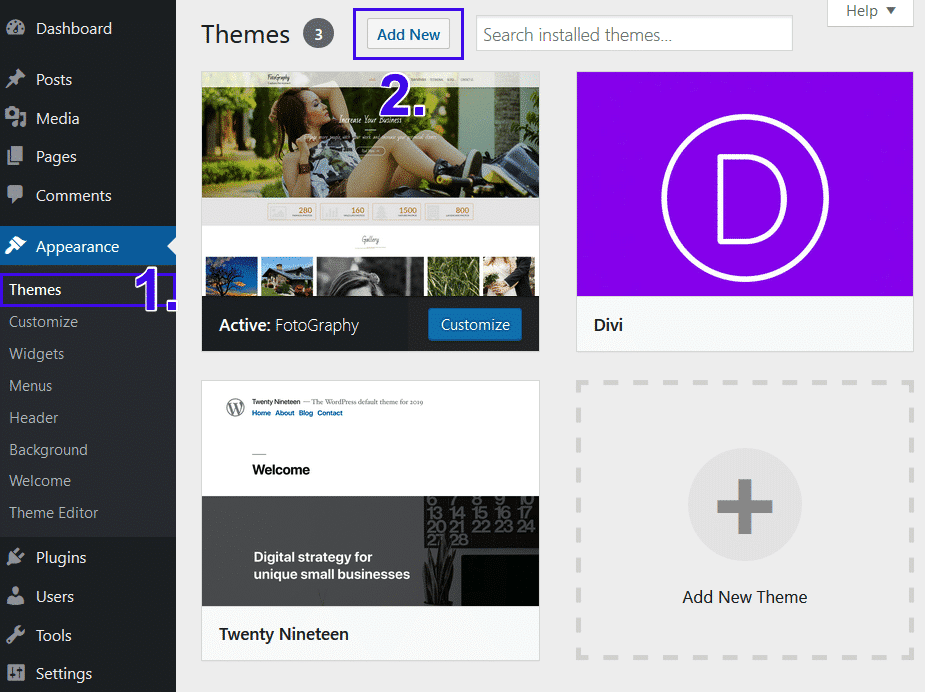
Look at the left sidebar. Find “Appearance”. Click on it. You will see themes options. Here, you can add new themes. Click “Add New”. Browse through free themes. Choose one you like. Click “Install”. Finally, activate your new theme. Your site now looks different.
Exploring The WordPress Theme Directory
Searching for themes is simple. Type a word in the search box. The box is at the top right. You will see many options. Each option is a theme. Themes change how your site looks. You can try different themes. Find the one you like. This tool is very helpful.
Filters help you find the right theme. Filters are on the left side. They show theme features. Features like color, layout, and style. Click on features you want. The list will update. Only themes with these features will show. This saves time. It makes choosing easy.
Credit: colorlib.com
Installing A New Theme
Explore the WordPress dashboard to find new themes. Visit the “Appearance” tab. Then, click on “Themes.” Browse through the available themes. Each theme has a “Preview” option. Click on it to see how it looks. This is important. It helps you decide if the theme fits your blog. Make sure the theme is responsive. Check if it looks good on phones and tablets.
Once you like a theme, find the “Install” button. It’s usually near the theme’s name. Click it to start the installation. Wait for a few seconds. The theme will install automatically. After installation, an “Activate” button appears. Click it to use the new theme. Now, your blog has a fresh look. Enjoy your new design!
Activating The Installed Theme
First, log into your WordPress dashboard. Click on Appearance in the menu. This opens the themes section. Here, you can see all your installed themes.
Find the theme you want to use. Hover over it and click Activate. Your theme is now live. Refresh your website to see the changes.
Customizing Your Theme
The Customizer Tool helps change your site’s look. It’s easy to find in the WordPress dashboard. Use it to preview changes instantly. You can adjust the site title and tagline. It’s simple to modify header images and background colors. This tool saves time and shows changes live.
Change the layout to make your site unique. Choose a style that fits your content. Experiment with different color schemes. Colors can affect how visitors feel. Bright colors can grab attention. Soft colors can give a calm vibe. Always preview before saving changes.
Widgets add extra features to your site. Drag and drop them to different areas. Common widgets include search bars and social media links. Menus help organize your pages. Add important links to the menu. Ensure it’s easy to find and navigate. This makes your site user-friendly.
Testing Your New Theme
Make sure your new theme works well. Check all links and buttons. Do they do their jobs? Look at each page. Is everything in the right place? Try adding a post. Does it look good? These steps help find problems early. Fixing them now saves time later.
Plugins add special features to your site. Some themes don’t work with all plugins. Test your theme with each plugin. Does the plugin work well? If something breaks, you might need a new plugin. Or a different theme. Always keep backups. That way, you won’t lose important work.

Credit: themeforest.net
Updating Themes Regularly
Regularly updating themes keeps your WordPress site fresh and secure. Easily add themes through the WordPress dashboard. Simply navigate to “Appearance,” select “Themes,” and click “Add New” to explore free options.
Understanding Theme Updates
Themes need regular updates. These updates fix bugs. They improve performance and security. Developers release updates often. Updating ensures your site runs smoothly.
New features come with updates. Features make your site better. They enhance functionality. Regular updates keep your site fresh. Updates bring the latest designs. They also ensure compatibility with plugins.
Keeping Your Theme Up-to-date
Check for theme updates often. Visit the theme settings. Look for update notifications. WordPress notifies you about updates. Update themes from the dashboard.
Updating is easy. Click the update button. Wait for the update to finish. Always backup your site first. This prevents data loss. Keeping themes updated is important.
Frequently Asked Questions
How Do I Install A WordPress Theme?
To install a WordPress theme, go to your dashboard. Navigate to Appearance > Themes. Click on ‘Add New’. Search for the theme you want, then click ‘Install’. Once installed, activate the theme to apply it to your site.
Can I Use Free Themes On WordPress?
Yes, WordPress offers numerous free themes. You can find them in the WordPress theme directory. These themes are easy to install and customize. They provide a variety of design options to suit your needs without any cost.
How Do I Customize My WordPress Theme?
To customize your theme, go to Appearance > Customize in your dashboard. Here, you can change colors, fonts, and layout. Adjust settings to match your branding. Use the live preview to see changes before publishing.
What Are The Benefits Of Free WordPress Themes?
Free WordPress themes are cost-effective and easy to use. They provide a quick setup for beginners. Many offer responsive design, ensuring your site looks good on all devices. They also receive regular updates for security and features.
Conclusion
Adding a theme to free WordPress is straightforward. Just follow the steps outlined. Start by selecting a theme that suits your needs. Then, go to the WordPress dashboard. Navigate to Appearance and click on Themes. Choose “Add New” to upload your selected theme.
Activate it once it’s uploaded. Customizing the theme enhances your site’s look. Make sure to preview changes before going live. This ensures everything looks perfect. With these steps, your website will have a fresh and appealing design. Enjoy the new look of your WordPress site!


