
Are you looking to give your WordPress site a fresh new look by changing the font on your Galleria theme? Customizing your website’s font can dramatically enhance its visual appeal, making it more engaging and easier to read.
Imagine your site capturing attention instantly with a font that perfectly matches your brand’s personality. In this guide, you’ll discover simple, step-by-step instructions to change the font on your Galleria theme without any technical headaches. Whether you’re aiming for a modern vibe or a classic touch, we’ll help you transform your site effortlessly.
Ready to make your website stand out? Let’s dive in and unlock the potential of your Galleria theme!
Accessing WordPress Dashboard
First, open your browser. Type the website URL and add /wp-admin. This takes you to the login page. Enter your username and password. Click the Log In button. Now, you are in the WordPress Dashboard. You can see many options here.
On the left, find the Appearance tab. Click it to see more options. Select Customize to open the theme settings. Here, you can change many things. Fonts, colors, and layout are all adjustable. Remember to save changes after you finish.
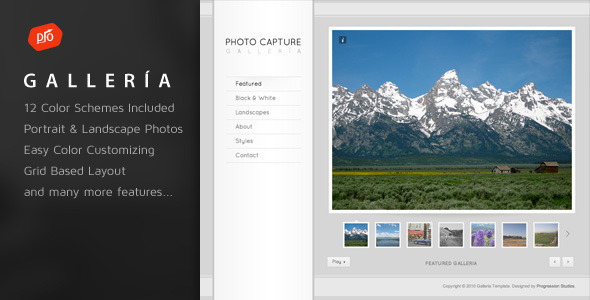
Credit: themeforest.net
Locating Theme Settings
Finding where to change fonts can be tricky. Start by logging into your WordPress dashboard. Look for the Appearance tab on the left. Click it. A menu will appear. Find and select Customize. This opens the theme settings. Look for a section named Typography or Fonts. Click on it.
In the Typography section, you can change the font style. You can also change size and color. Choose options that you like. Preview changes before saving. This helps you see how the new font looks. Remember to save your changes. This is important. Without saving, changes will not appear on your site.
Customizing Fonts Via Customizer
Open your WordPress dashboard. Go to the Appearance section. Click on Customize. The Customizer will open. You will see many options. Find the Typography section. Click on it. Here, you can change fonts. You can pick different styles. You can also change sizes. See the changes in real time. This is fun and easy.
Explore the Typography Options. Make your site unique. Choose a font that fits. Fonts can change the look. They can make your site special. Try different combinations. See what you like best. Remember, fonts can help in reading. Pick a font that is clear.
Changing Fonts With Additional Css
CSS means Cascading Style Sheets. It helps change how a website looks. You can change fonts, colors, and more. Each element on a webpage can have a different style. With CSS, you tell the browser how to display things. Learning CSS is like learning a new language. But it’s for websites. It uses simple rules. These rules are easy to follow. Just practice a bit, and it will make sense.
To change fonts, find the CSS Editor in WordPress. First, go to your WordPress dashboard. Next, click on Appearance. Then, select Customize. In the new window, look for Additional CSS. That’s the CSS Editor. Here, you can add your own CSS rules. Be careful while adding code. A small mistake can change the whole look. Always preview before saving changes.
Installing Font Plugins
Different plugins offer different features. Some are free, others cost money. Check reviews for each plugin. Make sure it works with your theme. Popular plugins include Google Fonts and Typekit. They are easy to use. Choose a plugin that is easy to install. It should also be simple to navigate.
First, go to the WordPress dashboard. Click on the Plugins option. Choose Add New. Search for the plugin you chose. Click Install. Wait for it to finish. Then, click Activate. Your plugin is now ready to use. You can start changing fonts.

Credit: www.leadershipbroward.org
Integrating Google Fonts
Visit the Google Fonts website. You will see many font styles. Choose a font that fits your theme. Click on the font to select it. You will see an embed code on the right. Copy this code to your clipboard. You need this code to add the font to your site.
Open your WordPress dashboard. Go to Appearance and then Editor. Find the header.php file. Paste the copied embed code within the section. Save your changes. Your font will now appear on your site. Check your site to see the new font. Make sure it looks good and is easy to read.
Testing Font Changes
Previewing Changes is a key step. Before making the font live, check how it looks. Use the preview feature in WordPress. It helps you see the changes without affecting the main site. This way, you can make sure the font matches your style. Adjust any font settings if needed. Test different fonts to find the best one.
Ensuring Cross-Browser Compatibility is crucial. Check if the font appears correctly on various browsers. Some fonts might not display the same on Chrome, Firefox, or Safari. Use online tools to test browser compatibility. This ensures all users have a consistent viewing experience. Cross-browser checking prevents any surprises later.

Credit: woocommerce.com
Troubleshooting Font Issues
Changing font on the Galleria Theme in WordPress involves accessing the theme’s customization settings. Navigate to the WordPress dashboard, select ‘Customize’, then ‘Typography’. Choose your desired font style and size to enhance readability and design. Follow simple steps to ensure a seamless transition.
Common Font Problems
Fonts might not display as expected. This can be due to plugin conflicts. Sometimes, fonts might appear too small or big. Also, some fonts might not load at all. This can make your site look odd. Check your theme settings first. Ensure that the correct font is selected. Sometimes, custom fonts might not work. This can happen if the font file is missing. Make sure the file is in the right place. Always check for theme updates. Updates can fix many font issues. Also, clear your browser cache. This can help in seeing the changes.
Resolving Conflicts
Font issues can arise from conflicting plugins. Disable one plugin at a time. This helps find the troublemaker. Check if the problem resolves. If it does, you’ve found the culprit. Keep your plugins updated. Updates often fix such conflicts. Another step is to check your CSS. Ensure there are no conflicting rules. Sometimes, custom CSS can override your theme’s style. Look for any unwanted CSS rules. Remove or update them as needed. Always save your changes. Refresh your page to see the effect.
Frequently Asked Questions
How To Modify Galleria Theme Font?
To change the font in the Galleria theme, navigate to WordPress Dashboard > Appearance > Customize. Select Typography settings and choose your desired font. Save changes to update the site’s appearance. Ensure the font complements your design for a cohesive look and user-friendly experience.
Can I Use Google Fonts In Galleria?
Yes, you can integrate Google Fonts with Galleria. Go to Customize > Typography and select Google Fonts. Choose from a wide range of fonts to enhance your site’s aesthetics. This integration helps maintain consistency and improves readability across different devices.
Is Changing Fonts In Galleria Theme Difficult?
Changing fonts in the Galleria theme is straightforward. Use the WordPress Customizer to access Typography settings. Choose from pre-installed fonts or add custom ones. This process is user-friendly, requiring no coding skills, making it accessible for beginners and experienced users alike.
Will Changing Fonts Affect Site Speed?
Changing fonts can impact site speed slightly. Using web-safe fonts ensures faster loading times. Optimize font loading by limiting the number of fonts and styles used. This helps maintain site performance while enhancing visual appeal, ensuring a smooth user experience.
Conclusion
Changing fonts on the Galleria Theme in WordPress can be simple. Follow the steps carefully. Select fonts that match your style and theme. Keep your website user-friendly. A clean look attracts more visitors. Regularly update your fonts for a fresh appearance.
Use tools wisely to ensure compatibility. Experiment with different fonts to find what works best. Remember, readability is key. Your choice impacts the visitor’s experience. A well-chosen font can enhance your site’s appeal. Make changes confidently and watch your site transform.
Happy designing!


