
Are you looking to customize your WordPress website by adding files to your theme? Whether you’re a newbie eager to personalize your site or a seasoned developer aiming to enhance functionality, mastering this skill can unlock endless possibilities.
But the process might seem daunting at first, right? Don’t worry—this guide will walk you through the steps in a simple and straightforward manner, making it easy for anyone to follow along. By the end of this article, you’ll feel empowered to tweak your WordPress theme with confidence, bringing your unique vision to life.
So, are you ready to take control of your website’s design and functionality? Let’s dive in and simplify the process of adding files to your WordPress theme!
Understanding WordPress Theme Structure
Adding files to a WordPress theme enhances its functionality and appearance. Begin by accessing your theme folder via FTP. Place new files in the appropriate directories, like ‘templates’ or ‘stylesheets’, to ensure proper integration.
Core Components
WordPress themes have key parts. The style.css file is important. It holds theme details. The index.php file helps show your site. The functions.php file adds features. These files are crucial.
Theme Files And Directories
The theme folder has many files. Each has a job. The header.php file makes the top area. The footer.php file creates the bottom. The sidebar.php file makes side sections. These files sit in directories. The images directory holds pictures. The css directory keeps styling files. Themes use these files together. They build your site’s look.
Preparing Files For Addition
WordPress themes work with specific file formats. Most common formats are PHP, CSS, JavaScript, and HTML. Ensure files are saved in these formats. Using incorrect formats might cause issues. Always check the theme’s documentation.
Compatibility matters. Files should match the theme’s version. Different themes might have different requirements. Older themes may not support new features. Test files before adding them. This prevents problems later.
Proper naming is crucial. Use clear and simple names. Descriptive names help identify file purpose. Avoid special characters. Stick with letters, numbers, and underscores. Use lowercase letters for consistency. Long names can be confusing.
Consistent naming helps. Keeps files organized. Easier to find and edit files later. Always follow theme guidelines. This ensures smooth integration.
Adding Files Via WordPress Dashboard
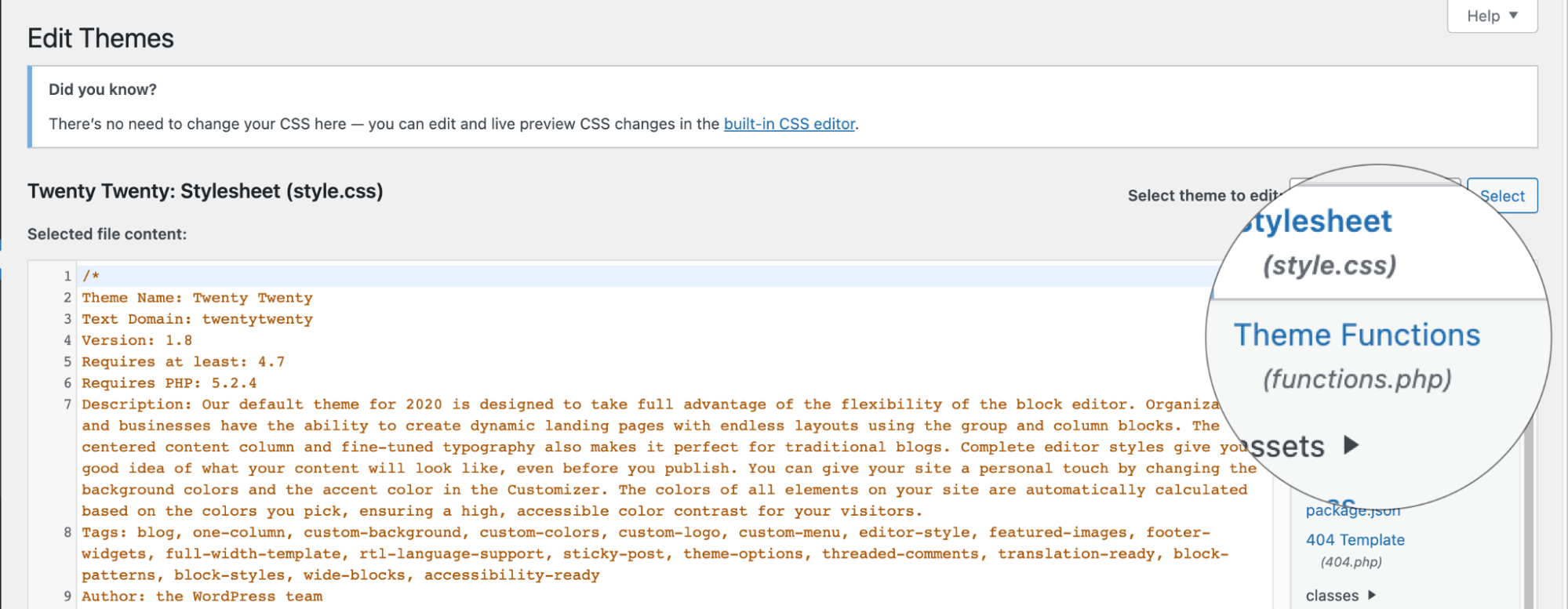
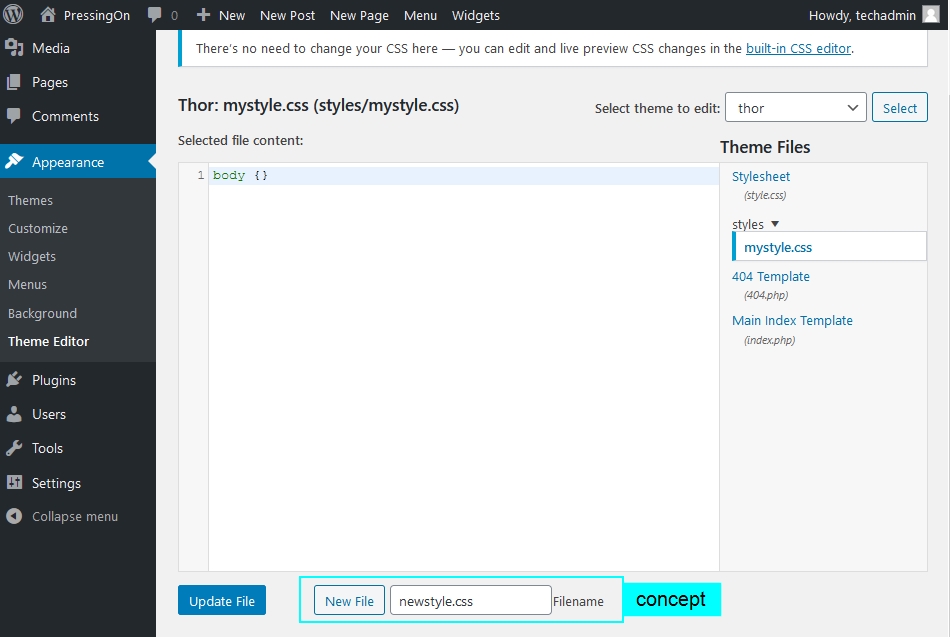
The Theme Editor is a simple tool. It helps you add files to your theme. Go to your WordPress Dashboard. Click on Appearance. Then select Theme Editor. Here, you can see all theme files. Choose a file to edit. Add your new code or file here. Click Update File to save changes. Be careful. Any mistake can break your theme.
The Media Library is for uploading files like images and PDFs. Go to your Dashboard. Click on Media. Then select Add New. Choose the file you want to upload. Click Upload. The file is now in your Media Library. You can use it in posts or pages. Remember, large files take longer to upload.
Credit: www.a2hosting.com
Adding Files Via Ftp
First, get an FTP client. FileZilla is a good choice. Then, find your hosting credentials. These include your username and password. Enter these details in the FTP client. Now, connect to your hosting server. This setup lets you access your WordPress files.
After connecting, go to the WordPress folder. Inside, find the wp-content directory. Open the themes folder. Choose the theme you want to edit. Drag your files into this folder. Make sure to upload files in the right place. Double-check if everything is uploaded correctly. Your theme should now have the new files.
Using A Child Theme
A child theme lets you change your site without harm. To make one, create a new folder in the themes directory. Give it a unique name. Add a style.css file inside. This file should have a header. Include the parent theme name in the header. Then, create a functions.php file. This file helps you load the parent theme styles. Use the enqueue script method here. Your child theme is ready now.
Adding files is easy. Just place them in the child theme folder. You can add templates, scripts, or images. For PHP files, call them in functions.php. Use the get_template_directory() function. This helps WordPress find your files. Style files go in the style.css file. This keeps changes safe and easy to manage.

Credit: learn.wordpress.org
Modifying Theme Functions
Modifying theme functions in WordPress lets you add files easily. Using the theme editor, navigate to functions. php. Insert your code to register scripts or styles, enhancing your site’s design and functionality.
Editing Functions.php
The functions.php file helps to control theme behavior. It can add or change features in your theme. Open the file using a text editor. Add new code at the end or before closing tags. Don’t change existing code unless sure. Mistakes can break your site. Always back up before editing.
Including Additional Files
Additional files can enhance your theme. Create a new file in the theme folder. Use include or require functions in functions.php. This links your new file to the theme. Check for errors after adding. Proper syntax is key. Test changes on a local server first. This keeps your live site safe.
Testing And Troubleshooting
Adding files to a WordPress theme involves precise testing and troubleshooting. Ensure the new files integrate seamlessly with existing theme components. This process can help maintain site functionality while enhancing its features.
Checking File Integration
Ensure your file is in the correct folder. Open your WordPress site. Check if the file shows up on the page. Refresh the page if it doesn’t. Sometimes, files need a refresh to load properly. Look at the page’s source code. See if your file’s code is there. This helps confirm the file is integrated.
Common Issues And Fixes
Files may not load due to wrong paths. Double-check the file path. Make sure it matches the location on your server. Sometimes, permission settings block files. Adjust file permissions to allow access. Use your hosting control panel for this. Files may also be too large. Compress them to reduce size. This can help them load faster.
Best Practices For File Management
Keep your theme files neat and organized. Use folders for different file types. For instance, have one folder for CSS files. Another folder for JavaScript files. Name your files and folders clearly. This helps you find them quickly. It also helps others understand your theme structure.
Use standard WordPress functions. They ensure your theme works on all websites. Test your theme on different devices. Check on mobile phones and tablets. Make sure it looks good everywhere. Update your theme regularly. Keep it compatible with the latest WordPress version. This avoids errors and keeps users happy.
Credit: wordpress.stackexchange.com
Frequently Asked Questions
How Do I Upload Files To A WordPress Theme?
To upload files, access your WordPress dashboard. Navigate to Appearance > Theme Editor. Choose the file type you wish to add. Use the editor to insert or modify files directly. Ensure you have proper backups before making changes to avoid data loss.
Can I Add Css Files To My Theme?
Yes, you can add CSS files by editing the theme’s style. css. Navigate to Appearance > Theme Editor. Locate style. css and add your custom CSS code. This allows you to style your theme according to your preferences.
Is It Safe To Modify Theme Files?
Modifying theme files can be risky. Always backup your site before editing. Use a child theme for changes to prevent losing data during updates. Consider using plugins to safely extend functionality without altering core theme files.
How To Add Javascript Files To A Theme?
Add JavaScript files by enqueuing them in your theme’s functions. php. Use the wp_enqueue_script function. Ensure scripts are properly loaded to avoid conflicts. This method is efficient for adding custom scripts to your theme.
Conclusion
Adding files to a WordPress theme is simple and rewarding. Start by backing up your theme. Then, locate the theme folder. Next, upload your files using FTP or the WordPress dashboard. Always check file compatibility with your theme version. Test your site after adding files.
Ensure everything works smoothly. Remember to update the theme regularly. This prevents potential conflicts and errors. Explore various resources for more tips. Keep learning to enhance your WordPress skills. Enjoy customizing your theme to suit your needs. Your website will reflect your unique style and vision.


