
Struggling to get your logo perfectly centered in your WordPress theme? You’re not alone.
A well-placed logo is crucial for creating a professional-looking website and enhancing your brand’s identity. Misalignment can distract your visitors and diminish your site’s credibility. But don’t worry; we’re here to guide you through the process step by step. By the end of this article, you’ll have the knowledge and confidence to center your logo perfectly, making your website not only look great but also function smoothly.
Whether you’re a WordPress novice or a seasoned user, this guide is tailored to help you make your website shine. Ready to transform your site’s aesthetics with just a few clicks? Let’s dive in!

Credit: docs.presscustomizr.com
Choosing The Right Theme
Not all themes allow easy logo centering. It’s crucial to check theme compatibility first. Some themes might not support logo alignment. This could lead to frustration. You should ensure the theme supports logo customization. Look for flexible header options. This can make logo centering easier. If unsure, check the theme’s demo. Does the logo appear centered there? This can be a helpful clue.
Themes with good customization options are ideal. They let you adjust settings without coding. Check if the theme has a simple interface. This will help you find settings quickly. Some themes offer drag-and-drop builders. These can simplify the process a lot. Always look for themes with clear documentation. This helps if you get stuck. You might find video tutorials useful too. They can guide you step-by-step.

Credit: www.youtube.com
Using WordPress Customizer
Open your WordPress dashboard. Look for Appearance on the left side. Click on Customizer. This opens the Customizer tool. You can change your site here. It is easy. You will see a live preview.
Find the Header section. Click on it. Look for Logo options. You can center your logo here. Choose the option that says Center. Your logo will move to the middle. It will look nice and neat. You can save changes when done. Click Publish to make it live.
Editing Css For Logo Positioning
Understanding CSS classes is important for logo positioning. Each theme has unique classes for different elements. These classes define how elements look. Logo is one of these elements. Check the theme’s style.css file. You will find many classes there. Identify the class for your logo. You can use browser tools for this. Inspect Element tool helps you find the class name.
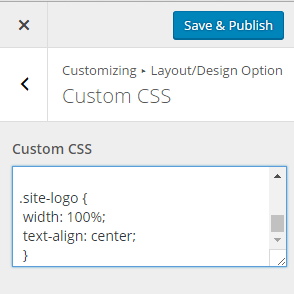
Custom CSS helps to center your logo. Go to your WordPress dashboard. Click on Appearance, then Customize. Look for Additional CSS. Here you can add new styles. Use text-align: center; to center the logo. Save your changes. Your logo should be centered now. If it does not work, check for errors. Ensure class names are correct. Sometimes themes override custom styles. Test carefully after editing.
Using Page Builder Plugins
Centering a logo in a WordPress theme can be simple with page builder plugins. These tools offer intuitive drag-and-drop features. They help align your logo perfectly. Adjust settings easily without coding skills. Improve your website’s look effortlessly.
Introduction To Popular Plugins
Page builder plugins help with easy website design. Elementor and Beaver Builder are popular choices. They offer drag-and-drop features. This makes designing simple. Users can create unique layouts without coding. These plugins are user-friendly. Even beginners can use them. They provide many templates. Customization becomes fun and easy. With these tools, your website looks professional. The plugins also support responsive design. This means your site looks good on all devices.
Centering Logo With Plugins
Centering a logo with plugins is simple. First, open your page builder. Drag the logo widget to the header. Align it to the center using the alignment tool. Some plugins offer a “center” button. Click it for quick alignment. Adjust spacing for a perfect fit. Save changes to see the result. Always preview your site after changes. Ensure the logo looks centered on all devices. This way, your site looks balanced and neat.
Child Theme Modifications
Centering a logo in a WordPress theme involves child theme modifications. Use custom CSS to adjust alignment. Access the WordPress customizer and find the Additional CSS section. Insert the appropriate code to center the logo effectively.
Creating A Child Theme
Create a child theme to keep changes safe. A child theme protects your main theme. It helps when themes update. Make a folder for the child theme. Name it clearly. Add a style.css file. This is for custom styles. Include a functions.php file. This helps add special functions. Link the child theme to the parent theme. Use the template line in style.css for this. Your changes are now separate. This keeps your main theme clean.
Customizing The Header
Center your logo with header tweaks. Open the header file in the child theme. Look for the logo code. Add custom CSS for centering. Use text-align: center. This makes the logo centered. Adjust margins if needed. Use margin: auto for equal spacing. Save changes in the child theme. Check the result on your site. The logo should be in the middle now. Make sure the logo size fits well. This keeps the header neat.
Theme File Editing
Centering a logo in a WordPress theme often involves tweaking the theme files. Start by accessing the theme editor from the WordPress dashboard. Locate the CSS file and adjust the alignment settings under the header section to achieve a centered logo.
Locating Header Files
Find the header.php file. It is in your theme folder. This file holds the logo code. Use a File Manager or FTP to access it. Check your theme’s documentation. It helps if you are unsure. The header file is key to logo placement.
Modifying Html Structure
Edit the HTML structure to center the logo. Look for the tags around your logo. Add or edit the style attribute. Use text-align: center; within it. This centers the logo visually. Always backup files before changes. Mistakes are easier to fix this way.
Troubleshooting Common Issues
Centering a logo in a WordPress theme often requires adjusting CSS settings or using theme customization options. Many themes provide built-in settings for easy alignment, while others may need manual CSS edits for precise positioning. Explore theme settings and inspect CSS to ensure your logo is perfectly centered.
Responsive Design Challenges
Centering a logo can be tricky on different devices. Different screen sizes need different settings. This keeps the logo centered and neat. Using CSS Flexbox or Grid helps. These tools make the logo move to the center automatically. Ensure to check the results on phones and tablets. Some themes may not support these tools. If this happens, try adjusting the padding and margins. This helps in keeping the logo in place. Always preview your changes. This way, you can see how the logo looks on different devices.
Cross-browser Compatibility
Browsers like Chrome, Firefox, and Safari show things differently. A logo might look centered on one browser. But it might shift on another. Use browser developer tools to check this. These tools show how your site looks on different browsers. If the logo shifts, tweak the CSS properties. This can help in making the logo behave the same everywhere. Sometimes, you may need to use browser-specific CSS fixes. These are special codes for each browser. They ensure your logo stays centered on all browsers. Regular checks can solve most issues.
Credit: www.acmethemes.com
Best Practices For Logo Alignment
Centering a logo creates visual harmony on your website. It keeps the page neat. Logos should not block other important content. Use padding and margins wisely. Adjust the header size for a balanced look. The logo should be visible but not too large. Consistent spacing helps achieve balance.
Everyone should see the logo easily. Check that it is not hidden by other elements. Make sure the contrast is clear. Use alt text for your logo. This helps those who cannot see images. Test how your logo looks on different screens. Ensure it loads quickly. Slow websites can frustrate users.
Frequently Asked Questions
How Do I Center A Logo In WordPress?
To center a logo in WordPress, access your theme’s CSS file via Appearance > Customize > Additional CSS. Add `text-align: center;` to the logo’s CSS class. Save changes to center the logo. Alternatively, use a plugin like Elementor for more customization options.
Can I Use Css To Center My Logo?
Yes, CSS is an effective way to center your logo. Locate your theme’s CSS file and add `text-align: center;` to the logo’s class. This method is quick and doesn’t require additional plugins, making it ideal for straightforward adjustments.
What Plugins Help Center Logos In WordPress?
Plugins like Elementor and SiteOrigin offer powerful tools to center logos. These plugins provide drag-and-drop features, allowing you to customize logo placement easily. They are user-friendly and ideal for those unfamiliar with CSS coding.
Is Elementor Good For Logo Customization?
Elementor is excellent for logo customization. It provides a user-friendly interface with drag-and-drop features. This plugin allows for precise logo placement, enhancing your site’s aesthetic appeal without needing to code.
Conclusion
Centering a logo in your WordPress theme enhances your site’s look. A well-placed logo grabs attention and improves user experience. You can customize your theme easily with step-by-step methods. This keeps your website appealing and professional. Regular updates maintain your theme’s compatibility with WordPress.
Experiment with different styles to find what suits your brand. Remember, a centered logo isn’t just about looks. It’s about making your site more user-friendly. Enjoy the simplicity of a centered logo and boost your site’s overall appeal. Happy designing!


