
Are you looking to give your WordPress site a fresh, vibrant look without spending hours on complex design work? Adding a Colorlib theme to your site might just be the perfect solution.
With its variety of eye-catching, professionally designed themes, Colorlib offers a range of options that can instantly transform your website’s appearance. Imagine captivating your visitors from the moment they land on your homepage. In this guide, you’ll discover how to seamlessly integrate a Colorlib theme into your WordPress site, ensuring your content not only stands out but also keeps your audience engaged.
Ready to turn your website into a visual masterpiece? Let’s dive in and make your site as stunning as your vision.
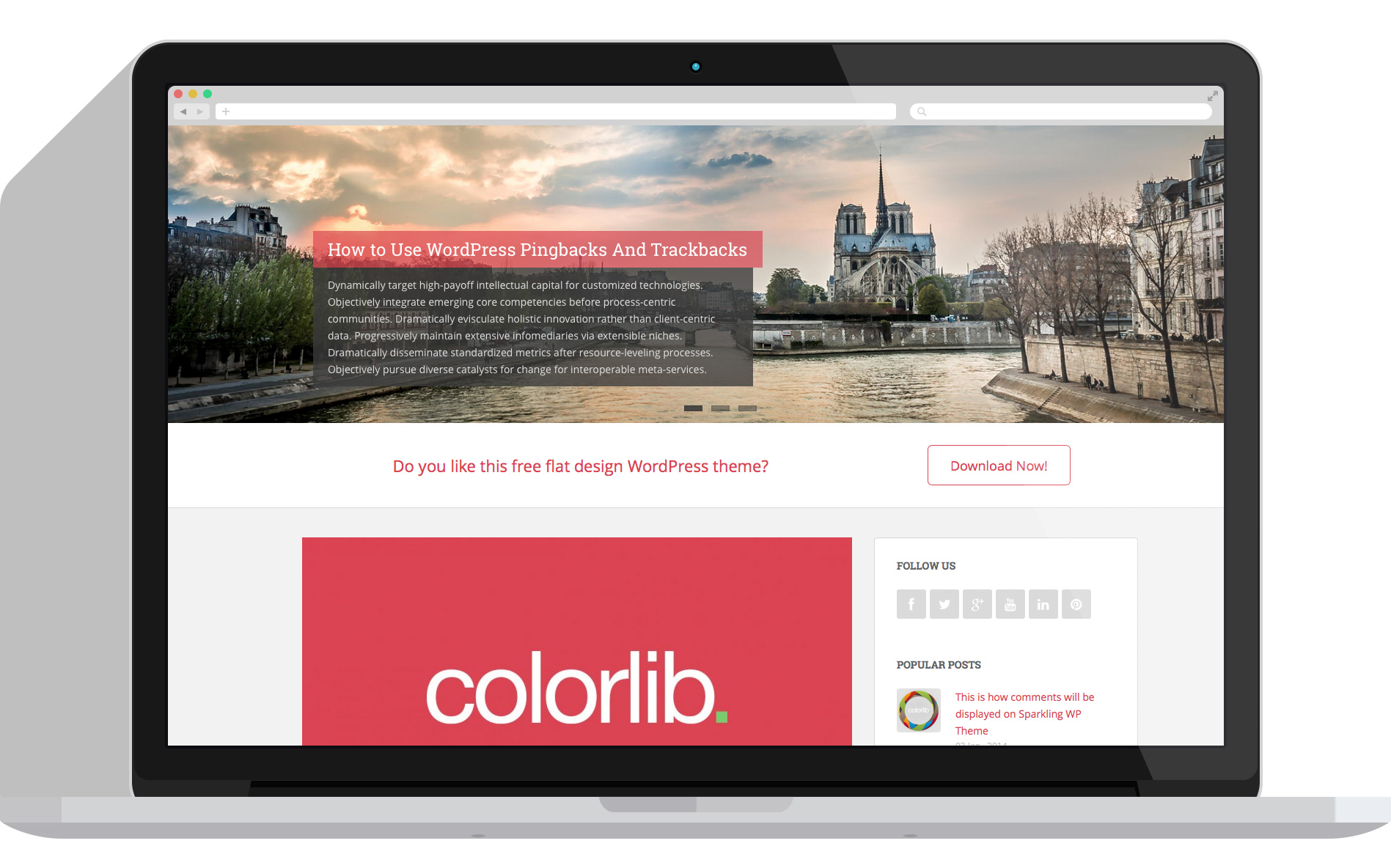
Choosing The Right Colorlib Theme
Colorlib offers a wide range of themes. Each theme has a unique style. Think about your website’s purpose first. Are you creating a blog or an online store? Different themes suit different needs. Some themes focus on images and visuals. Others might highlight text and content. You should explore the options available.
Consider the features you need. Do you want a theme with a responsive design? This means it looks good on phones and computers. Check if the theme is easy to customize. Some themes have built-in color options. This can help match your brand colors. Always choose a theme that suits your website’s goals. It should also be easy to use.
Credit: colorlib.com
Preparing Your WordPress Site
Ensure your WordPress version is up to date. Navigate to your dashboard. Find the Updates section. Check the current version number. Update if necessary. Latest versions are more secure. They also support new themes. Older versions may cause issues. Updates are quick and simple.
Backing up your theme is crucial. First, go to your dashboard. Use a plugin for backups. Popular ones include UpdraftPlus and BackupBuddy. These plugins are easy to use. Follow the steps to save your theme. Store the backup in a safe place. Backups prevent data loss. They make it easy to restore. Your site stays safe.
Downloading Colorlib Theme
Visit the Colorlib website. Browse through the theme collection. Find a theme you like. Click on the theme. Look for the download button. It’s often near the theme’s description. Click to start the download.
After download, the theme file is in a zip format. Save it to your computer. Choose a location you can remember. Many save it in the Downloads folder. Keep it easy to find. You will need it soon.

Credit: girlknowstech.com
Installing The Theme
Log in to your WordPress dashboard. Find the Appearance tab on the left menu. Click on Themes. At the top, you will see Add New. Click it.
Choose the Upload Theme button. You will need a .zip file of the theme. After uploading, click Install Now. Wait a bit. Once done, press Activate to see the theme live.
First, get an FTP client like FileZilla. Connect to your website server using your credentials. Go to the wp-content/themes directory.
Extract the theme .zip file on your computer. Drag the theme folder to the server directory. Wait for the upload to finish. Return to the dashboard and click Appearance, then Themes. Now, activate your new theme.
Activating The Theme
Find the dashboard on your WordPress. Click on Appearance. This is where themes live. You will see a list of themes. At the top, click Add New.
Navigating To The Themes Section
Search for Colorlib theme in the search box. It shows themes matching your search. Choose your favorite Colorlib theme. Click on Install. Wait for installation to finish.
Applying The New Theme
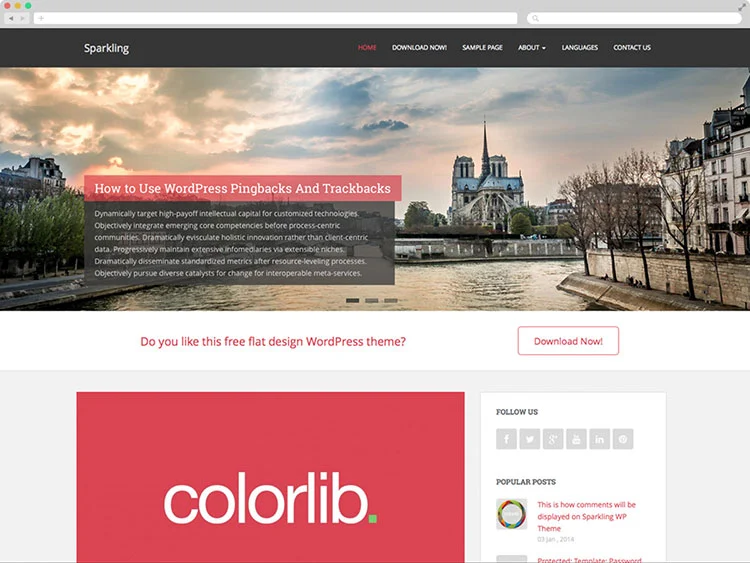
After installing, click Activate. This makes your theme live. Your site now has a new look. Visit your site to see the changes. The theme is now ready to use.
Credit: colorlib.com
Customizing The Theme
Use the WordPress Customizer for easy changes. You will find it in the dashboard. It helps in adjusting the theme settings quickly. You can change colors and fonts here. It is simple to use. Choose your favorite look. Make your site unique.
Theme settings let you tweak many things. You can add a logo or change the header. Even the footer can be customized. Try different settings. Explore options and see what looks good.
Testing Theme Functionality
Check if the site looks good. The layout should be clean and neat. Text must be easy to read. Pictures should fit well on the screen. Make sure colors are bright and clear. Links must work. Click on each one to test.
Plugins are like little helpers for your site. They add extra features. Test each plugin one by one. Make sure they work with the Colorlib theme. If a plugin breaks, try another one. Check if the site is still fast. A slow site makes people leave.
Troubleshooting Common Issues
Installation errors can be tricky. First, check your WordPress version. It should be compatible with the Colorlib theme. Next, ensure your internet connection is stable. A poor connection can cause installation problems. Also, clear your browser cache. This can help refresh the installation process. If errors persist, disable other plugins. They might be conflicting with the theme.
Customization can sometimes be a challenge. Start by checking your theme settings. Make sure all changes are saved. If changes are not visible, clear your browser cache. This helps update the display. Still facing issues? Deactivate plugins one by one. Some plugins might interfere with the theme. Lastly, consult the theme documentation. It contains valuable tips for customization.
Frequently Asked Questions
How Do I Install Colorlib Theme On WordPress?
To install the Colorlib theme, log in to your WordPress dashboard. Navigate to “Appearance” > “Themes. ” Click “Add New” and search for Colorlib. Once you find it, click “Install” and then “Activate. ” Your Colorlib theme will now be ready for customization.
Is Colorlib Theme Free For WordPress?
Yes, Colorlib offers free themes for WordPress users. You can download them directly from the WordPress theme repository. These free themes are feature-rich and user-friendly, allowing you to customize your website easily. For advanced features, Colorlib also provides premium themes.
How Can I Customize Colorlib Theme?
You can customize the Colorlib theme via the WordPress Customizer. Access it by clicking “Appearance” > “Customize. ” Here, you can change colors, fonts, and layouts. The Customizer offers real-time previews, helping you create a unique look for your website without coding knowledge.
Does Colorlib Theme Support Plugins?
Yes, Colorlib themes are compatible with popular WordPress plugins. You can enhance functionality by installing plugins like WooCommerce, Contact Form 7, and Yoast SEO. Ensure your plugins are updated and compatible with your theme for optimal performance.
Conclusion
Adding a Colorlib theme to WordPress is simple and rewarding. Choose a theme that suits your style. Download and install it directly from WordPress. Customize your site to reflect your vision. Adjust colors, fonts, and layouts with ease. Engage visitors with appealing designs.
A good theme boosts your site’s appeal. It enhances user experience and captures attention. Regularly update your theme for security. Stay current with WordPress trends. A well-designed site can grow your audience. Start exploring WordPress themes today. Make your website stand out effortlessly.


