
Ever felt that your WordPress site needs a fresh look? Changing the color scheme might be just what you need to breathe new life into your website.
Colors have a powerful impact on our emotions and decisions. They can make your site more engaging, convey your brand message, and even influence how visitors perceive your content. In this guide, you’ll discover how to easily change the color scheme in your WordPress theme.
Whether you’re a beginner or a seasoned WordPress user, these simple steps will help you transform your site’s appearance. Stick around to unlock the potential of colors and enhance your website’s appeal, making it not just visually stunning but also more inviting for your visitors. Dive in to learn how you can harness the power of colors to elevate your online presence.
Choosing The Right Color Scheme
Colors tell a story. They make your site look nice. Pick colors that match your brand. Bright colors catch the eye. Soft colors feel calm and peaceful. Think about what you want people to feel.
Use a color wheel. This helps to see which colors go well together. Complementary colors are opposite each other on the wheel. These colors make each other stand out.
Analogous colors sit next to each other. They create a soothing look. Monochromatic colors use different shades of the same color. This gives a clean and simple look.

Credit: qodeinteractive.com
Exploring Theme Customizer
To change the color scheme in WordPress, open the Theme Customizer. Find it in your dashboard. Click on Appearance then Customize. This tool helps you make your site look new. You can choose colors that fit your style.
Inside the customizer, look for color options. They are usually under Colors or Design. Click to open and see choices. You can pick from a color palette. Some themes let you adjust each part. Headers, backgrounds, and text can have different colors. This way, your site can be unique.
Utilizing WordPress Theme Settings
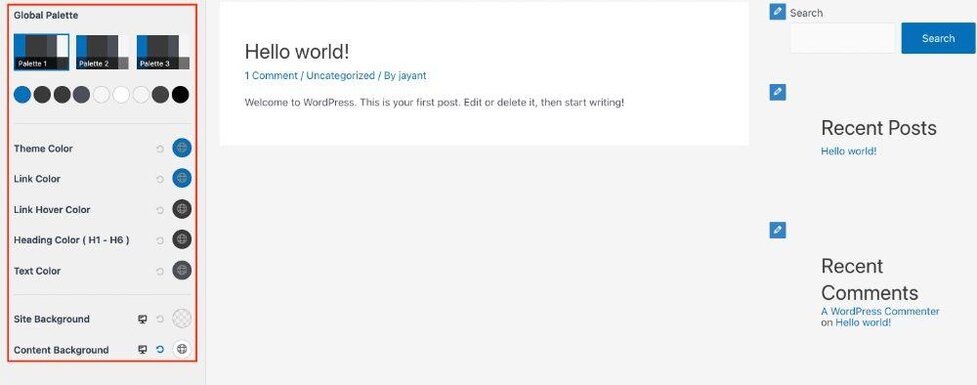
To change your theme’s colors, first find the theme settings. Log in to your WordPress dashboard. Look for the Appearance option on the left side. Click on it, then select Customize. This will open the theme settings panel. Each theme might look different here. But the path to settings is usually the same.
Once in the theme settings, find the Colors section. Here, you can change your site’s colors. Click on the color you want to change. A color picker will appear. Choose your desired color. After selecting, click Save or Publish to keep the changes. Your site’s look will change to the new colors.
Credit: wpastra.com
Using Custom Css For Color Changes
First, go to your WordPress dashboard. Click on Appearance, then Customize. Look for the Additional CSS option. This is where you add your own styles. Make sure you can see this section. If not, check your theme settings.
Once in the CSS section, you can add color codes. Use simple CSS like body { color: #000000; }.
Change #000000 to your desired color code. You can find color codes online.
Experiment with different codes until you find the right look. Always save changes after editing.
Installing Color Scheme Plugins
Start by visiting the WordPress Plugin Directory. Type “color scheme” in the search box. Find many plugins for changing colors. Look for ones with good ratings. Choose a plugin that suits your needs.
Selecting A Suitable Plugin
Read the plugin reviews carefully. Check user feedback and ratings. Ensure the plugin is updated regularly. Make sure it is compatible with your theme. Choose a plugin that is easy to use. Avoid plugins with many complex features.
Configuring Plugin Settings
Open the plugin settings after installation. Find options to change colors. Adjust settings to your liking. Choose colors that match your style. Save your changes when done. Check your site to see the new colors.
Testing And Previewing Changes
Previewing Color Adjustments in WordPress is easy. Use the live preview feature. It shows changes instantly. Adjust colors and see them right away. This helps in making quick decisions. No need to save first. Just watch and decide.
Ensuring Compatibility is important. Check your theme with different browsers. Colors might look different. Use tools to test on mobile too. This ensures a smooth user experience. Everyone sees the same nice colors. Happy viewers mean happy website.
Common Issues And Troubleshooting
Changing the color scheme in a WordPress theme often confuses users. Start by accessing the theme customizer in the WordPress dashboard. Experiment with different colors and preview changes before saving.
Identifying Display Problems
Changing colors in a WordPress theme can be tricky. Some users see wrong colors or missing elements. Themes may not load properly after changes. Check your browser cache. Clear it to see new changes. Look for theme settings. Some themes have hidden color options. Use them to fix display problems.
Resolving Color Conflicts
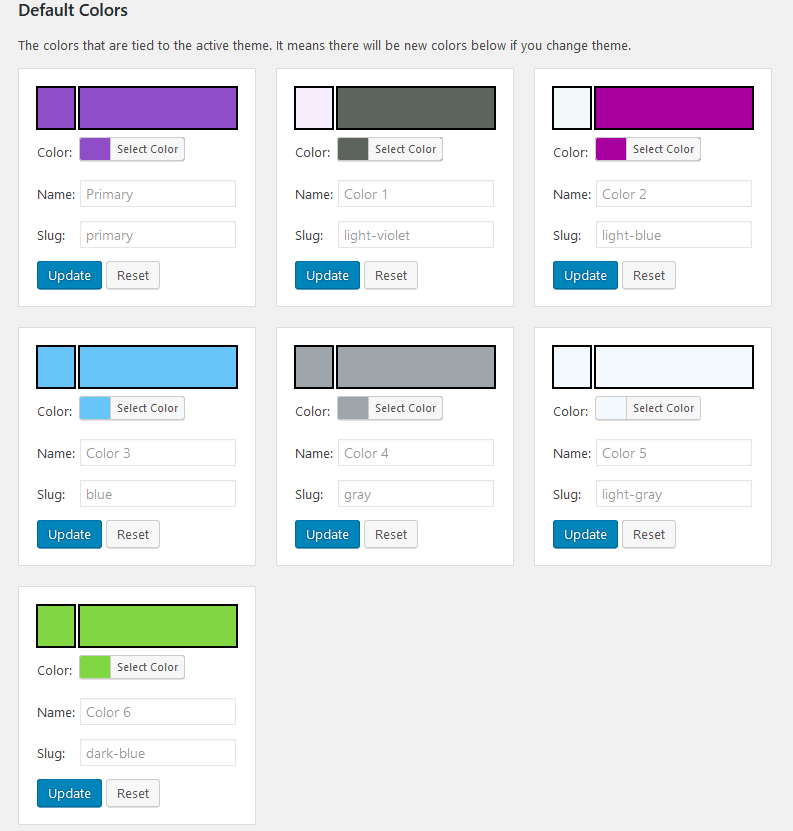
Color conflicts can occur between theme elements. Conflicts make a website look bad. Find the source of conflict. Check theme settings first. Many themes have a customizer tool. Use it to change colors. Update your theme regularly. Updates fix color bugs. Use a child theme for safe changes. Child themes protect your settings during updates.
Credit: motopress.com
Frequently Asked Questions
How Do I Change WordPress Theme Colors?
To change WordPress theme colors, navigate to Appearance > Customize. Select ‘Colors’ or ‘Theme Options’ to modify your theme’s color scheme. Depending on the theme, you might have predefined palettes or custom color pickers. Always save your changes to see them live on your website.
Can I Use A Plugin To Change Colors?
Yes, you can use plugins like ‘WP Customizer’ or ‘Color Scheme Editor’. These plugins offer advanced color editing features beyond theme default settings. They are user-friendly and provide more flexibility in customizing your site’s appearance. Always check compatibility with your theme before installing.
Why Can’t I Change Theme Colors?
Some themes have limited customization options. If you cannot change colors, your theme might restrict modifications. Consider switching to a more flexible theme or using custom CSS to override existing styles. Always back up your site before making significant changes.
Are Custom Color Schemes Seo Friendly?
Custom color schemes can enhance user experience, indirectly boosting SEO. A visually appealing site keeps visitors engaged, reducing bounce rates. Ensure your text is readable and your design is consistent. Proper color usage can make your content more accessible, improving overall site performance.
Conclusion
Changing your WordPress theme’s color scheme is simple. It enhances your site’s look instantly. Follow the steps outlined in this guide. Remember to save changes to see results. Experiment with colors to match your brand. Happy with the new design?
Great! Your site now looks unique and appealing. Keep updating colors to stay fresh and relevant. Explore more WordPress tips to improve your site. Enjoy the creative process. Your website reflects your style. Make it stand out with colors you love.


