
Ever found yourself staring at your WordPress site and wishing it looked a bit more… You? Maybe you’ve chosen a theme that’s almost perfect but still needs a few tweaks to truly reflect your brand or personal style.
You’re not alone! Many WordPress users want to alter their themes to stand out in a crowded digital space. But where do you start without feeling overwhelmed? Imagine the thrill of transforming your site just the way you want, adding that personal touch that makes it uniquely yours.
This guide is designed to help you do just that. We’ll walk you through the steps to alter a WordPress theme, making it easy and approachable. You don’t need to be a tech wizard to make impactful changes. By following a few simple tips, you’ll gain the confidence to customize your site and create a space that truly represents your vision. Ready to discover how a few tweaks can turn your WordPress theme from basic to brilliant? Let’s dive in and unlock the potential of your website.
Choosing The Right Theme
Think about what you want for your website. Is it a blog or a shop? Each site has different needs. A blog needs a simple look. A shop needs more features. Make a list of what is important for you. This helps in finding the right theme.
Browse the WordPress library. It has many free themes. Some themes are paid. Paid themes often have more features. Look at the ratings and reviews. They tell you if a theme is good. Choose a theme that matches your needs and style.
Setting Up A Child Theme
Child themes protect your changes from updates. They keep your custom edits safe. You won’t lose work when the parent theme updates. This is very helpful. Child themes also let you try new designs easily. You can test without worry. You keep the parent theme intact.
First, create a new folder. Name it yourtheme-child. This helps you remember it. In the folder, make a file called style.css. Write some code in it. Copy the parent theme’s code. This helps link them together. Add another file called functions.php. This file is important. It makes the child theme work. You are almost done.
Upload the folder to your server. Use FTP for this. Go to your WordPress dashboard. Activate the child theme. Now you can make changes. The parent theme stays safe. Enjoy your new design.
Customizing Theme Styles
CSS files help change how your site looks. These files control colors, fonts, and layout. Open the file to edit it. Use a text editor for this. Always save a backup first. Changes can break your site. Make small changes at a time. Test each change on your site. This ensures everything works fine. If unsure, ask a friend for help. They might know more about CSS.
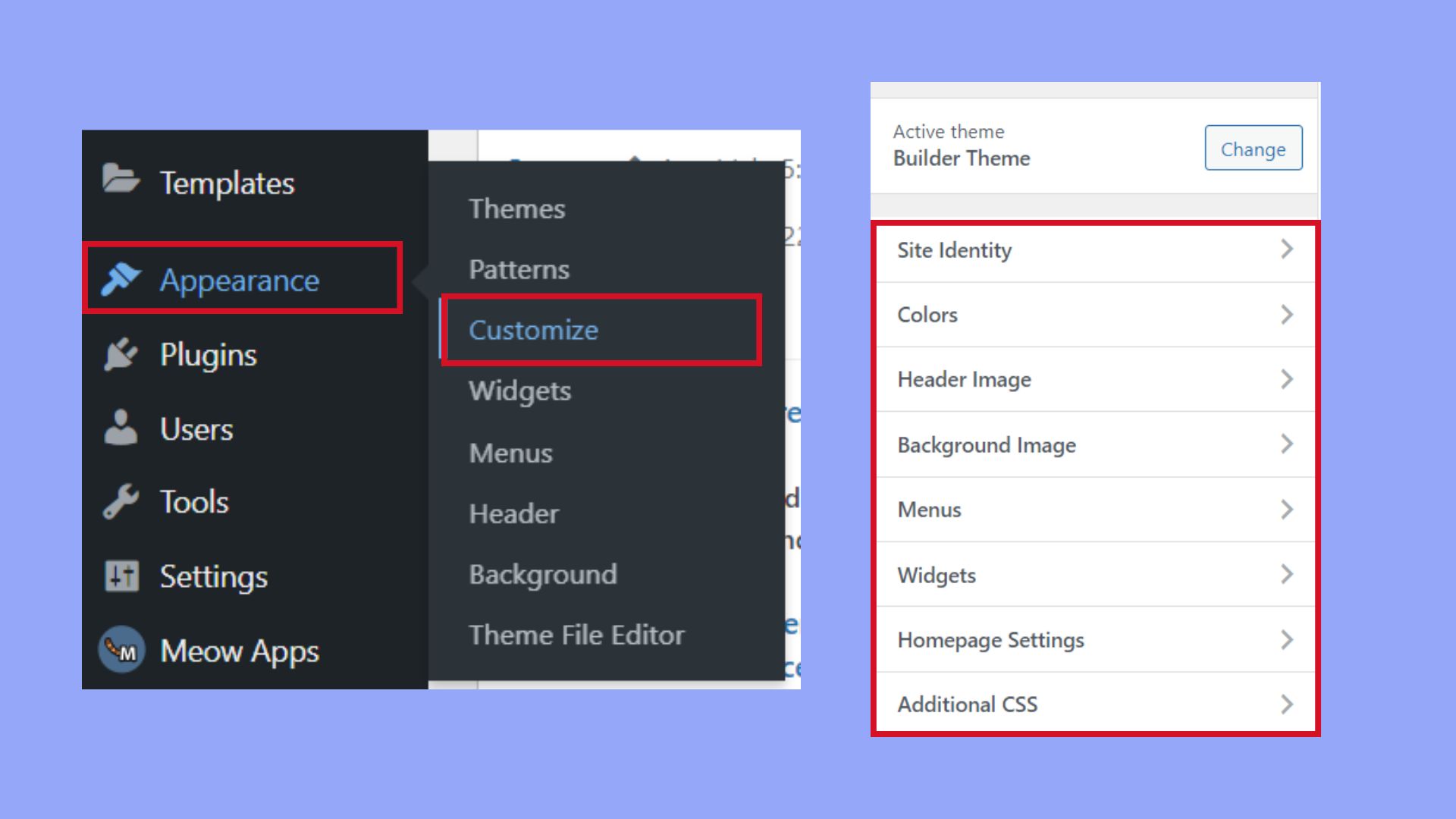
The WordPress Customizer is easy to use. It shows changes live. Go to your dashboard. Click on “Appearance.” Then click “Customize.” Here, you can change colors, fonts, and widgets. It’s a safe way to adjust your theme. No coding needed. Make sure to save your work. This keeps your changes. If you don’t like it, you can reset. Experiment with the options. Find what looks best for your site.
Modifying Theme Templates
Each WordPress theme has a specific template hierarchy. This hierarchy dictates the order in which templates are loaded. The hierarchy starts with the most specific template. Then it moves to more general ones. For example, a single post will use single.php first. If not available, it uses index.php. Understanding this helps in choosing the right file to edit.
Before making changes, always create a child theme. This ensures your edits are safe during updates. To edit a template, use a code editor. Open the required file from your theme’s folder. Make changes carefully and save. Refresh your site to see the changes. If errors occur, check your code for mistakes. Always keep a backup of the original files. This helps in restoring them if needed.
Incorporating Custom Functions
The functions.php file helps add new features. It’s like a toolbox. You can put your custom code here. This file is part of the theme. Each theme has its own functions.php. It won’t affect other themes. Always back up the file before changes. Mistakes can break the site. Use simple code snippets. Test changes in a safe environment.
Hooks and filters let you change how things work. Hooks do actions. Filters change data. Use hooks to add new code. Filters can change content or settings. Both are helpful in themes. WordPress has many built-in hooks and filters. Learn to use them effectively. Make sure your code is clean. Good code keeps the site safe.
Credit: 10web.io
Utilizing Page Builders
Page builders make editing easy. No coding skills needed. Just drag and drop. This saves time for beginners. Design changes happen fast. You see results instantly. Customize your site with ease. This is great for unique looks. Many page builders offer templates. These templates speed up design work. Choose a style that fits your brand.
Many plugins work well with WordPress. Elementor is a favorite. It’s user-friendly and powerful. Beaver Builder offers flexible design options. Divi Builder has many features and is easy to use. WPBakery Page Builder is also popular. Each plugin has unique tools. Explore them to find the best fit.
Testing And Debugging
Errors can cause big problems. Use the error logs to find mistakes. Check your theme with different browsers. Make sure everything works well. Check links, images, and scripts. Fix any broken parts. Do this before sharing your theme.
Responsive themes look good on all screens. Test your theme on phones and tablets. Adjust settings if needed. Use tools like Google’s Mobile-Friendly Test. This helps you see issues. Fix them to ensure smooth display. It’s important for user experience.

Credit: jetpack.com
Backing Up And Restoring
Altering a WordPress theme requires careful steps like backing up and restoring. Start by saving your existing theme files to prevent data loss. To restore, simply upload the saved files back to your WordPress directory. Ensure a smooth transition by verifying settings and customizations after restoration.
Backup Strategies
Backing up a WordPress theme is important. It protects your data from loss. Create backups regularly. Use a plugin for easy backups. Plugins save time and effort. Popular plugins include UpdraftPlus and BackupBuddy. These tools are user-friendly. They automate the backup process. Always store backups in a safe place. You can use cloud services like Google Drive. It ensures your data is secure. Check your backups often. Make sure they are working.
Restoring Previous Versions
Restoring a WordPress theme is simple. Start by accessing your backup files. Use your chosen plugin to restore. Follow the plugin instructions carefully. Restoring brings back old theme versions. This helps fix mistakes. It also helps recover lost data. Always test your restored site. Make sure everything works well. Check all links and pages. Ensure your site is back to normal.
Deploying Changes
Publishing updates to a WordPress theme is simple. First, review your edits. Ensure all changes are correct. Then, go to your WordPress dashboard. Click on the “Themes” section. Select the theme you want to change. Upload your modified theme files. Check the preview to see changes. If everything looks good, click “Activate”. Now, your new theme is live!
Monitoring User Feedback
After changes, listen to user feedback. It helps improve your theme. Users may find bugs or issues. Check comments and messages. Use feedback to fix problems. Make adjustments quickly. Happy users return often. Keep your theme updated. Good themes need regular care. This keeps users satisfied.

Credit: www.templatemonster.com
Frequently Asked Questions
How Do I Change A WordPress Theme?
To change a WordPress theme, log into your WordPress dashboard. Navigate to Appearance, then Themes. Browse available themes and click “Activate” to apply. Ensure the new theme aligns with your site’s design and functionality needs. Preview before activation to avoid disruptions.
Can I Customize WordPress Themes Without Coding?
Yes, you can customize themes without coding using the WordPress Customizer. Access it via Appearance > Customize. Modify colors, fonts, and layouts with the visual editor. Many themes offer built-in options for customization. Plugins like Elementor provide additional design flexibility.
What Are Child Themes In WordPress?
Child themes are sub-themes that inherit properties from parent themes. They allow customization without altering the original theme files. This ensures updates to the parent theme won’t affect custom changes. Create a child theme by creating a style. css and functions.
php file.
Is Altering A Theme Safe For Seo?
Altering a theme can be safe for SEO if done correctly. Ensure changes don’t affect site structure or load speed. Use SEO-friendly themes with clean code. Regularly update themes and plugins to maintain site health. Always back up your site before making major changes.
Conclusion
Altering a WordPress theme is easier than it seems. Start small. Change colors or fonts first. Gradually move to complex edits. Use child themes for safety. They protect your original theme. Backup your site before making changes. This ensures no data loss.
Explore plugins to simplify tasks. They offer extra features. Practice makes perfect in theme customization. Keep learning. Experiment without fear. Mistakes teach valuable lessons. Enjoy the creative process. Your site becomes unique. Tailored to your style. Follow these steps, and soon, you’ll master theme alterations.
Your WordPress site will reflect your vision.


