
Have you ever found yourself staring at your WordPress site, wishing you could tweak the content to better suit your style or message? You’re not alone.
Many WordPress users want to personalize their themes but feel overwhelmed by the process. Imagine having the power to change your website’s content effortlessly, making it truly yours without needing a degree in web design. Sounds appealing, right? Whether you’re a blogger, a small business owner, or just someone who loves to dabble in web design, mastering the art of changing content in a WordPress theme can transform your site and enhance your online presence.
This guide will walk you through the steps, ensuring you can make those changes with confidence and ease. Ready to take control of your WordPress site? Let’s dive in and unlock the potential of your theme!
Credit: wpengine.com
Choosing The Right Theme
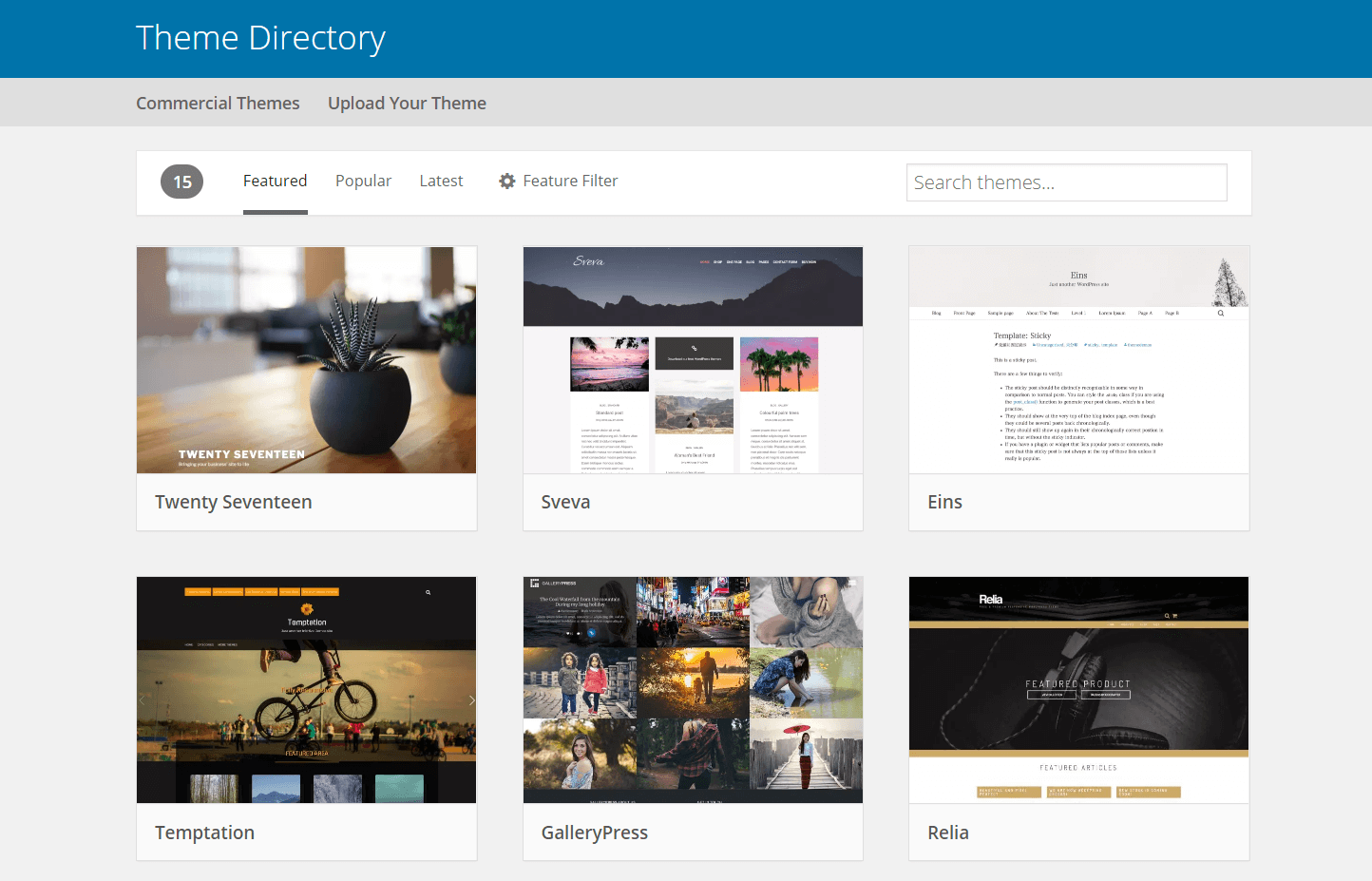
Selecting a suitable theme is vital for altering content in WordPress. A well-chosen theme simplifies customization, enhancing the site’s appearance and functionality. Adjusting themes ensures content aligns with your brand and audience needs.
Evaluating Theme Features
Choosing a WordPress theme is crucial. Make sure it has the features you need. Think about layout, design, and customization options. A good theme should be easy to use. Check if it supports plugins you want to use. Ensure the theme is responsive. This means it looks good on all devices. Check if it is SEO-friendly. A fast-loading theme improves your website speed. This helps with search engine ranking.
Assessing Theme Compatibility
Ensure the theme works with your WordPress version. Check for compatibility with popular plugins. This avoids future problems. Look if the theme gets regular updates. Updated themes are more secure. They also have fewer bugs. Read reviews to learn about user experience. A good theme should have support from the developer. This is helpful if you face issues. Choose a theme that fits your content type. Different themes work better for blogs, shops, or portfolios.
Setting Up A Child Theme
Child themes allow easy changes to your WordPress site. You can update your theme without losing changes. This keeps your site safe. Customizations stay intact even after updates. Child themes help you experiment with designs. If you make a mistake, the parent theme remains unchanged. This feature is useful for new users. It helps them learn without risk. Child themes also improve site performance. They keep the main theme lightweight. This makes loading faster. The site becomes more responsive. These themes are best for people who want a unique look. They can change styles easily. With a child theme, your site is always fresh. It helps with creativity.
First, create a new folder for your child theme. Name it wisely. Inside the folder, make a style.css file. Add details like theme name and template. This file tells WordPress about your theme. Then, make a functions.php file. Use it to link your child theme to the parent theme. This ensures your site works smoothly. Add new styles in the style.css file. You can change colors, fonts, and layout. Changes will not affect the parent theme. This keeps your site stable. Remember to activate the child theme in WordPress. Go to Appearance, then Themes. Select your child theme and activate it. Your changes will now show on the site.
Accessing Theme Files
The WordPress Editor is a simple tool. First, log in to your WordPress dashboard. Go to Appearance, then click on Theme Editor. Here, you can see your theme files. Click on a file to edit it. Make sure to save your changes. Be careful while editing. Wrong changes can break your site.
FTP clients are another way to access theme files. Use tools like FileZilla. First, connect to your server with your FTP details. Find the wp-content folder. Inside, look for themes. Open your theme folder. Now, you can edit files. Always back up files before making changes.
Modifying Theme Templates
The header and footer are key parts of a website. To edit them, go to the WordPress dashboard. Navigate to Appearance and click on Theme Editor. Look for header.php and footer.php files. These files control the header and footer. Always save changes after editing. Use simple HTML or CSS to style them. Make sure to preview your changes. This ensures everything looks good.
Page templates define the layout of your pages. Go to the dashboard and click on Pages. Select the page you want to customize. In the right panel, find the Page Attributes section. Choose a template from the dropdown menu. You can also edit templates directly. Go to Appearance and click on Theme Editor. Look for files ending with .php. Edit these files to change the layout. Don’t forget to save your changes.
Updating Theme Styles
CSS is like a set of instructions for your website’s look. It changes how your site appears. You can change colors, fonts, and layout. Each change in CSS affects the visual style. Selectors in CSS target specific elements. Styles are rules that apply to those elements. For example, you can change the color of headings or the size of text. CSS makes your site look different. Without it, your site may look plain. Learning CSS basics is important for customizing your theme.
Adding custom CSS is easy. First, find the customizer in WordPress. It’s under the “Appearance” menu. Next, click on “Additional CSS”. You can paste your CSS code here. This code changes your theme’s style. Make sure you save your changes. You can preview your changes before saving. Custom CSS helps you tailor your site. It lets you add personal touches. You can try different styles and see what fits best. Remember to test your changes. Good CSS makes your site unique.
Changing Theme Functions
The functions.php file is vital for themes. It adds features to your site. To edit, access the file in your theme folder. Use a code editor for changes. Always back up the file first. Mistakes can break your site. Add new code at the end. Test changes on a local server. This prevents errors online.
Adding custom functions lets you personalize your site. Include extra code snippets in functions.php. Start with simple changes. Try adding a new widget area. Or modify the footer text. Learn from WordPress guides and forums. They offer useful tips. Experimenting helps you understand code better. Remember to save and test each change. This ensures your site works properly. Check the site after each edit. This helps catch mistakes early.
Utilizing WordPress Customizer
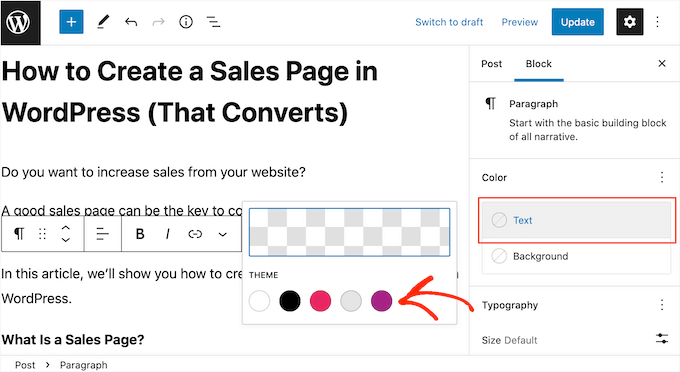
Open the WordPress Customizer. It’s a handy tool. Locate the Site Identity section. Here, you can change your site’s title and tagline. Add a new logo if you have one. You can also upload a site icon. This icon appears in browser tabs. Make sure your changes fit your brand.
Find the Colors & Fonts section. This is where you play with colors. Choose a background color you like. Adjust the font style for your text. Experiment with different font sizes. Make sure everything is easy to read. Colors should match your site’s theme. Save your changes to see the effect.

Credit: www.wpzoom.com
Incorporating Plugins For Customization
Plugins help make your website better. They can change how it looks and works. Choose plugins that are popular and have good reviews. Popular plugins often have more features. Good reviews mean people trust them. Check if they are updated often. Updated plugins work better and are safer.
Page builders make designing easy. Drag and drop elements to build pages. This is fun and simple. Many page builders have pre-made layouts. Use them to save time. You can also customize colors and fonts. Make your site look just how you want.
Testing Theme Changes
Explore how to change content in a WordPress theme effortlessly. Navigate to the Appearance section, select Editor, and modify files as needed. Save changes to update your theme content instantly.
Previewing Changes
Before making any changes live, it is important to preview them. WordPress offers a feature to view changes before they go public. This helps avoid mistakes. Always check if text looks right. Also, see if images are placed correctly. Previewing lets you see how your site will look. This helps in avoiding errors.
Ensuring Mobile Responsiveness
Many people use phones to browse the internet. So, your site must look good on phones. Check if your theme is mobile responsive. Test on different devices. See if text is easy to read. Make sure buttons are easy to click. Mobile responsiveness improves user experience. It makes your website accessible to everyone.
Best Practices For Theme Customization
Keep your theme updated for best performance. New updates fix bugs and improve security. Without updates, your site might break.
Check for updates regularly. Go to your WordPress dashboard. Look for update notifications. Follow the instructions to update.
Always make a backup before changes. Use plugins or tools to save your work. Backups protect against data loss.
Save a copy of your customized files. This way, you can restore them if needed. Keep backups in a safe place.
Credit: www.wpbeginner.com
Frequently Asked Questions
How To Edit Content In A WordPress Theme?
To edit content in a WordPress theme, access the WordPress dashboard. Navigate to Appearance, then click Editor. Select the theme file you wish to modify. Make changes directly within the code editor. Save your changes and preview them on your website to ensure everything looks correct.
Can I Change Theme Content Without Coding?
Yes, you can change theme content without coding by using the WordPress Customizer. Navigate to Appearance and select Customize. Use the available options to modify theme elements like colors, fonts, and layouts. This tool allows you to make visual changes without needing to edit code directly.
What Tools Help Customize WordPress Themes?
Several tools can help customize WordPress themes, including page builders like Elementor and WPBakery. These tools offer drag-and-drop functionality, enabling you to design pages without coding. Additionally, plugins like Customizer Custom Controls enhance customization options, allowing for more detailed theme adjustments.
Are Changes Reversible In WordPress Themes?
Yes, changes made in WordPress themes are reversible. Before editing, backup your theme using plugins like UpdraftPlus. If errors occur, restore the theme from the backup. Some theme editors also offer undo functions. Always test changes on a staging site to prevent impacting the live site.
Conclusion
Changing content in a WordPress theme is straightforward. Start with the theme editor. Find the files you need. Edit them carefully. Always save your changes. Keep your site backed up. Mistakes happen. You can restore your backup if needed. Consider using a child theme.
It protects changes from updates. Explore plugins for added flexibility. Always test changes on a staging site first. This ensures everything works. Your site stays smooth and professional. Keep learning. WordPress has many resources online. With practice, you’ll get better.
Your site will reflect your style. Enjoy customizing your online space.


