
Imagine this: a potential customer visits your WordPress site on their smartphone, eager to explore what you offer. But, your website looks awkward, and navigation feels like a maze.
Frustrated, they leave, and you’ve just lost a valuable opportunity. You don’t want this scenario, do you? Ensuring your website looks as stunning on mobile devices as it does on desktops is crucial. In a world where mobile browsing is soaring, having a responsive site isn’t just a nice-to-have; it’s essential.
In this guide, you’ll discover how to add a mobile theme to your WordPress site effortlessly. You’ll learn step-by-step techniques to ensure your visitors enjoy a seamless experience, no matter what device they use. Let’s dive in and make your WordPress site shine on every screen!
Benefits Of A Mobile Theme
Mobile themes help websites look good on phones. They make sites fast and easy to use. Many people use phones to browse the web. A good mobile theme keeps visitors happy. Visitors stay longer on the site. They find what they need fast. This means more success for the site owner.
Search engines like mobile-friendly sites. They rank these sites higher. A higher rank means more visitors. More visitors can mean more business. It is important to have a site that works well on phones. A mobile theme makes this possible.
Choosing The Right Mobile Theme
Mobile themes must have responsive design
Themes should offer customization options
Themes must have performance optimization
Installing A Mobile Theme
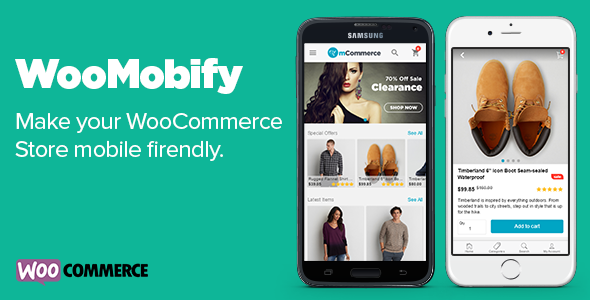
Log in to your WordPress Dashboard. Look for the left menu. Click on “Appearance.” Here, you find themes for your site.
Inside Appearance, choose “Themes.” A list of themes appears. To add a new one, click “Add New.” Search for a mobile theme. Choose one you like.
Once chosen, press “Install.” Wait for the theme to download. After that, hit “Activate.” Your site now has a new mobile look. Check on a phone to see changes.
Credit: codecanyon.net
Customizing Your Mobile Theme
Choose colors that match your brand. Bright colors can grab attention. Simple layouts make your site easy to use. Keep menus short. This helps users find things fast. Colors should not hurt the eyes. Soft colors work well on mobile screens. Test different layouts. See which one looks best.
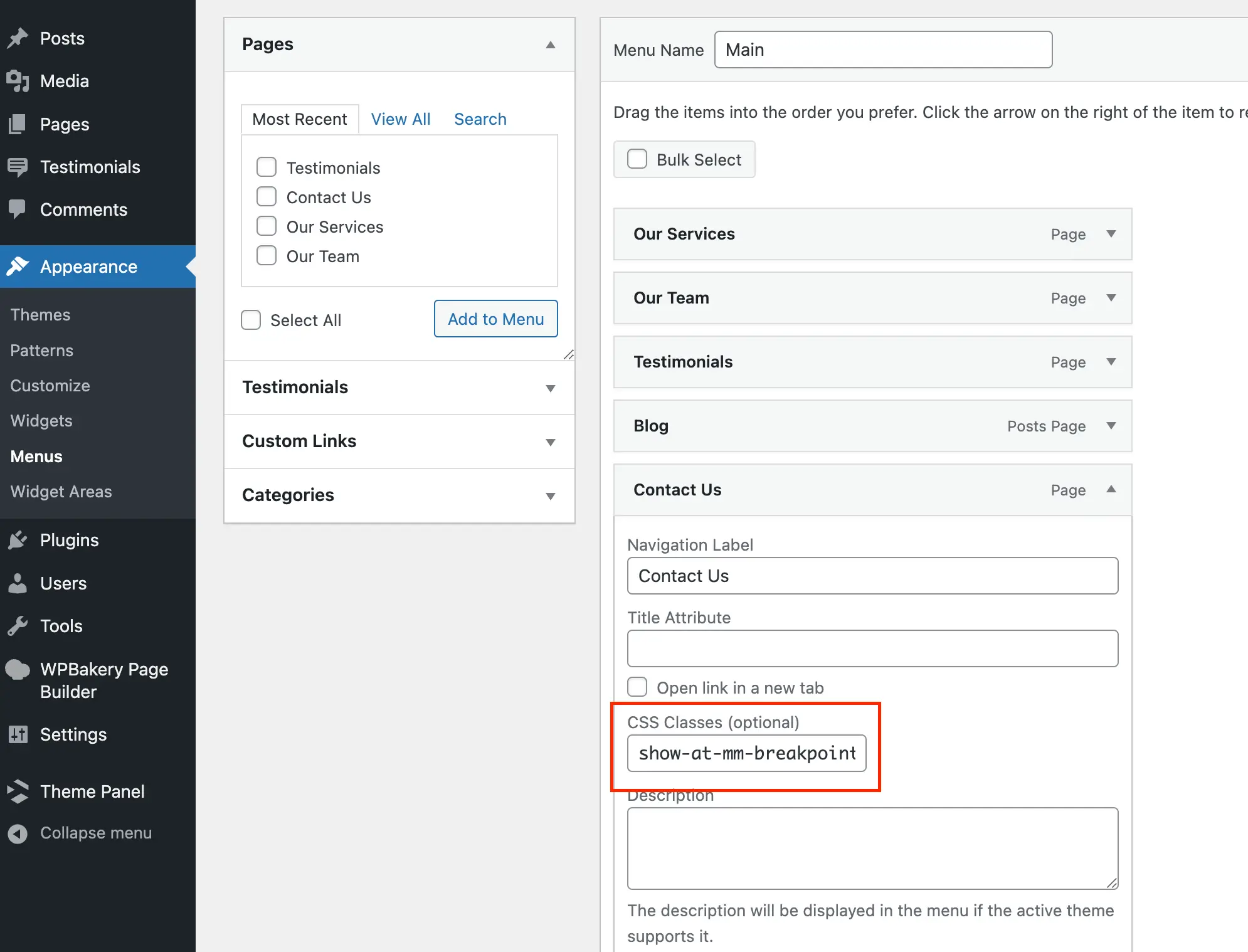
Navigation menus are very important. Place them at the top. This is where people look first. Use clear words. For example, “Home” or “Contact.” Keep it simple. Too many options can confuse users. Make sure links work. Test them often.
Speed is key. Slow websites lose visitors. Use smaller images. They load faster. Check your plugins. Too many can slow things down. Fast sites keep people happy. Use tools to test speed. Make changes if needed.
Testing Your Mobile Theme
Enhance your WordPress site by adding a mobile theme. Choose a responsive theme from the WordPress theme library. Ensure it adjusts smoothly to different mobile devices for better user experience.
Checking Compatibility Across Devices
It is crucial to ensure your mobile theme works on all devices. Test it on smartphones, tablets, and different screen sizes. This helps you find any issues early. Make sure the theme looks good and functions well. Compatibility checks prevent problems for users. Your site should load quickly and be easy to navigate.
Using Emulators And Tools
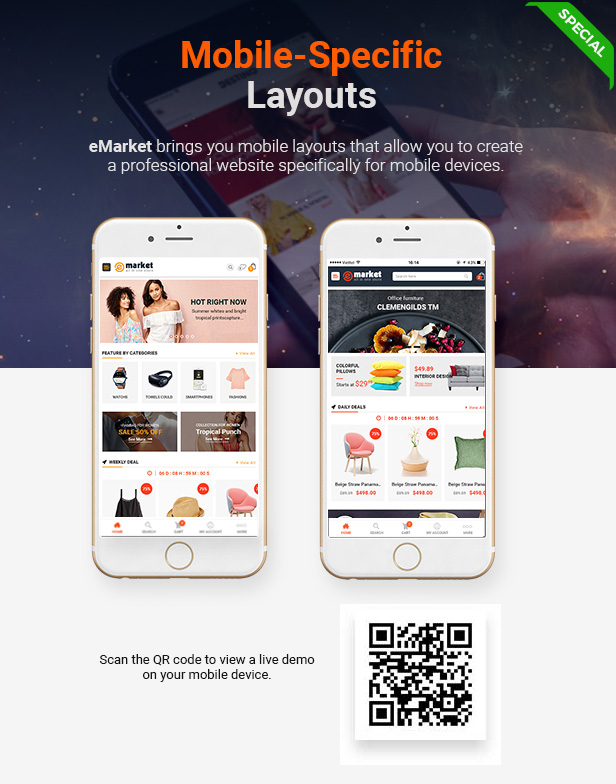
Emulators are a great way to test your theme. They mimic different devices. Use tools like BrowserStack or Responsive Design Checker. These tools show how your site looks on various devices. Testing helps ensure your site works everywhere. Tools provide insights into potential problems.
Gathering User Feedback
User feedback is vital for improving your theme. Ask friends and family to test your site. They can offer valuable insights. Feedback helps you find areas to improve. Listen to users’ experiences. Make changes based on their suggestions. Happy users mean a successful theme.
Credit: wpthemego.com
Troubleshooting Common Issues
Pages might not look right on phones. Check your theme settings first. Sometimes, themes have special options for mobile. Try switching to a basic theme. This helps see if the theme causes problems. Clear the cache after changes. This makes sure you see the latest updates.
Slow sites upset visitors. Compress images to make them smaller. This helps pages load faster. Deactivate unused plugins. They can slow down your site. Use a caching plugin. It speeds up loading times by saving parts of your site.
Plugins might not work well together. Deactivate all plugins and see if the site works. Activate them one by one. This helps find which plugin causes trouble. Update plugins regularly. New versions fix bugs and problems.
Maintaining Your Mobile Theme
Integrating a mobile theme in WordPress enhances user experience on smartphones. Begin by selecting a responsive theme from the WordPress repository. Install and activate it through the dashboard for a seamless mobile-friendly design.
Regular Updates
Keeping your mobile theme up-to-date is very important. Updates fix bugs and improve security. Check for new updates often. Use the WordPress dashboard to find them. It is easy and fast. Always make a backup before updating. This keeps your site safe.
Monitoring Performance
A fast website keeps users happy. Check your site’s speed regularly. Use tools like Google PageSpeed Insights. It shows you what to fix. Make sure images are optimized. Compress them to load faster. Remove plugins you do not use. This helps your site run smooth.
Staying Informed On Trends
New trends come and go. Stay informed to keep your site fresh. Read blogs about WordPress. Join forums and talk with others. Watch tutorials on new features. Learn and adapt. This keeps your site modern and fun.
Credit: totalwptheme.com
Frequently Asked Questions
How Do I Install A Mobile Theme In WordPress?
To install a mobile theme, go to your WordPress dashboard and select “Themes” under “Appearance. ” Click “Add New” and search for mobile-responsive themes. Preview and install the theme of your choice. Activate it to apply changes and ensure your site is mobile-friendly.
What Are The Benefits Of A Mobile Theme?
A mobile theme enhances user experience on smartphones and tablets. It improves site load speed and navigation. Mobile themes are SEO-friendly, helping you rank higher in search results. They also reduce bounce rates by providing a seamless browsing experience.
Can I Customize A Mobile Theme In WordPress?
Yes, you can customize mobile themes. Access the “Customize” option under “Appearance” in your WordPress dashboard. Modify colors, fonts, and layouts to match your brand. Use widgets and plugins to add functionality. Ensure changes look good on all devices before publishing.
Do Mobile Themes Affect Website Seo?
Yes, mobile themes positively impact SEO. Google prioritizes mobile-friendly sites in search rankings. A responsive design improves user experience and reduces bounce rates. Faster load times and optimized layouts enhance your site’s visibility. Mobile themes ensure your content is accessible across all devices.
Conclusion
Adding a mobile theme to WordPress enhances user experience. It ensures your site looks good on phones. Visitors prefer easy navigation and quick loading. Mobile themes are important for these features. They improve your site’s accessibility. More visitors mean more growth and engagement.
Install a mobile theme easily. Choose themes compatible with mobile devices. Keep your content clear and concise. Regular updates help maintain theme efficiency. Mobile optimization boosts your site’s performance. It’s vital for reaching a wider audience. Make your WordPress site mobile-friendly today.
Enjoy a smoother browsing experience.


