
Are you looking to enhance your WordPress Genesis theme by adding category titles? You’re in the right place.
Customizing your site to display category titles not only improves navigation but also enhances user experience. Imagine your visitors easily finding what they’re looking for, all thanks to clear, organized categories. It’s a small change that makes a big impact, guiding your audience and keeping them engaged.
Stick around, and you’ll discover how simple it is to integrate category titles into your Genesis theme, making your website more user-friendly and visually appealing. Let’s dive into the steps that will empower your site and captivate your audience.
Genesis Theme Basics
Genesis themes use a specific structure. This structure makes them easy to customize. There are templates and hooks. Templates define how pages look. Hooks allow adding extra features.
The HTML5 code is clean. It helps in making the website fast and efficient. Each part of the theme has a purpose. This makes changes easy and quick.
Child themes are like a skin for your website. They change how your site looks. But they don’t change the main theme files. This keeps your site safe during updates.
You can make a child theme yourself. Or you can buy one. They are easy to use. Just install and activate. Now, you can change colors, fonts, and layouts.
Importance Of Category Titles
Category titles can make your site easier to find. Search engines love organized sites. A clear category title helps in ranking better. It tells search engines what your page is about. This helps them show your page to more people. More views can mean more visitors.
Visitors want a simple website. Category titles help them know where they are. It makes browsing smooth. Users find information faster. They stay longer when they find what they need. Happy users often return. This can lead to more visits and more engagement.
Preparation Steps
Always backup your site. Mistakes can happen. Use plugins like UpdraftPlus. Save backups to cloud storage. Check that backups are complete. This makes recovery easy. Do it before any changes. It’s a safe habit.
A child theme is important. It keeps main theme safe. Use FTP to create a new folder. Name it my-theme-child. Add a style.css file inside. This file needs a header. Copy the parent theme’s header. Change theme name and template. Save and activate the child theme. This keeps changes organized.
Credit: sridharkatakam.com
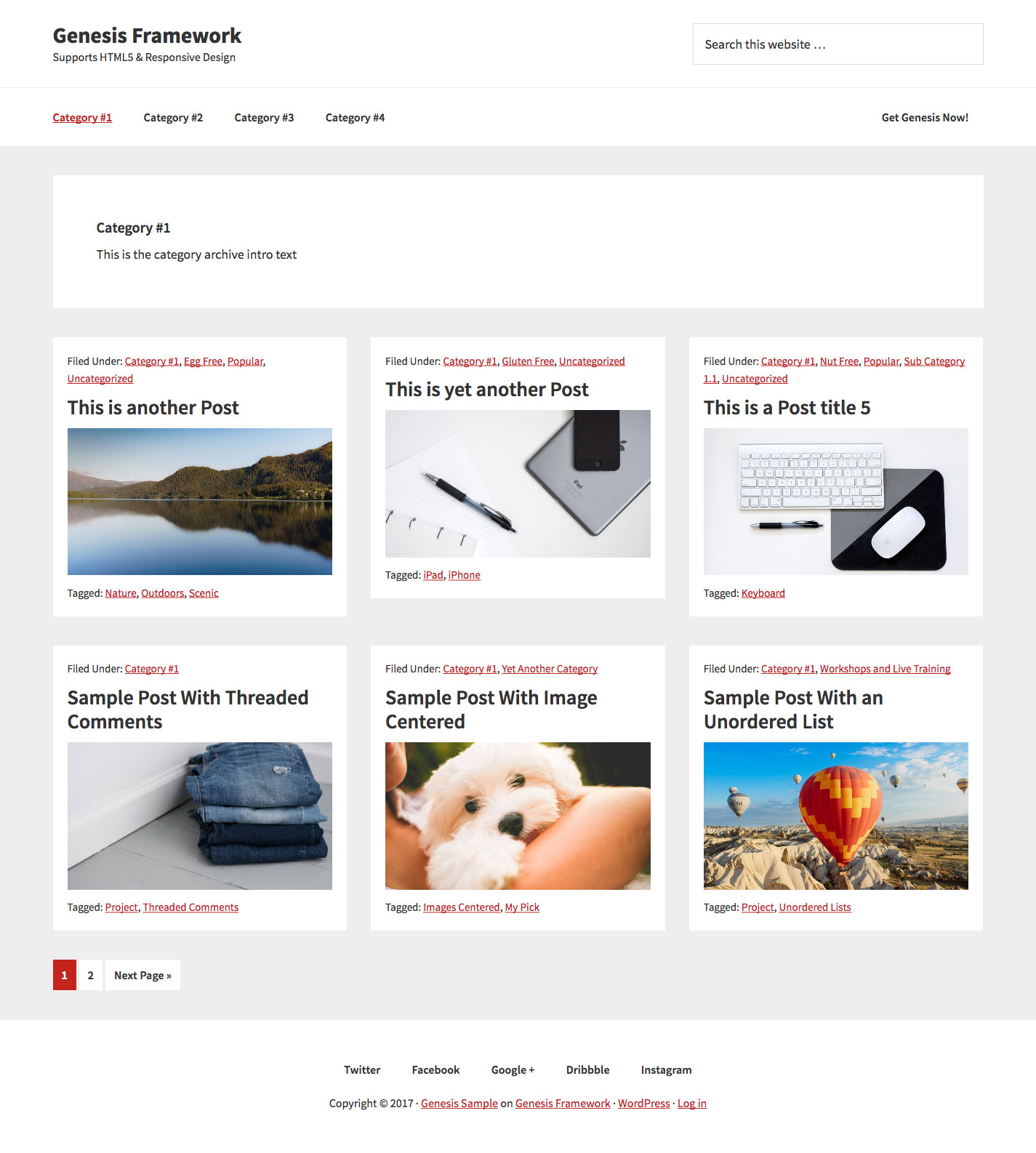
Adding Category Title
First, open the WordPress dashboard. Go to the Appearance section. Click on Editor. Look for the category template file. It often has “category” in its name. This file controls how categories look.
Open the category template file. Add code to show the category title. Use the get_cat_name() function. This function fetches the category name. Place this code where you want the title to appear. Save your changes.
Genesis themes use hooks and filters. They help in adding features without changing core files. Use the genesis_before_loop hook. This hook can help show the category title. Add your custom function to this hook. It ensures the title shows before posts.
Styling The Category Title
Adding a category title in the WordPress Genesis theme enhances organization. It provides clear navigation and improves user experience. Customize the appearance to match your site’s design effortlessly.
Css Customization
Start with basic CSS to change the category title. Use a simple code like this:
.category-title {
    font-size: 24px;
    color: #333;
    margin-bottom: 10px;
}
This makes the title bigger and easier to read. Change the color and size to fit your style. Next, add some padding for space.
Responsive Design Tips
Make sure your design looks good on all screens. Use media queries in CSS. This helps the title look nice on phones and computers. Example:
@media (max-width: 600px) {
    .category-title {
        font-size: 18px;
    }
}
This code changes the title size on small screens. Keep your design simple and clear. This makes it easy for everyone to read.
Credit: sridharkatakam.com
Testing And Debugging
Test your changes in different browsers. Each browser can show your theme differently. Use Chrome, Firefox, Safari, and Edge. Look for any problems or layout issues. Fix them to make your theme look nice everywhere. This will help all users enjoy your site.
Many people use phones to browse. Check your theme on a mobile. Is the text too small? Do images fit the screen? Make sure buttons are easy to click. Adjust settings in your theme if needed. This helps everyone have a good experience on your site.
Troubleshooting Common Issues
Enhance your Genesis theme by adding category titles for better navigation. Access the functions. php file in WordPress admin. Insert the code snippet provided to display category titles on archive pages.
Title Not Displaying
The category title might not show because of theme settings. Genesis theme has specific settings that can affect display. Check if the category title option is enabled. Sometimes, plugins can cause conflicts. Deactivate plugins one by one to see if they affect the title display.
Styling Conflicts
CSS styles can hide the category title. Inspect the website using browser tools. Look for any display: none rules. Remove or adjust them. Also, ensure your child theme is not overriding default styles. Sometimes, custom CSS can cause issues. Review any custom code added to your theme. Keep styles simple and clear.
Advanced Customizations
Enhance your WordPress Genesis theme by adding a category title. This customization helps organize and showcase content effectively. Simple coding steps can guide you to display category titles on your blog pages effortlessly.
Dynamic Titles
Dynamic titles make your blog look smart. They change based on the category. This helps visitors know the content better. Adding dynamic titles is easy. Use the Genesis Framework and a few lines of code. This makes your site unique. Visitors can find what they need quickly. A custom title for each category helps organize content. This improves user experience and engagement.
Custom Scripts
Custom scripts add special functions to your site. They make your site do more. Using scripts can help with dynamic titles. You need to add a small code snippet. This code makes the titles change automatically. It works well with WordPress Genesis. Always test your script. This ensures everything works fine. A small mistake can cause problems.

Credit: support.17thavenuedesigns.com
Frequently Asked Questions
How Do I Add Category Titles In Genesis?
To add category titles in Genesis, use a custom function. Insert the code snippet in your theme’s functions. php file. This will display the category title on archive pages. Ensure you have a backup before editing theme files to prevent data loss.
Can I Customize Category Title Style In Genesis?
Yes, you can customize category titles using CSS. Add custom styles in your theme’s stylesheet or via the WordPress customizer. Use specific CSS selectors targeting category headings to change font, color, or size, enhancing your site’s visual appeal.
Why Is My Category Title Not Showing?
If your category title isn’t showing, check your theme settings. Verify that your code snippet is correct and placed in functions. php. Ensure no conflicting plugins or customizations are overriding category title display settings in your Genesis theme.
Do I Need Coding Skills To Add Category Titles?
Basic coding skills are helpful but not mandatory. Many tutorials provide step-by-step guides for adding category titles. Using plugins or code snippets from trusted sources can simplify the process, even for beginners with limited coding knowledge.
Conclusion
Adding category titles to your Genesis theme is simple. Follow the steps carefully. Customize the theme to fit your style. Make your blog more organized. Readers find content easily. Enhancing user experience is key. Use the WordPress editor wisely. Experiment with different designs.
Your site will look professional. Categories guide visitors through your content. Improve readability and navigation. A better structure boosts engagement. Keep your site updated regularly. Stay creative with your theme design. Always focus on your audience. Your Genesis theme can offer endless possibilities.
Aim for clarity and simplicity. Happy blogging!


