
Are you looking to enhance your WordPress site with some custom functionality? Adding code to your theme’s functions.php file might be the perfect solution.
This powerful file acts like a plugin, allowing you to extend your website’s capabilities with just a few lines of code. But if the thought of tinkering with code fills you with apprehension, you’re not alone. Fear not, because in this guide, you’ll discover exactly how to safely and effectively add code to your WordPress theme’s functions.
php file. Whether you’re a seasoned developer or just starting out, you’ll find these steps straightforward and easy to follow. Imagine the satisfaction of having your website tailored precisely to your needs, offering your visitors a unique experience. Ready to unlock your site’s potential? Let’s dive in and make it happen!
Credit: support.reytheme.com
What Is Functions.php?
The functions.php file is like a toolbox. It holds special code for your WordPress theme. Think of it as a helper for your website. It adds new features or changes how things work. Each theme has its own functions.php file. The file is located in the theme’s folder.
This file can add widgets to your sidebar. It can also change your site’s layout or style. But be careful when editing. A mistake in the code can break your site. Always make a backup before changing the file. This way, you can fix things if something goes wrong.
Understanding this file helps you customize your site. It makes your website unique and special. Use it wisely and explore its possibilities.
Locating Functions.php File
Finding the functions. php file in WordPress is crucial for adding custom code. Navigate to the theme directory, locate the functions. php file, and edit it to enhance your site’s functionality. Always back up your theme before making changes to avoid errors.
Accessing WordPress Dashboard
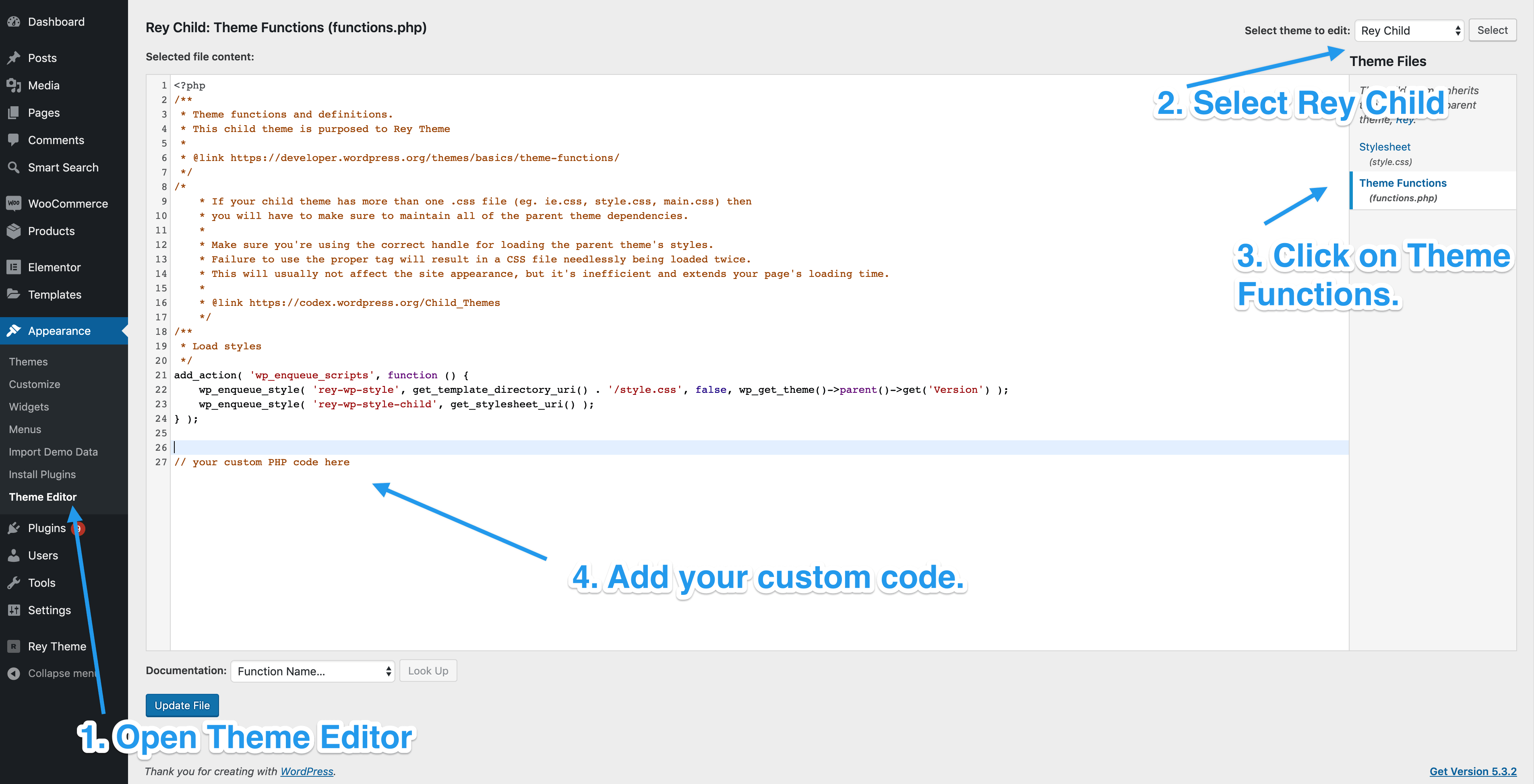
First, log in to your WordPress Dashboard. Find the Appearance tab. Click on it. Next, select Theme Editor. This opens the editor. On the right side, you see a list. Look for functions.php. Click on it. The file opens for editing. Remember, be careful. Changes affect your website.
Using Ftp For File Access
Use an FTP client like FileZilla. Connect to your server. You need your FTP credentials. Locate your theme folder. It is inside wp-content/themes. Find your theme’s name. Open the folder. You see the functions.php file. Right-click to download or edit. Always make a backup. This keeps your site safe.
Backup Before Editing
Always make a backup before changing files. This keeps your site safe. First, find the file you need. Then, make a copy of it. Save this copy in a safe place. You might need it later if things go wrong.
Plugins help make backups easy. They save time and keep files safe. Some good plugins are UpdraftPlus and BackupBuddy. Install one, then follow its steps. It will guide you to save your files. Simple and quick.

Credit: kinsta.com
Editing Functions.php
Adding code to the functions. php file customizes a WordPress theme. Carefully insert snippets to enhance theme functionality. Always backup before editing to avoid errors.
Using WordPress Editor
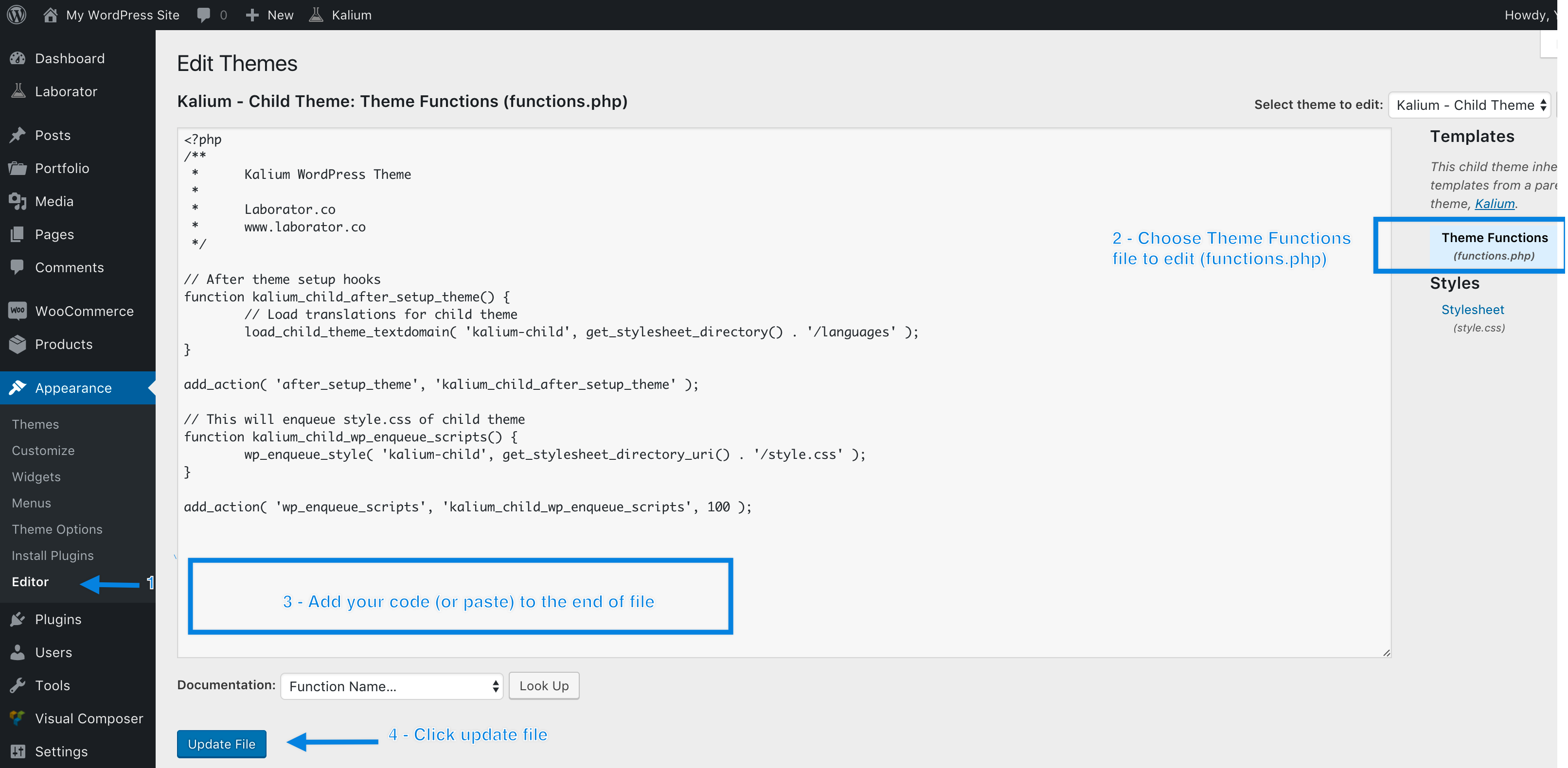
Open your WordPress dashboard. Go to Appearance and click on Theme Editor. On the right, find and click on functions.php. This file holds important code. Be careful when you edit it. Add your code at the bottom. After adding, click Update File to save. Always back up before you change anything. Mistakes can break your site.
Editing With A Code Editor
Download the functions.php file using FTP. Open it with a code editor like Notepad++. Add your code at the end. Save the file. Upload it back to your server using FTP. Check your site to ensure it works well. If there are errors, revert to the backup. This method is safer for beginners.
Adding Custom Code
PHP snippets are short pieces of code. They perform specific tasks in your theme. PHP is a powerful scripting language. It runs on the server. Adding code to functions.php is common. This file controls how your site works. Always use snippets carefully. Mistakes can break your site. Backup your files first. Backup is important. It keeps your site safe.
Custom functions help your site. They add features. Some popular functions are listed below.
- Change logo size
- Hide admin bar
- Add extra menu
These functions enhance user experience. They make your site unique. Functions.php lets you customize easily. Remember, always test your code. Testing ensures everything works well.
Testing Code Changes
After adding code, check for errors on your site. Errors can break your website. Visit your site and refresh the page. Look for any error messages. These messages can tell you what went wrong. If you see errors, go back and fix your code. Make sure all code is typed correctly. Small mistakes can cause big problems.
Test every part of your site. Click on links and buttons. Ensure everything works as expected. Sometimes code changes can affect site functions. If something is not working, check your new code. Fix any issues to ensure smooth operation. Testing helps find problems early. It is important for a good user experience.
Troubleshooting Common Issues
Editing the functions. php file in a WordPress theme can cause errors. Identify issues by checking for syntax mistakes. Always backup files before making changes to avoid potential problems.
Syntax Errors
Syntax errors happen often when adding code. A small mistake can break everything. A missing semicolon or bracket can cause a big problem. Always check your code carefully. Copy and paste can sometimes add hidden characters. These can cause errors too. Use a code editor for adding code. It helps spot mistakes easily.
White Screen Of Death
The White Screen of Death is scary. The site goes blank. No error message, just white. This often happens due to faulty code. Check your functions.php file for errors. Disable any recent changes. Rename the plugin folder if needed. This helps identify the problem. Use error logs to find what went wrong. Fix the error, and refresh your site. Everything should work fine.
Best Practices
Comments help others understand your code. They show what each part does. This is helpful for you too. You might forget why you wrote something later. Use short, clear sentences for comments. Place them above the code they describe. This makes it easy to read. Consistent commenting helps keep track of changes.
Organizing code keeps it neat and easy to read. Group similar functions together. Use spaces and tabs for alignment. This helps you spot errors quickly. Keep the file clean by removing old code. This makes the file less cluttered. Always back up the file before making changes.
Credit: documentation.laborator.co
Frequently Asked Questions
How Do I Safely Edit Functions.php In WordPress?
To safely edit functions. php, use a child theme. First, create a child theme and locate its functions. php file. Then, add your custom code. This ensures that your changes remain intact after theme updates, minimizing risks and preserving site functionality.
What Is The Purpose Of Functions.php File?
The functions. php file is crucial for adding custom code to WordPress themes. It enables developers to enhance site functionality without altering core files. Common tasks include adding new features, modifying default behaviors, and integrating third-party services. Proper use ensures a dynamic, tailored WordPress experience.
Can I Add Code To Functions.php Without Coding Skills?
Yes, you can add code without coding skills by using plugins. Code snippets plugins offer an intuitive interface to safely add custom functions. They eliminate the need for direct file editing, reducing risks. Always back up your site before making changes to avoid potential issues.
What Precautions Should I Take Before Editing Functions.php?
Before editing functions. php, always back up your WordPress site. This ensures you can restore it if issues arise. Use a child theme to prevent losing changes after theme updates. Test changes in a staging environment first to ensure site stability and functionality.
Conclusion
Editing your theme’s functions. php file enhances your site’s functionality. Always back up your files before making changes. Use a child theme to keep your edits safe during updates. Practice caution to avoid errors. Familiarize yourself with basic PHP code.
Learning PHP basics helps in understanding functions. Online forums and communities offer helpful advice. They’re great resources for troubleshooting issues. Experimenting with code boosts your skills over time. Keep your WordPress site secure and efficient. Regular updates ensure smooth operation.
Stay curious and enjoy the process of learning and improving your website.


