
Are you struggling to make your WordPress site look exactly how you want it? Specifically, is the header of your Divi theme not quite hitting the mark?
You’re not alone. The header is one of the most crucial elements of your website. It’s the first thing your visitors see, and it sets the tone for your entire site. If your header isn’t right, it can make your whole website feel off.
But don’t worry! Adjusting the header in the Divi theme is easier than you might think. In this guide, you’ll discover simple steps to customize your header, making your site not just functional but also visually stunning. Dive in and unlock the potential of your WordPress site with just a few tweaks!
Accessing Divi Theme Options
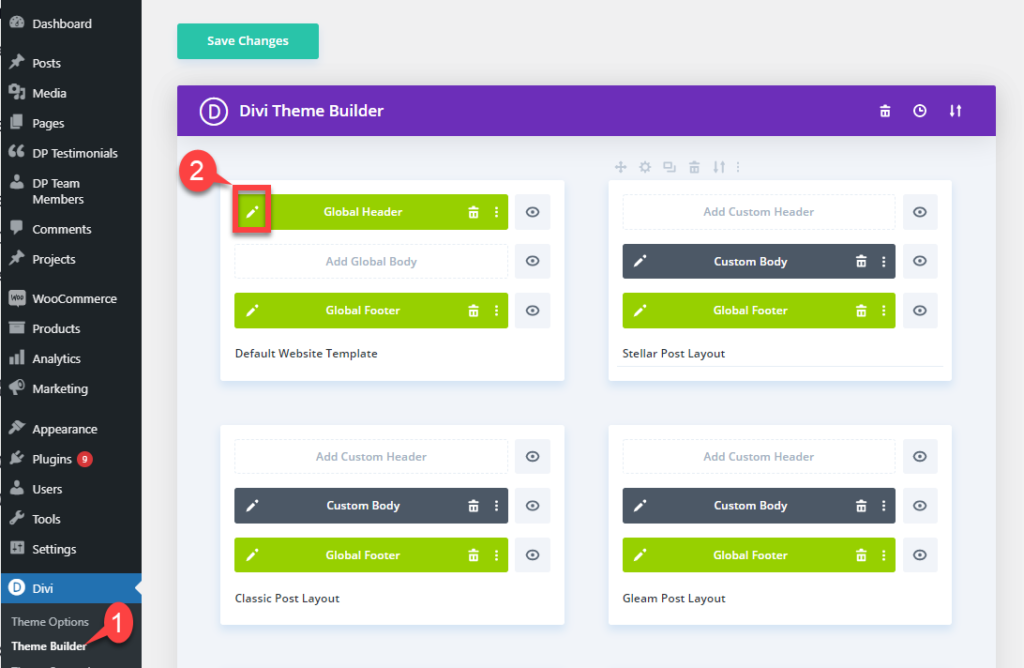
First, go to your WordPress dashboard. Find the Divi option on the left side. Click on it. This opens the Divi Theme Options page. Here, many settings are available. You can change colors, fonts, and more.
To adjust the header, look for the Header & Navigation tab. Click on it. Here, you can set header style and size. You can also choose the header font. Make sure to save changes. This is important.
Changes will not show unless saved. Explore the options. You can personalize your site. Make it unique. The Divi theme offers many tools for this.
Credit: diviextended.com
Customizing Header Layout
Picking a header style in Divi is simple. Users can select from multiple styles. Each style offers a unique look. Some styles have a transparent background. Others might have a solid color. The style you choose affects how your site looks. Make sure it matches your brand. A good header style helps visitors feel welcome. It also makes your site look professional. Try different styles to see what fits best.
Changing the header width is easy. Go to the Divi settings. Look for the header section. Here, you can adjust the width. Make it wider or narrower. A wider header can hold more menu items. A narrow header looks neat. Adjust until you find the right fit. Keep it balanced. Visitors should see all options clearly. A well-sized header improves user experience. It helps users navigate easily.
Styling Header Elements
To change the logo size, go to the Divi theme customizer. Find the header and navigation settings. Look for the logo section. Adjust the size slider to make the logo bigger or smaller. Check how it looks on the preview. Make sure the logo fits nicely and is easy to see. Save changes when done.
Open the theme customizer and locate the menu settings. Find the font section. Pick a font style that you like. Adjust the font size to make it clear and readable. Try different styles until it looks right. Save your changes to keep the new font.
Head to the color settings in the customizer. Choose colors for the background and text. Make sure they match your website theme. Use colors that are easy on the eyes. Try to keep a good contrast between text and background. Save the changes once you are happy with the colors.
Credit: diviextended.com
Using Divi Builder For Header
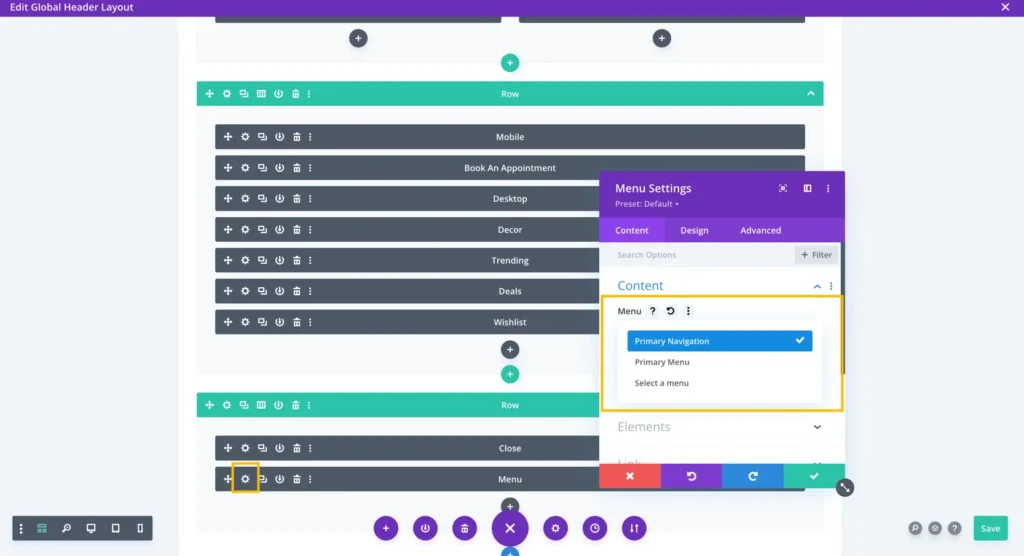
First, log in to your WordPress dashboard. Find the Divi option on the left. Click on it and select Theme Builder. This tool helps you create custom headers. You can now edit your header using Divi Builder. Easy, right? Remember to save your changes!
Click on Add New Template. Choose Header and press Add Custom Header. Use different modules to create your design. Want a logo? Add the Logo Module. Need a menu? Use the Menu Module. Mix and match to make it unique. Don’t forget to save your work often.
Responsive Header Design
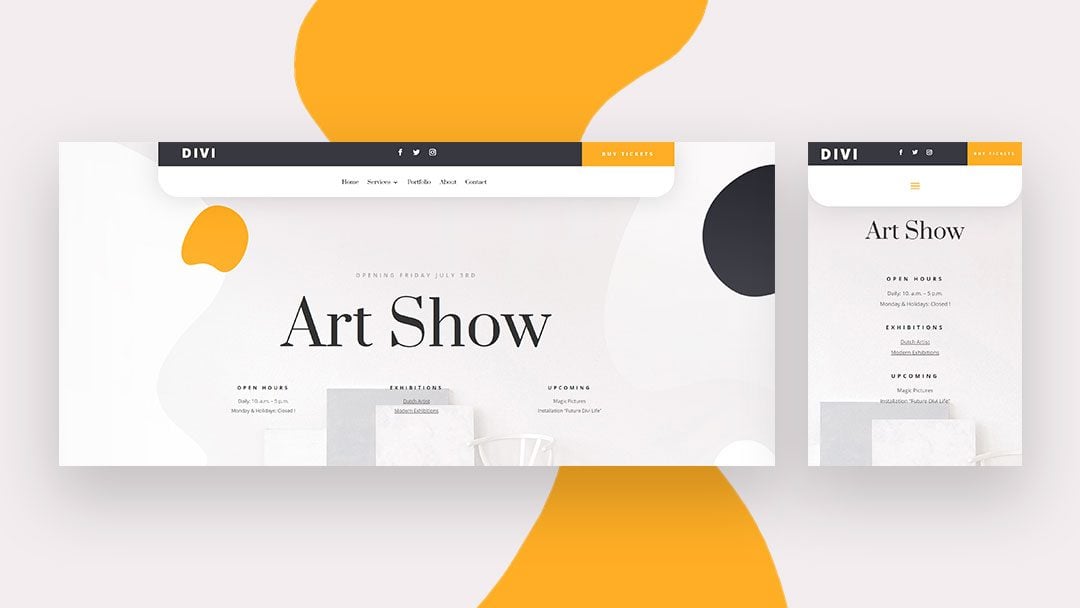
Headers must fit small screens. Use Divi’s tools to make them responsive. Choose a simple design that looks good on phones. Adjust text size for easy reading. Make sure buttons are big enough for fingers. Test your header on different phone models. Check alignment and colors. Keep your menu simple. Users should find what they need fast.
Test headers on tablets, phones, and computers. Adjust settings for each device. Use Divi’s preview mode to see changes. Make sure the header stays visible and clear. Check text size and button placement. Look for any mistakes or overlaps. Make changes until everything looks good. A well-tested header helps users navigate easily.
Credit: www.elegantthemes.com
Advanced Header Customization
Integrating Custom CSS can make your header unique. Start by accessing the WordPress dashboard. Navigate to the Theme Customizer section. Choose the Additional CSS option. Here, you can add your custom styles. Make sure to save changes. This helps in creating a distinct look. Remember, CSS changes affect header appearance. Always preview before applying. Test on different devices for consistency.
Utilizing Third-Party Plugins is another way. Search for header plugins in the WordPress repository. Popular options include Header Footer Builder and Elementor. These tools offer easy customization. Install your chosen plugin. Follow the setup instructions. Plugins provide drag-and-drop features. This makes header design simple. Ensure compatibility with the Divi theme. Check plugin reviews for reliability. Regular updates are crucial for security.
Troubleshooting Header Issues
Adjusting the header in WordPress Divi Theme can enhance your site’s appearance and functionality. Navigate to the Divi Builder, access Theme Customizer, then modify header settings to suit your preferences. Ensure that you save changes to update the header layout effectively.
Common Problems
Many users face issues with the header in the Divi theme. Headers might not display correctly. Sometimes, menus disappear. Changes may not save. These problems can frustrate users.
Check your settings first. Ensure the header is enabled. Customize it as needed. If issues persist, consider updating your theme. Updates often fix bugs. Clear your browser cache. This can help display changes.
Seeking Support
Sometimes, problems need expert help. Divi has a support team. They can assist with header issues. You can ask questions in forums. Many users share helpful tips. Look for guides online. Some websites offer tutorials. These can provide step-by-step solutions.
Always check your plugins. Conflicts may occur. Disable plugins one by one. See if the header appears. Contact plugin support if needed. They can offer solutions or updates.
Frequently Asked Questions
How Do I Change The Header Size In Divi?
To change the header size in Divi, navigate to the WordPress Dashboard. Go to Divi > Theme Customizer. Select “Header & Navigation,” then “Header Format. ” Adjust the header size by modifying the padding and height settings. Save your changes to apply them.
Can I Customize The Header Color In Divi?
Yes, you can customize the header color in Divi. Go to the WordPress Dashboard, then Divi > Theme Customizer. Select “Header & Navigation,” then “Primary Menu Bar. ” Here, you can adjust the background color to your preference. Don’t forget to save the changes.
Is It Possible To Make The Header Sticky?
Yes, making the header sticky in Divi is possible. Go to Divi > Theme Options in your WordPress Dashboard. Under the “General” tab, enable the “Fixed Navigation Bar” option. This makes your header sticky, keeping it visible when scrolling down the page.
How Can I Add A Logo To The Header?
To add a logo to the header in Divi, navigate to Divi > Theme Options. Under the “General” tab, you’ll find the “Logo” field. Upload your desired logo image here. Save the changes, and your logo will appear in the header.
Conclusion
Adjusting the header in the Divi theme is straightforward. Follow the steps carefully. Customize colors, fonts, and layout as needed. Experiment with different settings. Find what suits your style. Make sure it looks good on all devices. Ensure the header enhances your site’s appeal.
Regular updates keep your design fresh. Explore more Divi features for added flexibility. A well-designed header improves user experience. It also makes navigation easier. Happy designing! Your WordPress site will shine with a personalized touch. Keep learning and exploring for better results.


