
Are you tired of your WordPress theme’s colors and itching for a fresh look? Changing colors can breathe new life into your website, making it more engaging and aligned with your brand identity.
You might think it’s a daunting task, but it’s actually easier than you think. Imagine capturing your visitors’ attention with a vibrant, cohesive color scheme that resonates with your message. In this guide, you’ll discover simple, step-by-step instructions to effortlessly change colors in your WordPress theme.
By the end of this article, you’ll have the confidence to transform your site’s appearance in no time, making it more appealing and memorable for every visitor. Dive in to learn how easy it can be to give your website a stunning makeover!
Selecting A Theme With Customization Options
Choosing the right WordPress theme is important. Some themes have easy customization options. They let you change colors without coding. Look for a theme with a customizer. This tool helps you see changes in real time. It’s fun and easy. Many free themes offer this feature. Paid themes might have more options. But, free themes can work too. Make sure the theme fits your website style. Some themes have preset color palettes. Others let you pick your own colors. Always check if the theme supports color changes. This will save you time later. Happy customizing!
Accessing The WordPress Customizer
Start by logging into your WordPress dashboard. Look for the Appearance option on the left menu. Click on it. You will see Customize. Click Customize to open the WordPress Customizer. It helps you change theme colors easily.
The Customizer shows a live preview of your site. On the left, you see a list of options. Find the Colors or Theme Options. Click it. You can change the colors of text, background, and links. Choose your favorite colors.
Once you pick colors, click Publish. This saves the changes. Now your site has new colors. It’s a simple way to make your site look unique. Remember, you can always come back and change again.
Navigating To The Colors Section
Begin by logging into your WordPress dashboard. Find the menu on the left side. Click on Appearance. Then, choose Customize. A new window will open.
In this window, look for the Colors option. You might see it under General Settings or Theme Options. Click on Colors to explore the options available.
Some themes offer many color choices. Others might have fewer options. You can change the background, text, and link colors. Preview changes instantly. Once satisfied, remember to click Publish. This saves your new color settings. It’s a simple way to refresh your site’s look.
Changing Background Colors
To change the background color, go to the WordPress dashboard. Click on Appearance. Then select Customize. Next, find the Colors or Background option. Click on it. You will see color options. Choose your favorite color. Click on Publish to save. Your website now has a new look.
Some themes may not have this option. If so, use Custom CSS. Go to Additional CSS in the Customizer. Add a CSS code for the background. For example, body { background-color: #ffffff; }. Replace #ffffff with your color code. Always save changes. Check your website to see the new background.
Modifying Text Colors
Changing text color in WordPress is easy. First, go to your WordPress dashboard. Find the appearance tab. Click on customize. This opens the theme customizer.
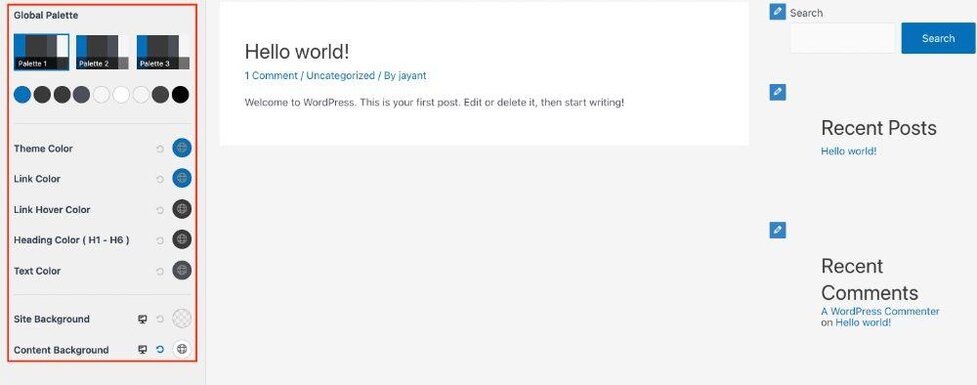
Look for colors option. It might be in different places. Some themes have it under global settings. Others under typography. Click to see color options.
Choose the color you like. You can preview the changes. If you like it, press publish. Your text color is changed!
Some themes have more options. You might see color pickers. Try different colors. See what looks best. Remember to save changes.
Adjusting Link Colors
Changing link colors in your WordPress theme is easy. First, go to the WordPress dashboard. Find the Appearance tab and click Customize. This opens the theme customizer.
In the customizer, look for Colors or Typography options. You will see settings for link colors. Click to choose a new color. You can pick from a color palette or enter a HEX code.
After choosing your color, click Publish. This saves the changes. Now your links have a new color. Always preview your site to ensure the colors look good. This ensures readability.
Saving And Previewing Changes
Changing colors in a WordPress theme is fun. First, open the customizer in your WordPress dashboard. Look for the colors option. Choose your favorite colors. See how your site looks with new colors. Click preview to check your changes. Everything looks great? Click save to keep your new colors. Want to go back? You can always undo changes. Experiment with different colors. Find what works best for your site. Make sure it’s easy to read. Colors should match your site’s style. Bright colors can grab attention. Soft colors are relaxing to eyes. Your site will look fresh and new.

Credit: doc.seatheme.net
Using Additional Css For Custom Colors
Changing colors in a WordPress theme can be fun. You can use Additional CSS to make your site unique. First, go to your WordPress dashboard. Find the Appearance menu. Click on Customize. Look for Additional CSS. This is where you will add your custom code.
To change a color, you need the right CSS selector. For example, if you want to change the background, use the selector body. Type body { background-color: #yourcolor; }. Replace #yourcolor with the color code you want. Use simple codes like #000000 for black or #FFFFFF for white.
Remember, colors can make your site feel different. Try different codes. See what looks best. Always save your changes after adding CSS. Your site will look just the way you like it.
Installing Color Customization Plugins
Changing colors in a WordPress theme can be simple. Use a color customization plugin for ease. These plugins help in choosing new colors. Color customization plugins are found in the WordPress Plugin Directory. Some popular choices include ColorMag and SiteOrigin CSS. These plugins offer many color options. After installing, you can access them from your dashboard. Choose colors that fit your site style. Keep it fun and easy to read. Always preview changes before saving. This ensures everything looks right.
Plugins make color changes less daunting. No coding skills needed. Just install and play with options. Enjoy the process of making your site colorful.

Credit: qodeinteractive.com
Ensuring Color Accessibility
Color accessibility is important for all users. Some users have trouble seeing certain colors. Choose colors that everyone can see easily. Use contrast between text and background. This helps users read text better. Try using a color contrast checker. It shows if colors are easy to read. Avoid using only color to show information. Use text labels too. This helps users who can’t see colors well. Accessible colors make your site better for everyone. Test your site with different tools. Make sure it works for people with vision problems. Keep your design simple. Simple designs are easy to understand.
Credit: wpastra.com
Frequently Asked Questions
How Do I Change Theme Colors In WordPress?
To change theme colors in WordPress, go to the WordPress dashboard. Navigate to “Appearance” and then “Customize. ” From there, select “Colors” or “Theme Options” to adjust the color settings. Make sure to save your changes to see the updated colors on your site.
Can I Customize Colors Without Coding?
Yes, you can customize colors without coding in WordPress. Use the WordPress Customizer tool to easily change your theme’s colors. Navigate to “Appearance” > “Customize” and adjust the color settings under the “Colors” section. This allows you to make changes without any coding knowledge.
Are Third-party Plugins Helpful For Color Changes?
Yes, third-party plugins can simplify color changes in WordPress. Plugins like “YellowPencil” or “CSS Hero” offer user-friendly interfaces. These tools allow you to customize colors and styles without coding. They provide more flexibility and options compared to the default WordPress Customizer.
What If My Theme Doesn’t Support Color Changes?
If your theme doesn’t support color changes, consider using custom CSS. Access the WordPress Customizer, then click on “Additional CSS. ” Here, you can add custom CSS code to change your site’s colors. Alternatively, switch to a more customizable theme or use a plugin.
Conclusion
Changing colors in a WordPress theme is straightforward. It enhances your site’s appeal. With simple steps, you can customize your design. Choose colors that match your brand’s identity. Experiment to find what looks best. Remember to preview changes before saving.
This ensures a professional appearance. Regular updates keep your site fresh and engaging. Learning this skill boosts your website’s uniqueness. Keep exploring WordPress features for more customization options. Your website reflects your creativity. Enjoy the process of making it truly yours.


