
Imagine transforming your WordPress site with the perfect typography, making your content not only readable but also visually appealing. Adding Google Fonts to your WordPress theme can do just that.
It’s a simple yet powerful way to enhance your site’s design and make it stand out. Whether you’re a seasoned developer or a WordPress newbie, integrating Google Fonts can seem daunting. But what if I told you it’s easier than you think?
This guide will walk you through the process step by step, so you can effortlessly elevate your site’s aesthetic. Ready to give your website a fresh look with just a few clicks? Let’s dive in and unlock the secrets of seamless font integration.
Credit: www.cloudways.com
Choosing The Right Google Font
Google Fonts offers many options. Each font has a unique style. Fonts can be bold, thin, or curly. Some fonts are good for titles. Others work well in paragraphs. Explore and find what fits your website. Remember, font choice can affect mood and readability.
Fonts fall into different categories. Serif fonts have small lines at the ends. Sans-serif fonts are clean and simple. Display fonts are big and eye-catching. Handwriting fonts look like script. Each category has a purpose. Choose one that matches your theme.
Pairing fonts creates harmony. Use one for titles and another for text. Mixing fonts adds interest. But, too many can clutter your design. Try combinations and see what works. Balance is key. Aim for a clean and readable design.
Accessing Google Fonts Library
The Google Fonts website is easy to find. Type “Google Fonts” in your browser. Click the first link. The website opens with a list of fonts.
You can use the search bar at the top. Type a font name or style. The website shows matching fonts.
You can also browse categories. Choose options like Serif, Sans-Serif, or Handwriting. Each category shows different fonts.
To pick a font, click on its name. It opens a detailed page. You see samples of the font. You can change text size. You can change text style.
Use the slider tool to adjust text size. Look at how the font appears. You can compare fonts side by side. Click “Compare” to do this.
Once you find a font you like, click “Select this style”. This adds the font to your list. You can add many fonts to your list.
Embedding Google Fonts Via Css
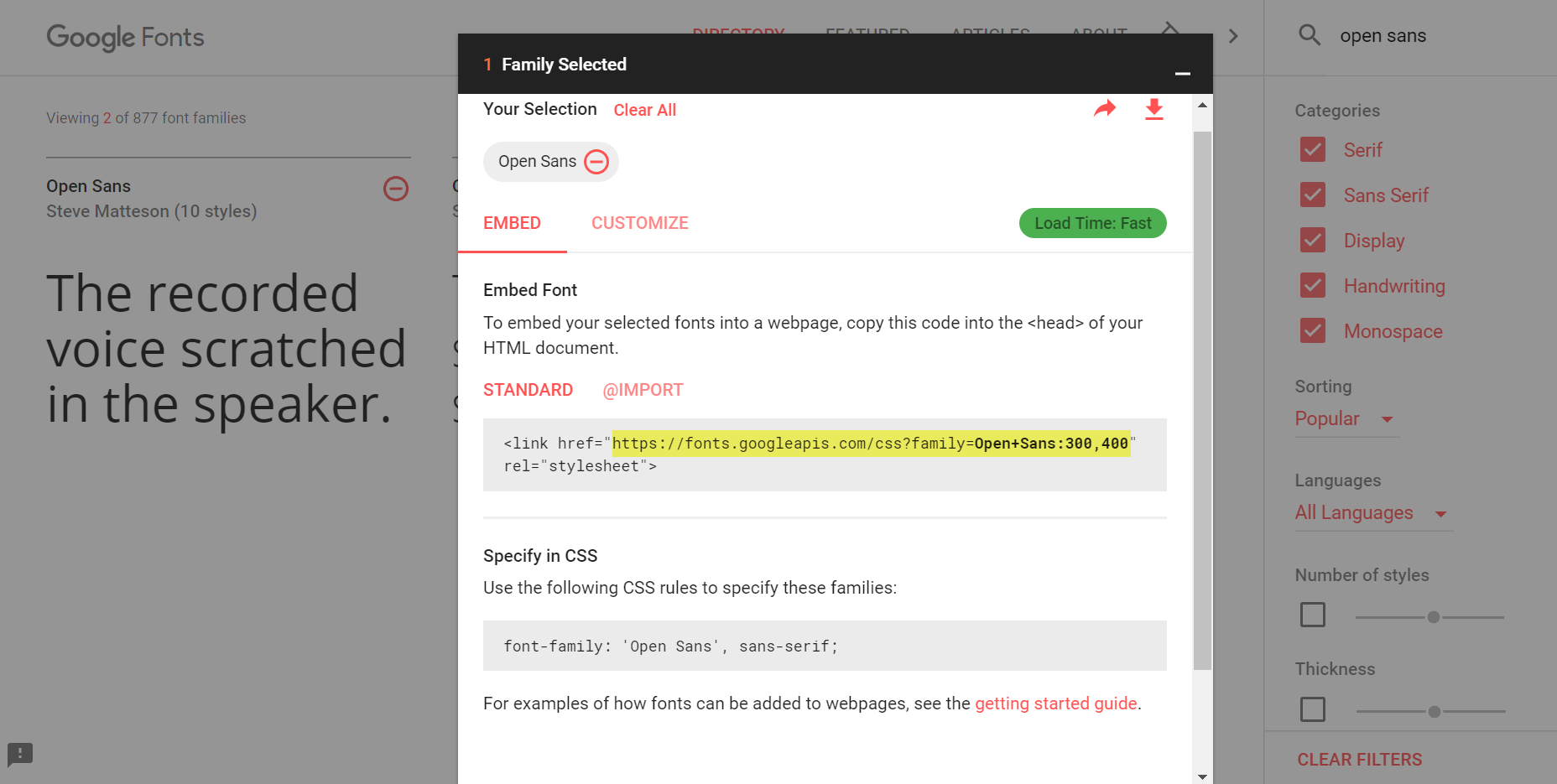
First, visit the Google Fonts website. Search for the font you like. Click on the font to view details. Look for the button labeled “Select this style”. Click it. A sidebar will appear with the embed code. You will see a link tag. Copy the link tag code. This is your font’s embed code.
Open your WordPress dashboard. Go to Appearance and then Theme Editor. Find the style.css file. Paste the embed code at the top. Make sure you save your changes. Now, you can use the font in your theme. Use the font-family in your CSS selectors. For example, font-family: ‘Your Font Name’, sans-serif;.
Installing Google Fonts Plugin
Choosing the right plugin is very important. Read reviews before you decide. Check the ratings and update frequency. A good plugin should be easy to use. Popular plugins often have better support. Make sure it is compatible with your theme.
Open the plugin settings in your dashboard. Select the Google Fonts you like. Adjust the font size and style. Preview changes before saving. Check how the fonts look on your site. Make sure texts are readable and clear.
Manual Font Integration
Integrating Google Fonts manually into a WordPress theme enhances its visual appeal. Access Google Fonts, choose your desired font, and copy the link. Insert it into the theme’s header file to activate the new font.
Editing The Functions.php File
First, open your theme’s functions.php file. Find the file in the theme editor. Next, add a new function. This function will load the Google Font. Use the wp_enqueue_style() function for this task. Here’s a simple example:
function add_google_fonts() {
    wp_enqueue_style('google_fonts', 'https://fonts.googleapis.com/css2?family=Roboto:wght@400;700&display=swap', false);
}
add_action('wp_enqueue_scripts', 'add_google_fonts');
Replace the URL with your chosen font’s URL. Save your changes. Now, your website will load the font. Always backup files before editing. If unsure, seek help.
Credit: www.wpbeginner.com
Testing Font Integration
Integrating Google Fonts into a WordPress theme enhances visual appeal effortlessly. Start by accessing the Google Fonts library. Then, embed the chosen font’s link into your theme’s header. Lastly, update your theme’s CSS to apply the new font. This process personalizes your website’s typography smoothly.
Previewing Changes In Different Browsers
Different browsers can show fonts differently. It’s important to check each one. Use popular browsers like Chrome, Firefox, and Safari. Open your WordPress site in each. Look at the new font. Does it look right? Are letters clear? If not, there might be a problem. Check your font link in the theme. Make sure it’s correct. Sometimes, a small mistake can cause big issues. Keep testing until it looks good everywhere.
Ensuring Responsive Font Display
Fonts must look good on all screens. Test on phones and tablets. Open your site on a small screen. Is the text still clear? Does it fit well? If not, adjust your font size settings. CSS can help with this. Use media queries for different screen sizes. This makes fonts adapt to any device. Everyone should see the same nice text, no matter the screen.
Troubleshooting Common Issues
Adding Google Fonts to a WordPress theme can sometimes lead to issues like incorrect font display or slow loading. Check theme settings and ensure proper API integration. Always clear cache after changes to see immediate results.
Resolving Font Loading Problems
Google fonts might not load correctly. Start by checking your internet connection. A slow connection can cause fonts to load poorly. Clear your browser cache often. This helps in refreshing the font display. Ensure the correct font URL is in your theme’s code.
Sometimes, themes or plugins can block fonts. Disable plugins one by one. See if fonts start working. Check for conflicts between your theme and plugins. Update them to their latest versions. This can resolve many issues.
Addressing Font Display Errors
Fonts may not appear as expected. Confirm the font family in your settings. Sometimes, themes default to other fonts. Adjust the CSS if fonts look wrong. Use tools like Inspect Element to view the CSS. Compare it with your settings.
Font sizes might be off. Check the theme’s CSS for font-size rules. Adjust them as needed. Always save changes. Refresh the page to see updates. This ensures fonts display correctly.

Credit: www.youtube.com
Frequently Asked Questions
How Do I Install Google Fonts On WordPress?
To install Google Fonts, use a plugin or manual method. Plugins like Easy Google Fonts simplify the process. For manual installation, add the Google Fonts link to your theme’s header. php file. Then, update your theme’s stylesheet to use the new fonts.
Both methods enhance your site’s typography.
Can I Customize Google Fonts In My Theme?
Yes, Google Fonts can be customized in WordPress themes. Use the Customizer to adjust font sizes, styles, and colors. Plugins like Easy Google Fonts allow further customization options. Ensure your chosen fonts align with your site’s design and branding for a cohesive look.
Do Google Fonts Slow Down My Website?
Google Fonts generally have minimal impact on website speed. Google’s servers are optimized for fast delivery. However, loading too many fonts can affect performance. Choose only necessary fonts and optimize their usage. Consider using font-display swap for better loading performance.
Are Google Fonts Free To Use On WordPress?
Yes, Google Fonts are free to use. They offer a vast library of fonts without licensing fees. You can integrate them into your WordPress theme without any cost. Ensure you adhere to Google’s terms of use when utilizing these fonts for your website.
Conclusion
Adding Google Fonts to your WordPress theme is simple. With these steps, you can customize your site easily. Choose the fonts that fit your style. Your website will look unique and professional. Google Fonts offer a wide range of choices.
Enhance your site’s design effortlessly. Remember to test the fonts on different screens. Ensures consistency across devices. This small change can improve your site’s appeal. Make your content more readable and attractive. Start exploring Google Fonts today. Your WordPress theme will thank you.


