
Are you looking to make your WordPress website more engaging and visually appealing? Adding a video can do just that, capturing your audience’s attention and keeping them on your site longer.
If you’re using the Avada Theme, you’re in luck. This theme is user-friendly, making it easy for you to integrate videos seamlessly. But where do you start? Don’t worry; this guide will walk you through each step. By the end, you’ll have a stunning video embedded on your site, boosting your content and enhancing the user experience.
Ready to transform your website? Let’s dive in!
Choosing The Right Video Format
Picking the correct video format is key. MP4 is popular. It works well. AVI is another choice. It can be large. MOV files are also supported. They are often used on Apple devices.
Video resolution matters a lot. 1080p is clear and sharp. It looks great on most screens. 720p is smaller. It loads faster. Higher resolutions may lag. Keep it simple for best results.
Preparing Your Video
Integrating videos into your Avada Theme on WordPress enhances user engagement. First, prepare your video by ensuring it’s in a compatible format. Next, upload the video to your media library, ready for embedding into your chosen page or post.
Editing And Compression
Videos need to be clear and easy to watch. Use video editing tools to cut unwanted parts. Make sure the video tells the story well. Compress the video to make it smaller. Smaller videos load faster on websites. Use tools like HandBrake for compression. Keep the quality high while reducing size.
Adding Captions And Subtitles
Captions help people understand the video better. They are useful for non-native speakers. Subtitles can show words in different languages. Use tools like Amara or Subtitle Edit to add them. Make sure they match the spoken words. Check spelling and grammar carefully. This makes the video accessible to more viewers.
Uploading Video To WordPress
Start by opening your WordPress dashboard. Look for the Media option. Click it and select Add New. Drag your video file to the box. Wait for the upload to finish. Once done, click on the video. Copy its URL from the right side. Use this URL to add your video to a page or post. Keep your video size small for faster upload. Large videos take a lot of time.
Consider using platforms like YouTube or Vimeo. Upload your video there. These platforms handle large files better. After uploading, copy the video link. Go to your WordPress editor. Paste the link in your post or page. Videos from these platforms stream smoothly. No long waits for viewers. These options help keep your website fast.

Credit: avada.com
Incorporating Video Into Avada Theme
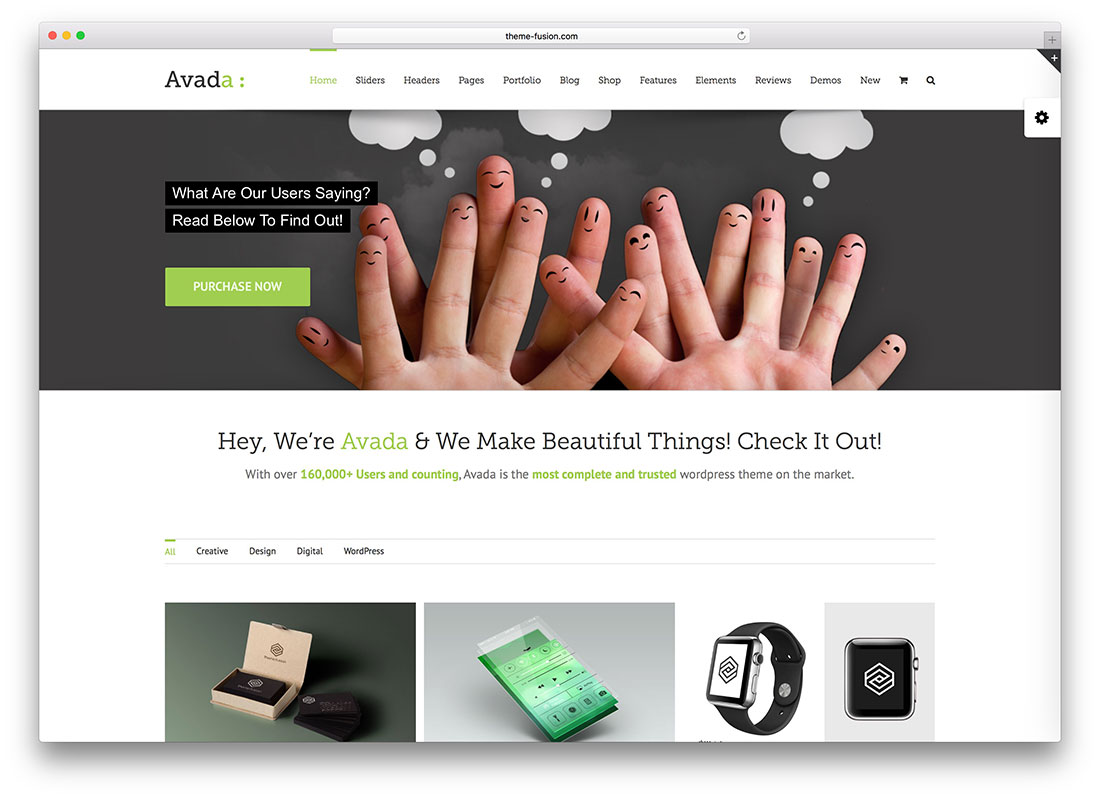
The Avada theme is a popular choice for WordPress sites. Fusion Builder is a tool in Avada. It helps add content easily. Adding a video with Fusion Builder is simple. First, open the page or post you want to edit. Then, click on the Fusion Builder button. This opens a new window with options. Choose the “Video” element from the list.
Paste the video URL in the provided box. Make sure the link is correct. You can also adjust settings. Like size and alignment. Once done, click “Save”. Then, preview your changes. If everything looks good, publish the page.
Adding videos can make your site lively. It keeps visitors engaged. Use clear videos for best results.
Customizing Video Display
Make your video fit just right. You can adjust the video size by using the settings in the Avada theme. Choose between small, medium, or large sizes. Use alignment options to place your video on the left, center, or right. These settings make your video look good on the webpage. You want your video to be easy to see. Play with the size and alignment until it looks perfect.
Custom CSS lets you style your video as you wish. Add CSS codes to change the border, background color, or padding. Make your video pop with unique styles. You can create a cool look by experimenting with CSS. Use simple codes to make your video stand out. This helps your site look unique and professional.
Credit: deliveredsocial.com
Enhancing Video Performance
Integrating videos into your Avada Theme WordPress site enhances user engagement. Simply access the Avada dashboard, select the page, and use the Avada Builder to drag and drop the video element. Customize settings for autoplay or loop to improve viewer experience.
Lazy Loading Techniques
Lazy loading helps videos load faster. It waits until the video is needed. This saves bandwidth and makes the page load quicker. Visitors see content quickly. Lazy loading is easy to set up. Use plugins or code snippets. Many websites use lazy loading. It improves speed and user experience.
Optimizing For Mobile Devices
Videos must work well on phones. Mobile screens are smaller. Use responsive video settings. Videos should not take too much space. Check video size and quality. Use tools to test on mobile devices. Optimize for quick loading. This keeps visitors happy. Mobile users are many. Ensure videos work smoothly.
Troubleshooting Common Issues
Encountering issues while adding a video to the Avada Theme on WordPress is common. Check video format compatibility and update your theme. Ensure your video URL is correctly embedded.
Video Not Playing
Videos sometimes don’t play on Avada theme websites. This can be frustrating. Ensure the video format is supported. Use formats like MP4 for best results. Check if the video source is correct. Incorrect links cause playback issues. Make sure the video is not blocked by browser settings. Browser plugins can interfere with video playback.
Resolving Playback Errors
Playback errors can occur due to various reasons. Ensure your browser is up-to-date. Outdated browsers may not support new video features. Disable conflicting plugins or extensions. They often cause playback problems. Test the video on different devices. Compatibility issues might exist with certain devices. Clear your browser cache and cookies. This can solve many playback errors.
Best Practices For Video Content
Easily add video content to your Avada theme WordPress site by utilizing its intuitive builder tools. Customize settings to ensure seamless integration and enhance user engagement. Optimize video size for faster loading and maintain quality viewing experience.
Engaging Your Audience
Videos should be short and interesting. Keep them simple to follow. Use clear words. Show exciting parts first. Make sure the video is bright and clear. Use good sound quality. Let your viewers feel connected. Speak directly to them. Ask questions. Invite them to share their thoughts. Use animations or fun effects.
Ensuring Accessibility
Accessibility is important for everyone. Add captions for people who can’t hear. Use simple language. Make sure colors are easy to see. Provide a text version of the video. Ensure the video player works on all devices. Use alt text for video thumbnails. Help all users enjoy the content. Make the video easy to pause and play. Keep controls clear and simple.
Credit: colorlib.com
Frequently Asked Questions
How Do I Embed A Video In Avada Theme?
To embed a video in Avada Theme, navigate to the page editor. Use the Avada Builder and select the video element. Paste your video URL in the designated field. Customize the video settings like autoplay and aspect ratio. Save and publish your changes.
Can I Add Youtube Videos To Avada?
Yes, you can add YouTube videos to Avada. Use the Avada Builder to insert a video element. Copy the YouTube video URL and paste it into the video settings. Customize any additional settings like autoplay. Save your changes to update your webpage.
What Video Formats Are Supported In Avada?
Avada supports various video formats including MP4, WebM, and Ogg. You can use direct video links or embed code from platforms like YouTube and Vimeo. Ensure your video is optimized for web use to maintain performance. Check compatibility with your web hosting service.
Is It Possible To Autoplay Videos In Avada?
Yes, autoplay is possible in Avada. When adding a video element, find the autoplay option in settings. Toggle it on to enable autoplay. Ensure your video is hosted on a platform that supports autoplay. Test your webpage to confirm the video plays automatically.
Conclusion
Adding a video to your Avada WordPress site enhances user experience. It’s simple and effective. Follow the steps outlined for a seamless process. Videos capture attention and communicate better than text. Your site becomes more engaging and interactive. This can improve visitor retention and satisfaction.
Ensure your video is relevant and well-placed. Your content will shine with this multimedia addition. Experiment with different videos to see what works best. Keep your audience in mind. They appreciate clear and concise content. Enjoy exploring the possibilities with Avada’s video features.


