
Are you looking to personalize your WordPress website with a unique touch? Adding a page template can transform your site’s look and feel, ensuring it stands out from the crowd.
Whether you’re a seasoned developer or a WordPress newbie, creating a custom page template doesn’t have to be daunting. Imagine the satisfaction of seeing your creativity come to life, perfectly tailored to your needs. This guide will walk you through the simple steps to add a page template to your WordPress theme.
With clear instructions and practical tips, you’ll be empowered to make your website truly yours. Ready to unlock the potential of your WordPress site? Let’s get started!
Choosing The Right Theme
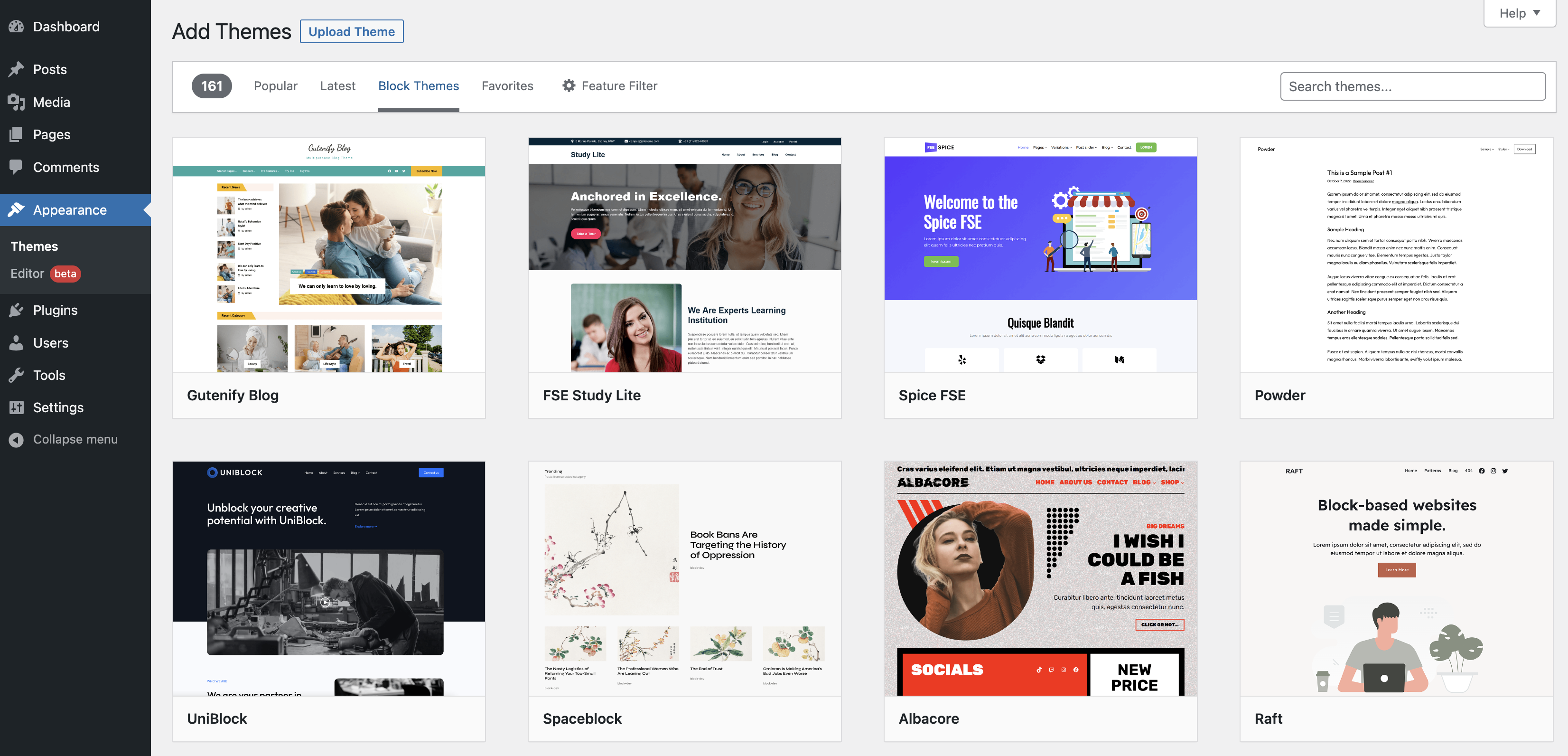
Selecting a theme is crucial for your website. Themes control how your site looks. They also affect how it works. Always choose a theme that fits your needs. Some themes are simple. Others offer more features. Make sure your theme supports custom page templates. This helps in adding new templates easily.
Check if the theme is responsive. This means it will look good on all devices. From phones to large screens. Also, check for theme updates. Updated themes are safer and work better. Finally, read user reviews. They give insights into how the theme performs. This helps in making a good choice.
Credit: savvy.co.il
Understanding Page Templates
Page templates help make your website look unique. WordPress themes use these templates to create different layouts. A template decides the design of a page. It can change the page’s header, footer, or sidebar. Templates are important for custom designs. They allow you to create pages that look just the way you want. Some themes come with built-in templates. You can also make your own templates. Making a template requires some coding skills. Follow simple steps to add a template. First, open your theme folder. Then, create a new file for the template. Name it using “template-” and your choice. Add code to the file to define the layout. Save the file and upload it. Now, select the template when creating a new page. Easy steps to change your website’s look!
Creating A New Page Template
First, open your theme’s folder. Find the wp-content folder in your WordPress directory. Inside, go to the themes folder. Choose your theme’s folder. Create a new file here. Name it something like custom-page.php. This new file will hold your template code.
Use the right name for your template file. Always use lowercase letters. Separate words with dashes, not spaces. For example, use my-custom-template.php. Never start with a number. Keep names simple and clear. This helps you remember your file later.
Credit: wordpress.org
Adding Template Code
Create a new file in your theme folder. Name it with a .php extension. This will hold your template. Add the template header first. Use this code:
php
/
Template Name: My Custom Template
/
?
This tells WordPress about your new template. Next, add the basic PHP structure. Start with php get_header(); ? to include the header. End with php get_footer(); ? to include the footer.
Add HTML and CSS between the header and footer. This creates the layout and style of your page. Use simple tags for sections. Add tags for CSS styles. Ensure your design is clear and neat.
Integrating WordPress Functions
WordPress loops are powerful. They help display posts and pages. Loops check for posts. They repeat until no more posts. Loops are essential. They let you show content dynamically. Every WordPress site uses them. They make sites interactive.
Custom fields add extra data to posts. Meta boxes are tools. They help users enter custom data. Easy to use. They appear in post editor. Meta boxes are customizable. They enhance post information. They improve website features. They make content richer.

Credit: wordpress.com
Testing The Template
Adding a page template in a WordPress theme enhances customization. First, create a new PHP file in your theme’s folder. Then, add a template name at the top of the file. Finally, save and select it from the WordPress page editor.
This simple process helps tailor your site’s design.
Assigning The Template To A Page
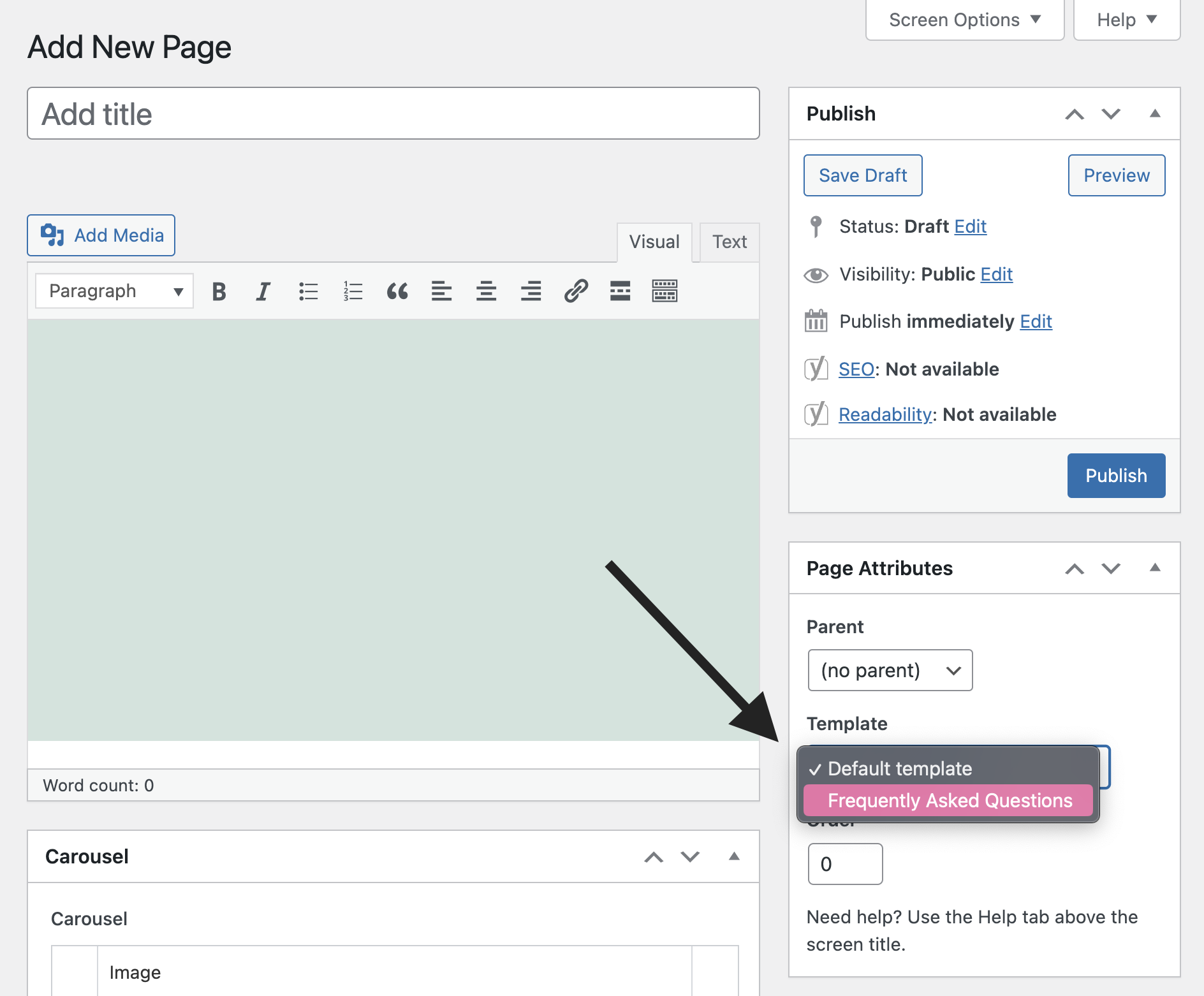
To assign a template, open the WordPress admin panel. Click on Pages and then choose a page. In the Page Attributes box, find the Template dropdown menu. Select your new template from the list. Remember to click Update to save changes. Your page now uses this template. Check the page on your site. Make sure it looks right. If it doesn’t, you might need to fix something.
Debugging Common Issues
Sometimes templates don’t work right. First, check if you saved the changes. Next, clear your browser’s cache. Old files might cause problems. If issues persist, switch to a default theme. This helps find out if the theme is the problem. Another way is to disable plugins one by one. Some plugins might cause conflicts. Activate them again once you find the issue. Always back up your site before making big changes.
Best Practices
Creating a page template in a WordPress theme involves a few simple steps. Start by creating a new PHP file in your theme folder. Add the necessary header comment at the top of the file. Then, customize the template with your desired layout and content.
Finally, save and upload the file to your theme directory.
Maintaining Code Quality
Keep code clean and organized. Use clear names for functions and variables. This helps others understand your code. Write comments for complex parts. They explain your logic. Check your code for errors before saving. Use tools that scan for mistakes. Update code regularly. This prevents issues later on.
Using Child Themes
Child themes are important. They protect your main theme. Changes stay safe when updates happen. Create a child theme first. Use it for customizations. This way, your changes won’t disappear. Follow guides to set up a child theme. This process is simple and quick. Always test child themes on a local server. Make sure everything works before going live.
Resources For Further Learning
Learning WordPress can be fun and easy. There are many resources online. YouTube has many free tutorials. They show step-by-step guides. Books also help. “WordPress for Beginners” is a great book. It explains everything simply.
Online courses are another option. Websites like Udemy offer courses. They are detailed and helpful. You learn at your own pace. Forums are useful too. WordPress forums have many users. They share tips and advice. It’s a great place to ask questions.
Blogs and websites provide information. They offer articles on different topics. WordPress.org is a good website. It has guides and documentation. You can find answers there. Practice is important too. Trying things out helps you learn faster.
Frequently Asked Questions
How Do I Create A Page Template In WordPress?
To create a page template, access your theme’s directory via FTP. Create a new PHP file with a unique name. Add template header comments at the top. Customize it with HTML, PHP, and WordPress functions. Save it and select it from the Page Attributes section when editing a page.
Can I Use Templates With Any Theme?
Yes, templates can be used with any WordPress theme. However, themes may differ in structure and functionalities. Ensure your template’s code aligns with the theme’s conventions. Test thoroughly to maintain compatibility. Also, keep in mind that some themes might override custom templates.
What Is The Importance Of Page Templates?
Page templates allow customization beyond default layouts. They help create unique designs for different pages. This enhances site flexibility and user experience. Templates can be tailored to specific needs, improving content presentation and functionality. They enable differentiation from standard WordPress pages.
How Do I Troubleshoot Template Issues?
Check for syntax errors in your template’s code. Verify compatibility with your theme and plugins. Disable plugins to identify conflicts. Review your server’s error logs for detailed information. Ensure the template is correctly selected in the page editor. Testing in a staging environment can also help identify issues.
Conclusion
Adding a page template in WordPress is simple. It enhances your site’s look. You follow easy steps to customize your theme. This method saves time and effort. It allows flexibility for different designs. You can create unique pages for various purposes.
Experiment with styles and layouts. It’s ideal for users with basic WordPress knowledge. Keep templates organized for easy access. Regular updates ensure compatibility with WordPress versions. Start creating templates today. Improve your website’s appearance effortlessly. Happy designing!


