
Unlocking the power of social media integration can significantly elevate your WordPress website, and one of the best ways to do this is by adding Facebook Connect to your Listingpro theme. Imagine this: your users can sign up, log in, and interact with your site using just their Facebook credentials.
This not only streamlines their experience but also boosts your engagement metrics effortlessly. You might be wondering how to bring this seamless functionality to your site without getting lost in technical jargon. Don’t worry, you’re in the right place. This guide will walk you through every step, ensuring you can set up Facebook Connect quickly and efficiently.
Stick around, and you’ll soon transform your Listingpro theme into a social media-friendly powerhouse, keeping your visitors engaged and coming back for more.
Prerequisites
First, make sure WordPress is installed on your website. The Listingpro Theme should also be active. These are the basic requirements before adding Facebook Connect. Check if your theme is the latest version. Updates often fix bugs and improve security.
You need a Facebook Developer Account. This account allows you to create a Facebook app. Visit the Facebook Developer site to sign up. An existing Facebook account is required. Fill in all the details for your new app. The app will connect your site with Facebook. Look for the “Create App” button on the site.
Credit: docs.listingprowp.com
Creating A Facebook App
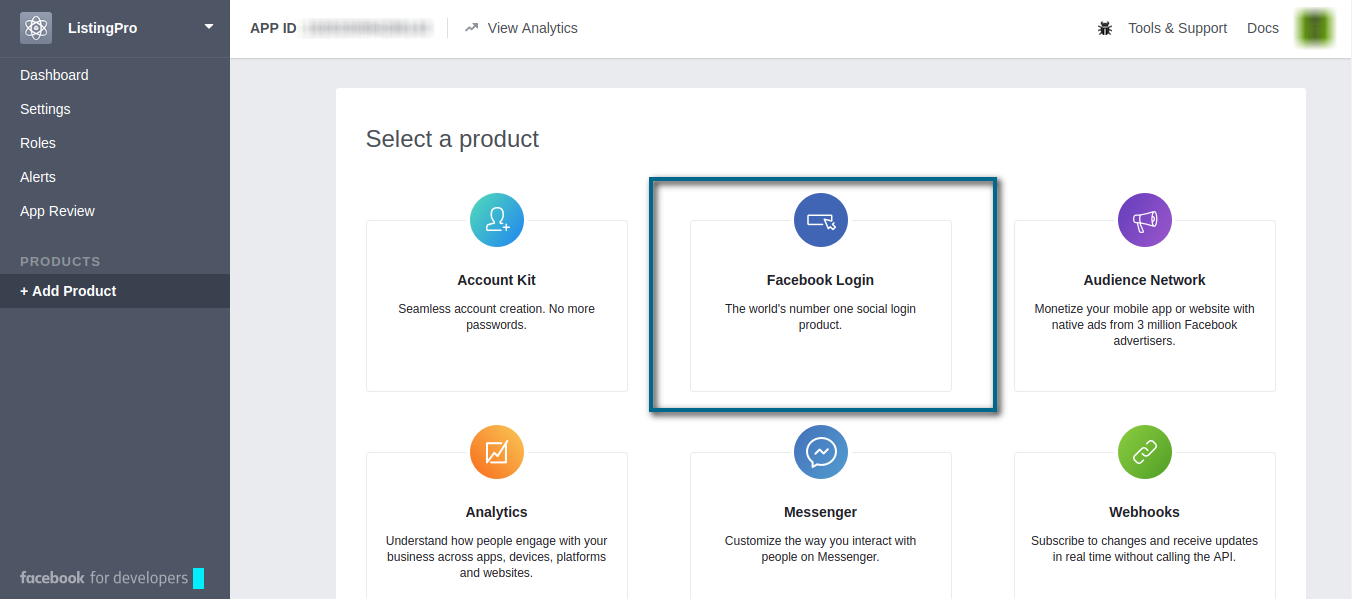
Visit the Facebook for Developers website. Look for the login button. You might need to create an account. Use your Facebook credentials to log in. Find the apps section. This is where you can manage your apps. Click “Create App”. Choose the right app type for your needs.
Fill out the app name. Make sure it reflects your business. Enter your email address. Facebook will send updates here. Choose a category. This helps organize apps. Read the terms carefully. Click “Create App ID”. Solve the captcha if prompted. Wait for confirmation.
Configuring Facebook Login
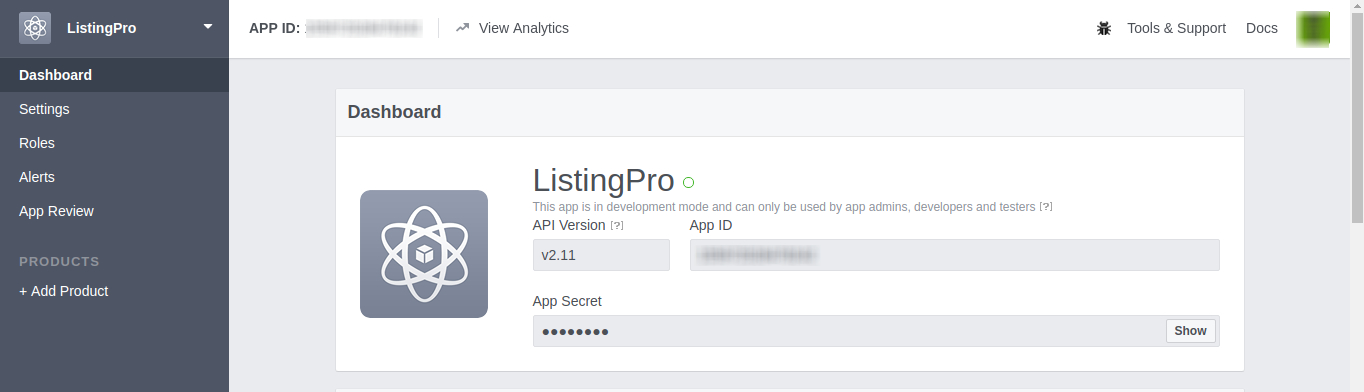
First, go to the Facebook Developers website. Create a new app by clicking on the “Create App” button. Select the type of app you need. Follow the steps to complete the app creation. Once done, find the App ID and App Secret. Keep them safe. You will need these later. Go to your WordPress Dashboard. Navigate to ListingPro Options and select “Social Login”. Enter your App ID and App Secret here. Save your changes.
In the Facebook Developers console, find the “Settings” option. Click on “Basic”. Enter your website’s domain in the “App Domains” field. Add the full URL in the “Site URL” field. Make sure to include “https://”. This ensures secure connection. Double-check all entries for accuracy. Once verified, click the “Save Changes” button. Your Facebook login is now ready.
Credit: docs.listingprowp.com
Integrating Facebook Connect With Listingpro
First, visit your WordPress dashboard. Look for the Listingpro theme options. You will find this under the Appearance menu. Click on the theme options. A new page will open with various settings.
To connect Facebook, you need app credentials. Go to the Facebook Developer portal. Create a new app or use an existing one. Copy the App ID and App Secret. Now, return to the Listingpro settings. Paste these credentials in the designated fields.
Customizing User Experience
Make your login button stand out on the page. Choose a bright color. Pick a font that is easy to read. Use a size that fits well on the screen. Ensure it’s visible on mobile and desktop. Placement is important too. Keep it at the top or center. Users find it quickly. This helps them log in fast.
Control who sees what on your site. Allow users to access only their data. Restrict certain areas for admins. Protect sensitive information. Set up roles for different users. Use permissions wisely. Ensure security for everyone’s account. This keeps data safe and organized. User trust increases when they feel secure.
Testing The Integration
Check if the Facebook login works correctly on your site. Go to your site and try to log in using Facebook. Ensure it takes you to your account page. If successful, the integration is working. If not, there may be an issue.
Verifying Facebook Login Functionality
Make sure the login button appears on the login page. Click the button and see if it redirects to Facebook. After logging in to Facebook, it should redirect back to your site. Check if your user profile shows up correctly. This ensures the login functionality is working.
Troubleshooting Common Issues
Sometimes, the integration might not work. Check your API settings on Facebook. Ensure the app ID and secret key are correct. Verify your WordPress settings too. Make sure the plugin is up to date. These steps help fix common problems.
Ensuring Security And Compliance
Understanding Privacy Policies is important for keeping user data safe. Read Facebook’s privacy rules. Make sure your website follows these rules. This helps protect your users’ information. Always inform your users about how their data is used. Transparency builds trust with them.
For Implementing Data Protection Measures, use secure connections. This means using HTTPS on your website. It helps keep data private. Update your website regularly. This fixes any security holes. Also, use strong passwords. Change them often to keep your site safe. Limit who can access your site’s data. Only trusted people should have access. This keeps your users’ information safe.
Optimizing Performance
Facebook Connect can slow down a website if not done right. It’s important to make sure the site loads quickly. Slow sites can make users leave. Use plugins that compress images. This helps reduce load time. Minify CSS and JavaScript files. This also speeds up the site. Choose a good hosting provider. Good hosting makes the site faster.
Reducing Load Times
A fast-loading site keeps users happy. Fast sites make users stay longer. Reduce load times by using fewer plugins. Too many plugins slow down the site. Use a caching plugin to store pages. Stored pages load faster. Optimize images to make them smaller. Smaller images load quickly. Use a Content Delivery Network (CDN). CDNs help deliver content fast.
Enhancing User Engagement
Engaged users spend more time on the site. Make the site easy to use. Simple navigation helps users find what they need. Make buttons clear and easy to click. Use videos and pictures to engage users. Keep content fresh and updated. Fresh content keeps users coming back. Encourage users to share content. Shared content brings new users.
Credit: colorlib.com
Frequently Asked Questions
How Do I Integrate Facebook Connect In Listingpro?
To integrate Facebook Connect in Listingpro, navigate to your WordPress dashboard. Go to ‘Listingpro Options’ and select ‘Social Login’. Enable Facebook login and enter your Facebook App ID and Secret. Save changes to activate. This simplifies user sign-up and login, enhancing user experience.
Can I Customize Facebook Login Button Style?
Yes, you can customize the Facebook login button style in Listingpro. Go to ‘Listingpro Options’ in your WordPress dashboard. Under ‘Social Login’, you can find style settings. Adjust colors and size to match your theme’s design. This ensures a cohesive look throughout your site.
Is Facebook Connect Free To Use On Listingpro?
Yes, Facebook Connect is free to use with the Listingpro theme. It comes as a built-in feature. You just need to create a Facebook App to obtain the necessary credentials. This process is free of charge, allowing seamless social login integration.
Does Facebook Connect Improve User Engagement?
Facebook Connect significantly improves user engagement on your site. It offers a quick and easy login process, reducing signup friction. Users can log in using their Facebook credentials, increasing accessibility. This encourages repeat visits and interaction with your site’s content.
Conclusion
Adding Facebook Connect to Listingpro enhances user engagement. It simplifies login and boosts interaction. Users can connect easily with their Facebook accounts. This integration attracts more visitors to your site. It ensures a smoother user experience. Following the steps provided, you can implement this feature effectively.
Make your site more accessible and engaging. Remember, easy login means more users. Your site becomes more appealing. This feature supports your site’s growth. It creates an inviting environment for users. Now you know how to integrate Facebook Connect seamlessly.
Your Listingpro site is ready to welcome more connections.


