
Are you looking to give your WordPress 2017 website a fresh new look? Adding a theme is one of the quickest and easiest ways to transform your site and make it stand out.
Imagine the excitement of your visitors when they land on a visually appealing website that screams professionalism and creativity. With countless themes available, you can find the perfect fit that aligns with your brand’s personality and goals. In this guide, you’ll discover step-by-step instructions on how to add a theme to your WordPress 2017 site, ensuring a smooth and hassle-free experience.
Get ready to captivate your audience and keep them coming back for more!

Credit: www.youtube.com
Choosing The Right Theme
Free themes cost nothing. They are good for beginners. But they have limited features. Premium themes cost money. They offer more features. They are better for big websites. Check your budget before choosing. Free themes can be a good start. Premium themes give more options.
Think about your website’s purpose. A blog needs a simple theme. An online store needs a more complex theme. Identify your main needs first. Write them down. Look for themes that match. This helps in finding the perfect theme.
Check if the theme works with your plugins. Compatibility is key. Themes must update often. This keeps your site secure. Look at the theme’s update history. See how often it gets updates. Regular updates mean good support.
Credit: www.templatemonster.com
Locating Themes In WordPress Directory
Start by logging into your WordPress dashboard. The dashboard is the main control panel. It lets you manage your site. Click on Appearance in the sidebar. This opens up more options.
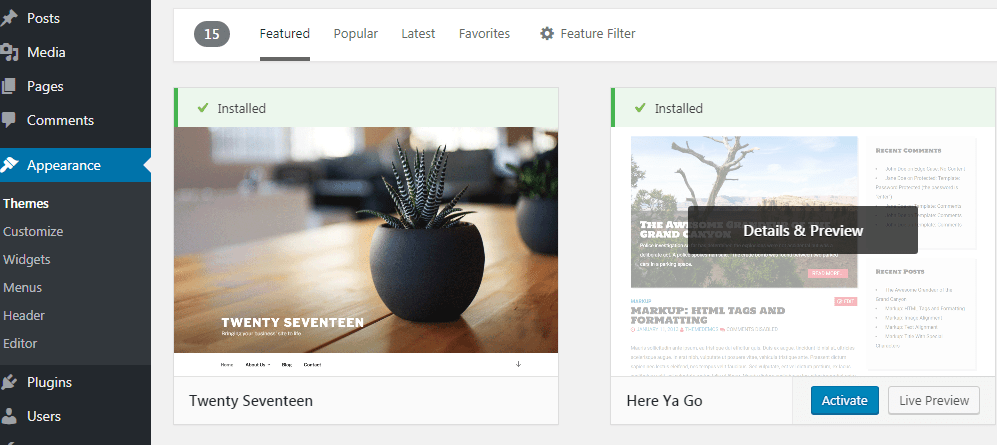
Once in the appearance section, find the Themes tab. Click it to see various themes. Each theme has its own look and feel. You can find popular themes and new themes here. Explore and see which one you like.
Use the filter options to narrow down choices. You can filter by features, colors, and layouts. Click on a theme to preview it. This shows how your site will look. Ensure it fits your needs before choosing.
Installing A Theme From The Directory
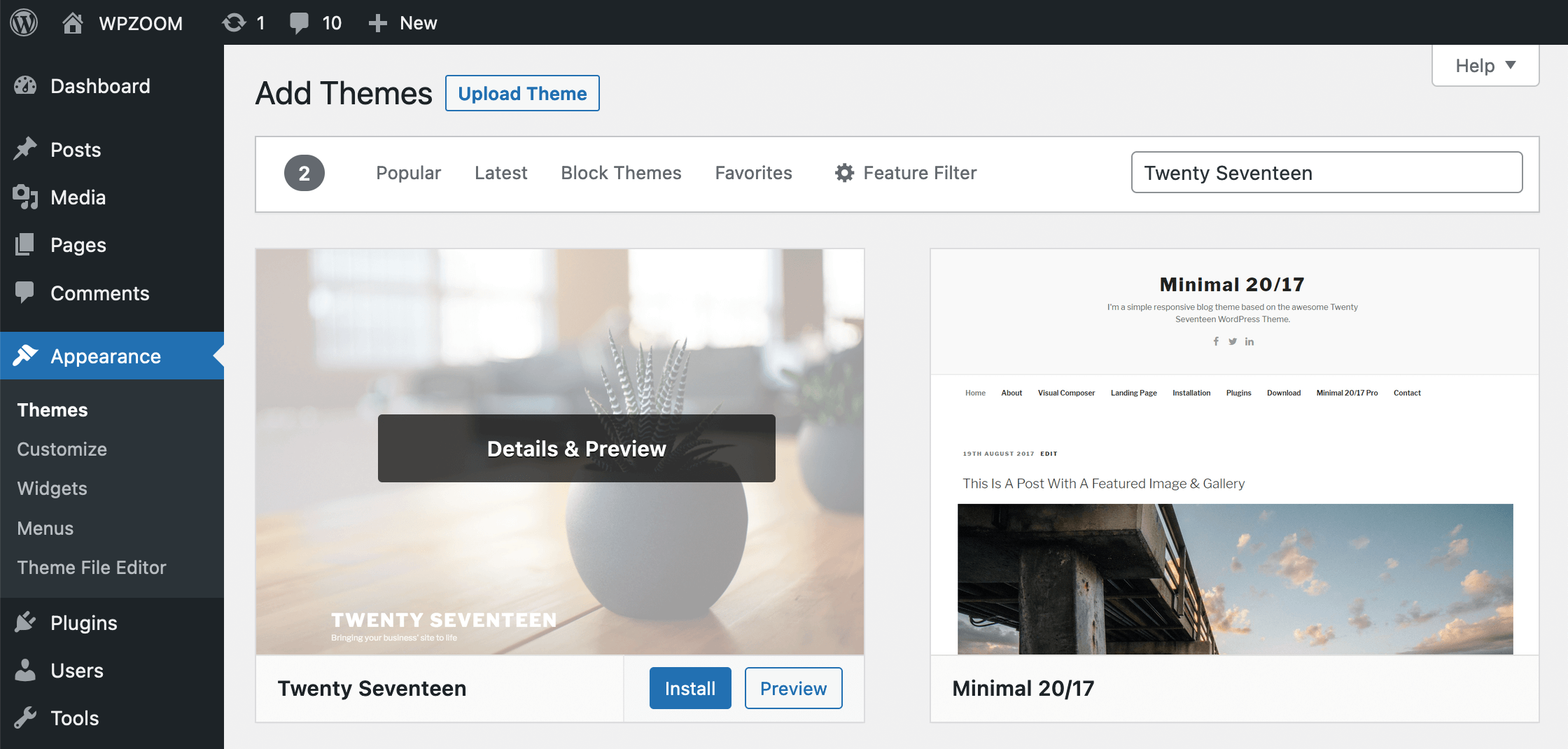
First, go to your WordPress dashboard. Click on Appearance in the menu. Then, click on Themes. You will see an Add New button. Click on it. A new page will appear with many themes. Use the search bar to find a theme you like. Once you find one, click on Install.
After installation, you need to activate the theme. Go back to the Themes page. You will see your new theme there. Click on the Activate button below it. Now, your theme is live on your site.
Sometimes, themes may not work well. Check if the theme is compatible with your WordPress version. If not, find a different theme. Another issue can be plugin conflicts. Deactivate plugins to see if the problem goes away. Finally, check your internet connection if the theme does not load.
Uploading A Theme From Your Computer
First, find a theme you like. Many websites offer free themes. Click the download button. This saves the theme file to your computer. The file is usually a .zip format. Do not unzip it.
Go to your WordPress dashboard. Click on Appearance, then Themes. Click the Add New button at the top. Then, click Upload Theme. Choose the .zip file you downloaded. Click Install Now.
After installation, you need to activate the theme. Click the Activate link. This makes the theme live on your site. You may need to set it up. Check for theme options under Appearance. Customize as you like.
Customizing Your Theme
WordPress Customizer is a tool to change your theme. It helps you see changes live. Adjust colors, fonts, and widgets. Make your site unique. Easy to use for beginners. Just click and adjust.
Layout decides how your site looks. Change it to fit your style. Move things around. Add or remove sections. Keep it simple and clean. Design should match your content.
Custom CSS gives you more control. It lets you change specific parts. Make buttons bigger. Change text color. Write your own styles. Enhance your site’s look. Experiment and learn.
Maintaining Your Theme
Regular updates keep your theme safe. Always check for new versions. Themes often get better with updates. Bugs are fixed, and features improve. Security patches protect your site from threats. Keep your theme and plugins updated. This keeps your site secure.
Backup strategies are crucial. Regular backups save your data. Use backup plugins. Store backups safely. This helps if something goes wrong. Restore your site quickly with backups. It is wise to backup before updates.
Monitoring performance ensures your theme works well. Check site speed often. Slow sites upset visitors. Use tools to test speed. Compatibility with plugins is key. Always test after adding new plugins. Make sure they work well together. Regular checks prevent problems.
Credit: www.wpzoom.com
Frequently Asked Questions
How Do I Install A WordPress Theme?
To install a WordPress theme, log into your dashboard. Navigate to Appearance > Themes. Click ‘Add New’, search or upload a theme. Activate it once installed to apply changes. Ensure compatibility with your WordPress version for a smooth experience.
Can I Customize My WordPress Theme?
Yes, you can customize your WordPress theme. Use the built-in Customizer under Appearance in the dashboard. Modify colors, fonts, and layout. For advanced changes, consider using a child theme or custom CSS.
Is A Premium Theme Better Than A Free Theme?
Premium themes often offer more features and support compared to free themes. They usually have regular updates and better customization options. However, free themes can be sufficient for basic needs. Choose based on your requirements and budget.
What Should I Check Before Installing A Theme?
Before installing a theme, check its compatibility with your WordPress version. Review its ratings and user feedback. Ensure it supports essential plugins you use. Confirm its responsiveness and loading speed for a better user experience.
Conclusion
Adding a theme to WordPress 2017 is simple. Follow these steps: Choose a theme you like. Download the theme files. Install them through your WordPress dashboard. Activate the theme to see changes instantly. Customize it to fit your style. Themes change the look of your site.
They make it unique and attractive. Updating your theme keeps your site fresh. Keep exploring new themes for inspiration. WordPress makes it easy to switch themes anytime. Remember, a good theme enhances user experience. Happy blogging!


