
Are you looking to customize your WordPress site but don’t know where to start? Adding custom CSS to your WordPress theme can transform your site’s appearance and make it truly unique.
Whether you want to tweak the font size, change the background color, or completely overhaul your site’s layout, CSS is your go-to tool. But how do you do it without breaking anything? Don’t worry! In this guide, you’ll discover simple and effective ways to add CSS to your WordPress theme.
Imagine the satisfaction of making your site look exactly the way you want. Ready to dive in and give your site a fresh, personalized touch? Keep reading to unlock the secrets of CSS customization in WordPress.
Credit: quadlayers.com
Understanding Css In WordPress
CSS helps to make websites look pretty. It changes colors, fonts, and more. WordPress themes use CSS to style your site. You can find CSS files in the theme folder.
Sometimes, you need to add your own CSS. This helps to customize your site. You can do this in the WordPress dashboard. Use the Custom CSS option in the theme customizer.
Always save changes after adding CSS. Refresh the page to see new styles. Make sure your CSS is correct. Small errors can break your site’s look.
Credit: www.greengeeks.com
Using The WordPress Customizer
Adding CSS through the WordPress Customizer is straightforward. Access the Customizer from your dashboard, then navigate to “Additional CSS. ” Enter your custom code, and see real-time changes. This approach offers a simple way to personalize your WordPress theme without altering core files.
Accessing The Customizer
Find the WordPress Dashboard. Click on Appearance. Go to Customize. The Customizer will open. You can see different options here. Look for the Additional CSS tab. This is where you can add your own CSS.
Adding Custom Css
Click on the Additional CSS tab. A box will appear. Write your CSS code inside this box. Make sure your code is correct. You can see changes live. If you make a mistake, you can fix it easily. Save your changes when you’re happy. Your site will now use this custom CSS.
Editing Theme Files
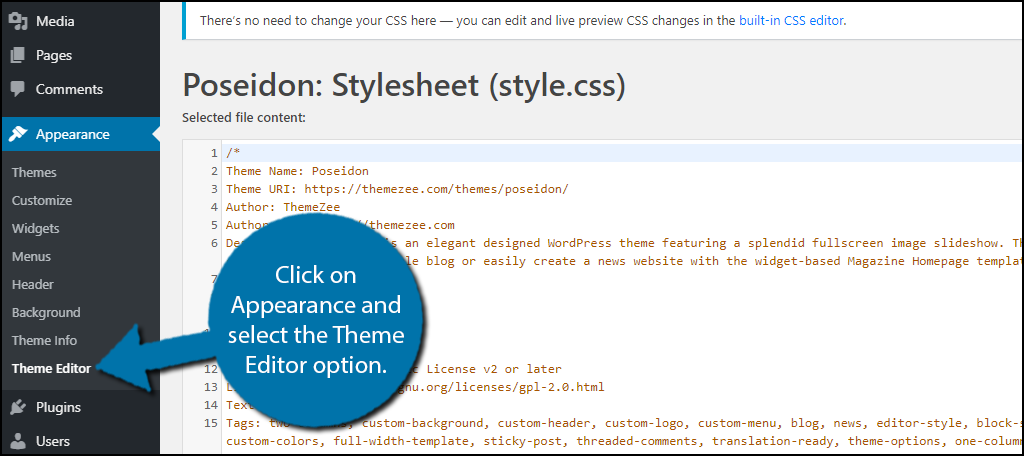
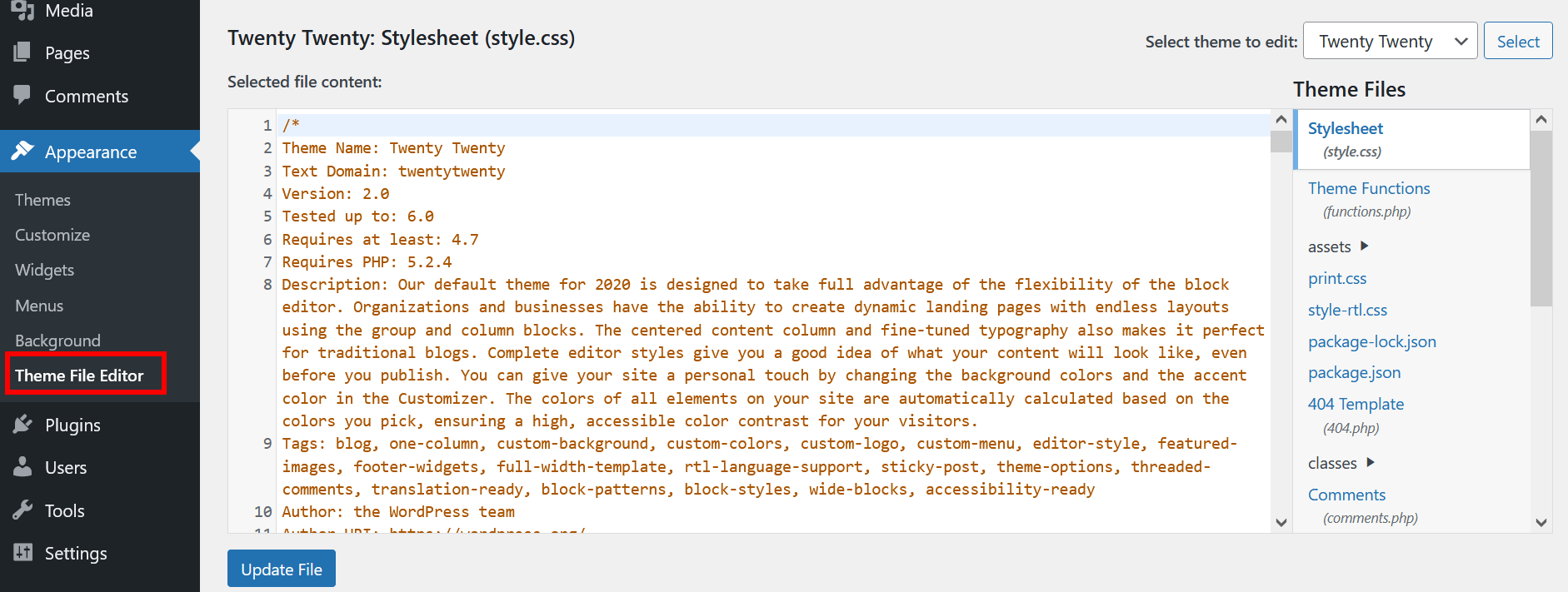
To change your theme’s look, use the Theme Editor. First, log in to your WordPress dashboard. Find “Appearance” on the left menu. Click on it. Next, select “Theme Editor.” You will see the files. Look for the file named style.css. This is where you can add your CSS changes.
Open the style.css file. This file holds all the design rules of your theme. To change a color, find the color code. Replace it with your new code. Want to change fonts? Find the font-family rule. Add your preferred font name. After making changes, click on the “Update File” button. This saves your changes.
Credit: www.ionos.com
Implementing Css Via Plugins
Many plugins help you add CSS. First, check the plugin’s rating. Higher ratings mean users like it. Read the reviews too. Reviews tell what users think. Make sure the plugin updates often. This ensures it works with new WordPress versions. Look for plugins with many active installs. More installs can mean it’s popular and trusted.
Install the plugin from the WordPress dashboard. Find it under the “Plugins” section. Click “Add New” and search for the plugin name. Once found, click “Install Now” and then “Activate”. After activation, find the plugin’s settings. Look for a section named “Custom CSS” or “Additional CSS”. Here, you can add your styles. Save changes to see them in action on your site.
Child Themes For Custom Css
Child themes offer a safe way to add custom CSS in WordPress themes. They preserve original designs while allowing easy style changes. Simply create a child theme and include your custom CSS code for a personalized website look.
Creating A Child Theme
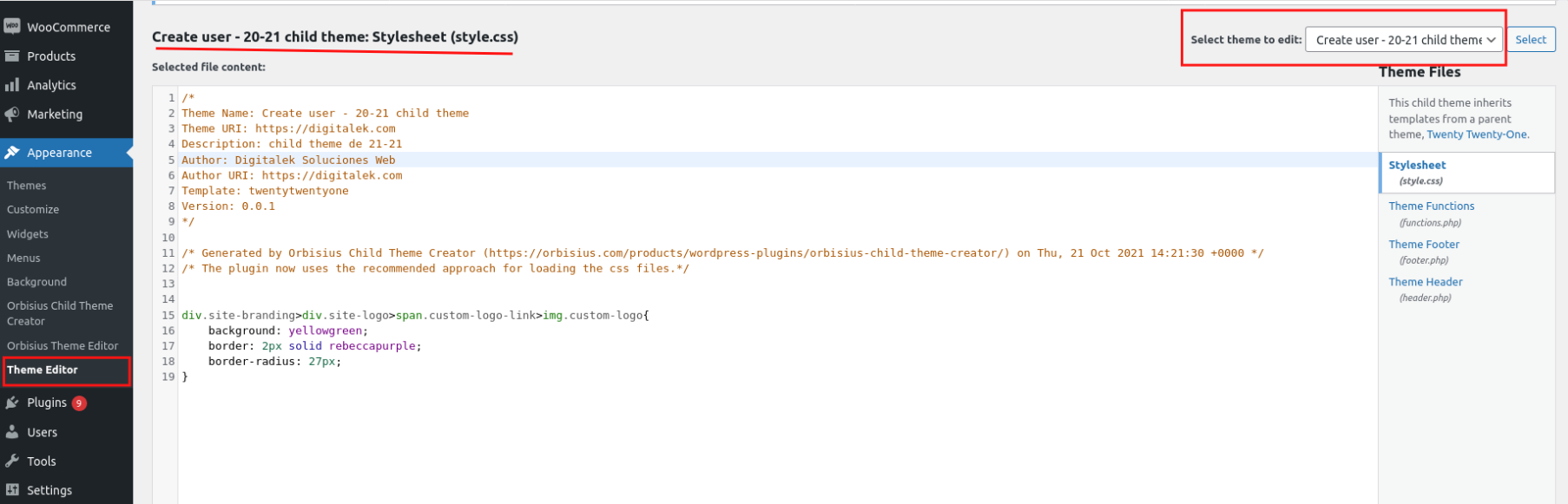
Child themes let you change your site’s design. They protect your changes from theme updates. Create a child theme by making a new folder. This folder goes inside your theme directory. Name it like “theme-name-child”. Inside, add a style.css file. This file will hold your custom CSS.
Adding Css To The Child Theme
Open the style.css file in your child theme. Write your custom CSS here. You can change colors, fonts, and layouts. This will change how your site looks. Save your changes. Now, your site uses your custom CSS.
Using External Stylesheets
First, find your desired CSS file. Save it on your computer. Then, open your WordPress dashboard. Go to the Media section. Click on Add New. Upload your CSS file here. Make sure it uploads correctly. Now, your stylesheet is on the server. You can link it to your theme.
Open your theme folder. Locate the functions.php file. Use a code editor to open it. Add the wp_enqueue_style function. This function links your stylesheet. Include the correct path to your CSS file. Save changes to functions.php. Your theme will now use the stylesheet. Check your site to see the changes.
Best Practices For Css In WordPress
Keep your CSS neat and tidy. Use clear and descriptive class names. Group similar styles together. This makes it easier to find them. Use comments to explain complex code. It helps others understand your work. Separate your CSS into sections. For example, layout, typography, and colors. This way, you can quickly find what you need.
Browsers can display CSS differently. Test your site on different browsers. Check on Chrome, Firefox, and Safari. Make sure everything looks good. Use vendor prefixes. They help with browser compatibility. For instance, use -webkit- for Chrome. Use -moz- for Firefox. This ensures a consistent look. Always keep your CSS up-to-date. New browser versions might change how they read CSS.
Troubleshooting Css Issues
Adding CSS to a WordPress theme can solve many style issues. Edit the theme’s stylesheet directly or use a custom CSS plugin. This helps in tweaking fonts, colors, and layouts to match your vision.
Common Problems And Solutions
Many people face problems with CSS not loading. This can happen if the CSS file is not linked properly. Always check the file path. Sometimes, caching issues can also cause problems. Try clearing your browser cache.
Another common issue is CSS conflicts. This happens when two styles fight each other. Use browser developer tools to inspect elements. This helps find which styles are applied.
Using Developer Tools
Developer tools are very helpful. You can right-click on any page element. Then, select “Inspect” to see the CSS. This shows you which styles are active. You can also make changes live. Test different CSS rules to see results instantly.
Using these tools, you can fix layout issues fast. They help in finding errors quickly. Always use them for troubleshooting CSS problems.
Frequently Asked Questions
How To Add Custom Css In WordPress?
You can add custom CSS by navigating to Appearance > Customize > Additional CSS in your WordPress dashboard. Simply paste your CSS code there and publish the changes. This allows you to modify the appearance of your theme without editing the theme files directly.
Can I Edit Css Without A Plugin?
Yes, you can edit CSS without a plugin by using the WordPress Customizer. Go to Appearance > Customize > Additional CSS, and add your CSS code. This is a straightforward way to make style changes without needing extra plugins.
Is Editing Theme Css Safe?
Editing theme CSS is generally safe if done correctly. Use the Customizer for quick changes or create a child theme for larger edits. Always back up your site before making major changes to prevent data loss or site disruption.
Why Use A Child Theme For Css Changes?
A child theme preserves your changes even after a parent theme update. It allows you to customize CSS without losing edits during theme updates. This ensures your site maintains its unique design and functionality.
Conclusion
Adding CSS to your WordPress theme enhances its look. It allows personal touches and unique styles. Start with the theme editor for quick changes. Use child themes for safe customizations. Plugins also offer easy CSS additions. Always backup before making changes.
This keeps your site safe. Experiment with different styles. Test them on various devices. Ensure your site remains responsive. Enjoy the process of customizing your site. It reflects your brand better. With practice, CSS becomes easier. Your WordPress site will look professional.
Keep learning and exploring new styles. You’ll soon master CSS in WordPress.


