
Imagine transforming your WordPress website into a buzzing hub of conversation, where visitors can easily engage, share their thoughts, and build a community right on your page. By adding Disqus comments to your WordPress theme, you can supercharge user interaction, keeping visitors hooked and coming back for more.
But how can you seamlessly integrate this powerful tool into your site without getting lost in complex technicalities? This guide is designed just for you. We’ll walk you through the simple steps to add Disqus comments to your WordPress theme, ensuring you enhance your site’s engagement without the headaches.
Dive in to discover how you can make commenting a breeze for your readers, and watch your community grow as you unlock the secret to fostering lively discussions.
What Is Disqus?
Disqus is a tool for adding comments to websites. It helps people talk about blog posts. Many bloggers use it to make their sites interactive. With Disqus, readers can leave comments easily. It is simple and fast to set up. Users only need to sign in once. They can use a Disqus account or other social media accounts. This makes commenting easy for everyone.
Disqus also helps site owners. It filters out spam comments. This keeps discussions clean and on-topic. Disqus also lets you moderate comments. You can approve or delete comments as needed. It is a great tool for managing conversations. Plus, it helps build a community around your site. More interactions can lead to more returning visitors.
Benefits Of Using Disqus
Disqus is a popular tool for comments. It helps websites manage discussions. Users can sign in using social media. This is easy and quick. Disqus has features like upvotes and downvotes. These features make commenting fun. Users can follow threads they like. This keeps them engaged. Disqus is also great for spam control. It filters unwanted comments. This keeps the discussion clean.
Website owners enjoy analytics. Disqus provides useful data. It shows how users interact. This helps improve content. Disqus is easy to install. It works with many platforms. This makes it a favorite choice. Using Disqus can help build a community. Users can connect with each other. This increases website traffic. More traffic means more growth.
Creating A Disqus Account
Start by visiting the Disqus website. Look for the sign-up option. You can sign up with email or use a social account. Choose the option that suits you best. After signing up, you need to create a unique username. This will be your identity on Disqus.
Next, set a strong password. A good password keeps your account safe. Make sure to remember it or write it down. After that, provide your email address. You may need to verify it later.
Finally, read the terms and conditions. Make sure you understand them. Click agree if you do. Now, your Disqus account is ready. You can now move to the next step and integrate it with your WordPress site.

Credit: www.wpbeginner.com
Configuring Disqus Settings
First, go to the Disqus website. Log into your account. Find your Disqus site shortname. You need this for WordPress. Go to your WordPress dashboard. Click on “Plugins” and then “Add New”. Search for Disqus Comment System. Install and activate it. Now, go to “Settings”. Find “Disqus” and click on it. Enter your site shortname. Save changes.
Check the appearance options. Choose a color scheme. Decide on the layout. You can also turn on email notifications. This helps keep track of comments. Make sure to save again. If you want, allow comments to be sorted. Users can choose oldest or newest first.
Explore the moderation settings. Set rules for comments. You can block certain words. This keeps your site safe. Always remember to hit save. Now, your Disqus settings are ready!
Installing Disqus Plugin
First, open your WordPress dashboard. Find the Plugins section. Click on ‘Add New’. Type “Disqus” in the search box. Click ‘Install Now’ next to the Disqus plugin. After installation, activate the plugin.
Go to Disqus settings in your WordPress dashboard. Sign in with your Disqus account. If you don’t have one, create it. Connect your blog to Disqus. Follow the simple steps. Finish setup by choosing your comment style.
The plugin is now ready. Your blog posts will show Disqus comments. Enjoy engaging with your readers. Your site will look great with Disqus comments. Readers will love this new feature.
Manual Integration Steps
First, open the WordPress admin panel. Navigate to Appearance and then Theme Editor. Look for the file named comments.php. This file handles comments. You can also find it in the single.php file. Open the file you find first.
Go to the Disqus website. Copy the code they provide. Return to the comments.php or single.php file. Paste the code where you want the comments to show. Save your changes. Check if the comments appear on your site. If not, clear your cache.
Customizing The Disqus Comment Box
Customizing the Disqus comment box is simple and fun. First, log into your Disqus account. Click on the settings option. Now, find the “Appearance” tab. This is where magic happens. Choose the color theme that matches your site. Pick fonts that are easy to read. Adjust the width of the comment box if needed. Keep it user-friendly. Make sure the comment box stands out. A clear box invites more comments. Don’t forget to save changes. Check how it looks on your site. Ask a friend to test it. Feedback helps improve the design. A well-designed box invites conversation. More comments mean more engagement.
Troubleshooting Common Issues
Disqus comments sometimes won’t load. Check the plugin settings first. Ensure the correct API key is set up. This is crucial for proper functioning. Verify the theme’s compatibility with Disqus. Not all themes work perfectly.
Page load issues can occur. Try clearing the browser’s cache. This can help display the comments. Also, check for JavaScript errors. These can stop Disqus from loading.
Comments not appearing? Review the moderation settings. Some comments might need approval first. Look into the spam filter settings too. Legitimate comments can get caught sometimes.
If problems persist, consider reaching out to Disqus support. They provide assistance for unresolved issues. Ensure you provide them with detailed information. This helps speed up the troubleshooting process.
Enhancing Engagement With Disqus
Disqus helps websites get more comments and interaction. Adding it to WordPress is easy. First, sign up on Disqus. Then, get your unique code. This code is important. Without it, Disqus won’t work. Copy the code. Then, paste it into your theme. Usually, it goes in the comments section.
After this, check your site. Do you see Disqus? If yes, you did it right. If not, try again. Make sure the code is correct. Sometimes, small mistakes can happen. Disqus offers help if needed. Their support is good. Users can now leave comments. This makes your site more lively.
Disqus also offers moderation tools. These tools help keep comments nice. You can control which comments show. This keeps your site clean and friendly. People love sharing thoughts. Disqus makes it easy. Your site becomes more engaging.

Credit: www.themexpert.com
Managing Comments And Moderation
Disqus helps you manage comments easily. It’s a tool that makes moderation simple. You can approve or delete comments quickly. Spam comments can be filtered out. This keeps your site clean.
Disqus offers settings to control comments. You can choose who can post. Block unwanted users if needed. This keeps your community safe. Set rules for comment approval. Ensure comments follow guidelines.
Notifications alert you about new comments. Respond fast to engage your audience. Insights from comments can improve your content. Listen to your readers. Their feedback is valuable.
Credit: www.elegantthemes.com
Frequently Asked Questions
How To Install Disqus On WordPress?
To install Disqus, first, create an account on Disqus. com. Then, install the Disqus Comment System plugin on your WordPress site. Activate the plugin, enter your Disqus shortname, and configure the settings. This enables Disqus comments on your WordPress theme, enhancing user interaction and engagement.
Can I Customize Disqus Appearance In WordPress?
Yes, you can customize Disqus appearance through the Disqus settings in your WordPress dashboard. You can adjust colors, fonts, and layout to match your theme’s design. Customization helps maintain a consistent look and feel, improving user experience and ensuring seamless integration with your site.
Does Disqus Affect Site Performance?
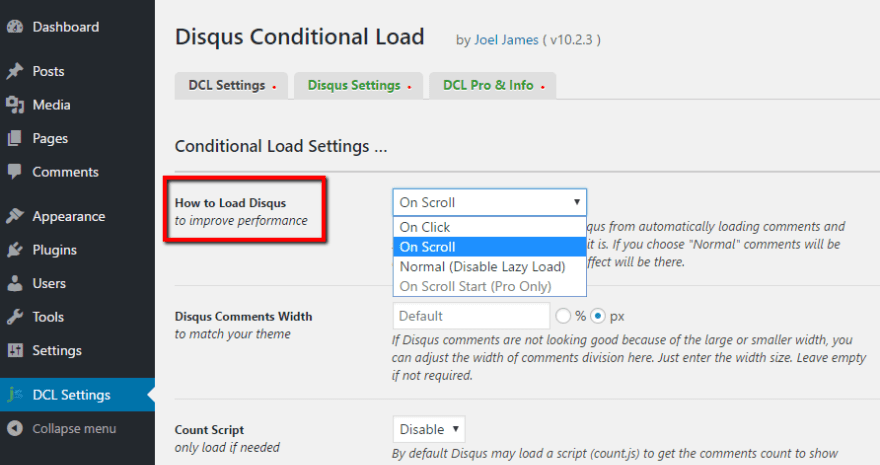
Disqus can slightly impact site performance due to external requests. However, using caching plugins and optimizing your site can mitigate this effect. Disqus provides asynchronous loading, which helps minimize delays. Proper optimization ensures your site maintains speed while benefiting from Disqus’s interactive features.
Is Disqus Free For WordPress Users?
Disqus offers a free version with basic features suitable for most users. It includes comment moderation, spam filtering, and social sharing. For advanced features like analytics and ad-free experience, paid plans are available. This allows flexibility based on your site’s needs and budget.
Conclusion
Adding Disqus comments to your WordPress theme is straightforward. Follow the steps carefully. Your site will soon have engaging discussions. Disqus enhances user interaction. It helps build a community around your content. Easy setup makes it accessible for everyone. Start with the plugin installation.
Configure settings as needed. Customize the appearance to fit your theme. Enjoy the benefits of better engagement. Your readers will appreciate the easy commenting system. Keep your content fresh and inviting. Encourage conversations and feedback. This enhances your site’s value and appeal.
Happy blogging!


