
Are you tired of the same old look on your WordPress site? Changing the default text color in your WordPress theme can breathe new life into your pages, making your content more engaging and visually appealing.
Imagine how a simple tweak can enhance readability and capture your visitors’ attention instantly. Whether you’re aiming for a fresh look or striving to align with your brand’s color palette, this guide is here to help you every step of the way.
Dive in to discover how you can effortlessly transform your website’s appearance and make a lasting impression on your audience.
Accessing WordPress Dashboard
First, you need to open your browser. Type your website’s URL. Add /wp-admin at the end. Press Enter. This will take you to the login page. Enter your username and password. Click Login. Now, you are in the WordPress Dashboard.
The Dashboard is the heart of WordPress. Here you can manage your site. You can change settings, add posts, and more. Look for the menu on the left. It has all the options you need.
Find the Appearance option. Click on it. Then, click on Customize. This opens the Customizer. The Customizer lets you change your theme. You can change colors, fonts, and layout. Explore and have fun!
Navigating To Theme Customizer
Start at the dashboard. Look at the left side. See the Appearance option. Click on it. You will find many choices. Choose Customize.
After clicking Customize, a new screen opens. This is the Theme Customizer. Here, you can make changes. Find the Colors option. You can now change text color. Pick your favorite color. Watch your site change!
Locating Typography Settings
Themes have different options for text styles. Look for the typography section in your theme settings. It is often found under “Appearance” or “Customize”. This section lets you change fonts, sizes, and colors.
Exploring Theme Options
Some themes offer detailed control over text appearance. You may find a section named “Typography” or “Style”. Here, you can change the default text color. Choose a color that matches your design. Make sure it is easy to read.
Identifying Text Color Settings
The text color settings are often easy to spot. Look for color pickers or dropdown menus. They let you select from a range of colors. You can also input a hex code for precise colors. Save your changes to apply the new color.
Changing Text Color
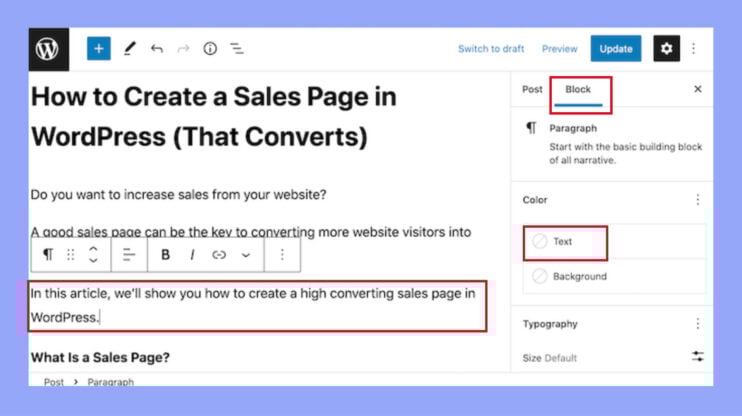
First, go to your WordPress dashboard. Find the Appearance section. Click on it. Then, choose Customize. This opens a new menu. Look for the Colors option. Here, you can pick a new color. Click on the color box. A color picker will appear. Move the circle to find your color. When you like the color, note it down.
Once you select a color, you can preview it. Click on the Preview button. This shows how your site looks. If you like it, click Save. This makes the change permanent. If not, choose a different color. Repeat until happy. Always remember to save your work.
Saving And Publishing Changes
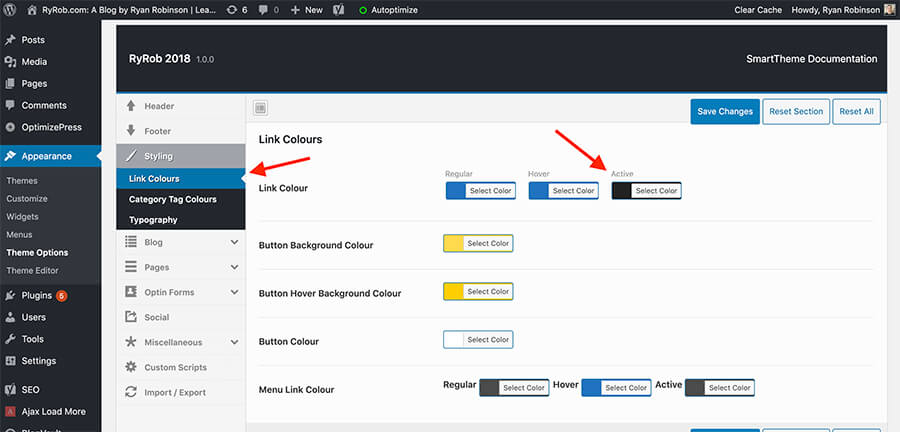
After adjusting the text color, save your work. Look for the Save or Publish button. It’s usually at the top or bottom of the screen. Click it to apply changes. The changes will appear on your site.
Preview your site. Check if the text color fits well. Make sure it matches your design. If needed, go back and adjust. Repeat the save step after every change.
Remember, it’s important to save your progress. This keeps your changes safe. Always preview before publishing. This ensures your site looks great. It helps to spot mistakes early.
Credit: www.ryrob.com
Using Custom Css For Text Color
Custom CSS can easily change text color in WordPress themes. Access the theme editor and enter CSS code to specify your preferred color for text elements. This method allows a personalized look to your website, enhancing visual appeal without altering the core theme settings.
Accessing Additional Css
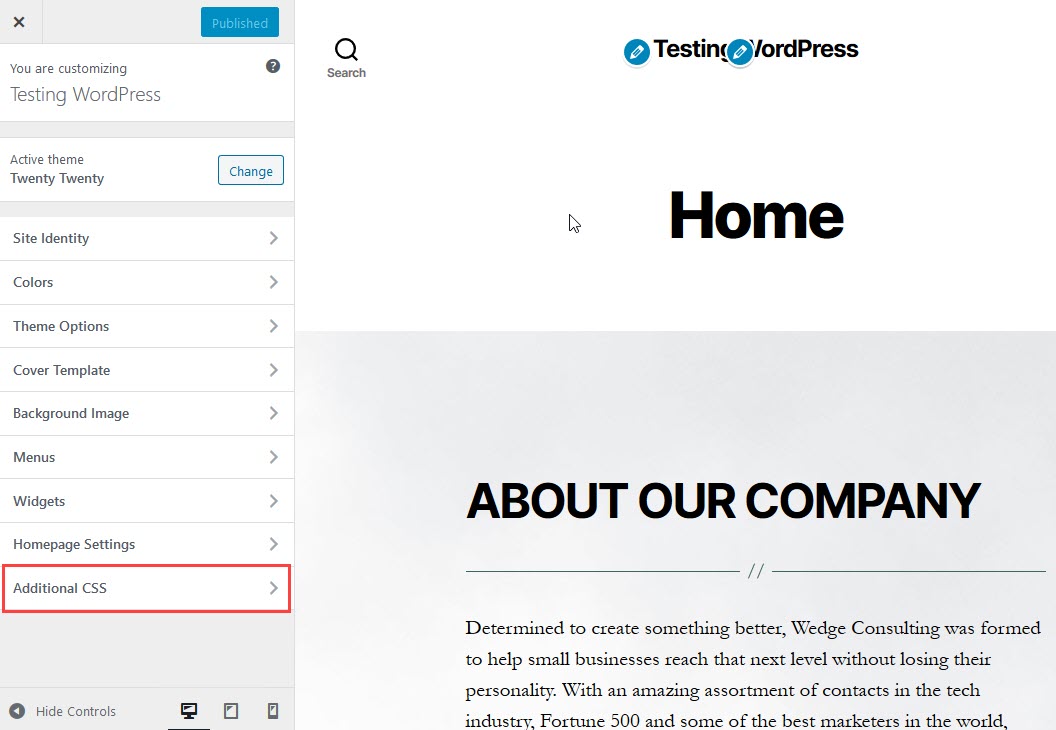
Open your WordPress dashboard. Locate the Appearance section. Click on Customize. Find the Additional CSS tab. It’s in the left menu. This opens a blank space. You can write your CSS code here. Ensure you save changes when done.
Writing Css Code
CSS changes text color. Use a color code. For example, p { color: blue; } changes paragraph text. You can also change headings. Use h1 { color: red; } for main headings. Always check color codes. Ensure they match your theme. Preview changes before saving. This helps avoid mistakes.
Verifying Changes On Live Site
Visit each page on your site. See if the text color is right. Make sure the new color shows on all pages. Sometimes, changes don’t apply to all pages. Fix this by updating your theme settings. Look at the headers, footers, and sidebars. These spots often miss color updates. Pay close attention to special pages like the blog and contact pages. These might have unique settings.
Check your site on a phone. See if the text color looks good. Some colors don’t show well on small screens. Adjust if needed. Use tools like browser developer tools to check mobile views. Ensure the text is easy to read. Test on different devices. A tablet, a phone, and a laptop. This way, you know the color works everywhere.
Credit: 10web.io
Credit: www.inmotionhosting.com
Frequently Asked Questions
How Do I Change Text Color In WordPress?
To change text color, navigate to Appearance > Customize. Under the Customize menu, select Colors or Typography. From there, you can adjust the default text color to your preference. Remember to save changes by clicking the Publish button.
Can I Change Text Color Without Coding?
Yes, you can change text color without coding. Use the WordPress Customizer, accessible through Appearance > Customize. This tool allows you to modify text color via a user-friendly interface, making it simple for beginners.
Does Changing Text Color Affect Seo?
Changing text color does not directly affect SEO. However, ensure that your text remains readable and accessible. Good readability enhances user experience, which indirectly benefits SEO. Always choose a color that contrasts well with the background.
Are Plugins Available For Text Color Change?
Yes, several plugins can help change text color. Popular ones include “Advanced Editor Tools” and “YellowPencil. ” These plugins offer extensive customization options, enabling you to adjust text color effortlessly without needing advanced coding skills.
Conclusion
Changing your WordPress theme’s text color is simple. Follow the steps above. Customize the look to match your brand. Personalize your site easily. Experiment with different colors and styles. Ensure readability and user-friendly design. Check mobile view after changes. This helps maintain a consistent appearance.
Remember to save settings after edits. Your site will look fresh and inviting. A small change can make a big impact. Keep your audience engaged with visually appealing content. Don’t hesitate to try new ideas. Enjoy your updated WordPress theme today!


