
Do you want to enhance your WordPress theme with a personalized touch? Adding a toolbar can be the perfect way to improve your site’s functionality and user experience.
Imagine having quick access to essential features right at your fingertips. It sounds great, doesn’t it? Whether you’re a blogger looking to streamline navigation or a business owner aiming to boost engagement, a toolbar can transform your website. In this guide, we’ll walk you through the simple steps to add a toolbar to your WordPress theme.
Get ready to unlock new possibilities for your site!
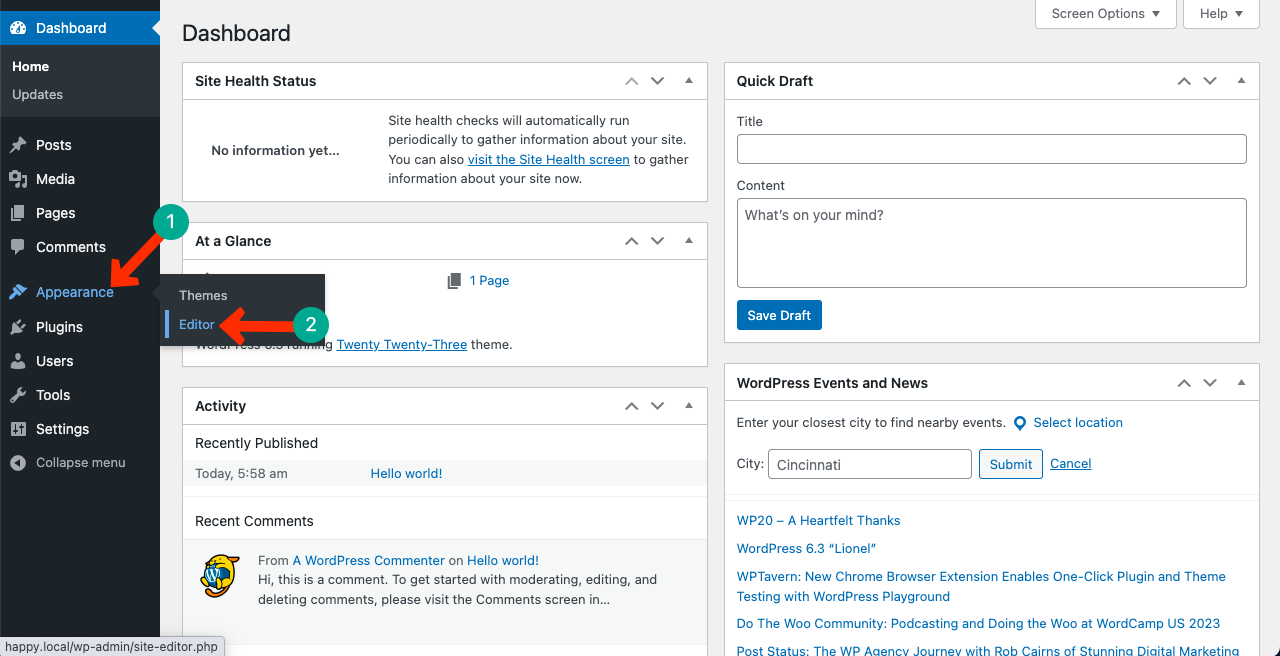
Credit: happyaddons.com
Choosing The Right Toolbar Plugin
Enhance your WordPress theme by selecting the right toolbar plugin. Streamline customization with intuitive options. Improve user experience with easy navigation and stylish designs.
Popular Toolbar Plugins
WordPress has many toolbar plugins. Some are more popular than others. Admin Bar Disabler is a favorite. It helps manage the toolbar easily. Another one is WordPress Toolbar Editor. It lets you add or remove toolbar items. My Custom Functions is also well-known. It allows custom code in the toolbar. Each plugin offers unique features. Choosing the right one matters.
Features To Consider
Ease of use is important. Users need simple controls. Look for plugins with user-friendly interfaces. Compatibility is key too. Some plugins work better with certain themes. Always check for theme compatibility. Customization options are vital. They let you create a unique toolbar. Check if the plugin supports custom links or buttons. Updates and support matter a lot. Regular updates fix bugs. Good support helps solve problems fast.
Installing The Toolbar Plugin
First, access the WordPress Dashboard. Open your browser and log in to your WordPress site. Use your username and password for login. Once logged in, you will see the dashboard. This is where you control your site.
Find the menu on the left side. Look for the Plugins section. Click on it. You will see options for plugins. This is where you add new features to your site.
Choose Add New from the Plugins menu. A new page will appear. Here, you can search for toolbar plugins. Type “toolbar” in the search box. Many options will show up. Pick a plugin that you like. Click Install Now to add it to your site.
Configuring Toolbar Settings
Customizing Appearance of your toolbar is fun. Choose colors that match your theme. Add icons for important links. Use simple words for easy understanding. Change the size of the toolbar to fit your website. Make sure it’s not too big or small. This way, it looks good on all devices. Add a logo for a personal touch.
Setting Up Functionalities is like adding tools to a toolbox. Add a search bar to help users find things fast. Include social media buttons for easy sharing. Add a login button for user accounts. Make sure all buttons work well. Check them often. This keeps your site user-friendly. Easy to navigate. Happy users come back. They tell friends about your site.
Integrating Toolbar Into The Theme
Start by opening the WordPress theme files. Look for the header.php file. This file usually holds the top part of the website. You need to add your toolbar code here. Use basic HTML and CSS. It makes the toolbar look nice. Save the changes. Now, check your website. The toolbar should appear at the top.
WordPress has shortcodes and widgets. They help in adding features like toolbars. Go to the WordPress dashboard. Find the widgets section. Drag the toolbar widget to the sidebar or header. For shortcodes, paste them directly into posts or pages. Shortcodes are small bits of code. They do magic things on your site. Easy and quick.
Testing The Toolbar
Checking functionality is important. Ensure all buttons work. Test every feature. Click each option. Look for errors. Fix any problems quickly. A toolbar should be user-friendly. Users should understand it easily. Make changes if needed. Improve the design. Ensure it looks good. Functionality is key. It should be intuitive.
Ensuring cross-browser compatibility is crucial. Test on different browsers. Try Chrome, Firefox, Safari, and Edge. Check if the toolbar looks the same. Fix issues if found. Some features might not work. Adjust settings for each browser. Compatibility is important. Users use different browsers. Make sure everyone can access it. A smooth experience is important.

Credit: www.geeksforgeeks.org
Troubleshooting Common Issues
Struggling with WordPress theme customization? Adding a toolbar enhances functionality and user experience. Start by accessing your theme editor, then locate the header file. Insert toolbar code snippets carefully, ensuring compatibility. Test changes to ensure smooth integration, resolving any issues promptly for a seamless website experience.
Resolving Plugin Conflicts
Plugins can clash with each other. This can cause problems. Start by deactivating all plugins. Reactivate them one by one. Check after each activation. This helps find the problem plugin. Once found, update or replace it. Sometimes, changing settings can fix issues. Always backup before changes. This keeps your site safe.
Debugging Display Problems
Themes might not show correctly. Check your theme settings first. Ensure all updates are installed. Sometimes updates fix display errors. Look at your CSS code. Mistakes there can cause problems. Use a browser tool to inspect elements. This shows hidden errors. Clear your site cache. Caches store old data. This can mess up new changes. If problems continue, seek help from WordPress forums.
Enhancing Toolbar Features
Adding custom code can make your toolbar more special. Use the WordPress functions.php file to do this. First, access your theme’s directory. Next, find the functions.php file. Then, insert your custom code. This code can add unique buttons or links. Always save your changes. Refresh the site to see the new toolbar. Be careful not to delete existing code. This can break your site. Always keep a backup. Backups help restore your site easily.
Third-party tools add extra features to your toolbar. They can provide social media buttons or a search bar. Many plugins are available for this. Search for plugins in the WordPress plugin store. Install and activate the desired plugin. Check the plugin’s settings. Customize the toolbar as needed. Make sure to update these tools regularly. Updates keep your toolbar working well. They also fix any bugs.
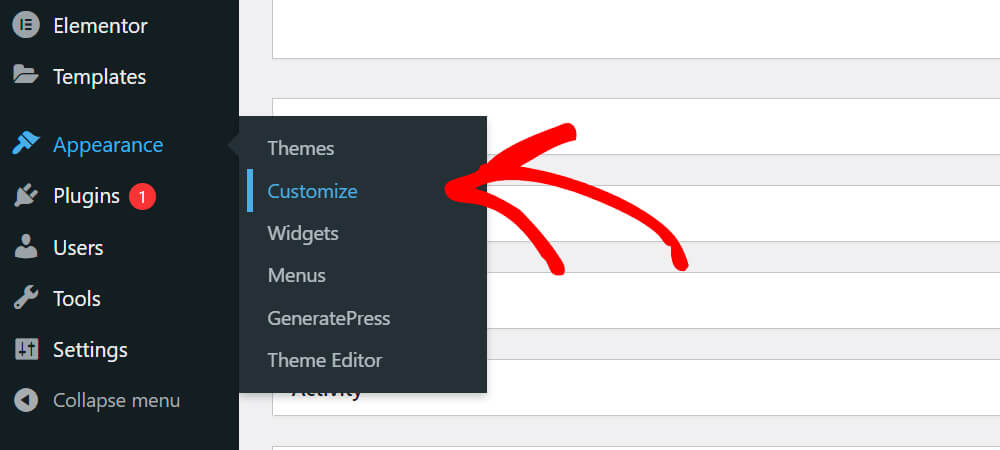
Credit: searchwp.com
Frequently Asked Questions
How To Install A Toolbar In WordPress?
To install a toolbar in WordPress, access your dashboard, navigate to Appearance > Widgets, and select the toolbar widget. Drag it to your desired location. Customize the settings as needed, and save your changes. Ensure your theme supports widgets for seamless integration.
Can I Customize The Toolbar Style?
Yes, you can customize the toolbar style by using CSS. Access your theme’s customizer or add custom CSS through Appearance > Customize. Adjust colors, fonts, and layout to match your theme’s design. Consider using a child theme to preserve customizations during updates.
Which Plugins Help Add Toolbars?
Several plugins can help add toolbars to WordPress themes. Popular options include Admin Toolbar Menus, WP Custom Admin Interface, and Toolbar Extras. These plugins offer customization features and easy integration. Choose one based on your specific needs and compatibility with your theme.
Does Adding A Toolbar Affect Site Speed?
Adding a toolbar may slightly affect site speed, especially if heavy plugins are used. Optimize your toolbar by minimizing plugin usage and choosing lightweight options. Regularly monitor site performance with tools like Google PageSpeed Insights to ensure optimal speed and functionality.
Conclusion
Adding a toolbar to your WordPress theme is simple. It enhances user experience and boosts site navigation. Follow the steps outlined above to customize your toolbar. Choose features that fit your site’s needs. Remember, a well-designed toolbar improves functionality. It helps visitors find information quickly.
Consistent updates keep your toolbar effective. Practice these tips to optimize your WordPress theme. Keep experimenting with different tools. Find what works best for your audience. A well-placed toolbar can make a big difference. Your site becomes user-friendly and engaging.
Keep it simple and intuitive for the best results.


