
Are you feeling stuck with the current look of your WordPress home page? You’re not alone.
Sometimes, a fresh theme is all it takes to breathe new life into your website. But the thought of changing your theme might seem daunting, right? Fear not! You’re about to discover just how easy it can be to transform your site’s appearance.
Imagine captivating your visitors with a stunning new design that reflects your brand perfectly. In this guide, we’ll walk you through the simple steps to change a theme on your WordPress home page. By the end, you’ll be ready to give your site the makeover it deserves, keeping your audience engaged and coming back for more. Let’s dive in and get your WordPress home page looking fabulous in no time!
Credit: kinsta.com
Accessing The WordPress Dashboard
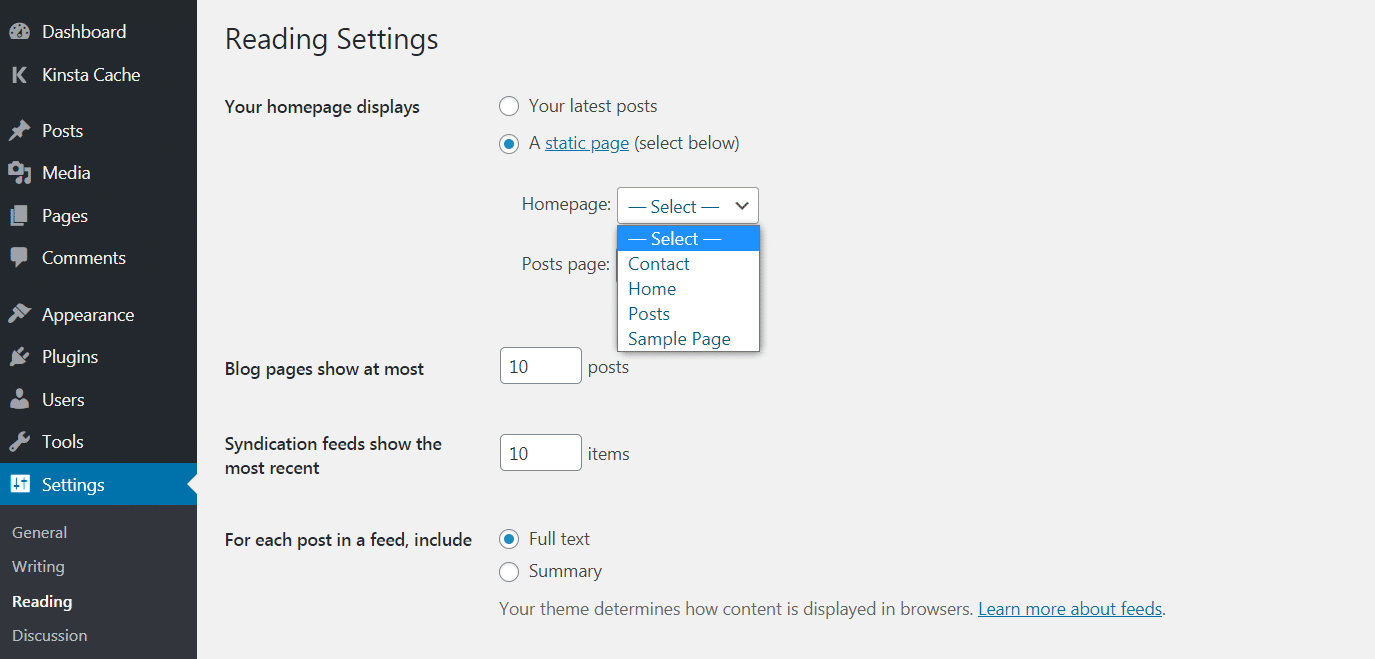
First, log in to your WordPress account. Use your username and password. After logging in, you will see the dashboard. The dashboard is like the control room. You control everything from here.
Look at the left side. You will see many menu options. Find the Appearance menu. Click on it. A small menu will drop down.
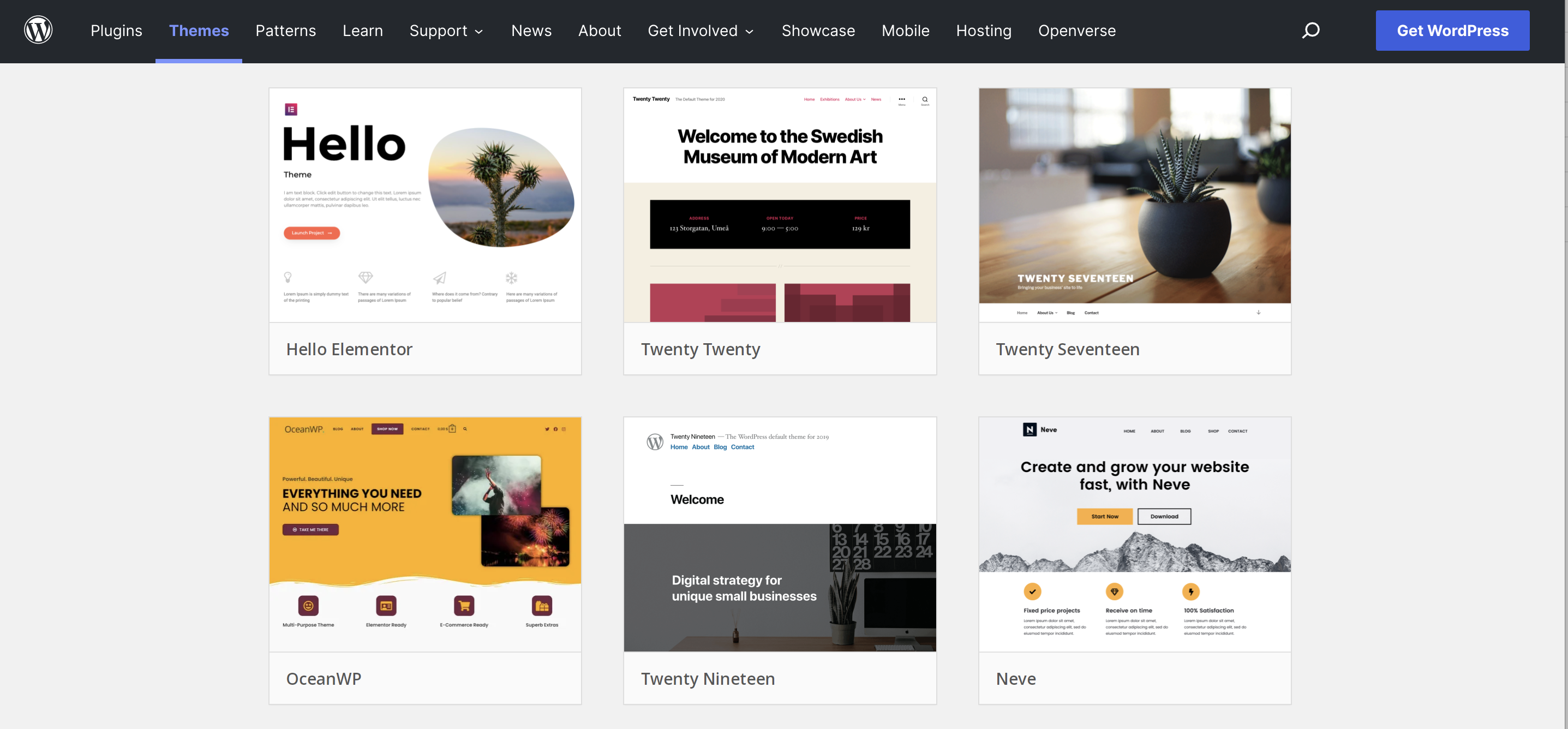
In this menu, you will find Themes. Click on Themes. This section shows all available themes. Now, you are ready to change your theme.
Credit: jetpack.com
Navigating To Appearance Settings
Start by logging into your WordPress dashboard. Look for the Appearance option on the left menu. It is usually located between Plugins and Users. Click on Appearance to open a new page.
On this page, you will see Themes listed at the top. Select the Theme you want to use. To change it, click on Customize. This will allow you to adjust settings to fit your needs. Always save changes after you make them.
If you want a new theme, click Add New. Browse through the options or search for a specific theme. Once you find the theme you like, click Install. After installation, click Activate to apply it to your homepage.
Exploring Available Themes
WordPress offers a variety of themes to choose from. Each theme has its own style and features. Some themes are free, while others are paid. Visit the WordPress theme directory to explore options. You can find themes by using the search bar. Look for themes that suit your website’s purpose. Check the theme’s ratings and reviews. This helps in choosing the best one. Preview themes to see how they look. Click on “Live Preview” to get a closer look. This makes it easier to decide. Once you find a theme, you can install it. Follow the instructions provided by WordPress. Changing themes can give your site a fresh look.
Installing A New Theme
Open your WordPress dashboard. Find the Appearance menu on the left. Click on it. A Themes option will appear. Click on Add New at the top. Now you can see many themes. Use the search bar to find a theme you like. You can also use filters. These filters are for colors, layout, and other features. Review the themes. Once you like one, click on Install. After installing, click Activate to use it.
Go to the Appearance section in the dashboard. Click on Themes. Then, click Add New. Next, click Upload Theme. This is at the top of the page. Click Choose File. Select the theme file from your computer. The file should be in a .zip format. Click Install Now. After installation, click Activate to make it live.
Activating The Chosen Theme
To activate your chosen theme, first go to the WordPress Dashboard. Look for the Appearance option on the left side. Click on it. You will see the Themes section. Here, all themes are displayed. Find the theme you like. Hover over it with your mouse. A button will appear. It says Activate. Click this button. Your theme will now be active. Refresh your site to see changes. The new theme should show on your home page. If not, try again. Sometimes, it needs a second click. Always ensure you have a backup before changing themes. It keeps your website safe from errors.
Customizing The Theme Settings
Changing the theme on your WordPress homepage involves accessing the theme settings in the dashboard. Customize features like layout, colors, and fonts to match your style. Experiment with different themes to find the perfect look for your website’s main page.
Using The Customizer
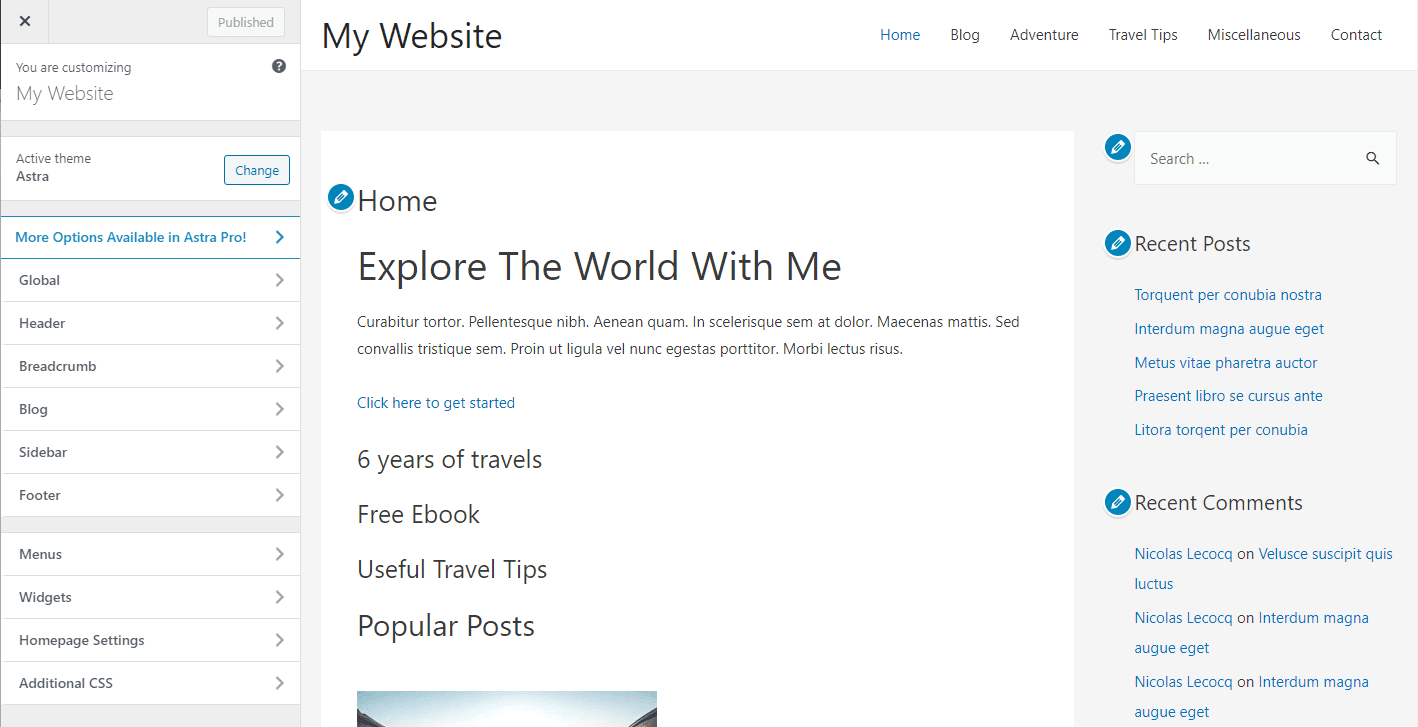
Find the Customize option in your WordPress dashboard. It helps you change theme settings easily. You can see changes live. Pick colors and fonts you like. Make your site look nice. Simple clicks make big changes.
Adjusting Layout And Design
Layout changes how things are placed. Try different layouts to see what looks best. Design includes colors and fonts. You can make your site look unique. Use the tools in the Customizer. They help you change things quickly.
Setting Up Widgets And Menus
Widgets are small tools for your site. Add them to your sidebar or footer. Menus help visitors find pages. Create a menu in the Customizer. Drag and drop items to the right place. Your site will be easy to use.
Testing The Theme On Different Devices
Themes should look good on all devices. Check it on a phone, tablet, and computer. This ensures your site is user-friendly everywhere. Make sure buttons are easy to click. Text should be easy to read. On a phone, the menu should work well.
Try scrolling through the pages. Make sure images load correctly. Check that nothing is out of place. If something looks wrong, the theme might need fixing. A responsive design is important.
Ask friends to check your site too. They might see problems you missed. Different people use different devices. This helps find any hidden issues. Keep testing until everything looks perfect.
Credit: kinsta.com
Troubleshooting Common Issues
Changing a theme on your WordPress homepage can sometimes present challenges. Common issues include theme compatibility, missing elements, or layout distortions. Resolve these by checking theme settings, updating plugins, and clearing your cache.
Resolving Theme Conflicts
Theme conflicts can cause problems. Check your plugins. Sometimes, plugins do not work well with themes. Deactivate each plugin one by one. See if the problem is solved. If it is, the last plugin you deactivated is the problem. Update the theme and plugins. Updates fix many bugs. Always keep them updated.
Restoring The Previous Theme
Did the new theme cause trouble? Go back to the old theme. Find the theme in the WordPress dashboard. Click on “Themes” in the menu. Look for the old theme. Press the “Activate” button. The old theme is now back. Everything should work fine again.
Ensuring Theme Compatibility
Switching themes on a WordPress homepage requires careful attention to compatibility. Ensure the new theme supports your existing site features. Check for plugin compatibility to avoid functionality issues.
Checking Plugin Integration
Some themes work well with plugins. Others do not. Check plugin compatibility with your theme. This is important. Plugins add features to your site. They help make the site better. Some plugins may not work with a new theme. This can break your site.
Visit the plugin page. Look for compatibility notes. Read user reviews. They often share their experiences. Always test plugins with a new theme. Use a staging site. This prevents problems on the live site. Testing helps ensure everything works well together.
Reviewing Theme Updates
Themes get updates too. Updates fix bugs and add new features. They also improve security. Check how often a theme updates. Regular updates are good. They show the theme is cared for. This means fewer problems.
Read the update history. See what changes were made. Avoid themes with no recent updates. These can be risky. They might have security issues. Always backup your site before updating. This keeps your data safe.
Frequently Asked Questions
How Do I Change My WordPress Theme?
To change your WordPress theme, go to your WordPress dashboard. Navigate to “Appearance” and then “Themes. ” Choose a new theme from the available options. Click “Activate” to make it your site’s current theme. Ensure you preview the theme before activating to check compatibility with your content.
Will Changing A Theme Affect My Content?
Changing a theme won’t delete your content. However, it may affect its layout and appearance. Always preview the new theme before activating it to see how your content looks. Backup your website to prevent any unforeseen issues during the transition.
Can I Customize A WordPress Theme?
Yes, you can customize a WordPress theme. Use the WordPress Customizer under “Appearance” to make changes. Options include altering colors, fonts, and layout. Many themes also offer additional customization options through their own settings panel.
Is It Safe To Switch WordPress Themes?
Switching WordPress themes is generally safe. However, always backup your site before making changes. Some themes may not support certain plugins or customizations. After switching, check your site’s functionality and appearance to ensure everything works as expected.
Conclusion
Changing your WordPress theme enhances your site’s look. Simple steps make it easy. Choose a theme that matches your style. Customize settings for a personal touch. Preview changes before going live. Enjoy the fresh design and improved user experience. Regular updates keep themes secure and functional.
Explore plugins for added features. Keep your website engaging and up-to-date. With practice, theme changes become effortless. Remember, a good theme reflects your brand. Make it unique and welcoming. Your WordPress journey is now more exciting. Happy customizing!


