
Are you looking to customize your WordPress theme but unsure how to add a file without breaking anything? You’re not alone.
Many WordPress users hesitate when it comes to tweaking their themes, fearing they might disrupt the delicate balance of their website. But what if I told you that adding a file to your WordPress theme can be simple and straightforward?
By the end of this guide, you’ll be equipped with the knowledge and confidence to enhance your site without the stress. Ready to take control and make your WordPress theme truly yours? Let’s dive into the essentials and get you started on the right track!
Choosing The Right File Type
Pictures make your site look nice. JPEG and PNG are best for photos. GIF is fun for small animations. Use SVG for logos. They stay clear when you make them bigger. Keep image sizes small. This helps your website load fast.
CSS makes your site look pretty. JavaScript adds fun actions. Store these files in your theme folder. Use small file sizes. This keeps your site loading quickly. Always check your code for errors. Errors can break your website.
PHP gives your site power. It runs the WordPress engine. Files like functions.php add special features. Be careful with PHP. A small mistake can cause big issues. Always make a backup before changes.
Accessing Theme Editor
Find the dashboard. It’s the main screen after login. The dashboard has many options. These options help you control your site. To access the theme editor, you need to look for specific sections.
Find the Appearance section. It’s on the left side of the dashboard. Click on it. A menu will open. This menu contains important features. Look for Editor inside this menu. It’s your gateway to the theme files.
Uploading Files Via Ftp
First, download an FTP client like FileZilla. Open it and enter your server details. These include your host name, username, and password. Click connect to access your server. Wait for the connection to establish. You will see your files on the server.
In the FTP client, find the public_html folder. Open it. Look for a folder named wp-content. Inside, find the themes folder. Open it to see your current themes. Choose the theme you want to add files to. Double-click to enter this theme folder.
To add a file, drag it from your computer. Drop it into the theme folder in the FTP client. Wait for the upload to finish. Check to see if the file is in the right place. Refresh the page if needed. Now, the file is part of your WordPress theme.

Credit: www.youtube.com
Using WordPress File Manager
First, go to your WordPress dashboard. Click on Plugins and then Add New. Search for the File Manager plugin. Click Install Now and then Activate. This plugin helps you manage files easily.
Open the file manager from your dashboard. You will see a list of folders. These folders contain your theme files. Look for the wp-content folder. Inside, you will find the themes folder. Click on it to see your theme files.
To add a new file, click the Upload button. Choose the file you want to add. Make sure it is the right file type. Once uploaded, your file will appear in the list. Now, it is part of your theme. Easy and quick.
Editing Theme Files
Theme hierarchy helps find where to add files. Each theme has a specific structure. Templates are organized by importance. The index.php is usually the main file. Other files override it when needed. This makes editing easy. You must know which file affects what. This way, changes are effective and safe.
The functions.php file is important. It adds custom features to your theme. You can add new functions there. This file helps include scripts and styles. Remember, changes here affect the whole site. Keep a backup before editing. Mistakes can break your site. Always test changes locally first.
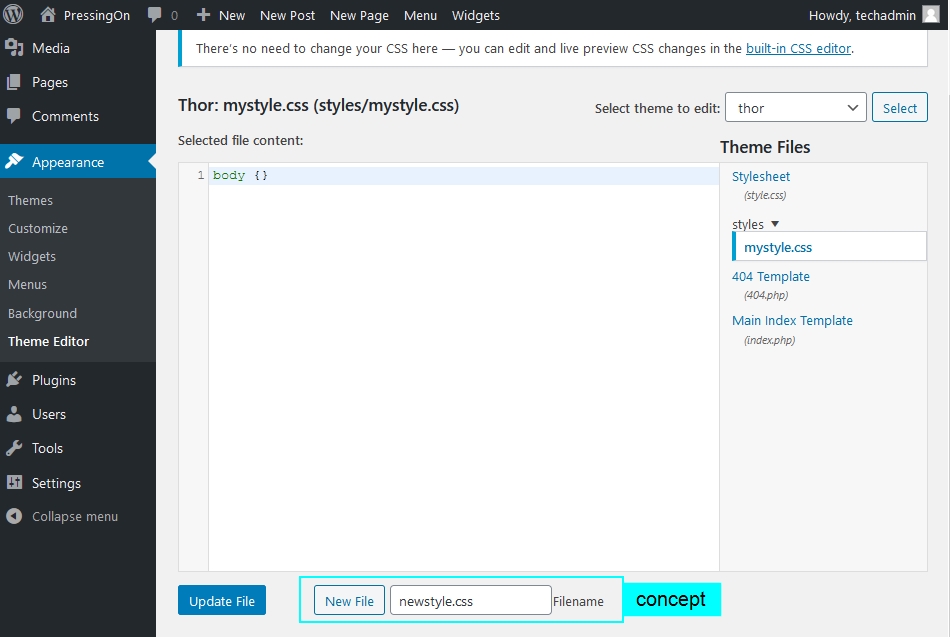
Add custom styles with CSS. Create a custom.css file. Link it in your theme. This file makes your site look unique. CSS changes are easy to handle. They only affect design. No need to worry about breaking functionality. Use this to tweak colors, fonts, or layouts.
Credit: wordpress.stackexchange.com
Ensuring File Compatibility
It’s important to check file versions. Older files may not work. Always use updated files. This helps prevent errors.
Files may look different in each browser. Test your file on Chrome, Firefox, and Safari. This ensures it looks good for everyone. Testing helps catch any display issues.
Backing Up Theme Files
Backing up theme files ensures safety before adding new ones. Open the WordPress dashboard and navigate to Appearance. Use the Theme Editor to upload new files, enhancing your site’s design while keeping original files secure.
Using Backup Plugins
Backup plugins help save your WordPress theme files. These tools are easy to use. They keep your files safe. Popular plugins include UpdraftPlus and BackupBuddy. They work with one click. You can schedule backups too. This keeps your data secure. Always store your backup files in a safe place. Cloud services are a good option. This way, you won’t lose them.
Manual Backup Techniques
Manual backups are another way to protect your files. First, access your website’s server. Use an FTP client like FileZilla. Download the theme folder to your computer. Save it in a secure location. This ensures you have a copy. Manual backups give you control. They require careful handling. Always double-check your saved files.

Credit: visualmodo.com
Troubleshooting Common Issues
Adding files to a WordPress theme often involves navigating through theme editor. Ensure to use FTP for safe uploads. Double-check file paths to avoid broken links.
Solving File Upload Errors
File upload errors can be frustrating. First, check your file size. It might be too large. Adjust your WordPress settings to allow bigger files. Next, look at your internet connection. Sometimes, a bad connection stops uploads. You might also need to adjust your PHP settings. This could help with larger files. Lastly, check for plugin conflicts. Some plugins block file uploads. Try disabling them one by one.
Fixing Broken Themes
A broken theme can ruin your site. Start by switching to a default theme. This checks if your theme is the problem. If things work, update or reinstall your original theme. Sometimes, custom code breaks themes. Remove any recent changes and test again. You could also check for missing files. A fresh theme download might fix this. If none of these help, contact theme support for advice.
Frequently Asked Questions
How Do I Upload Files To WordPress Theme?
To upload files, access your WordPress dashboard. Navigate to Appearance > Theme Editor. Locate the specific theme file you wish to edit. Use the “Upload” option to add your file. Ensure the file format is compatible. Always back up your theme before making changes to avoid data loss.
Can I Add Custom Css To My Theme?
Yes, you can add custom CSS via the WordPress Customizer. Go to Appearance > Customize. Select the ‘Additional CSS’ section. Enter your custom CSS code there. This allows you to tweak your theme’s design without altering core files. Always preview changes before publishing to ensure desired results.
Is It Safe To Modify Theme Files?
Modifying theme files can be safe if done correctly. Always back up your theme files before any changes. Use a child theme to prevent updates from overwriting your modifications. Ensure your edits follow best practices to maintain site functionality. Consider consulting documentation or professionals for complex changes.
Which File Types Can Be Added To Themes?
WordPress supports various file types including PHP, CSS, JS, and image formats like JPG, PNG. Ensure files are safe and relevant to your theme’s functionality. Avoid uploading executable files to prevent security risks. Always verify compatibility with your theme’s structure and purpose.
Conclusion
Adding files to your WordPress theme is simple. Follow each step carefully. Start by accessing your WordPress dashboard. Then, locate the theme editor. Ensure you choose the right theme file. Always save your changes. Check your website to confirm updates.
Mistakes can happen, so back up files first. Practice makes perfect. Explore more WordPress features to enhance your site. With patience, you’ll improve your website skills. Keep learning and experimenting. WordPress offers endless possibilities for creativity. Enjoy designing your site with newfound confidence.


