
Are you struggling to make your WordPress site stand out? The right photo on your front page can make a world of difference.
If you’re using the Activello theme and want to learn how to add that perfect image, you’re in the right place. In this guide, I’ll walk you through the simple steps to make your website more visually appealing and engaging.
Imagine capturing your visitors’ attention the moment they land on your page. With the right photo, you can evoke emotions, create connections, and make them want to explore more of what you have to offer. Don’t miss out on transforming your site into a captivating experience. Let’s dive in and get that stunning front page photo up and running!
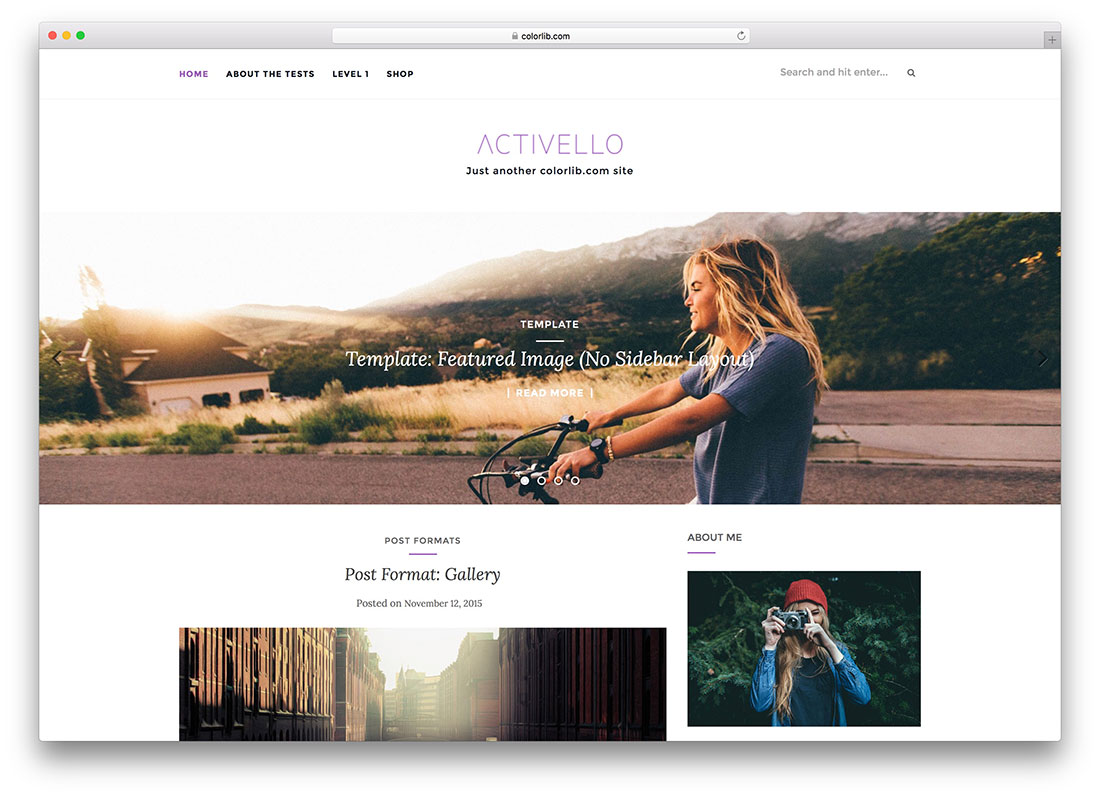
Credit: colorlib.com
Activello Theme Overview
Activello is a simple and elegant theme. It’s great for blogs and websites. The design is clean and easy to use. You can add a front page photo. This makes your website look special. The theme is responsive. It works well on phones and tablets. Easy to customize with WordPress options. Change colors and fonts without coding. The theme supports popular plugins. You can use WooCommerce for an online store. SEO-friendly for better search results. Activello is perfect for beginners. It is user-friendly and has a helpful support team. Good for personal blogs or business sites.
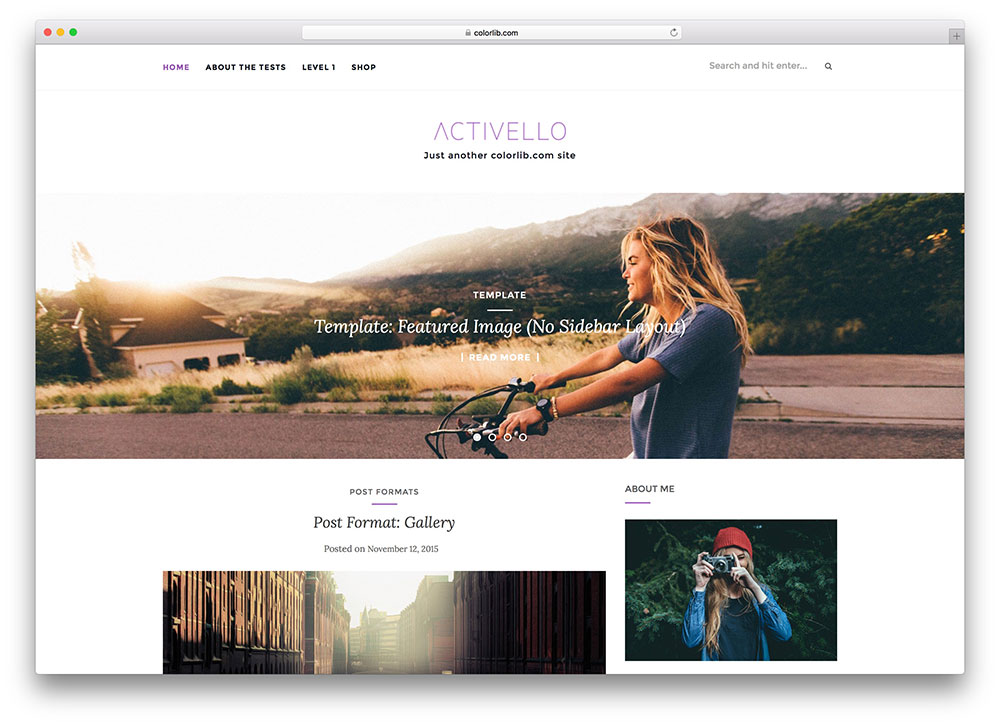
Credit: colorlib.com
Preparing Your Image
Selecting a clear and bright photo is important. It catches eyes. People love colorful photos. Make sure the photo fits your blog style. Think about the theme colors. Does the photo match them? Avoid blurry images. They look unprofessional. Use photos with good lighting. Light adds life to photos. Choose an image that tells a story. A picture can say a thousand words. Make it meaningful.
Big images slow websites. They make loading times longer. Resize your image. Use tools like Photoshop. Or simple online tools. Keep your image under 100KB. This keeps the site fast. Good size is around 1200×800 pixels. It works well with most themes. Smaller images load faster. But keep quality high. No one likes pixelated photos. Save your image as JPEG or PNG. These formats work best for web.
Accessing WordPress Dashboard
First, log into your WordPress Dashboard. Use your username and password. On the left menu, find Appearance. Click on it. A new menu will appear. Choose Customize. This is where you can change the theme. Explore the options here. You can change colors and fonts. But for now, focus on the Front Page Photo.
Find the Header Image option. Click on it. Now you can add a photo. Choose a picture from your computer. Upload it. Make sure it is a good size. A clear picture looks nice. This makes your site look good. Once done, click Save & Publish. Your new photo is now live.
Credit: dpotus.org
Navigating To Theme Customizer
Access your WordPress dashboard. Spot the Appearance tab on the left. Click it. Find the Customize option there. This opens the Theme Customizer.
In the Theme Customizer, look for Header Image. Click to open it. Upload your front page photo here. Adjust the image size if needed. Check the preview on the right. Save your changes.
Setting The Front Page Photo
First, go to your WordPress dashboard. Click on the ‘Media’ option. Choose ‘Add New’. Select an image file from your computer. Click ‘Upload’. Wait for it to finish.
Go to ‘Appearance’. Then click ‘Customize’. Find ‘Front Page Settings’. Choose ‘Header Image’. Select your uploaded image. Click ‘Save’. Check your website’s front page.
Customizing The Image Display
Positioning the front page photo is easy. First, go to the WordPress dashboard. Find the Customize menu and click it. Look for the Front Page section. Here, you can choose where to place the image. Try different positions to see what looks best. You can place it at the top, center, or bottom. Each position gives a different feel. Experiment to find your favorite look.
Activello theme offers various styles. You can select a full-width image. This style covers the entire page width. Or you can choose a boxed style. This keeps the image within a frame. Both styles have unique appearances. Consider the overall theme of your site. A full-width image might be more immersive. A boxed style could be more traditional. Choose based on your site’s needs.
Saving And Previewing Changes
First, make sure all your changes are correct. Double-check your settings. Click the Save button in the theme options. This saves your new settings. Always save your work to avoid losing it. It’s like locking your treasure chest. You wouldn’t want to lose your treasures, right?
After saving, you can see your work. Click on Preview to see the front page. This shows how your photo looks to others. Make sure everything looks nice. If it does, you’re done! If not, go back and fix it. It’s like painting a picture. You want it to be just right!
Troubleshooting Common Issues
Easily add a front page photo in the Activello theme on WordPress by navigating to the “Appearance” menu. Select “Customize,” then “Front Page Settings” to upload your desired image. Save changes to see the updated look.
Image Not Displaying
Sometimes the front page photo may not show. First, check if the image is uploaded in the right size. Images should be less than 2MB. Ensure the file type is correct; use JPEG or PNG formats. Clear your browser cache. This can help the image load. If it still doesn’t show, check the theme settings. Make sure the correct image is selected. Also, check if the URL is correct. Sometimes, there might be a typo.
Resolving Upload Errors
Upload errors can be frustrating. Make sure your internet connection is stable. An unstable connection can cause errors. Check the file name for special characters. These can create problems. Rename the file if needed. Ensure your WordPress version is updated. Older versions can have bugs. Sometimes, browser extensions block uploads. Try disabling them. Also, increase the PHP memory limit if possible. This can help with large files.
Frequently Asked Questions
How To Upload A Photo To Activello Theme?
To upload a photo, go to your WordPress dashboard. Navigate to ‘Appearance,’ then select ‘Customize. ‘ Click on ‘Front Page Settings’ and choose ‘Featured Image. ‘ Upload your desired photo from your computer and save the changes. This will update the front page photo in the Activello theme.
Can I Customize The Front Page Photo Size?
Yes, you can customize the size. After uploading your image, go to ‘Appearance’ and select ‘Customize. ‘ Under ‘Front Page Settings,’ adjust the photo dimensions as needed. Ensure your image is optimized for web to maintain quality and quick loading times.
This enhances the visual appeal of your site.
Why Is My Front Page Photo Not Displaying?
If your photo isn’t displaying, check your theme settings. Ensure the image is set as ‘Featured Image’ under ‘Front Page Settings’ in ‘Customize. ‘ Clear your cache and refresh the page. Also, verify your image format is compatible, like JPEG or PNG.
This should resolve display issues.
How To Change Front Page Photo In Activello?
To change the front page photo, access ‘Appearance’ on your dashboard. Click ‘Customize,’ then ‘Front Page Settings. ‘ Select ‘Featured Image’ and upload your new photo. Save the changes to update your site. Regularly updating photos keeps your content fresh and engaging for visitors.
Conclusion
Adding a front page photo in the Activello theme is simple. Just follow the outlined steps carefully. Customize your site with ease. A well-chosen photo can enhance your website’s appeal. It creates a visual impact for visitors. Ensure your image is high quality.
This attracts more attention and engagement. Consistent updates keep your site fresh. Experiment with different images for the best fit. Your website will look professional and inviting. Remember, practice makes perfect. Keep refining your skills. Happy customizing!


