
Are you struggling to expand your website with more pages using a WordPress premium theme? You’re not alone.
Many website owners find themselves puzzled when it comes to adding pages without compromising the sleek design or functionality of their premium themes. But worry not—this guide is here to help you unlock the full potential of your WordPress site.
Imagine your website as a growing tree. Each new page is a branch that adds value and depth, drawing in visitors and encouraging them to explore further. You want your site to be a thriving hub of information, and learning to seamlessly add pages is crucial to achieving that. You’ll discover straightforward, actionable steps to effortlessly expand your website while maintaining its professional appearance. Stick with us, and by the end, you’ll feel confident and empowered to take full control of your site’s growth.

Credit: wordpress.com
Choosing The Right Theme
Check if the theme supports extra pages. Some themes have limits. Make sure the theme is user-friendly. This helps in easy navigation. Find out about the theme updates. Regular updates keep themes safe. Ask for customer support. Good support helps with problems.
Look for themes with built-in page templates. They make page creation simple. Some themes offer drag-and-drop builders. These are easy for beginners. Check if the theme has SEO tools. These tools help your pages rank better. Ensure the theme is responsive. This makes pages look good on all devices.
Accessing The WordPress Dashboard
The WordPress dashboard is your control center. It shows important options. You can find menus and settings here. On the left side, there’s a menu. This menu has many sections. Each section has different options. The dashboard is easy to use. With practice, you can use it well.
Look for the Pages section in the menu. It helps you manage pages. You can add, edit, or delete pages here. Click on “Pages” to see your pages. It displays a list of all your pages. You can click “Add New” to create a page. Adding pages is simple and quick. Follow the steps to add content.
Creating A New Page
Open the WordPress dashboard. Click on “Pages”. Then select “Add New”. The page editor will appear. It looks like a blank canvas. Give your page a title. Use a simple name. Next, start adding content.
You can add text. Use the text box. Add images with the image tool. Select the image icon. Choose from your library or upload a new one. Adding videos is easy too. Use the video tool. Copy the video link. Paste it in the box.
Use headings to organize content. They make reading easy. Click on the heading tool. Choose the size you like. You can also add buttons for actions. Use the button tool. Add a link to the button. Now, your page is ready to publish.
Customizing Page Layouts
Page templates help change how a page looks. Themes often include different templates. Use them to create unique styles. Choose a template that fits your needs. Many templates offer various layouts. Some focus on images, others on text. Check your theme’s options. Look for a template that looks good to you. Trying different ones can be helpful. Experiment to see which style you like best. This keeps your site fresh and interesting.
Widgets and plugins add fun stuff to your pages. They can show weather, maps, or calendars. Use them to make your site useful. Find plugins that suit your topic. Widgets are easy to place on pages. Just drag and drop them. Plugins need installing first. Search for them in the WordPress store. Read reviews before picking one. This ensures it works well. Always keep them updated. This keeps your site safe and running smoothly.
Configuring Page Settings
Each WordPress page needs special settings. Select the right template for your page. This changes how it looks. Choose the parent page if needed. This makes a page part of another. Set the order to arrange pages. It decides which page shows first.
Good SEO helps your page rank high. Use a strong title for each page. Add keywords that match your topic. Include a meta description. This tells search engines about your page. Add internal links to other pages. This helps visitors find more.
Integrating With Navigation Menus
Adding new pages to your WordPress menu is simple. Go to your WordPress dashboard. Click on ‘Appearance’ and then ‘Menus’. You will see a list of existing menus. Select the one you want to update. On the left, find ‘Pages’. Check the box next to the page you want to add. Click ‘Add to Menu’. The page appears in your menu structure. Remember to click ‘Save Menu’.
Organizing your menu is easy. Drag and drop menu items. Move them up or down. You can also create sub-menus. Drag an item slightly to the right. This makes it a sub-item. Save your changes. Check your website to see the new menu layout.
Previewing And Publishing Pages
Always check your page design before publishing. Look for any errors or missing parts. Make sure the text is easy to read. Colors should match your theme. Images must load properly. A well-designed page keeps visitors happy. Use the preview option to see changes. This helps you spot mistakes early.
Click the publish button to make your page live. Visitors can now see your content. To update a page, edit it and save changes. Always save your work to avoid losing it. Regular updates keep your site fresh. Check your page often for any needed changes. This helps keep information current and useful.

Credit: quadlayers.com
Troubleshooting Common Issues
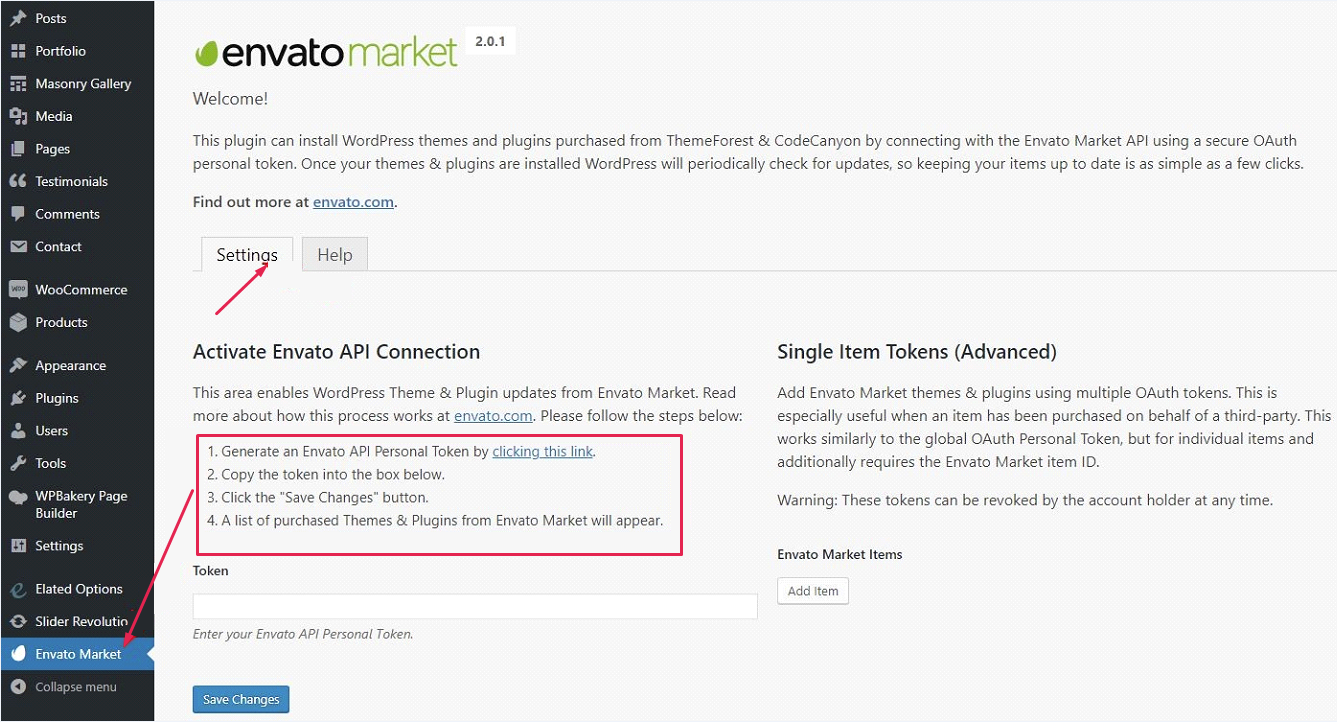
Themes can sometimes clash with plugins. This may cause errors. Check for any plugin causing trouble. Disable each plugin one by one. This helps find the problem plugin. Once found, look for updates. Sometimes, updates fix these issues. If not, reach out to the theme developer. They may have a solution.
Sometimes, pages do not look right. This can be due to outdated themes. Always keep your theme updated. This helps with display errors. Clear your browser cache too. Old data can cause display issues. Try refreshing the page. If problems persist, contact support. They can help solve display problems.
Credit: helpcenter.qodeinteractive.com
Frequently Asked Questions
How Do I Add New Pages In WordPress Themes?
To add new pages, go to your WordPress dashboard. Click on “Pages” and then “Add New. ” Enter your page title and content. Choose a page template if needed. Publish the page to make it live. It’s simple and doesn’t require coding knowledge.
Can I Customize Pages In Premium Themes?
Yes, premium themes often offer page customization options. Use the theme’s built-in page builder or customization tools. Adjust layouts, colors, fonts, and other elements to match your brand. Explore theme settings for additional features and flexibility.
What Is A Page Template In WordPress?
A page template defines the layout and design of your WordPress page. Premium themes offer various templates for different needs. Choose a template when creating or editing a page. Templates can include features like sidebars, headers, and footers.
Are Plugins Needed For Adding Pages?
No, plugins aren’t necessary for adding pages in WordPress. The platform allows page creation without plugins. However, plugins can enhance functionality. Use them for advanced features like SEO, contact forms, and page builders if needed.
Conclusion
Adding pages to WordPress premium themes is straightforward. It enhances your site’s functionality. Customize your website layout easily. More pages mean better organization. Visitors find information quickly. User experience improves. SEO benefits are notable with proper page structure. Your site gains more visibility online.
Follow steps carefully. Use helpful plugins if needed. Experiment with design options. Stay creative. Your website reflects your brand. Enjoy showcasing your content professionally. Keep learning and adapting. Skills grow with practice. Your WordPress site will thrive.


