
Are you looking to give your WordPress site a fresh, vibrant look? Changing the font color in your theme can be a simple yet effective way to make your content pop and capture your audience’s attention.
Imagine your text standing out with the perfect hue, enhancing readability and conveying your brand’s personality. Whether you’re a seasoned WordPress user or a beginner, adjusting font colors can seem daunting. But don’t worry! This guide will walk you through the process step-by-step.
By the end, you’ll be able to transform your site’s appearance with confidence and ease. Ready to make your website visually captivating? Let’s dive in!

Credit: wcanvas.com
Accessing WordPress Dashboard
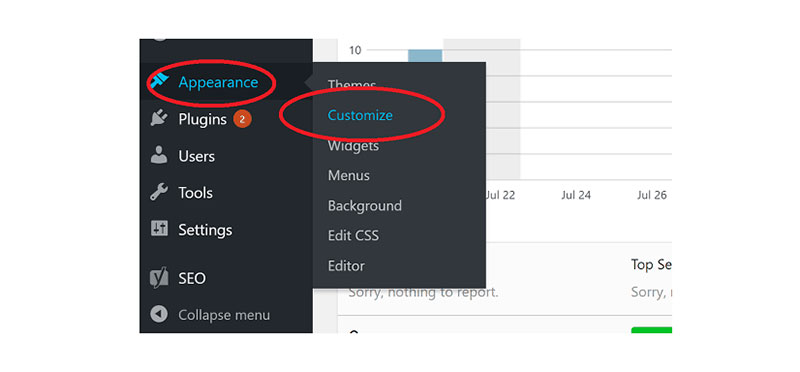
Start by logging into your WordPress account. Use your username and password. Once logged in, find the Dashboard on the left side. The Dashboard is like your control room. It shows many options. Look for the Appearance tab. Click on it to see more choices. This tab helps to change how your site looks.
After clicking Appearance, find the Customize option. This is where you can change fonts and colors. Customize is fun and easy to use. It gives you many choices. You can try different colors. Find what looks best for your site. Remember to save your changes. This way, you won’t lose your work.
Customizing Theme Settings
Find the Appearance option in your WordPress dashboard. Click on it to go to the Theme Customizer. The Theme Customizer lets you change many settings. Changing the font color is easy here.
Look for the Typography section. This section has options for fonts and colors. Click on it to see the available choices. You will find settings for font size, font style, and font color.
Use the color picker to change the font color. You can choose from many colors. Make sure the color is easy to read. Dark colors on light backgrounds work best. Light colors on dark backgrounds are also good.
Remember to save your changes. After saving, check your website. Make sure the new colors look good. If not, go back and try different colors.
Using Additional Css
First, log in to your WordPress dashboard. Then, find the Appearance tab on the left. Click on it. You will see Customize. Click on Customize. Look for Additional CSS. It is usually at the bottom. Click on it to open.
In the Additional CSS section, you can write code. To change font color, use this code: p { color: red; }. The p stands for paragraph. The color: red; changes text to red. Replace red with any color name. You can also use color codes like #ff0000. Always check the changes on your site.
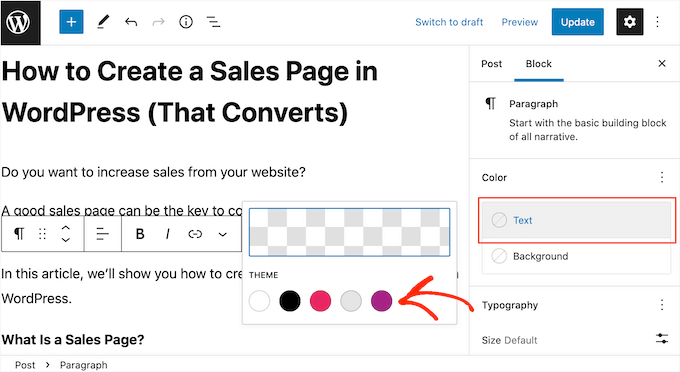
Credit: www.wpbeginner.com
Installing A Customizer Plugin
Discover how to change font color in WordPress themes effortlessly. Installing a customizer plugin allows easy adjustments to text colors. Transform your site’s appearance with simple customization steps.
Choosing The Right Plugin
Many plugins can change font color. Some are easy to use. Others offer more options. It’s important to choose one that fits your needs. Check user reviews. They help you understand if the plugin is good. Look for plugins that have been updated recently. This ensures they work well with new WordPress versions.
Plugin Installation Steps
First, go to your WordPress dashboard. Find the “Plugins” tab and click “Add New”. Type the plugin’s name in the search box. Once found, click “Install Now”. After installation, click “Activate”. The plugin is now ready to use. You can access it from your dashboard. Follow the plugin’s instructions to change your font color.
Editing Theme Files
Changing font color in WordPress themes involves editing theme files. Access the theme editor from your WordPress dashboard. Locate the CSS file, often named style. css. Find the font color property and modify it. Save changes to see the new font color on your site.
Accessing Theme Editor
Open your WordPress dashboard. Find the Appearance section. Click on Theme Editor. This opens the theme files.
A warning message may appear. Read it carefully. Editing theme files can be risky. Always make a backup before changes.
Identifying Css Files
Look for style.css. This file controls the theme’s appearance. It holds the font colors and styles.
Use the search bar to find specific color codes. Change the code to your desired color. Save your changes to see the results.
Creating A Child Theme
Child themes help keep changes safe. They protect your customizations. Main themes can update without losing edits. This means your site stays updated and secure. They also allow you to experiment. You can test new designs without risk.
Using child themes is smart. They make theme changes easy. You won’t worry about breaking your site. They are a great tool for beginners. They offer a simple way to learn WordPress.
First, create a new folder. Name it after your theme with “-child”. Next, make a style.css file inside. Add this code:
        /
        Theme Name: Your Theme Child
        Template: yourtheme
        /
Then, create a functions.php file. This is for custom functions. Finally, activate your child theme in WordPress. Go to Appearance, then Themes. Click Activate. Your child theme is now ready!
Using Page Builders
Page Builders help make websites look nice. They are like magic tools. You can change colors, sizes, and shapes. They are easy to use. Just drag and drop. Many people use them. They have many options. They help make websites fast and pretty.
Changing font color is simple with Page Builders. First, open your Page Builder. Find the text you want to change. Click on it. Look for the color option. Pick your favorite color. Click save. Now your text has a new color. Easy, right?
Credit: wpdatatables.com
Testing And Previewing Changes
Easily change font color in WordPress themes by accessing the theme customizer. Experiment with different shades to preview changes live. This tool ensures your site’s text matches your desired look while maintaining readability.
Previewing Changes In Customizer
Use the WordPress Customizer to see font color changes. Click on the “Customize” option in the dashboard. Find the “Colors” section. Choose your new font color. You can see changes live. This helps make sure the color looks good.
Save changes when you are happy. The preview is useful. It shows how your site will look. Remember to check readability. Some colors can be hard to read. Try different shades if needed. Make sure text is clear.
Testing Across Devices
Check your website on different devices. Use a phone, tablet, and computer. Each device might show colors differently. Make sure the text looks good on all screens. Test on different browsers too. Colors can change in browsers.
Ask a friend to check your site. They might see things you missed. Get feedback on readability. Make changes if needed. Ensure everyone can read your content easily.
Troubleshooting Common Issues
Changing font color in WordPress themes can be tricky. Start by navigating to the theme customizer. Look for the typography or colors section, and adjust the font color settings to your preference. Save changes and refresh your site to see the new colors.
Clearing Cache
Sometimes, changes don’t show up because of the cache. Cache saves old data to load pages faster. To see your changes, clear your browser’s cache. Also, clear your WordPress cache if you use a caching plugin. This step can solve many display problems. Make sure to refresh the page after clearing the cache.
Checking For Css Conflicts
CSS conflicts might block your font color changes. These conflicts happen if different CSS rules affect the same text. Check your theme’s CSS file for any issues. Look for the font-color property and see if another rule overrides it. Try using the !important rule in your CSS. This can help force the color change.
Frequently Asked Questions
How To Change Font Color In WordPress?
To change font color in WordPress, navigate to your theme’s settings. Look for typography options, often under Appearance > Customize. Here, you can adjust font colors site-wide or on specific elements. Always preview changes before saving to ensure the look matches your design preferences.
Can I Change Font Color Without Coding?
Yes, you can change font color without coding. Use WordPress’s built-in Customizer or a plugin like Elementor. These tools offer intuitive interfaces to adjust font colors. Simply select the text element and choose your desired color from the palette.
Which Plugins Help Change Font Color?
Plugins like Elementor and WPBakery Page Builder help change font color easily. They offer user-friendly interfaces to customize text appearance. Simply choose the text element and adjust the font color using available options. These plugins provide flexibility without requiring coding skills.
Does Font Color Affect Website Seo?
Font color itself doesn’t directly impact SEO. However, ensure readability for better user experience. A well-designed, readable site encourages longer visits, reducing bounce rates. This indirectly improves SEO rankings. Always prioritize legibility when choosing font colors.
Conclusion
Changing font color in WordPress themes is straightforward. Follow the steps outlined above. Customize your site easily. Experiment with different colors. Make sure they match your site’s design. Keep user readability in mind. Use tools provided by WordPress. Explore additional plugins for more options.
Regularly update themes for best results. Test changes on various devices. Ensure consistency across all platforms. Enhance your website’s visual appeal effortlessly. Remember, small tweaks can make a big difference. Enjoy crafting a unique and engaging website experience. You’re now ready to make your site stand out.


