
Navigating the world of WordPress can sometimes feel like a maze, especially when you want to make changes without affecting your main theme. You might wonder how to change a page with a child theme in WordPress without risking your site’s functionality.
You’re not alone. Many WordPress users face this challenge and seek a simple, effective way to customize their websites safely. Imagine having the freedom to tweak your website’s design and functionality without the fear of losing your changes during an update.
That’s the power of using a child theme. You’ll gain the confidence to make your website truly yours, knowing that your hard work is protected. In this guide, we’ll walk you through the process, step-by-step, ensuring you can make those changes easily and efficiently. Stick with us, and you’ll discover how to unlock the full potential of your WordPress site.

Credit: wpastra.com
Benefits Of Using A Child Theme
A child theme helps you keep your website safe. Your main theme stays unchanged. Updates won’t mess it up. This keeps your design intact. Also, you can try new things. Change colors or fonts easily. No worry about breaking the main theme.
Child themes are easy to use. Even beginners can handle them. They are like a safety net. You get to learn and experiment without risks. Many people love child themes for this reason. They allow for creativity. You can make your site unique.
Customizing becomes simple. You can add features without fear. Your website remains stable. This makes child themes a popular choice. They are essential for many website owners. They offer flexibility and security.
Credit: learn.wordpress.org
Setting Up A Child Theme
Select a parent theme that you like. It should have all the features you need. This theme will be the base for your child theme.
Create a folder for your child theme. The folder name should reflect the parent theme. This helps to keep things organized. The folder goes in the themes directory.
Add a style.css file to the folder. This file contains styles for your child theme. Remember to include a header with theme details. This information helps WordPress identify your theme.
Link your child theme styles. Use a function to enqueue styles and scripts. This ensures styles load properly. Place this function in the functions.php file.
Identifying The Page To Change
Find out which page you want to change. Open your website and go to the page. Look at the URL. It tells you the page name. Write it down, so you don’t forget. Check the top of your browser. It shows you the page title. Use this to be sure you have the right page.
The template file is the key. Go to your WordPress dashboard. Click on Appearance, then Editor. Find your theme files. Look for the template file that matches your page. It might be named after the page. If not, check the WordPress template hierarchy. This helps you know which file to change.
WordPress uses a template hierarchy. It decides which file to use for each page. Start with the page name file. If it doesn’t exist, WordPress looks for other files. It checks in order. First, it finds page.php. Then, it looks for index.php. Knowing this helps you find the right file faster.
Making Edits In The Child Theme
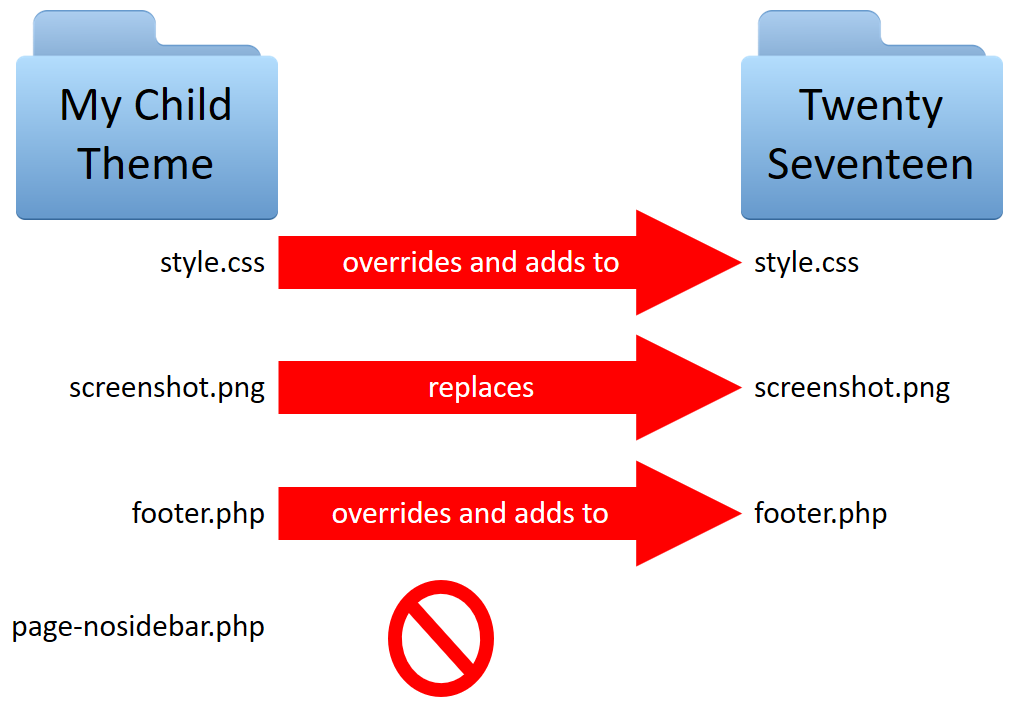
First, locate the template file you want to edit. Copy this file from the parent theme to the child theme folder. Ensure the copied file is in the same folder structure as the parent. This step allows you to edit safely without affecting the main theme.
Open the copied file in a text editor. Add your custom code where needed. Use simple code snippets to make changes. Always save your work after editing. This will apply your changes to the website.
After editing, check the website in a browser. Ensure everything looks as expected. Fix any errors you find. It is important to check different devices. Make sure your edits work on phones and tablets too.
Customizing The Page Layout
Change the HTML structure to make the page look different. Use a child theme for safe changes. Child themes keep your edits even after updates. Find the right file to edit. Look for template files in your theme. Edit these files with care. Use HTML tags to structure the page. Make sure every tag is closed properly. This helps in keeping the code neat and clean.
Custom CSS changes the style of your page. It can change colors, fonts, and spacing. Write CSS code in the child theme’s style sheet. This makes sure your changes stay safe. Use simple CSS rules to avoid confusion. For example, use background-color to change the page color. Use font-size to make text bigger or smaller. Test your CSS code after writing it. This checks if the changes look good.
JavaScript adds fun features to your page. It can make things move or pop up. Use JavaScript in the child theme safely. Write scripts in the theme’s JavaScript file. Make sure the code is simple and clear. Use events like clicks to trigger actions. Test the JavaScript code after adding it. This makes sure everything works fine.
Troubleshooting Common Issues
Style conflicts can make your site look odd. Check your CSS files in the child theme. Ensure there are no repeated styles. Use browser tools to spot which styles clash. Adjust or remove the conflicting styles. This often fixes the issue.
PHP errors can stop your page from loading. Enable debug mode in WordPress. This will show error messages. Look for missing semicolons or unmatched brackets. Check function names and spelling. Fix the errors one by one. Save and test your changes.
Responsive design is key for mobile users. Test your page on different devices. Use media queries to adjust styles. Make sure images and text resize properly. Check buttons and links for usability. A responsive page keeps users happy.
Maintaining Changes Over Updates
Tracking Theme Updates is very important. You need to know when updates happen. Check the theme’s website often. They usually post update news there. Watch out for new features or fixes. This helps keep your site safe and working well.
Reapplying Custom Modifications can be tricky. Keep a list of all your changes. Write them down or save them in a file. After an update, check if your changes are still there. Sometimes updates remove them. If they do, put them back carefully.
Using Version Control is smart. It helps track changes. You can use tools like Git. These tools save different versions of your files. If something goes wrong, you can go back to an older version. This keeps your work safe and sound.

Credit: wpastra.com
Frequently Asked Questions
How Do I Activate A Child Theme In WordPress?
To activate a child theme, first install it through the WordPress dashboard. Navigate to ‘Appearance’, then ‘Themes’, and find your child theme. Click ‘Activate’ to enable it. Ensure your parent theme is installed and active to avoid compatibility issues.
What Is The Purpose Of A Child Theme?
A child theme allows customization without altering the parent theme. It preserves modifications during updates, enhancing flexibility and security. Child themes enable safer experimentation with design changes and custom code implementations, ensuring the main theme remains intact.
Can I Modify A Parent Theme Using A Child Theme?
Yes, you can modify a parent theme using a child theme. By creating custom styles and functions within the child theme, you override the parent theme’s aspects without altering its files. This method ensures changes are retained during parent theme updates.
How Do I Edit A Page With A Child Theme?
Edit a page by copying its template file to the child theme’s directory. Customize the copied file as needed, ensuring modifications don’t affect the parent theme. Use WordPress’s built-in editor or FTP client for file management and editing.
Conclusion
Changing a page with a child theme in WordPress can be simple. Always back up your site before making changes. Use the right tools to edit your child theme safely. Customize your design without affecting the parent theme. This process helps maintain your site’s unique look.
Keep your WordPress skills growing with practice. Explore new features and plugins to enhance your site. Experiment but stay mindful of site stability. Now, you’re ready to update pages with confidence. Your WordPress journey continues. Keep learning, keep building.


