
Are you looking to make your WordPress site stand out with a unique touch? Adding a customized page to your Genesis Theme can be the perfect way to do just that.
Imagine being able to tailor a page exactly to your needs, reflecting your brand’s personality and offering a seamless user experience. It’s simpler than you might think, and you don’t need to be a coding expert to achieve it. In this guide, you’ll discover easy steps to create a custom page that not only enhances your site’s functionality but also captures your audience’s attention.
Ready to transform your website and engage your visitors like never before? Keep reading to unlock the secrets to customizing your Genesis Theme effortlessly.
Benefits Of Custom Pages
Custom pages let your website stand out. They offer a unique look. With custom pages, you can share your brand story. Personalize your content to fit your needs. This helps in better engagement with visitors. People enjoy a site that feels special. Custom pages can improve your site’s navigation. Visitors find what they need easily. This leads to more return visits.
You can also highlight important services or products. Custom pages help in faster loading. This is because they are simple. A fast site makes users happy. Happy users stay longer. This can boost your site’s success. Using custom pages, your site can grow. It becomes more flexible and user-friendly.
Credit: wpbeaches.com
Preparation Steps
Keep your website safe. Backup everything before changes. Use tools like UpdraftPlus or BackupBuddy. Save copies on your computer or cloud. This protects your work from loss. Mistakes can happen. Always have a backup ready.
Child themes are important. They keep the main theme safe. Create a folder for the child theme. Add a style.css file. Write basic code in style.css. Link it with the main theme. Now, add a functions.php file. This helps add more features. Keep the original theme untouched.
Creating A Custom Page Template
WordPress uses a special order for templates. This is called the template hierarchy. It helps WordPress know which template file to use. When adding a custom page, understanding this order is key. Pages are usually controlled by the `page.php` file. But we can make our own templates. These templates can change how pages look. Templates also let us add special features. The Genesis Theme follows this same order. So, knowing the hierarchy helps make custom pages work well.
To create a new template, make a new file. Name this file with a unique name. Use `.php` at the end. Add a special comment at the top. It starts with `/ Template Name: Your Template Name /`. Save this file in your theme folder. Now, in WordPress, go to your page editor. You will see your new template in the Template dropdown. Select it to use the custom design for your page. Simple and effective!

Credit: www.wpfangirl.com
Adding Custom Code
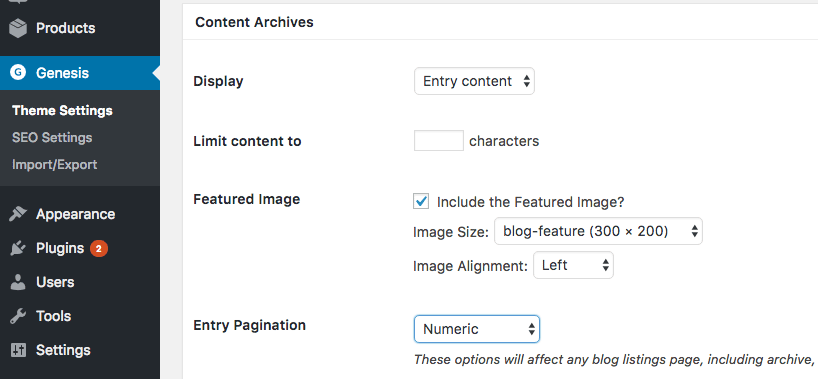
Customizing Genesis Theme on WordPress involves adding code to create unique pages. Start by accessing the WordPress dashboard. Navigate to the Genesis theme editor, then insert your custom code. This allows you to personalize layouts effectively, enhancing user experience and site functionality.
Adding Html Structure
To add a custom page, first create the HTML structure. Use a simple HTML editor or the WordPress editor. Start with a basic layout. Include elements like headers, paragraphs, and buttons. Ensure all tags are closed. This helps the page display correctly.
Styling With Css
CSS adds color and style to your page. Create a separate CSS file or use the WordPress customizer. Use CSS rules to change fonts, colors, and sizes. Make sure your CSS is clean and organized. This keeps your page looking good and easy to read.
Enhancing With Php
PHP makes your page more interactive. Add PHP code to your theme’s functions.php file. Use it to add features like dynamic content or custom forms. Always test your PHP code in a safe environment. This prevents errors on your live site.
Integrating With Genesis Hooks
Genesis hooks are special points in the code. They help add functions easily. Using hooks makes changing themes simple. Hooks keep the code clean and neat. They make editing pages fast and easy. Genesis themes are popular because of these hooks.
Hooking Into Genesis
Genesis themes come with many hooks. Action hooks add new features. Filter hooks change existing parts. Each hook has a special job. They work together to make the site better. Learning about hooks is fun and helps make great websites.
Using Action And Filter Hooks
Action hooks do things like add headers. Filter hooks can change content. Both hooks are easy to use. They work in the functions.php file. Adding a hook is simple. It takes just a few lines of code. Hooks make the Genesis theme flexible.
Testing Your Custom Page
After adding a custom page, it’s important to test for errors. Open your new page in a browser. Look for any broken links or missing images. Check if all the text and media appear correctly. If something is wrong, revisit your code. Fix any mistakes you find. Refresh the page to see changes. This step ensures your page works well.
Your custom page should look good on phones and tablets. Use a mobile device to check your page. Does it fit the screen? Is the text readable? Images should not be cut off. Buttons and links must be easy to tap. If needed, adjust your page’s CSS for better mobile viewing. This ensures everyone can enjoy your page, no matter the device.
Seo Considerations
Meta tags are very important for SEO. They help search engines understand your page. Use descriptive titles and summaries. This makes your site easy to find. Keep the title under 60 characters. Use keywords that match your content. Write a short meta description. This should be under 160 characters. Make it interesting so people click on your link.
Fast loading pages are important for visitors. Slow pages can make people leave. Use small images and videos. Choose a good hosting service. This keeps your site fast. Use caching tools. They help load pages quickly. Limit the number of plugins. Too many plugins can slow down your site.
Common Mistakes
Many users face code conflicts when customizing their pages. It’s important to check the existing code before adding new lines. This helps prevent unexpected errors. Test your changes step by step. This allows you to catch problems early. Always backup your files before making changes. This way, you can restore them if needed. Use child themes to keep changes separate from the main theme. This keeps the original code safe.
Compatibility is key for a smooth user experience. Make sure your custom page works with all plugins. Check if plugins and theme updates affect your customizations. Use the latest versions of tools and themes. This ensures your page runs well. Regularly update your plugins. This keeps them secure and efficient. Test your custom page on different devices. This ensures it looks good everywhere.
Resources And Support
Discover how to seamlessly add a customized page to your Genesis theme in WordPress. Our resources and support offer clear, step-by-step guidance. Enhance your website effortlessly with tailored solutions.
Helpful Plugins
Plugins make WordPress powerful. They add features to your site. Genesis is a popular theme. Some plugins work well with it. Try Genesis Simple Edits. It lets you change footer text. Genesis Extender is another choice. It helps you customize your site more. Genesis Design Palette Pro is easy to use. It allows color and font changes. These plugins help you design better.
Online Communities
Online communities are great for help. They offer advice and tips. People share their experiences. Genesis community is active. You can ask questions there. Facebook groups are popular. They have many users. Forums are also useful. They provide solutions. Join these communities. Learn from others. Improve your WordPress skills.

Credit: www.shoutmeloud.com
Frequently Asked Questions
How To Customize Genesis Child Theme Pages?
Customizing Genesis child theme pages involves using hooks and filters. You can create a new template file and modify it using PHP and CSS. This allows you to add custom features or layouts. Ensure to backup your theme before making changes to avoid losing your settings.
Can I Add Custom Page Templates In Genesis?
Yes, you can add custom page templates in Genesis. Create a new PHP file in your child theme directory. Use the “Template Name” comment at the top of the file to define it. Customize the template by adding your desired layout and functionalities.
Activate it through the WordPress editor.
What Plugins Help Customize Genesis Themes?
Several plugins can help customize Genesis themes. Genesis Extender Plugin allows you to modify theme settings without coding. Genesis Custom Blocks lets you build custom blocks easily. Genesis Simple Hooks provides an interface to manage hooks efficiently. These tools enhance customization capabilities for Genesis users.
How Do I Add Widgets To Genesis Pages?
Adding widgets to Genesis pages is simple. Use the Genesis Simple Sidebars plugin to create custom widget areas. Insert them into specific pages using hooks or the widget area settings. This enhances functionality and layout flexibility, allowing personalized content placement across your site.
Conclusion
Adding a customized page to your Genesis theme is straightforward. Follow the steps outlined to enhance your WordPress site. These changes can improve user experience significantly. Remember to back up your website before making changes. This ensures you have a safety net in case of errors.
Experiment with different designs and layouts. Find what best suits your site’s needs. Keep practicing to refine your skills. With time, customizing will become second nature. Enjoy the process of making your site unique and functional. Your visitors will appreciate the extra effort.


