
Ever visited a website and noticed a scrolling bar at the top or bottom, showcasing the latest news or updates? That’s a ticker bar, and it’s more than just a cool feature.
It’s a powerful tool to grab your audience’s attention and keep them engaged. Imagine turning your WordPress theme into a dynamic source of real-time information. Whether you’re sharing hot news, promoting special offers, or highlighting blog updates, a ticker bar can transform your site’s look and feel.
Curious about how to add this feature to your WordPress theme? You’re in the right place. This guide will walk you through the simple steps to integrate a ticker bar into your site, enhancing your visitors’ experience and keeping them coming back for more. Ready to make your website stand out? Let’s dive in!
Benefits Of A Ticker Bar
A ticker bar on your website is a smart tool. It displays important news and updates in a small area. Visitors see messages without scrolling down. This keeps them informed about latest offers or news.
It helps in engaging visitors by catching their attention quickly. Websites look more professional with a ticker bar. It adds a touch of modern design. Easy to update, you can change messages anytime.
It is useful for announcing events or promotions. Visitors will not miss out on any important information. This makes the website more interactive and user-friendly.
Choosing The Right Ticker Plugin
Many plugins offer ticker features for WordPress. It’s crucial to choose the right one. Compatibility is key. Ensure the plugin works with your theme. Check user reviews. Happy users mean good plugins. Customization options are important too. You want to match the ticker with your site design. Some plugins allow color changes. Others offer font choices. Ease of use matters. Simple plugins save time. Look for plugins with clear instructions. This helps you install quickly. Consider plugin support. Good support solves issues fast. Some plugins have forums. Others offer email help.
Installing A Ticker Plugin
To add a ticker bar, first install a ticker plugin. Go to your WordPress dashboard. Click on “Plugins” in the sidebar. Then, click “Add New”. Search for “ticker plugin” in the search box. You’ll see many options. Choose a plugin with good reviews. Click on “Install Now”.
After installation, click “Activate”. The plugin is now ready to use. Some plugins may need setup. Follow the instructions given by the plugin. You can usually find these in the plugin’s settings.
Always make sure your theme supports the plugin. This ensures everything works smoothly. If issues arise, check the plugin’s FAQ or support page. Stay updated with plugin versions.
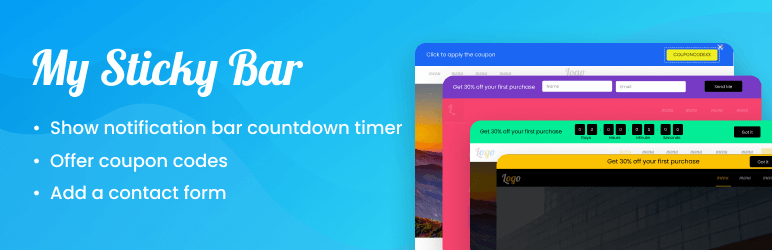
Credit: el.wordpress.org
Configuring Ticker Settings
Choose the colors for your ticker. Make it stand out. Select the font size. Keep it easy to read. Decide the ticker position. Top or bottom of your page. Pick what works best for your site. Try different styles. Find the one you like most.
Adjust the ticker speed. Not too fast. Not too slow. A good speed keeps readers interested. Test different speeds. See which one looks right. Remember, everyone should read it comfortably. Keep it smooth and easy to follow.
Choose what your ticker will show. News, updates, or special offers. Make it important. Keep content short and straight to the point. Change content often. New information keeps it exciting. Use simple words. Easy for everyone to understand.
Adding Ticker Bar To WordPress Theme
Shortcodes help add features easily. They are simple to use. Insert the shortcode into your page or post. The ticker bar shows up. Many plugins offer shortcodes for ticker bars. You can customize the ticker bar through these plugins. Options include speed, style, and content. This method is quick and does not need coding skills. Beginners find it helpful.
Direct integration with theme files gives more control. Access the theme’s header.php or footer.php file. Add the ticker bar code there. This method lets you position the ticker bar precisely. Advanced users prefer this method. It may need basic coding knowledge. Changing theme files affects the whole site. Always backup your files first. Mistakes can break the site. Be careful when editing.

Credit: www.wpbeginner.com
Styling The Ticker Bar
Enhance your WordPress theme by adding a ticker bar for dynamic content display. Use plugins or custom code to implement it seamlessly. Improve user engagement with real-time updates, news, or announcements in an eye-catching way.
Custom Css For Ticker Bar
You can make the ticker bar look nice with Custom CSS. Add color to the text. Change the background to match your theme. Make the font bold for better readability. Use the CSS class of the ticker bar. Use the class name to style it. This way, the changes will only affect the ticker bar.
You can also adjust the padding and margin. This helps in making the text fit well. Ensure the ticker bar does not look crowded. A neat and clean ticker bar looks good.
Responsive Design Tips
Ensure the ticker bar works on all devices. Use media queries to change styles for mobile screens. Test the design on phones and tablets. Make sure the text is readable on all devices. Adjust the font size if needed.
Keep the ticker bar simple and useful. Avoid clutter. A clean design ensures a better user experience. Always check how it looks on different browsers. This makes your site more user-friendly.
Testing And Troubleshooting
Adding a ticker bar to a WordPress theme can enhance user engagement. Start by installing a ticker plugin and customizing settings. Test the bar’s functionality and troubleshoot any issues to ensure smooth operation.
Checking For Plugin Conflicts
Sometimes, a plugin may not work well with others. Deactivate all plugins. Activate them one by one. This helps find which plugin causes issues. If the ticker bar shows errors, note which plugin was last activated. Some plugins may need updates. Always use the latest versions for fewer issues. This keeps your site running smoothly.
Ensuring Cross-browser Compatibility
Websites must look good on all browsers. Test the ticker bar in Chrome, Firefox, Safari, and Edge. Make sure it works everywhere. Use browser tools to check for errors. Adjust settings if something looks off. This ensures everyone sees the ticker bar correctly. Happy users mean a successful website.
Updating And Maintaining Ticker Bar
Adding a ticker bar to a WordPress theme enhances user engagement and displays real-time updates efficiently. Customize your site by integrating a ticker bar using plugins or custom code. Regular updates and maintenance ensure smooth functionality and up-to-date information display.
Regular Plugin Updates
Keeping your ticker bar updated is very important. Plugins often receive updates. These updates fix bugs and add new features. Without updates, plugins may not work well. Check for updates weekly. This ensures your ticker bar runs smoothly. An updated plugin also keeps your website secure. Developers work hard to improve their plugins. Always use the latest version. It keeps your site in top shape.
Content Management
Managing content on your ticker bar is simple. Add news, announcements, or promotions. Keep the content fresh and relevant. Remove outdated information quickly. This helps your audience stay informed. A clean and organized ticker bar looks professional. Make sure the text is easy to read. Choose the right font size and color. This ensures everyone can read it easily. Regularly check your ticker bar to make sure it is working.

Credit: cyberchimps.com
Frequently Asked Questions
How Do I Add A Ticker Bar In WordPress?
To add a ticker bar, install a plugin like “WP Ticker”. After installation, configure the settings to customize the ticker’s appearance. You can add content directly from the plugin interface. Once configured, use the shortcode provided to insert the ticker bar into your desired page or widget area.
What Plugins Can Create A Ticker Bar?
Popular plugins for ticker bars include “WP Ticker”, “Ditty News Ticker”, and “Simple Ticker”. Each offers customization options for styles and animations. Choose a plugin based on your design preference and functionality needs. Always check compatibility with your WordPress version before installation to ensure smooth operation.
Can I Customize My Ticker Bar Design?
Yes, most ticker bar plugins offer customization options. You can adjust colors, fonts, and animation styles. Access these settings through the plugin dashboard in your WordPress admin panel. Experiment with different settings to match your site’s theme and enhance user engagement with dynamic content.
How Does A Ticker Bar Improve User Engagement?
Ticker bars display dynamic content like news updates or promotions. They attract attention, encouraging visitors to stay longer on your site. By showcasing important information succinctly, ticker bars enhance user experience and can drive clicks to featured content. This interactive element adds value to your WordPress theme.
Conclusion
Adding a ticker bar to your WordPress theme is simple. Follow the steps closely. Customize it to match your site’s look. Engage visitors with dynamic updates. Keep content fresh and relevant. A ticker bar enhances user experience. It boosts interaction and retention.
Experiment with styles and positions. Find what suits your audience best. A well-placed ticker bar draws attention. It communicates important news quickly. Use it wisely for maximum impact. Your website becomes more interactive. Visitors stay informed without effort. A ticker bar is a useful tool.
Implement it today for a lively website.


