
Are you looking to give your WordPress site a fresh new look? Changing the footer color might be just the tweak you need to make your website stand out.
It’s amazing how a simple splash of color can transform the entire feel of your site, making it more vibrant and appealing to your visitors. You might think that altering the footer color sounds technical and daunting, but it’s easier than you might expect.
In this guide, you’ll discover straightforward steps to customize your WordPress theme and change the footer color effortlessly. By the end, you’ll have the knowledge and confidence to make this change, adding a personal touch to your website. Let’s dive in and unlock the potential of your site’s design!
Accessing The WordPress Dashboard
First, log in to your WordPress site. Use your username and password. Once logged in, you will see the WordPress Dashboard. This is your control center. Here you can change many settings. The dashboard has many options on the left side.
Find the Appearance option. Click it. This will open a new menu. In this menu, you can change the theme. You can also edit your site’s look.
Make sure to choose the right option. It will help you change the footer color. Take your time to explore these settings. They are very useful for personalizing your site.
Navigating To Theme Customizer
Open your WordPress dashboard. Find the menu on the left. Click on Appearance. Look for Customize option. This opens the Theme Customizer page. Here, you can make changes to your theme. Various options are available. Colors is one of them. Selecting this option lets you change footer color. Choose your desired color. Save changes by clicking Publish. Your footer should now show the new color. It’s easy. Just follow these simple steps.
Locating The Footer Section
First, visit the WordPress dashboard. Look for the Appearance menu. Click on it. Then select Customize. This opens the theme customizer. Next, find the Footer section. It is usually at the bottom of the menu. Click on it to open more options.
Some themes have a direct Footer Settings option. Others may have it under Additional CSS. Explore the menu. Make sure you locate the right section. This is important to change the footer color.
Using Custom Css
Open your WordPress dashboard and click on Appearance. Then, select Customize. This opens a new window. Look for the Additional CSS option. Click on it to open a text area. Enter your CSS code here. Use this format:
            footer {
                background-color: #yourcolorcode;
            }
Replace #yourcolorcode with your desired color code. You can use color names or hex codes. Click Publish to save changes. Your footer will now show the new color.
Check your website to see the new footer color. Refresh the page if needed. Sometimes, changes take a moment to appear. If it doesn’t work, check your CSS code. Make sure there are no errors. Your footer color should look just right now.
Using Theme Options
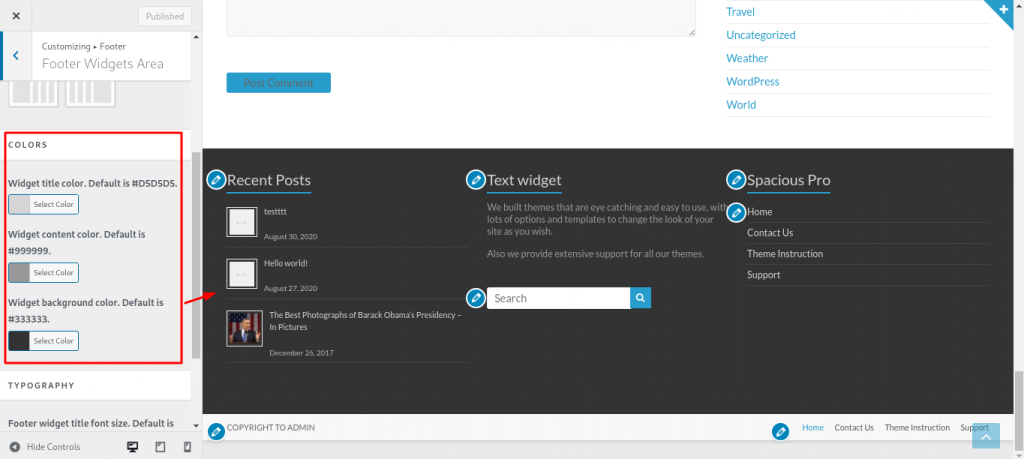
Access your WordPress dashboard. Find the Appearance menu. Click on Customize. Look for Color Settings in the menu. Some themes have this option. You can change the footer color here. If you don’t see it, the theme might not support it. Always check carefully. Some settings might be hidden. Explore all options.
Once you find the color setting, choose your desired color. Click on the color picker. Select a new color. Make sure it matches your site. After choosing, click Save or Publish. Your changes will appear on the site. Refresh the page to see the new color. If it doesn’t change, check again. Make sure everything is correct.
Credit: docs.themegrill.com
Utilizing Page Builders
Changing the footer color in a WordPress theme is simple with page builders. Access the footer settings in your theme customization panel. Choose a new color, save your changes, and refresh your site to see the update instantly. Page builders make this process user-friendly and quick.
Exploring Page Builder Settings
Many page builders let you change footer colors easily. First, open the page builder. Look for the design or style tab. This tab often controls colors. You can find the color options here. Choose a color that fits your theme.
Some builders have a color picker. Use it to find the perfect shade. Other builders have preset colors. Select one that matches your brand. Always check the preview. Make sure the color looks good on all devices.
Adjusting Footer Colors
Navigate to the footer section in your builder. Look for footer settings. Click on them. You should see color options. Change the background color first. Then adjust the text color. Make sure text is readable.
Save your changes. Preview the page. Ensure the footer looks nice. Adjust if needed. Repeat these steps for other pages.
Choosing A New Theme
Finding themes with footer customization is important. Many themes offer this feature. It allows easy changes to the footer color. Search for themes that mention “custom footer.” Check the theme’s reviews and ratings. This helps in choosing the right one. Some popular themes have extensive customization options. They provide a user-friendly interface. This makes changing colors simple and fun. Always look for themes with good support. This ensures help when needed. Explore the theme demo before installing. It gives a preview of how the footer looks.
Switching themes safely is crucial. Backup your site first. This prevents data loss. Use a child theme if possible. It helps maintain custom changes. Always test the new theme in a staging environment. This avoids issues on the live site. Check all plugins for compatibility. Some might not work with the new theme. Ensure to update them as needed. Follow these steps for a smooth transition.
Troubleshooting Common Issues
Struggling to change the footer color in your WordPress theme? Access your theme customizer or stylesheet. Adjust the color settings under the footer section to match your preference.
Resolving Css Conflicts
CSS conflicts can cause unexpected changes in your footer color. To fix this, check the style.css file of your theme. Look for any conflicting rules. Sometimes, plugins add their own CSS. This can override your settings. Use the browser’s Inspect tool to find the CSS affecting the footer. Add or modify the CSS code. This ensures your preferred color shows.
Dealing With Cache Problems
Cache problems can make your footer color not update. Clear the cache in your browser first. Next, clear the cache in your WordPress site. Use caching plugins if needed. They often have a clear cache option. Repeat this after making changes. This ensures users see the latest version of your site. Cached versions can display old colors. Regular cache cleaning helps prevent this issue.
Ensuring Responsive Design
Testing is crucial for a good website. Check your footer on many devices. Use phones, tablets, and computers. This helps you see any problems. Your footer must look good everywhere. Test the colors in sunlight and dark rooms. Bright colors might look different in sunlight. Dark colors might not be clear in low light. Make sure text and links are easy to read. Adjustments might be needed for best results. Use online tools to help with testing.
Mobile users are important. Many people use their phones for browsing. Your footer must fit mobile screens well. Use responsive design options in WordPress. This will help adjust the footer. Ensure that text and links are easy to tap. Avoid small fonts. Small fonts are hard to read on mobiles. Use larger buttons for links. This makes them easy to click. Test your changes on a real phone. This ensures everything works well.

Credit: stackoverflow.com

Credit: docs.themegrill.com
Frequently Asked Questions
How Can I Change Footer Color In WordPress?
To change the footer color in WordPress, go to the theme customizer. Navigate to Appearance > Customize > Colors. Look for the footer section and select your desired color. If your theme doesn’t support this, consider adding custom CSS through Appearance > Customize > Additional CSS.
Which Plugin Helps Change Footer Color Easily?
Several plugins can help you change the footer color. One popular option is “Simple Custom CSS. ” It allows you to add custom CSS to modify footer styles. Another option is “Footer Mega Grid Columns,” which offers advanced customization features for footers, including color adjustments.
Can I Change Footer Color Without Coding?
Yes, you can change the footer color without coding by using the WordPress customizer. Navigate to Appearance > Customize > Colors and locate the footer color options. If your theme supports it, you can easily select your preferred color without needing any coding knowledge.
Why Can’t I Find Footer Color Settings?
Some WordPress themes may not have built-in footer color settings. If you can’t find them, you can use custom CSS to modify the footer color. Alternatively, consider switching to a theme with more customization options or using a plugin that offers footer styling features.
Conclusion
Changing the footer color in a WordPress theme is simple. Follow the steps carefully. Start with accessing your theme’s customizer. Select the colors option. Choose the color you prefer for the footer. Preview the changes before saving. This ensures it fits your site’s look.
It’s a great way to personalize your website. A small change, but impactful. Make your site unique and appealing. Try different colors until you find the perfect one. Experimenting can be fun. Enhance your site’s design with ease. Enjoy the new look of your WordPress footer!


