
Are you eager to customize your WordPress site but feel overwhelmed by the technical jargon? You’re not alone.
Many WordPress users want to make their websites unique but find themselves stuck at the first step. The good news? It’s easier than you think. By learning how to add blocks to your WordPress theme, you can transform your site’s design without needing to be a tech wizard.
Imagine having the power to enhance your website’s look and functionality, all while keeping full control in your hands. In this guide, you’ll discover simple, step-by-step instructions to add blocks effortlessly, making your website stand out. Keep reading, and soon you’ll be able to customize your site like a pro, engaging your audience and keeping them coming back for more.
Credit: www.elegantthemes.com
Understanding WordPress Block Editor
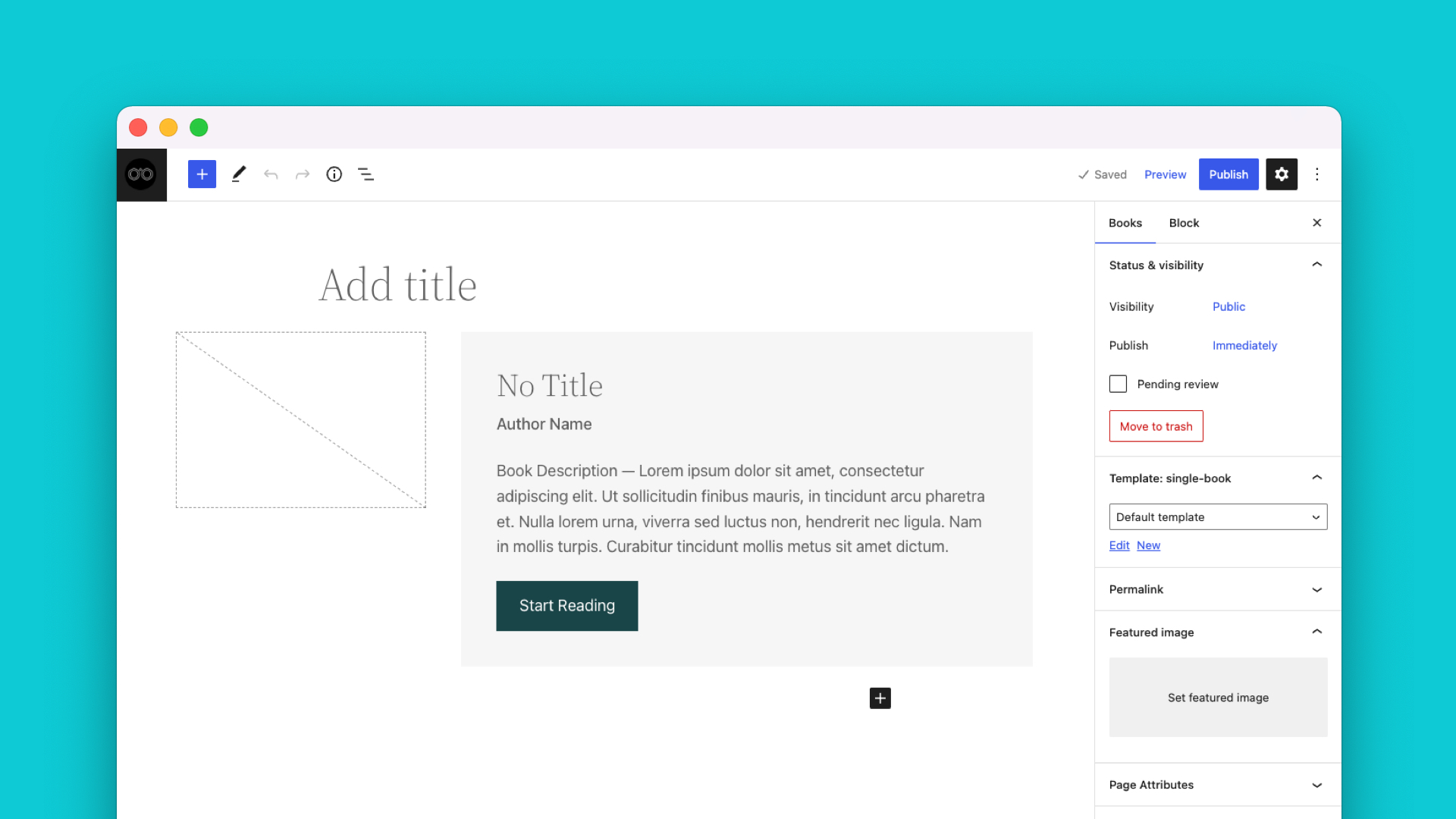
WordPress uses a tool called the Block Editor. It helps you create pages easily. Each page is made of blocks. Blocks can be text, images, or videos. You can add or change blocks with a few clicks. It’s like building with Lego. Easy and fun.
Blocks are flexible. You can move them around. You can also customize them. This means you can make your page look how you want. No need to code. Just pick, drag, and drop.
Adding blocks can help tell your story. Make your website stand out. Use different blocks for different ideas. Experiment and see what works best.
Benefits Of Custom Blocks
Custom blocks make WordPress themes unique. They allow users to add special features. Design flexibility is a big benefit. Users can shape their site to fit their vision. With custom blocks, themes become more interactive. This boosts user experience and keeps visitors engaged.
Another advantage is improved functionality. Custom blocks can add special tools to a site. These tools can help users find information quickly. Custom blocks are easy to manage. Users can change them without knowing code. This makes updating a site simple.
Using custom blocks can also enhance site performance. They can be optimized for speed. Fast-loading blocks improve user satisfaction. Visitors stay longer on sites that load quickly. This can lead to more traffic over time.
Setting Up The Development Environment
First, download and install Node.js from its official website. This tool helps run JavaScript code. Next, install npm, which comes with Node.js. It helps manage software packages. Also, get Git. It tracks changes in your code. Finally, install a code editor like Visual Studio Code. This makes writing code easier.
Start by setting up a local server. Use tools like XAMPP or MAMP. These tools help run WordPress on your computer. Download the latest WordPress version. Extract the files into the server’s root directory. Create a new database using phpMyAdmin. Then, run the WordPress installer. Connect it to the database you created. Set up your site details, and you’re ready to go!
Credit: wpengine.com
Creating A Basic Block
Start by using the registerBlockType function. It helps to create new blocks. This function takes two arguments. The first is the block’s name. The second is an object with settings. The settings include the title, category, and icon. These will define how the block appears. You must also provide a render function. This function will display the block on the website.
To make your block work, you need scripts and styles. Use enqueue_block_editor_assets to load them. This function adds JavaScript and CSS. JavaScript makes blocks interactive. CSS styles the block. Always use wp_enqueue_script and wp_enqueue_style. They ensure the files load correctly. Place these scripts in your theme’s functions.php file. This way, your block looks great and works well.
Designing Block Structure
HTML is the foundation for blocks. It uses tags to build structure. Each block starts with a div. Inside, place headers, paragraphs, or images. Use semantic tags like
CSS gives blocks their style. It changes how they look. Use CSS to adjust colors, fonts, and sizes. Each block can have its own style. CSS uses selectors to target elements. Add classes to HTML tags for more control. Use flexbox or grid for layout. This helps organize blocks on the page. Keep CSS simple. Avoid long rules. This makes styles easy to update later.
Adding Block Functionality
JavaScript helps add dynamic blocks to WordPress themes. Blocks make your site more interactive. Use JavaScript to create new blocks easily. First, ensure your theme supports blocks. Then, add JavaScript files to your theme. This allows blocks to function properly. JavaScript makes blocks work smoothly. It handles functions like block display and user interaction. Test your blocks to ensure they work well.
User input is crucial for block functionality. Blocks must respond to what users do. Use JavaScript to manage user input. This makes blocks more responsive. Detect clicks and key presses with JavaScript code. Update block content based on user actions. Ensure input is processed safely. Validate user entries to avoid errors. Always test your blocks after changes. This keeps your site user-friendly.
Testing And Debugging
Adding blocks to a WordPress theme enhances customization and functionality. Start by accessing the theme editor in your WordPress dashboard. Carefully integrate the block code into your theme’s files, ensuring proper placement for seamless operation.
Common Issues
WordPress themes can have common issues when adding blocks. Blocks might not appear. Sometimes, they look odd or misaligned. Plugins can cause problems. Themes may not support certain blocks. Code errors can break blocks. Missing files can prevent blocks. Some issues need quick fixes. Others need careful checking.
Debugging Tips
Debugging helps find and fix problems. Use the browser console to spot errors. Check theme files for missing lines. Disable plugins one by one. Check if blocks appear. Update the theme to the latest version. Check WordPress settings. Ensure blocks are enabled. Use simple themes for testing. They show if blocks work. Backup before making changes. Avoid losing data during debugging.

Credit: gutenbergtimes.com
Implementing Advanced Features
Dynamic content makes your website more engaging. It changes based on user actions. This means fresh content every time someone visits. Adding dynamic blocks is simple. Use plugins like Elementor or Gutenberg. These tools help create interactive sections. Users love pages that feel alive. This keeps them on your site longer. A great way to boost user experience.
Custom settings let you personalize your theme. They help you stand out. Themes often have built-in options. But you can add more with plugins. Look for settings that fit your needs. Maybe change the color or font. Or add extra features. Custom settings give you control. Make your site unique and special. User-friendly options are key.
Deploying Custom Blocks
Adding custom blocks to a WordPress theme enhances its functionality and design. Customize your site by integrating blocks directly into your theme’s files. This allows for a personalized and dynamic user experience.
Packaging For Distribution
Custom blocks need a proper package for use. Packaging ensures easy distribution. First, gather all block files. This includes JavaScript, CSS, and PHP. Next, compress these files into a zip format. A zip file makes installation easier. Include a readme file inside. This file gives instructions for use. Keep instructions simple and clear. Remember, users appreciate straightforward guidance.
Uploading To WordPress
Upload the package directly to WordPress. Log into your WordPress dashboard. Navigate to the plugins section. Click ‘Add New’ and select ‘Upload Plugin’. Choose your zipped block file. Wait for it to upload completely. After uploading, activate the plugin. Activation allows the blocks to work. Users can now see the custom blocks. Make sure everything functions correctly. Double-check for errors. A smooth upload means happy users.
Maintaining And Updating Blocks
Version Control helps keep track of changes in blocks. It shows what changes were made. It shows who made them. This makes it easy to find old versions. It’s like a timeline for blocks. Developers can work together better. They can use tools like Git. Git saves time and prevents mistakes.
Addressing Compatibility Issues ensures blocks work well with themes. Some blocks may not fit every theme. Testing is important. Update blocks regularly. This helps keep them compatible. Sometimes themes update. Blocks must update too. This keeps everything running smoothly.
Frequently Asked Questions
How Do I Add Custom Blocks In WordPress?
To add custom blocks, use the Gutenberg block editor. Install a block plugin or create your own using PHP. Customize them with CSS and JavaScript for better design. This allows you to enhance your theme’s functionality and appearance without altering the core WordPress files.
Can I Create Reusable Blocks In WordPress?
Yes, WordPress allows you to create reusable blocks. In the Gutenberg editor, select the block, click on options, and choose “Add to Reusable Blocks. ” Name your block and save it. This enables you to use the block across different pages and posts, enhancing consistency and efficiency.
What Plugins Help Add Blocks To WordPress?
Several plugins can help add blocks, such as Kadence Blocks, Ultimate Addons for Gutenberg, and Stackable. These plugins offer a wide range of custom blocks, enhancing design and functionality. They are easy to install and integrate seamlessly into the Gutenberg editor for a smoother workflow.
Are Custom Blocks Better Than Default Blocks?
Custom blocks offer more flexibility and customization compared to default blocks. They allow you to tailor functionality and design to your needs. While default blocks are sufficient for basic needs, custom blocks provide a unique and personalized experience, enhancing your site’s overall appeal and user engagement.
Conclusion
Adding blocks to your WordPress theme is straightforward. Customize your site easily. Blocks enhance your site’s functionality. They help create engaging layouts. Users enjoy a better experience. Start small. Experiment with different blocks. Find what suits your style. Keep your site fresh and appealing.
Regular updates improve your site’s performance. Stay ahead in the digital world. Practice makes perfect. Use blocks to build your unique website. Happy building!


