
Are you looking to enhance your WordPress site with custom features? Adding a JavaScript file to your child theme could be the perfect solution.
This simple tweak can transform your website’s functionality, allowing you to tailor it precisely to your needs. But if you’ve ever felt daunted by the technicalities of WordPress, you’re not alone. The good news is that incorporating JavaScript doesn’t require you to be a coding wizard.
In this guide, you’ll discover step-by-step instructions designed to make the process straightforward and stress-free. By the end, you’ll not only have added a JavaScript file to your WordPress child theme but also boosted your confidence in managing your website. Ready to dive in and take control of your site’s features? Let’s get started!
What Is A Child Theme
A Child Theme is a theme that inherits features from a parent theme. It lets you make changes without altering the parent theme. This means your changes stay safe even if the parent theme updates. Child themes are perfect for creating unique websites. You can change styles, layouts, and functions easily. They keep your work organized and protected.
Purpose Of Child Themes
Child themes help developers customize websites. They prevent loss of changes during updates. It’s a safe way to edit themes. You can test new designs without risk. They are also helpful for learning. You can practice theme development without fear.
Benefits Of Using Child Themes
Using child themes offers many benefits. You can keep your customizations secure. This saves time and effort. They help maintain a clean coding environment. You can easily switch between styles. This flexibility is great for creativity. Child themes are essential for any WordPress developer.
Credit: www.youtube.com
Creating A Child Theme
First, make a folder for your child theme. Name it wisely. It should be easy to remember. Place this folder in the themes directory. This is inside your WordPress installation. The child theme should have a unique name. This helps to avoid confusion with other themes.
The stylesheet is important. It is a file named style.css. This file goes inside your child theme folder. The stylesheet needs some basic information. Add theme name, author, and version. This info helps WordPress recognize the theme. Remember to link the stylesheet to the parent theme. This keeps your styles consistent.
Go to the WordPress dashboard. Find the appearance tab. Click on themes. Your child theme should appear there. Click activate to use it. This makes it your current theme. Always check if everything looks correct. You can make changes to the child theme. This is without changing the parent theme.
Adding Javascript To A Child Theme
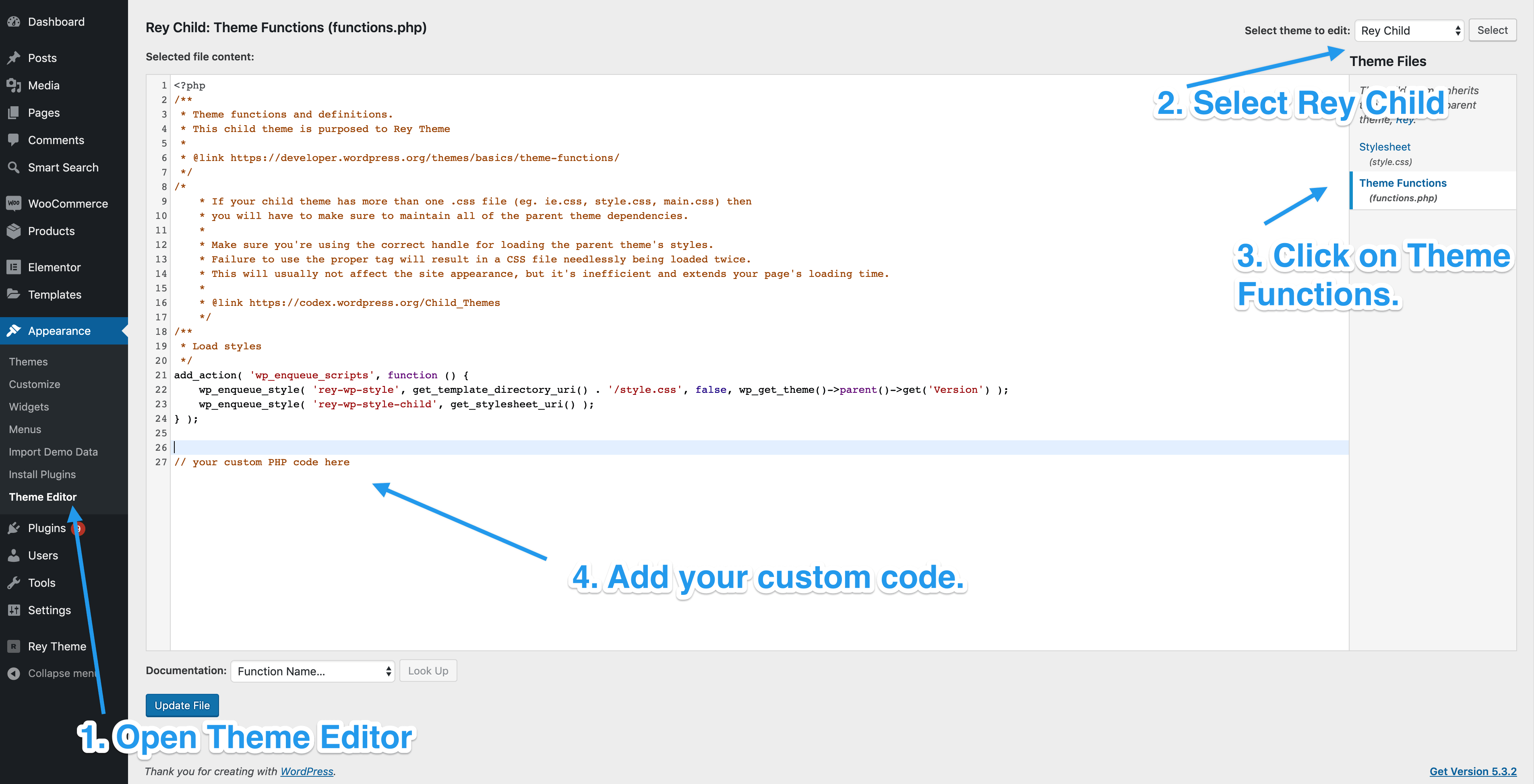
The functions.php file is important in a child theme. It is usually found in the child theme folder. This file helps to add new features to your theme. Use a text editor to open it. You can use editors like Notepad or a code editor like VS Code.
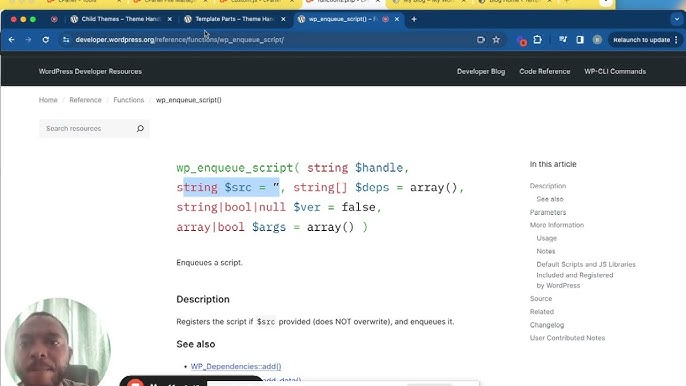
WordPress uses a special way to add scripts. This is called enqueueing. It helps to load JavaScript files safely. This method avoids conflicts with other scripts. It is the best way to add JavaScript.
The wp_enqueue_script function is a simple tool. It helps in adding JavaScript files to your theme. First, write a function in the functions.php file. Then, call wp_enqueue_script inside it. Give your script a name and its file path. Finally, use add_action to run your function. Now, your script will load on your site.

Credit: webdesign.tutsplus.com
Best Practices For Enqueuing Scripts
Direct script insertion can cause problems. Use the wp_enqueue_script function. This keeps the site safe and fast. Direct insertion can break the site. It is not a good practice. Always use the WordPress way. This makes sure everything works well.
Dependencies are important for scripts. They help scripts run in order. Use the dependencies parameter in wp_enqueue_script. This ensures the correct order. Scripts work better this way. Avoid errors by managing dependencies. It is a smart choice.
Not all scripts need loading on every page. Load scripts only when needed. Use WordPress functions to check conditions. This saves resources and speeds up the site. Use is_page or is_single functions. This helps load scripts only when necessary.
Testing Javascript Integration
Verify your script’s functionality after adding it to your child theme. Use browser tools like the console to spot errors. Open your site and check if your JavaScript works. Click buttons or links to see if actions happen. It’s important to check every feature your script should handle. If something doesn’t work, review your code for mistakes. Ensure all paths are correct. Sometimes, simple typos can break your script. Refresh your page after changes to test again.
Troubleshooting Common Issues
Scripts may not work due to wrong file paths. Check if the file is in the right folder. Ensure your script tags are correct. Sometimes, conflicts with other scripts can cause issues. Disable other plugins to test your script. Check browser console for error messages. These messages help find problems quickly. Ensure your script is compatible with your theme. Update your theme and plugins regularly.
Credit: support.reytheme.com
Advanced Javascript Techniques
Integrating JavaScript files into a WordPress child theme enhances functionality. Begin by locating the child theme’s functions. php file. Add your script using wp_enqueue_script, ensuring it loads correctly on your site.
Using Localized Scripts
Localized scripts help manage languages in WordPress. They allow scripts to use dynamic data. This data can be language-specific. Use the wp_localize_script() function. It binds data to JavaScript. This data is easy to access. You can store translations and settings. It helps in customizing user experiences. Localized scripts are efficient and simple.
Minifying And Combining Scripts
Minifying scripts reduces file size. Smaller files load faster. This improves site speed. Use tools like UglifyJS or Closure Compiler. They remove unnecessary characters. Combining scripts reduces HTTP requests. Fewer requests speed up websites. Use concatenation tools. They merge files into one. This process is easy and effective. Faster sites attract more visitors.
Frequently Asked Questions
How Do I Enqueue A Javascript File In A Child Theme?
To enqueue a JavaScript file, use the `wp_enqueue_script()` function in your child theme’s `functions. php`. Specify the file’s location with `get_stylesheet_directory_uri()` and ensure dependencies are properly listed. This method ensures your script is loaded correctly and efficiently within WordPress.
Can I Add External Javascript Libraries To My Child Theme?
Yes, you can add external JavaScript libraries. Use `wp_enqueue_script()` in your `functions. php` file, specifying the library’s URL. This helps in integrating external resources seamlessly. Ensure dependencies are handled to avoid conflicts and maintain optimal performance within your WordPress site.
Why Should I Use A Child Theme For Javascript?
Using a child theme preserves modifications during parent theme updates. It allows you to customize JavaScript without altering the main theme files. This approach ensures your changes remain intact, providing a safer, more sustainable way to manage custom scripts in WordPress.
What Is The Correct Path For Javascript Files?
The correct path for JavaScript files in a child theme is `get_stylesheet_directory_uri()`. This function retrieves the URL of your child theme’s directory, ensuring accurate file location. It’s crucial for WordPress to find and load your JavaScript files efficiently.
Conclusion
Adding JavaScript to your WordPress child theme is simple. Follow these steps. Create a new JavaScript file. Then, enqueue it properly in the functions. php file. This keeps your site organized and functional. A child theme ensures your changes stay safe during updates.
Experimenting with JavaScript can enhance your site’s interactivity. Practice these steps regularly to gain confidence. Soon, you’ll manage scripts like a pro. Got questions? Always consult WordPress resources or community forums. They offer helpful advice. Keep learning, and your WordPress skills will grow.


