
Are you looking to make your WordPress site more visually appealing and user-friendly? Adding icons to your theme is a simple yet powerful way to enhance your website’s design and improve navigation.
These small graphic elements can transform a bland page into an engaging experience, capturing attention and guiding your visitors effortlessly. Imagine your site with eye-catching icons that not only elevate its appearance but also make it easier for users to find what they’re looking for.
This guide will show you exactly how to add icons to your WordPress theme, boosting your site’s functionality and aesthetics in just a few steps. Dive in to learn how you can make your website stand out with the perfect icons!
Credit: www.pixelemu.com
Benefits Of Adding Icons
Icons make websites look better. They give a clean and modern feel. Icons help users find things quickly. They act like signs on roads. Icons save space on the page. They make text easy to read. Using icons can also speed up loading times. This is because they are often smaller than images. Easy navigation keeps users happy. Happy users stay longer on the site.
Icons can also show emotions. A smiley face icon can make users feel good. A thumbs-up icon shows approval. These small images make a big impact. Website owners love icons for these reasons. Adding icons is simple and fun. It’s a great way to improve your site.
Credit: www.wpbeginner.com
Choosing The Right Icons
Icons make websites look cool. You can choose from free or premium icon sets. Free icon sets are budget-friendly and easy to find. They often offer basic designs. Great for small projects. On the other hand, premium icon sets offer more styles and options. They provide unique designs. Best for professional sites.
Icons should match your website style. Keep them consistent in color and size. This helps users understand your site better. Mix and match styles wisely. Too many styles confuse visitors. Keep your icons simple and clear. Easy to recognize is key. This ensures they are helpful.
Using Icon Fonts
Add icons to your WordPress theme using icon fonts for a sleek, modern look. These fonts offer scalable and customizable icons that enhance your website’s design. Perfect for improving user experience without slowing down your site.
Popular Icon Font Libraries
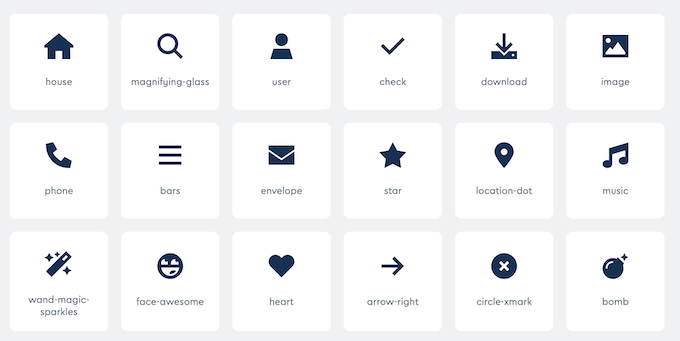
Font Awesome is a favorite for many WordPress users. It offers a wide range of icons for free. You can use it for social media, arrows, and more. Google Material Icons is another great choice. It includes modern and clean icons. Great for a sleek website design. Ionicons is perfect for mobile-friendly icons. It is lightweight and fast. Each library has its own strengths. Choose based on your needs and style.
Installing Icon Fonts
First, download the icon font library. Extract the files if needed. Upload the font files to your theme’s folder. Go to your WordPress dashboard. Navigate to Appearance and click on Editor. Open your theme’s style.css file. Link the font files in the header section. Use the correct HTML tags to add icons. Refresh your website to see the changes. It’s that simple!

Credit: www.youtube.com
Adding Icons With Plugins
Plugins help add icons easily. Font Awesome is very popular. Iconify offers many icon sets. WP Font Icons is another choice. These plugins are easy to use. Each has a large icon library.
Search for your plugin in the WordPress dashboard. Click Install then Activate. After activating, find the plugin settings. Configure the settings as needed. Add icons with simple shortcodes or blocks. Icons can enhance your site’s look. Choose icons that match your theme.
Manual Icon Integration
Icons can make your site look better. Use HTML and CSS to add them. First, find an icon set you like. Download it to your computer. Next, upload the icons to your website. Use the WordPress dashboard to do this. Now, use HTML to place the icons. Write the HTML code in your theme files. Be sure to write the correct path for the icon file. Use CSS to style the icons. Change size or color with CSS. Test your site to see the new icons.
Edit theme files to add icons. Open the file where you want the icon. Write the HTML code for the icon. Save the changes. Check your website to see the icon. Icons can be used in menus or headers. Style them with CSS. Use code to change the look. Make sure the icon fits your theme. Icons can improve user experience.
Custom Icon Design
Making your own icons can be fun. Start by sketching your ideas. Use a design tool like Adobe Illustrator. This helps in crafting precise shapes. Keep the icons simple and clear. People should understand them easily. Use colors that fit your website theme. This creates a unified look. Save your icons in PNG or SVG format. These formats keep the quality high.
Don’t forget to name your files well. This helps in organizing them. A good name makes them easy to find later.
Adding icons to WordPress is easy. First, go to the media library. Click ‘Add New’ to upload your icons. Once uploaded, you can use them on your site. Use a plugin to help with this. Plugins make the job easier. Pick one with good reviews. Check if it is compatible with your theme.
Use icons in menus, buttons, or headers. This makes your site look nice. A good icon can grab attention. It can make information clear.
Best Practices For Icon Usage
Enhance your WordPress theme by integrating icons effectively. Explore plugins like Font Awesome or Elementor for easy icon insertion. Customize icon size and color to align with your site’s design, ensuring a visually appealing user experience.
Ensuring Accessibility
Icons make websites look nice. But everyone needs to understand them. Screen readers help people who can’t see well. Add alt text to icons. It tells what the icon means. Use simple designs. Avoid too many details. Choose colors carefully. Make sure they contrast well. Some people can’t see colors. So, use shapes too. This helps everyone understand the icons better.
Maintaining Performance
Icons can slow down a website. This makes visitors unhappy. Use small file sizes for icons. SVG files work well. They are light and look good. Limit the number of icons. Too many can make a site slow. Lazy loading is smart. It loads icons only when needed. This keeps the site fast. Fast sites make people stay longer. They enjoy using it more. Keep the performance in mind.
Troubleshooting Common Issues
Icons may not show due to missing files or incorrect paths. Check if the icon files are uploaded correctly. Ensure paths in your theme are accurate. Verify that the CSS references the right icon classes. Sometimes, plugin conflicts can block icons. Disable plugins to see if icons appear. Clear your browser cache frequently. This can solve display issues.
Theme and plugin updates might cause compatibility issues. Older themes might not support modern icons. Check theme documentation for updates. Ensure your WordPress version is current. Sometimes, icon packs need specific WordPress versions. Verify if your theme supports icon packs. Use themes compatible with popular icon libraries. Icons may not display due to browser issues. Test icons on different browsers to find problems. Keep your browser updated for best results.
Frequently Asked Questions
How Do I Add Icons To My WordPress Theme?
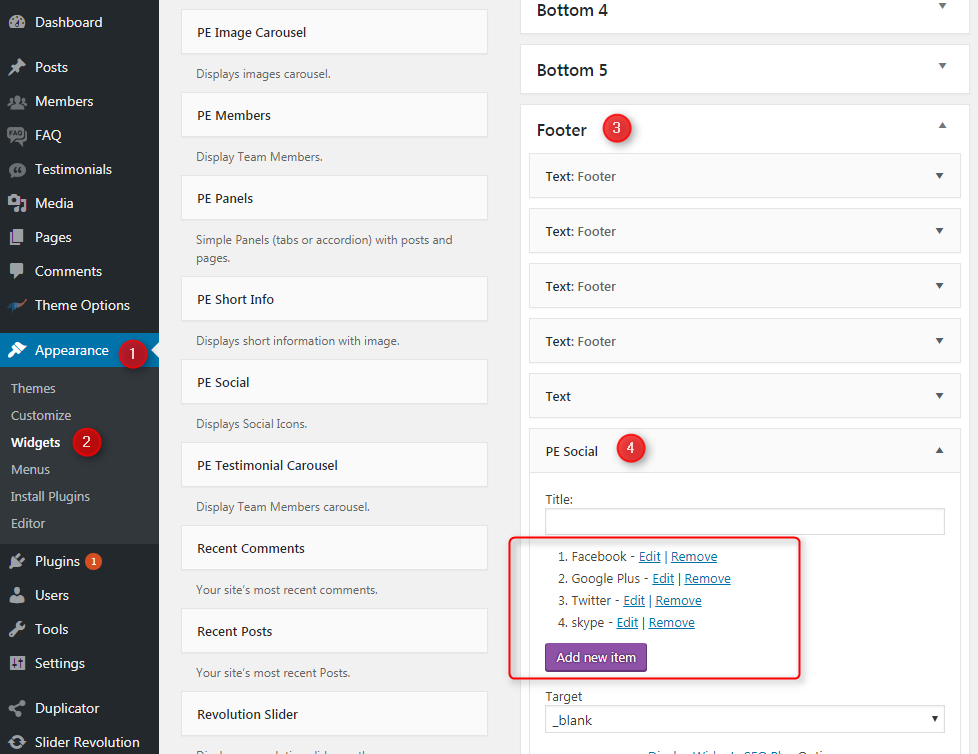
To add icons, use an icon library like Font Awesome. First, install the plugin or add the library’s CDN link in your theme’s header. Then, use the icon classes provided by the library in your theme’s HTML or widget areas to display the icons.
Can I Use Custom Icons In WordPress?
Yes, you can use custom icons in WordPress. First, create or download your desired icons. Then, upload them to your WordPress media library. Use HTML or CSS to display them in your theme. Alternatively, use a plugin to manage and insert custom icons easily.
What Are The Best Icon Plugins For WordPress?
Some popular icon plugins for WordPress include Font Awesome, Iconify, and WP SVG Icons. These plugins offer extensive icon libraries, easy integration, and customization options. They help you add professional-looking icons to your theme without coding. Choose one based on your specific needs and compatibility with your theme.
How Can I Customize Icon Colors In WordPress?
To customize icon colors, use CSS. Inspect the icon element to identify its class or ID. Then, add custom CSS to your theme’s stylesheet or the Customizer’s Additional CSS section. Change the color property to your desired color code to achieve the desired look.
Conclusion
Enhancing your WordPress theme with icons boosts visual appeal. Icons guide visitors smoothly through your site. They add a professional touch. Easy steps help you integrate icons seamlessly. Choose icons that suit your brand and content. Ensure they enhance user experience.
Regular updates keep your site fresh. Test icons on different devices. They should look good everywhere. Remember, simplicity is key in design. Icons should complement, not clutter. Use tools wisely to achieve the best results. Your site will benefit from improved navigation.
Start today, and watch your website shine.


