
Are you looking to streamline your online store or refresh your digital inventory? Transferring products from one WordPress theme to another might seem daunting, but it doesn’t have to be.
Imagine the potential of a seamless transition that not only saves you time but also enhances your website’s appearance and functionality. By mastering this skill, you can effortlessly update your store’s look without losing any precious data or customer interest.
Dive into this guide to discover how you can make this process smooth and stress-free, ensuring your products shine in their new home. Your online business deserves the best, and with this knowledge, you’ll be one step closer to achieving it. Keep reading to unlock the secrets to a successful WordPress product transfer.
Choosing The Right Tools
Plugins make moving products easy. One popular plugin is WooCommerce. It helps move products between sites. Another good choice is All-in-One WP Migration. This plugin supports many file types. Plugins save time and reduce errors. They are easy to use for beginners. Always back up your site before starting. This ensures data safety.
Manual methods need more work. Export products as a CSV file. Then, import them to the new site. This method is free but takes time. Check each product after import. This ensures all details are correct. Manual methods require patience and care. They are best for small product lists.
Preparing Your WordPress Sites
Backing up data is very important. Always save your files. Use a plugin for this task. Plugins make it easy. Choose a reliable plugin. Store your backup safely. Cloud storage is a good choice. You can use Dropbox or Google Drive. These are popular options. Ensure backups are updated regularly. Keep them safe from loss.
Themes must work well together. Check compatibility first. Read theme descriptions carefully. Look for common features. Some themes might clash. Avoid those themes. If unsure, ask for help. Forums can be helpful. Many people share tips there. Developers can offer advice too. Always test before making changes. Testing prevents errors.
Exporting Products From The Original Theme
Transferring products between WordPress themes can be simple. Export them using built-in tools or plugins. Import into the new theme to retain product details. Ensure compatibility for a seamless transition.
Using Export Plugins
Export plugins help move products. They make the process easy. WooCommerce has many plugins. Product Import Export is a good choice. You can install it from the plugin store. After installing, go to the plugin menu. Click on “Export” to start. Choose the products you want. Press the export button. The plugin makes a file. This file is ready to use.
Exporting Via Csv Files
CSV files are another option. They save product data as text. Go to your WordPress Dashboard. Click on “Tools” and then “Export”. Choose “Products” to export. It saves as a CSV file. This file holds product details. Like names and prices. You can open it with Excel. Now, you have your products ready to move.
Importing Products To The New Theme
Start by installing your new theme in WordPress. Go to the dashboard and click on Appearance. Then select Themes and click Add New. Choose your theme and activate it. Make sure all settings are correct. Now, your new theme is ready.
Use plugins like All-in-One WP Migration. Install it from the plugin menu. Click on Import and choose your file. The plugin will do the work. This method is easy. It saves time and effort. Always keep a backup of your site before starting.
Prepare a CSV file with all your products. Use headings like Product Name, Price, and SKU. Go to your WordPress dashboard. Use WooCommerce to import the file. Click on Products and select Import. Follow the steps shown. Make sure all data is correct.
Adjusting Product Settings
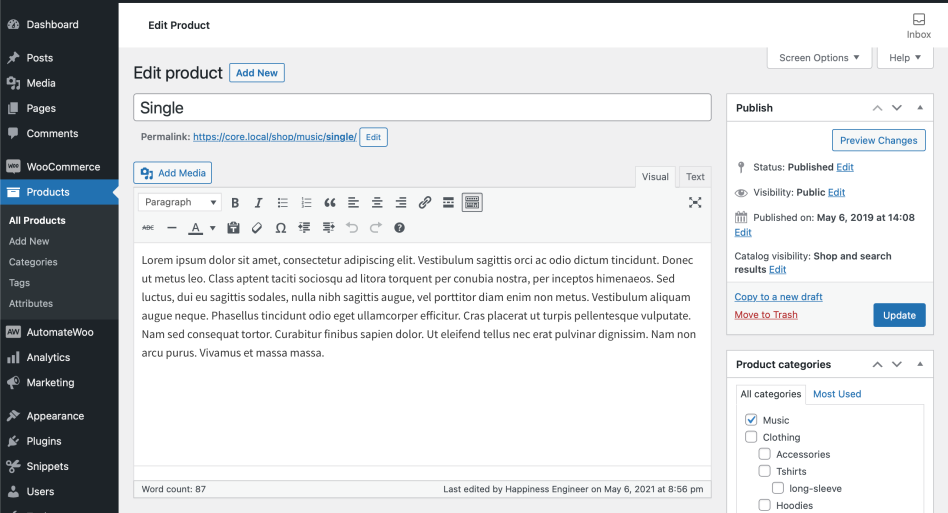
Product categories help organize items. Change categories to match your new theme. Go to the admin panel. Find the category section. Click on the category you want. You can edit the name. You can add new categories. Make sure categories fit your theme style. Select categories carefully. Categories should be clear. Customers find products easily with good categories.
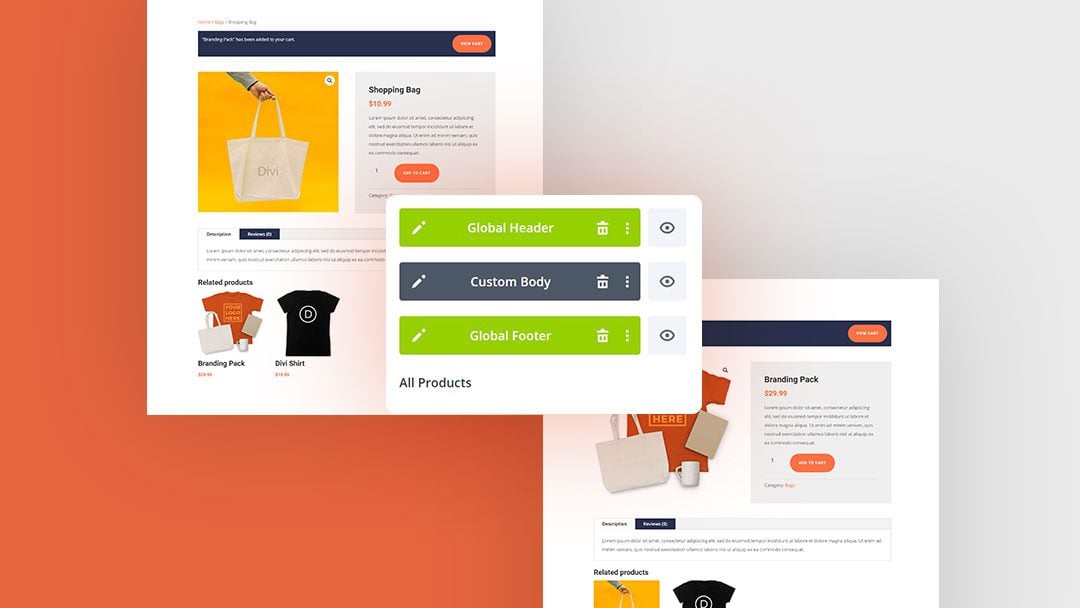
Descriptions and images are vital for products. Update product descriptions to fit the new theme. Use short sentences. Keep text simple. Add new images if needed. Images should be clear. They must show the product well. Check that images load fast. Ensure descriptions and images match the theme. This makes your site look neat. A neat site attracts customers.
Credit: www.elegantthemes.com
Testing And Troubleshooting
Transferring products between WordPress themes can enhance your site. Begin by exporting product data from the original theme. Then, import this data into the new theme, ensuring compatibility. This process requires testing and troubleshooting to maintain product details and functionality.
Verifying Product Display
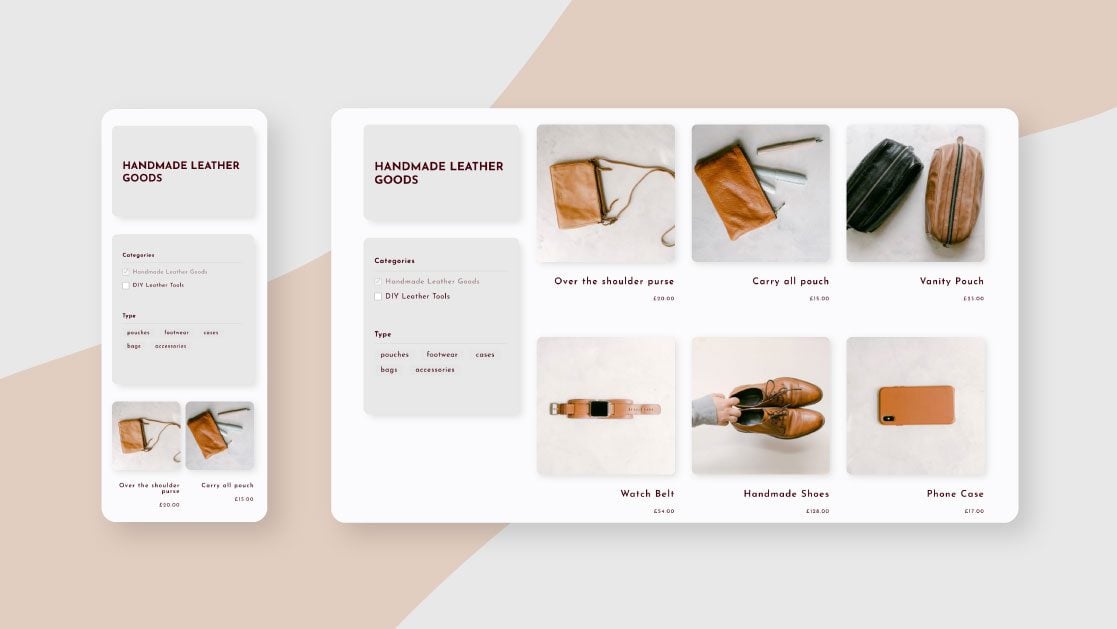
Check if the products show up correctly. Go to your shop page. See if all items are there. Make sure images look clear. Titles should be easy to read. Check if prices are correct. Ensure the products have descriptions. Verify if the buy button works. Look for any missing information.
Resolving Common Issues
Sometimes things don’t work right. Products might not show. Check your theme settings. Look at the plugin settings too. Make sure you updated everything. Sometimes a small change helps. If images don’t show, check image sizes. Ensure they are not too big. Clear your cache if needed. Ask for help if you are stuck.
Finalizing The Transfer
Switching products between WordPress themes involves exporting data from the old theme and importing it into the new one. Ensure compatibility by checking theme documentation for supported formats. Use built-in tools or plugins to streamline the transfer process, keeping product details intact.
Optimizing Product Pages
Focus on making each product page clear and easy to read. Use simple words and short sentences. Keep the design neat. A clean layout helps users find information quickly. Add helpful images to show the products. Pictures tell more than words. They help users understand the product better.
Make sure all links work. Broken links can confuse users. Check that all product details are correct. Wrong details can lead to unhappy customers. Also, use SEO-friendly keywords to help people find your products online. This can increase visits to your page.
Ensuring Seamless User Experience
A smooth user experience is important. Pages should load fast. Slow pages can make users leave. Test your website on different devices. It should work well on phones and computers. Simple navigation makes it easy to find products. Users like websites that are easy to use.
Keep an eye on user feedback. It helps improve the website. Listen to what users say. They can point out problems you might miss. Happy users are likely to come back. They might tell others about your site too.
Credit: support.themewinter.com
Credit: www.elegantthemes.com
Frequently Asked Questions
How To Transfer Products Between WordPress Themes?
To transfer products, first export your products using WooCommerce’s built-in export tool. Then, switch to your new theme and import the products using WooCommerce’s import feature. Ensure all product data, images, and settings are correctly transferred. Test thoroughly to ensure everything appears and functions as expected in the new theme.
Can I Use Plugins For Product Transfer?
Yes, plugins like WooCommerce Product Import Export can simplify the process. These plugins allow seamless transfer of products, including variations and images, between themes. Ensure the plugin is compatible with your current WordPress version. This method is efficient for bulk transfers and helps maintain product data integrity.
Will I Lose Product Data When Switching Themes?
Switching themes does not inherently delete product data. Products are stored in the WordPress database, independent of themes. However, some custom product settings might not transfer. Always backup your site before making changes. This ensures you can restore data if any issues occur during the theme switch.
Are There Any Risks In Moving Products?
Moving products involves minimal risk if done correctly. Always backup your site and database beforehand. Ensure compatibility between the themes and any plugins you use. Test the new theme thoroughly to confirm all products display correctly. Address any issues immediately to prevent data loss or display errors.
Conclusion
Transferring products between WordPress themes is straightforward. Follow the steps carefully. Ensure compatibility between themes for seamless transitions. Take backups to protect your data. Use plugins for easier migration if needed. Check settings to match design and functionality. Regular updates keep your site running smoothly.
Don’t rush the process; double-check everything. A well-organized site improves user experience and boosts visibility. Explore different options to find what suits your needs best. Keep learning and adapting to new tools. Your website reflects your brand. Make it user-friendly and efficient.
Happy migrating!


