
Are you looking to customize your WordPress site with unique page attributes but don’t know where to start? You’re not alone.
Many WordPress users want to make their website stand out, but often feel overwhelmed by the technical aspects of theme customization. Imagine having the power to tailor your pages exactly to your needs, enhancing user experience and improving site navigation effortlessly.
By understanding how to add page attributes in your WordPress theme, you can unlock a new level of control over your website’s design and functionality. This guide will simplify the process, empowering you to make meaningful changes with confidence. Stick around, and you’ll discover just how easy it can be to elevate your website to the next level.
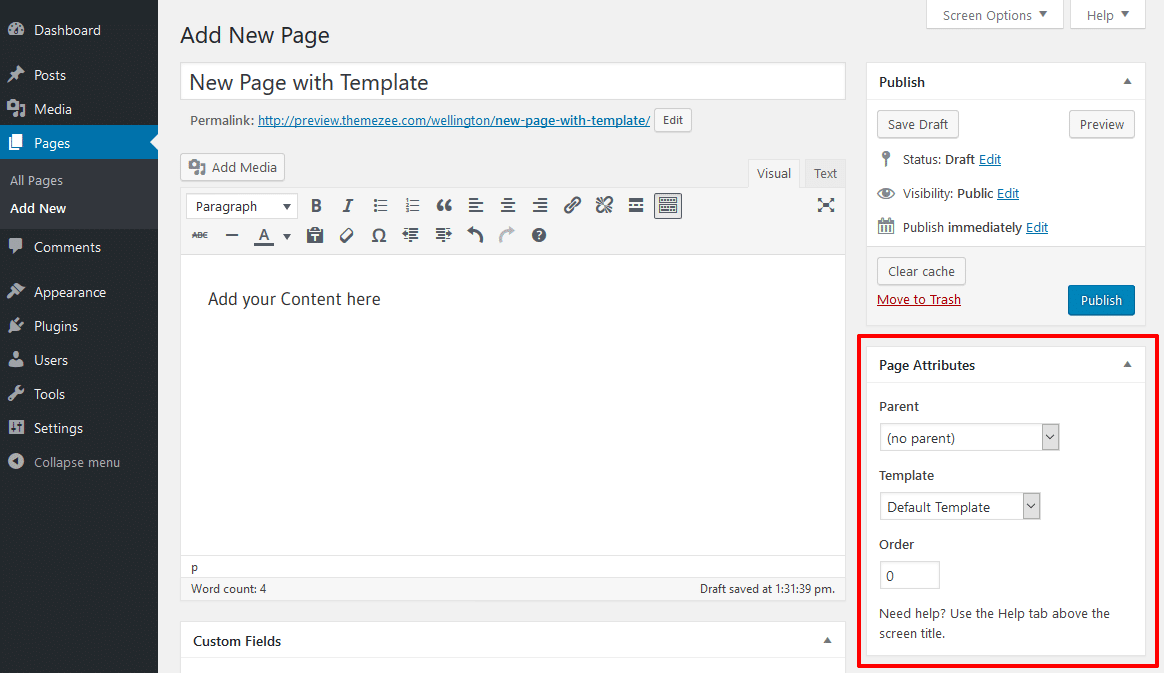
Credit: themezee.com
Understanding Page Attributes
Page attributes help organize your site. They let you set a parent page. This creates a page hierarchy. You can also choose a page template. This changes the look of your page. Some themes offer different templates. Always check what your theme provides.
Another feature is the page order. It decides the order of pages. Lower numbers show first. Higher numbers come later. This is helpful for menus. It keeps everything neat and tidy. Understanding these features is easy. It helps in building a structured website.
Accessing The WordPress Dashboard
First, open your browser. Type your website’s URL. Add ‘/wp-admin’ at the end. Press enter. You will see the login page. Enter your username and password. Click the login button.
Once logged in, you will see the dashboard. The dashboard is the control center. You can manage your website here. Look at the left side menu. You will find many options. Pages is one of them.
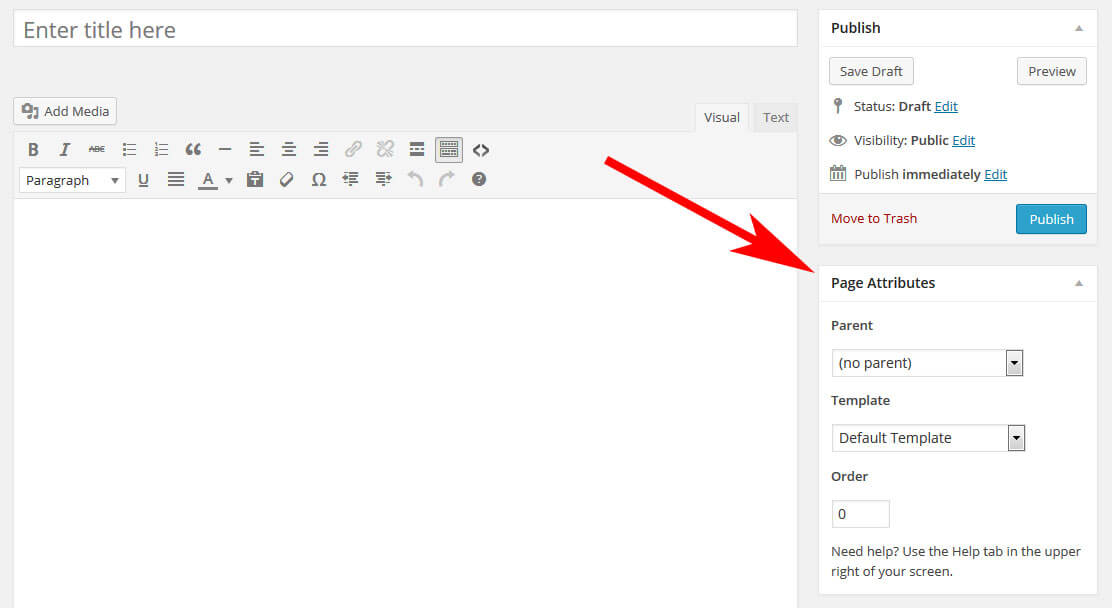
Click on Pages. It will open a list of pages. To add attributes, choose a page. Click on that page. You will see the page editor. On the right side, find Page Attributes. This is where you make changes.
Locating The Page Attributes Section
First, open your WordPress dashboard. It’s where all the tools are. Find the Pages menu on the left side. Click on it to see all your pages. Choose a page you want to edit. You’ll see an editor screen. On the right, look for a box named Page Attributes. It’s usually below the Publish box.
This section helps you change the page order and parent page. You can also select a page template here. These features are useful for organizing your site. Make sure to explore each option. They can make your site look better.
Credit: www.smashingmagazine.com
Customizing Page Templates
Start by creating a new file for your template. Name it something like custom-template.php. Add your HTML and PHP code here. Make sure to include the special comment at the top. It should look like this:
php / Template Name: Custom Template / ?
This tells WordPress to treat it as a template. Save your file in the theme folder. Now, WordPress can see your new template.
Go to your WordPress dashboard. Click on Pages and choose the page you want. On the right, you will see Page Attributes. Look for the Template dropdown menu. Select your new template from the list. Click Update to save changes. Your page will now use the new template.
Adjusting Parent And Child Pages
WordPress lets you organize pages in a hierarchical way. Parent pages hold child pages. This creates a clear structure. It is like a family tree. Parent pages are at the top. Child pages follow beneath them. This helps users find information fast. It also improves site navigation. Users enjoy browsing on a well-structured website.
A good page hierarchy boosts SEO. Search engines like organized sites. They rank them higher. It also makes content easy to find. Users stay longer on sites they can navigate well. This increases engagement. Businesses can showcase their services neatly. Products are easy to locate. Visitors appreciate a tidy layout.
Modifying Page Order
Changing the order of pages is easy in WordPress. Page order helps you decide which page appears first. You can set numbers for pages. Lower numbers come first. Higher numbers come later. Use this to organize pages. It makes your website look clean. This helps visitors find information faster.
Go to your dashboard. Click on “Pages”. Find the page you want. Click “Quick Edit”. Set a number in the “Order” box. Remember, lower numbers show first. Save your changes. Your pages will now follow the order.
Navigation menus use page order. This affects how pages are listed. Proper order helps menus look neat. Visitors find pages easily. Good order makes your website user-friendly. Always check your menu after changes. Ensure everything is in the right place.
Applying Custom Css To Specific Pages
Creating Custom Styles is easy in WordPress. You can design unique looks for each page. Use the WordPress dashboard to start. Find the page you want to change. Click on it to edit. Look for the Custom CSS box. It’s often at the bottom. Add your CSS code there. Save changes before leaving. Refresh the page to see the new style.
Implementing CSS Classes helps organize styles. First, add a class name to your HTML element. Use a simple name like “my-class”. In your CSS file, define this class. Write your CSS rules inside. Apply these rules to all elements with this class. This method keeps your styles neat. It’s also easier to update styles later.

Credit: www.greengeeks.com
Troubleshooting Common Issues
Adding page attributes in a WordPress theme can sometimes be confusing. Navigate to ‘Pages’ in the dashboard, select the page, and find ‘Page Attributes’ on the right panel. Adjust settings like template or parent page to organize your site effectively.
Missing Page Attributes
Page attributes help to control layout. Sometimes they don’t appear. Check your theme’s functions.php file. Ensure it’s not missing add_theme_support for page attributes. This function is necessary. It activates the feature. Without it, attributes won’t work. Also, verify WordPress version. Older versions may lack features. Update to the latest version. It could solve the problem.
Template Not Displaying
Templates must be assigned properly. Check if the template file exists. Sometimes it gets deleted accidentally. Also, review the file name. It must match the name in the theme. Incorrect naming causes issues. Another step is checking the template path. It should be in the theme folder. If templates still don’t display, check user permissions. They must have access rights. Review these settings carefully.
Frequently Asked Questions
How Do I Access Page Attributes In WordPress?
To access page attributes, navigate to the WordPress admin dashboard. Click on ‘Pages’ and then ‘Add New’ or edit an existing page. In the page editor, locate the ‘Page Attributes’ section on the right sidebar. Here, you can set templates, order, and parent pages.
Can I Customize Page Templates Easily?
Yes, customizing page templates in WordPress is simple. Use the theme editor or a child theme to modify existing templates. Alternatively, you can create a new template file in your theme directory. Ensure you understand PHP and HTML to make effective changes without breaking the site.
What Is The Purpose Of Page Attributes?
Page attributes help organize and customize pages in WordPress. They allow you to set parent-child relationships, order pages, and choose specific templates. Using page attributes enhances content management and improves website navigation, making it easier for visitors to find relevant information quickly.
Are Parent Pages Important For Seo?
Yes, parent pages play a role in SEO. They help structure content hierarchically, improving site navigation and user experience. Search engines favor well-organized websites. By using parent pages, you can create a logical flow of information and increase the chances of better ranking in search results.
Conclusion
Adding page attributes in WordPress themes is simple. Follow each step carefully. Use the dashboard options to make changes easily. Choose the right template for your page. Adjust the order and parent settings as needed. Always preview changes before publishing.
This ensures your page looks great. Keep experimenting with different settings. Learn as you go, and don’t hesitate to ask for help if needed. With practice, customizing your WordPress site becomes easier. Your site will reflect your personal style. Enjoy the process, and happy blogging!


