
Are you looking to enhance your WordPress site with new features and functionalities? Plugins are your best friends in this endeavor, offering a treasure trove of tools to elevate your website’s performance, aesthetics, and user experience.
Whether you’re aiming to optimize SEO, bolster security, or simply add a new contact form, there’s a plugin for just about everything. But how do you seamlessly add these plugins to your WordPress theme without a hitch? In this guide, we’ll walk you through the straightforward steps to integrate plugins effectively.
By the end, you’ll be equipped with the know-how to transform your site into a powerhouse, ensuring it stands out in the crowded digital landscape. Ready to unlock your site’s full potential? Let’s dive in.
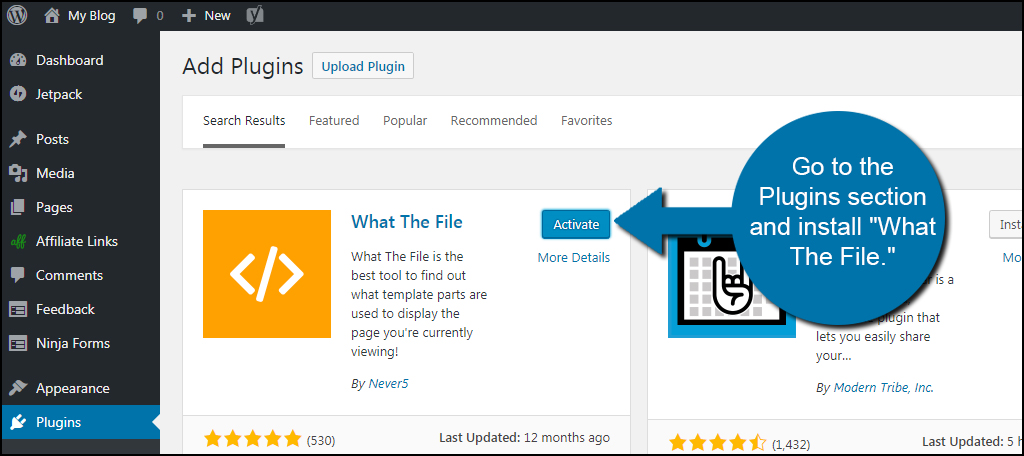
Credit: www.greengeeks.com
Choosing The Right Plugin
First, know what you need from a plugin. Make a list of features you want. This helps in choosing the right one. Needs can include design, speed, or security. Write down the most important ones.
Search for plugins that match your needs. Use the search bar on the WordPress site. Look at popular options. This gives you many choices. Check their features and updates. A good plugin should have recent updates.
Reviews tell you if a plugin is good. Read user reviews carefully. Look at the star ratings. Higher stars mean better quality. Watch out for bad reviews. They can show serious issues. This helps in making a smart choice.
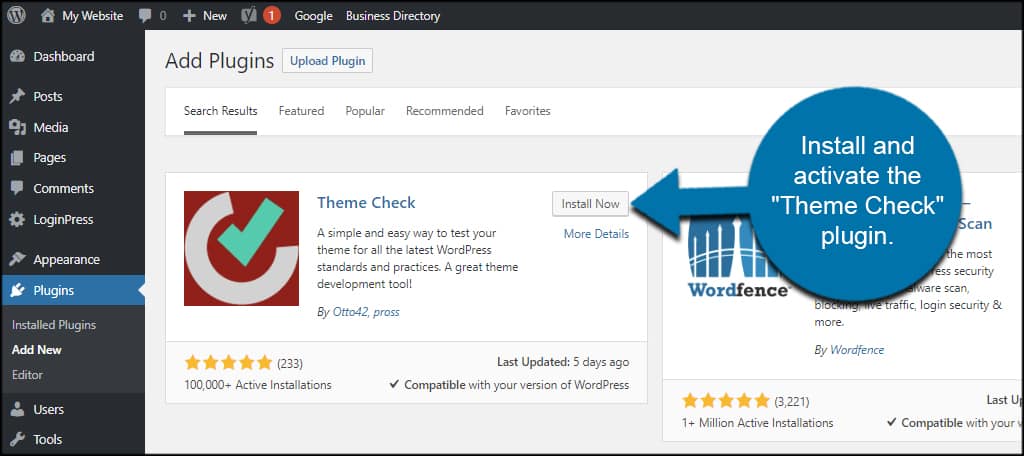
Credit: www.greengeeks.com
Installing A Plugin
First, log into your WordPress site. Enter your username and password. You will see the dashboard. It’s the control center for your site. Here you can manage settings and plugins.
Look on the left side of the dashboard. Find the “Plugins” section. Click on it. This opens a new page. It shows all your plugins. You can add new ones here.
Click “Add New” in the plugins page. This shows plugins from the WordPress repository. Use the search bar to find a plugin. Click “Install Now” next to your chosen plugin. Wait for the installation to finish.
Sometimes plugins are downloaded as files. Click “Upload Plugin” on the “Add New” page. Select the plugin file from your computer. Click “Install Now.” Once installed, activate it to start using.
Activating A Plugin
First, go to your WordPress dashboard. Find the menu on the left side. Click on the “Plugins” option. This will open the list of all your installed plugins. Here, you can see plugins that are active and those that are not. Scroll through the list to find the plugin you want.
Once you find your plugin, look for the “Activate” button. It is usually right below the plugin name. Click on it to make the plugin active. The button will change to “Deactivate” once the plugin is active. This means the plugin is now working on your website. If you want to stop it later, just click “Deactivate”.
Configuring Plugin Settings
Accessing plugin settings is easy in WordPress. First, go to your dashboard. Find the “Plugins” menu. Click on it. Then, select the plugin you want. Look for the “Settings” link. Click it to open plugin settings.
Adjusting configuration options is important. Each plugin has different settings. You can change them to fit your needs. Read the options carefully. Make sure you understand each one. Some settings need numbers. Others need text. Be careful while entering data.
Testing plugin functionality is the final step. After saving settings, check the plugin. Ensure it works as expected. Visit your site to see changes. If something looks wrong, go back to settings. Adjust settings again if needed. Test until everything works well.
Managing Plugins
Always keep plugins up-to-date. Updated plugins work better. They fix problems. Updates add new features. Check for updates regularly. Update them from your WordPress dashboard. It’s simple. Click on the update button. Wait for the process to complete. Enjoy a better site.
Unused plugins slow down your site. Deactivate them to improve speed. It’s easy. Go to your plugin list. Find the plugin you don’t use. Click the deactivate button. Now, it won’t affect your site. Your site runs faster.
Delete plugins you never use. Free up space. Make your site cleaner. Go to the plugin list. Choose the plugin to delete. Click on delete. Confirm your choice. Plugin is gone. Your site is lighter now. Better for visitors.
Troubleshooting Common Issues
Plugins can stop working together. This is called a conflict. If you see errors, check your plugins. Turn off one plugin at a time. See if the problem stops. This will help find the bad plugin. Keep your plugins updated. New updates fix many problems.
Errors can happen during plugin installs. Check your WordPress version. Make sure it’s updated. Some plugins need the latest version. Look at your internet. A slow connection can cause errors. Clear your browser’s cache if problems persist.
Sometimes help is needed. Visit the plugin’s support page. Many developers offer guides. Forums are a good place to ask questions. Other users may have had the same issue. Reading WordPress documentation can also help. It has lots of useful tips.

Credit: themedev.net
Frequently Asked Questions
How Do I Install A WordPress Plugin?
To install a WordPress plugin, go to your dashboard, click on “Plugins,” then “Add New. ” Search for the plugin you want, click “Install Now,” and activate it. Ensure the plugin is compatible with your theme and WordPress version for seamless functionality.
Can I Add Plugins To Any Theme?
Yes, you can add plugins to any WordPress theme. However, ensure the plugin is compatible with your theme and WordPress version. Some plugins may affect the theme’s design or functionality, so always check compatibility and test after installation.
Are Plugins Safe For WordPress Themes?
Most plugins are safe, but always check reviews, ratings, and compatibility before installing. Use plugins from reputable sources to minimize security risks. Regularly update plugins to keep your site secure and compatible with the latest WordPress version.
How Do Plugins Affect Website Speed?
Plugins can affect website speed if they are poorly coded or resource-heavy. Limit the number of active plugins and choose well-optimized ones. Regularly update and audit plugins for better performance and security to ensure your site runs smoothly.
Conclusion
Adding plugins to your WordPress theme is simple. Start by exploring the plugin directory. Search for plugins that fit your needs. Install them with a few clicks. Activate the plugin to start using it. Adjust settings to match your site’s style.
Plugins enhance functionality and improve user experience. Regular updates keep your plugins running smoothly. Always check compatibility with your theme. Backup your site before adding new plugins. This safeguards your data. Customize your WordPress theme effortlessly with plugins. Enjoy a more dynamic and interactive website.
Engage your audience effectively and efficiently.


